crwdns2915892:0crwdne2915892:0
Get back home with a new home button for your iPhone 5.
You can also use this guide to replace the home button bracket.
crwdns2942213:0crwdne2942213:0
crwdns2936621:0crwdne2936621:0
-
-
Lay overlapping strips of clear packing tape over the iPhone's display until the whole face is covered.
-
-
-
Power off your iPhone before beginning disassembly.
-
Remove the two 3.6 mm Pentalobe screws next to the Lightning connector.
-
-
-
Regardless of the tool you use, you need to be sure you pull up the entire display.
-
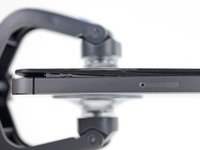
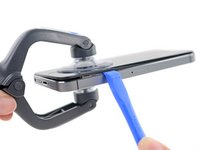
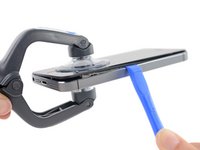
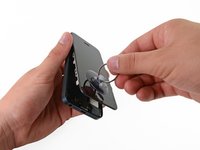
If the glass begins to separate from the plastic, as shown in the first image, slide a plastic opening tool between the plastic frame and the metal phone body to pry the metal clips out of the case.
-
-
crwdns2935267:0crwdne2935267:0Clampy - Anti-Clamp$24.95
-
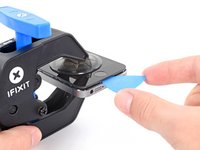
Pull the blue handle backwards to unlock the Anti-Clamp's arms.
-
Slide the arms over either the left or right edge of your iPhone.
-
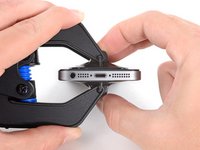
Position the suction cups near the bottom edge of the iPhone just above the home button—one on the front, and one on the back.
-
Squeeze the cups together to apply suction to the desired area.
-
-
-
Pull the blue handle forwards to lock the arms.
-
Turn the handle clockwise 360 degrees or until the cups start to stretch.
-
Insert an opening pick under the screen when the Anti-Clamp creates a large enough gap.
-
Skip the next two steps.
-
-
-
Press a suction cup onto the screen, just above the home button.
-
-
-
While holding the iPhone down with one hand, pull up on the suction cup to slightly separate the front panel assembly from the rear case.
-
With a plastic opening tool, begin to gently pry the rear case down, away from the screen, while you pull up with the suction cup.
-
-
-
-
Continue to pry up around the sides of the front panel assembly, detaching the clips along the left and right side.
-
-
-
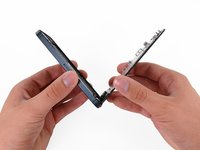
Once the clips have been released on the bottom and sides of the front panel assembly, pull the bottom of the assembly away from the rear case.
-
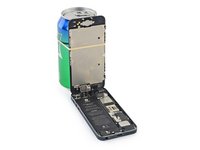
Open the display to about a 90º angle, and lean it against something to keep it propped up while you're working on the phone.
-
Add a rubber band to keep the display securely in place while you work. This prevents undue strain on the display cables.
-
-
-
Remove the following two screws securing the metal battery connector bracket to the logic board:
-
One 1.8 mm Phillips screw
-
One 1.6 mm Phillips screw
-
-
-
Remove the metal battery connector bracket from the iPhone.
-
-
-
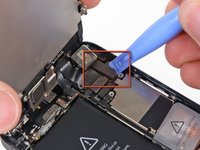
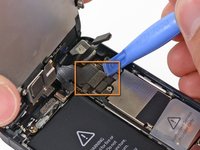
Use a plastic opening tool to gently pry the battery connector up from its socket on the logic board.
-
-
-
Remove the following screws securing the front panel assembly cable bracket to the logic board:
-
Two 1.2 mm Phillips screws
-
One 1.6 mm Phillips screw
-
-
-
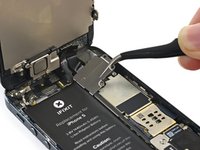
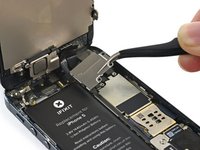
Lift the display cable bracket toward the battery to unhook it, and remove it from the iPhone.
-
-
-
Use a plastic opening tool or a fingernail to disconnect the three front panel assembly cables:
-
Front-facing camera and sensor cable
-
LCD cable
-
Digitizer cable
-
-
-
Remove the front panel assembly from the rear case.
-
-
-
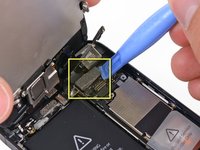
Remove the two 1.3 mm Phillips screws securing the home button bracket to the display assembly.
-
-
-
Gently flip the home button bracket to the right.
-
-
-
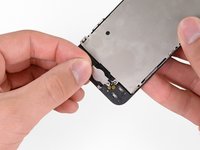
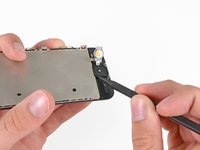
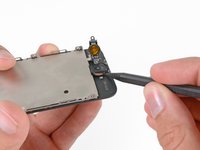
Gently press up on the center of the home button from the display side of the display assembly, to loosen the adhesive securing it to the assembly.
-
-
-
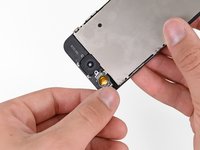
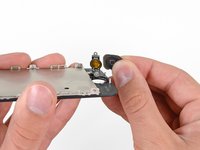
Once the home button has started to separate from the display assembly, use the tip of a spudger to completely lift the button from the adhesive securing it.
-
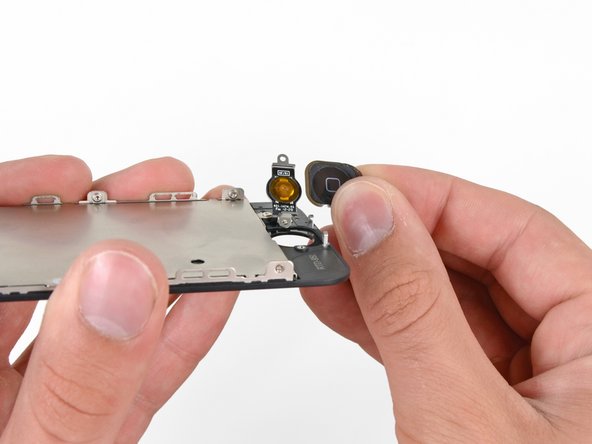
Remove the home button from the display assembly.
-




















To reassemble your device, follow these instructions in reverse order.
crwdns2935221:0crwdne2935221:0
crwdns2935229:0256crwdne2935229:0



crwdns2947412:013crwdne2947412:0
I'm at the step where I need to remove the screws connecting the home button. The 2 screw's are stuck! I thought it was the screwdriver at first so I went in and bought another #000 screwdriver, but the screw is just melted shut. I cannot get it open no matter what. I fondled with it so much that the grooves of the screws are completely circular instead of a cross now. What do I do? Now my phone is just sitting here disassembled and I can't do anything.
peterkr711 - crwdns2934203:0crwdne2934203:0 crwdns2950251:0crwdne2950251:0
mmmmm nows that's gonna be a really tough one. try using a heat gun, not very close else you'll fry the circuits, just close enough that it can dilate the area and you can try again with your screwdriver.
i have the same problem. were you able to fix it?
I have the same problem! Either the screwdriver isn't the right one (I bought all the recommended tools) or the screws are stuck
When I'm placing the home button in place its doesn't fall into place, as if the button is slightly too large to fit precisely in the slot. When I place the bracket back on it presses against the button and doesn't click. I've tried loosening the screws a bit to give some space but it usually leads to the screws popping off before I can put the screen back on. Idk if its my new home button or me but the process seems pretty straightforward and I haven't seen anything like the problem I'm having on any other forums.
Max Flores - crwdns2934203:0crwdne2934203:0 crwdns2950251:0crwdne2950251:0
