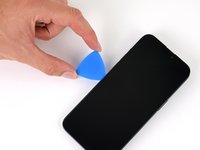
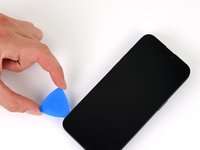
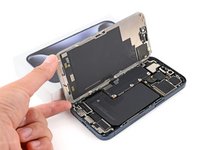
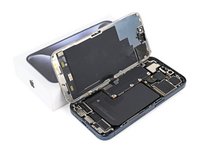
crwdns2933423:0crwdne2933423:0
crwdns2947577:0crwdnd2947577:0crwdne2947577:0

crwdns2937539:0crwdnd2937539:0crwdne2937539:0

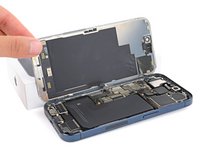
iPhone 15 Pro Screen Replacement

crwdns2869540:0crwdne2869540:0: 122K

crwdns2959988:0crwdne2959988:0

crwdns2959990:0crwdne2959990:0
170
crwdns2959992:0crwdne2959992:0
1,303
crwdns2959994:0crwdne2959994:0
5,536
crwdns2959996:0crwdne2959996:0
122,483
crwdns2955950:0crwdne2955950:0: 61

crwdns2960004:046crwdne2960004:0, crwdns2960008:015crwdne2960008:0

crwdns2960000:0crwdne2960000:0
crwdns2959984:0crwdne2959984:0: 46

crwdns2959974:046crwdne2959974:0

crwdns2959986:0crwdne2959986:0: 2

crwdns2959982:02crwdne2959982:0

crwdns2955944:0crwdne2955944:0: 1 - 2 crwdns2931253:0crwdne2931253:0
crwdns2955970:0crwdne2955970:0: crwdns2937801:0crwdne2937801:0
crwdns2862627:0crwdne2862627:0

crwdns2862628:0crwdne2862628:0

iPhone 15 Pro Screen Replacement

crwdns2915892:0crwdne2915892:0

crwdns2959928:0crwdne2959928:0 ↓

Use this guide to replace a broken, cracked, or non-responsive screen on your iPhone 15 Pro.

You'll need replacement screen adhesive to complete this repair.

Note: Due to Apple's parts pairing restrictions, on iOS 17.6 and earlier, True Tone and auto brightness are disabled after a screen replacement, even when using an original Apple screen. On newer iOS versions, these features may be restored automatically. If you're using an original Apple screen, you can use Repair Assistant to calibrate it with your iPhone.

crwdns2959930:0crwdne2959930:0

crwdns2959948:0crwdne2959948:0

crwdns2959952:0crwdne2959952:0

crwdns2943213:0crwdne2943213:0

crwdns2943215:0crwdne2943215:0

    1. iPhone 15 Pro Screen Replacement, Prepare your iPhone for disassembly: crwdns2935265:01crwdnd2935265:01crwdnd2935265:02crwdne2935265:0 iPhone 15 Pro Screen Replacement, Prepare your iPhone for disassembly: crwdns2935265:01crwdnd2935265:02crwdnd2935265:02crwdne2935265:0
      • Let your phone's battery drain below 25% before starting this repair—a charged lithium‑ion battery may catch fire if damaged.

      • Unplug all cables from your phone.

      • Hold the power and either volume button and slide to power off your phone.

      crwdns2952109:0crwdne2952109:0

      crwdns2917038:0crwdne2917038:0

    2. iPhone 15 Pro Screen Replacement, Tape over any cracks: crwdns2935265:02crwdnd2935265:01crwdnd2935265:02crwdne2935265:0 iPhone 15 Pro Screen Replacement, Tape over any cracks: crwdns2935265:02crwdnd2935265:02crwdnd2935265:02crwdne2935265:0
      • If your screen or back glass is cracked, lay overlapping strips of packing tape over the glass to protect yourself and make disassembly easier.

      • Make sure there's a smooth area near the bottom edge that's big enough for a suction cup to stick to.

      crwdns2952109:0crwdne2952109:0

      crwdns2917038:0crwdne2917038:0

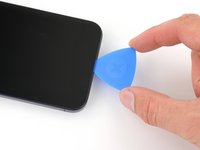
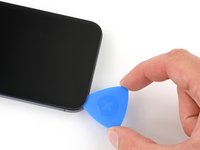
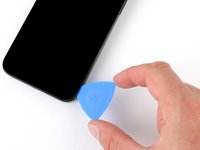
    1. iPhone 15 Pro Screen Replacement, Mark your opening picks: crwdns2935265:03crwdnd2935265:01crwdnd2935265:03crwdne2935265:0 iPhone 15 Pro Screen Replacement, Mark your opening picks: crwdns2935265:03crwdnd2935265:02crwdnd2935265:03crwdne2935265:0 iPhone 15 Pro Screen Replacement, Mark your opening picks: crwdns2935265:03crwdnd2935265:03crwdnd2935265:03crwdne2935265:0
      • If inserted too far, an opening pick can damage your device. Follow this step to mark your pick and prevent damage.

      • Measure 3 mm from the tip and mark the opening pick with a permanent marker.

      • You can also mark the other corners of the pick with different measurements.

      • Alternatively, tape a coin to a pick 3 mm from the tip.

      crwdns2952109:0crwdne2952109:0

      crwdns2917038:0crwdne2917038:0

    1. iPhone 15 Pro Screen Replacement, Remove the pentalobe screws: crwdns2935265:04crwdnd2935265:01crwdnd2935265:02crwdne2935265:0 iPhone 15 Pro Screen Replacement, Remove the pentalobe screws: crwdns2935265:04crwdnd2935265:02crwdnd2935265:02crwdne2935265:0
      • Use a P2 pentalobe screwdriver to remove the two 7 mm‑long screws on either side of the charging port.

      crwdns2952109:0crwdne2952109:0

      crwdns2917038:0crwdne2917038:0

    1. iPhone 15 Pro Screen Replacement, Screen bezel information: crwdns2935265:05crwdnd2935265:01crwdnd2935265:03crwdne2935265:0 iPhone 15 Pro Screen Replacement, Screen bezel information: crwdns2935265:05crwdnd2935265:02crwdnd2935265:03crwdne2935265:0 iPhone 15 Pro Screen Replacement, Screen bezel information: crwdns2935265:05crwdnd2935265:03crwdnd2935265:03crwdne2935265:0
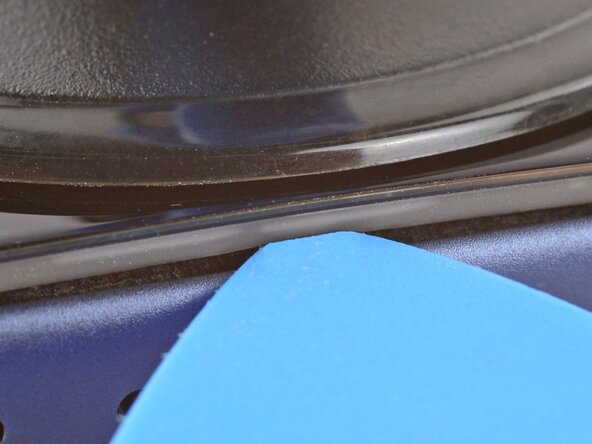
      • During the next two steps, make sure you're inserting your pick in the correct location:

      • There's a plastic bezel on the underside of the screen that sits on the frame. Insert your pick here, making sure it's completely under the bezel.

      • There's a seam between the plastic bezel and the display panel. Don't insert your pick here or you'll separate the two, complicating the repair.

      crwdns2952109:0crwdne2952109:0

      crwdns2917038:0crwdne2917038:0

    1. iPhone 15 Pro Screen Replacement, Heat the bottom edge: crwdns2935265:06crwdnd2935265:01crwdnd2935265:01crwdne2935265:0
      • Use a hair dryer or heat gun to heat the bottom edge of the screen until it's hot to the touch.

      • Be careful not to heat the phone hotter than this—the battery is susceptible to heat damage.

      crwdns2952109:0crwdne2952109:0

      crwdns2917038:0crwdne2917038:0

    2. iPhone 15 Pro Screen Replacement, Insert an opening pick: crwdns2935265:07crwdnd2935265:01crwdnd2935265:03crwdne2935265:0 iPhone 15 Pro Screen Replacement, Insert an opening pick: crwdns2935265:07crwdnd2935265:02crwdnd2935265:03crwdne2935265:0 iPhone 15 Pro Screen Replacement, Insert an opening pick: crwdns2935265:07crwdnd2935265:03crwdnd2935265:03crwdne2935265:0
      • Apply a suction handle to the bottom edge of the screen.

      • Pull up on the handle with a strong, steady force to create a gap between the screen and the frame.

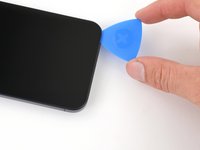
      • Insert the tip of an opening pick into the gap.

      crwdns2952109:0crwdne2952109:0

      crwdns2917038:0crwdne2917038:0

    3. iPhone 15 Pro Screen Replacement, Screen information: crwdns2935265:08crwdnd2935265:01crwdnd2935265:01crwdne2935265:0
      • As you slice the adhesive securing the screen in the next steps, be careful of the following areas:

      • There are two delicate cables connecting the screen to the phone: one just above the action button, and the other near the middle of the left edge.

      • There are multiple spring contacts around the perimeter of the phone. Be extra careful not to insert your pick deeper than suggested in these locations to avoid bending the contacts.

      crwdns2952109:0crwdne2952109:0

      crwdns2917038:0crwdne2917038:0

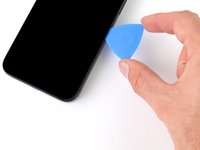
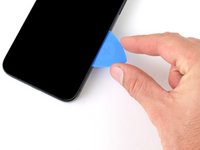
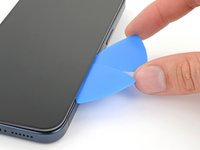
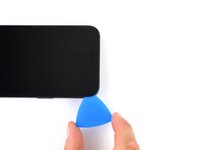
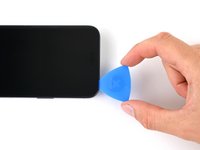
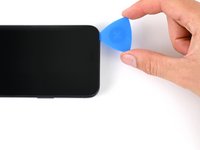
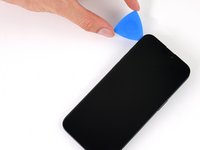
    4. iPhone 15 Pro Screen Replacement, Separate the bottom edge adhesive: crwdns2935265:09crwdnd2935265:01crwdnd2935265:03crwdne2935265:0 iPhone 15 Pro Screen Replacement, Separate the bottom edge adhesive: crwdns2935265:09crwdnd2935265:02crwdnd2935265:03crwdne2935265:0 iPhone 15 Pro Screen Replacement, Separate the bottom edge adhesive: crwdns2935265:09crwdnd2935265:03crwdnd2935265:03crwdne2935265:0
      • Don't insert your opening pick deeper than 3 mm along the bottom edge.

      • Slide your pick back and forth along the bottom edge to separate the adhesive.

      • Leave your pick inserted in the bottom right corner to prevent the adhesive from re-sealing.

      crwdns2952109:0crwdne2952109:0

      crwdns2917038:0crwdne2917038:0

    5. iPhone 15 Pro Screen Replacement, Heat the right edge: crwdns2935265:010crwdnd2935265:01crwdnd2935265:01crwdne2935265:0
      • Heat the right edge of the screen until it's hot to the touch.

      crwdns2952109:0crwdne2952109:0

      crwdns2917038:0crwdne2917038:0

    6. iPhone 15 Pro Screen Replacement, Position the opening pick: crwdns2935265:011crwdnd2935265:01crwdnd2935265:03crwdne2935265:0 iPhone 15 Pro Screen Replacement, Position the opening pick: crwdns2935265:011crwdnd2935265:02crwdnd2935265:03crwdne2935265:0 iPhone 15 Pro Screen Replacement, Position the opening pick: crwdns2935265:011crwdnd2935265:03crwdnd2935265:03crwdne2935265:0
      • Don't insert your pick deeper than 5 mm along the right edge.

      • Slide your pick around the bottom right corner of the screen and toward the power button until you feel a hard stop at a clip securing the screen.

      • Rotate your pick so the flat edge is under the screen.

      crwdns2952109:0crwdne2952109:0

      crwdns2917038:0crwdne2917038:0

    7. iPhone 15 Pro Screen Replacement, Release the right clip: crwdns2935265:012crwdnd2935265:01crwdnd2935265:03crwdne2935265:0 iPhone 15 Pro Screen Replacement, Release the right clip: crwdns2935265:012crwdnd2935265:02crwdnd2935265:03crwdne2935265:0 iPhone 15 Pro Screen Replacement, Release the right clip: crwdns2935265:012crwdnd2935265:03crwdnd2935265:03crwdne2935265:0
      • Twist the pick to increase the gap between the screen and the frame until the right clip releases.

      • Insert a second opening pick to the right of the first pick.

      crwdns2952109:0crwdne2952109:0

      crwdns2917038:0crwdne2917038:0

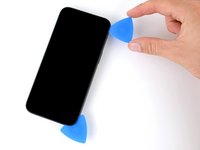
    8. iPhone 15 Pro Screen Replacement, Separate the right edge adhesive: crwdns2935265:013crwdnd2935265:01crwdnd2935265:03crwdne2935265:0 iPhone 15 Pro Screen Replacement, Separate the right edge adhesive: crwdns2935265:013crwdnd2935265:02crwdnd2935265:03crwdne2935265:0 iPhone 15 Pro Screen Replacement, Separate the right edge adhesive: crwdns2935265:013crwdnd2935265:03crwdnd2935265:03crwdne2935265:0
      • Slide the first pick back to the bottom right corner of the screen.

      • Slide the second pick to the top right corner of the screen to separate the adhesive.

      • Leave these picks inserted to prevent the adhesive from resealing.

      crwdns2952109:0crwdne2952109:0

      crwdns2917038:0crwdne2917038:0

    9. iPhone 15 Pro Screen Replacement, Heat the top edge: crwdns2935265:014crwdnd2935265:01crwdnd2935265:01crwdne2935265:0
      • Heat the top edge of the screen until it's hot to the touch.

      crwdns2952109:0crwdne2952109:0

      crwdns2917038:0crwdne2917038:0

    10. iPhone 15 Pro Screen Replacement, Separate the top edge adhesive: crwdns2935265:015crwdnd2935265:01crwdnd2935265:03crwdne2935265:0 iPhone 15 Pro Screen Replacement, Separate the top edge adhesive: crwdns2935265:015crwdnd2935265:02crwdnd2935265:03crwdne2935265:0 iPhone 15 Pro Screen Replacement, Separate the top edge adhesive: crwdns2935265:015crwdnd2935265:03crwdnd2935265:03crwdne2935265:0
      • Don't insert your pick deeper than 3 mm along the top edge.

      • Slide your pick around the top right corner and along the top edge to release the two clips and adhesive securing it.

      crwdns2952109:0crwdne2952109:0

      crwdns2917038:0crwdne2917038:0

    11. iPhone 15 Pro Screen Replacement, Heat the left edge: crwdns2935265:016crwdnd2935265:01crwdnd2935265:01crwdne2935265:0
      • Heat the left edge of the screen until it's hot to the touch.

      crwdns2952109:0crwdne2952109:0

      crwdns2917038:0crwdne2917038:0

    12. iPhone 15 Pro Screen Replacement, Separate the left edge adhesive: crwdns2935265:017crwdnd2935265:01crwdnd2935265:03crwdne2935265:0 iPhone 15 Pro Screen Replacement, Separate the left edge adhesive: crwdns2935265:017crwdnd2935265:02crwdnd2935265:03crwdne2935265:0 iPhone 15 Pro Screen Replacement, Separate the left edge adhesive: crwdns2935265:017crwdnd2935265:03crwdnd2935265:03crwdne2935265:0
      • Don't insert your pick deeper than 2 mm along the left edge to avoid the two cables connecting the screen to the phone.

      • Rotate your pick around the top left corner of the screen.

      • Slide your pick to the bottom left corner of the screen to separate the adhesive.

      crwdns2952109:0crwdne2952109:0

      crwdns2917038:0crwdne2917038:0

    1. iPhone 15 Pro Screen Replacement, Prop up the screen: crwdns2935265:018crwdnd2935265:01crwdnd2935265:03crwdne2935265:0 iPhone 15 Pro Screen Replacement, Prop up the screen: crwdns2935265:018crwdnd2935265:02crwdnd2935265:03crwdne2935265:0 iPhone 15 Pro Screen Replacement, Prop up the screen: crwdns2935265:018crwdnd2935265:03crwdnd2935265:03crwdne2935265:0
      • Place a small box or stack of books to the left of your phone so you can prop up the screen while disconnecting its cables.

      • Swing up the right edge of the screen like the front cover of a book.

      • If the screen feels stuck, go back around the perimeter with an opening pick to separate any remaining adhesive.

      • Prop up the screen so you can access its cables without straining them.

      crwdns2952109:0crwdne2952109:0

      crwdns2917038:0crwdne2917038:0

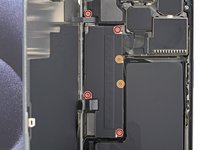
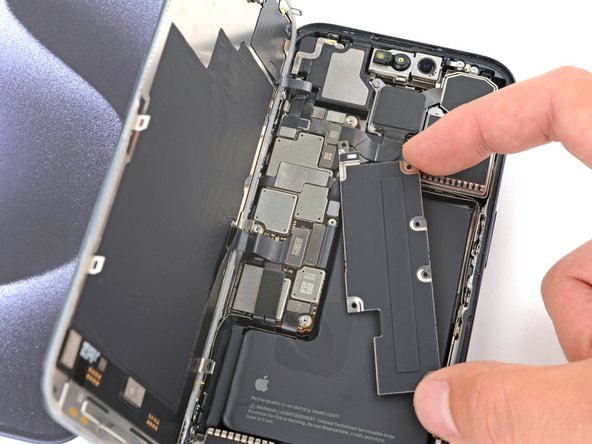
    2. iPhone 15 Pro Screen Replacement, Unfasten the logic board cover: crwdns2935265:019crwdnd2935265:01crwdnd2935265:02crwdne2935265:0 iPhone 15 Pro Screen Replacement, Unfasten the logic board cover: crwdns2935265:019crwdnd2935265:02crwdnd2935265:02crwdne2935265:0
      • Use a Y000 screwdriver to remove the six screws securing the logic board cover:

      • Four 1.6 mm‑long screws

      • Two 1.3 mm‑long screws

      crwdns2952109:0crwdne2952109:0

      crwdns2917038:0crwdne2917038:0

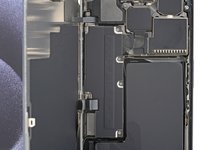
    3. iPhone 15 Pro Screen Replacement, Remove the logic board cover: crwdns2935265:020crwdnd2935265:01crwdnd2935265:03crwdne2935265:0 iPhone 15 Pro Screen Replacement, Remove the logic board cover: crwdns2935265:020crwdnd2935265:02crwdnd2935265:03crwdne2935265:0 iPhone 15 Pro Screen Replacement, Remove the logic board cover: crwdns2935265:020crwdnd2935265:03crwdnd2935265:03crwdne2935265:0
      • Rotate the bottom of the logic board cover counterclockwise and slide the top left corner out from under the ambient light sensor cable to remove it.

      • During reassembly, make sure the top left corner of the cover goes under the ambient light sensor cable.

      crwdns2952109:0crwdne2952109:0

      crwdns2917038:0crwdne2917038:0

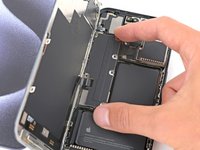
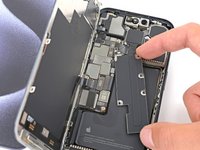
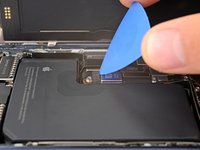
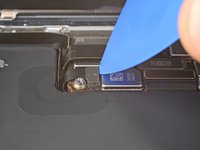
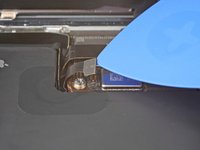
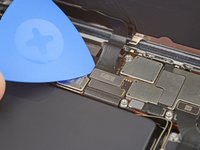
    4. iPhone 15 Pro Screen Replacement, Disconnect the battery: crwdns2935265:021crwdnd2935265:01crwdnd2935265:03crwdne2935265:0 iPhone 15 Pro Screen Replacement, Disconnect the battery: crwdns2935265:021crwdnd2935265:02crwdnd2935265:03crwdne2935265:0 iPhone 15 Pro Screen Replacement, Disconnect the battery: crwdns2935265:021crwdnd2935265:03crwdnd2935265:03crwdne2935265:0
      • Use the tip of an opening pick to pry up and disconnect the battery press connector from the bottom right corner of the logic board.

      • To reconnect a press connector, align it over its socket and gently press down on one side until it clicks into place, then press down on the other side. Make sure it sits flat, as the insulating rubber around the sockets might prevent it from connecting fully.

      crwdns2952109:0crwdne2952109:0

      crwdns2917038:0crwdne2917038:0

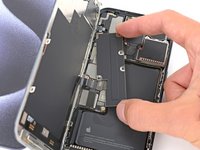
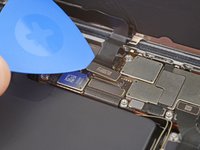
    5. iPhone 15 Pro Screen Replacement, Disconnect the screen: crwdns2935265:022crwdnd2935265:01crwdnd2935265:02crwdne2935265:0 iPhone 15 Pro Screen Replacement, Disconnect the screen: crwdns2935265:022crwdnd2935265:02crwdnd2935265:02crwdne2935265:0
      • Use the tip of an opening pick to pry up and disconnect the screen cable from the center of the logic board.

      crwdns2952109:0crwdne2952109:0

      crwdns2917038:0crwdne2917038:0

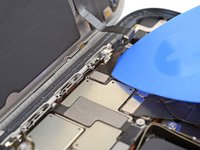
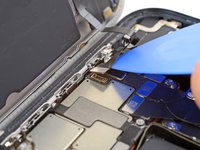
    6. iPhone 15 Pro Screen Replacement, Disconnect the ambient light sensor: crwdns2935265:023crwdnd2935265:01crwdnd2935265:02crwdne2935265:0 iPhone 15 Pro Screen Replacement, Disconnect the ambient light sensor: crwdns2935265:023crwdnd2935265:02crwdnd2935265:02crwdne2935265:0
      • Gently slide the tip of an opening pick under the ambient light sensor cable near the top left corner of the logic board.

      • Lift the cable to disconnect it.

      crwdns2952109:0crwdne2952109:0

      crwdns2917038:0crwdne2917038:0

    7. iPhone 15 Pro Screen Replacement, Remove the screen: crwdns2935265:024crwdnd2935265:01crwdnd2935265:02crwdne2935265:0 iPhone 15 Pro Screen Replacement, Remove the screen: crwdns2935265:024crwdnd2935265:02crwdnd2935265:02crwdne2935265:0
      • Remove the screen.

      • During reassembly, follow this guide to apply new adhesive and install your screen.

      • Be careful not to damage any of the spring contacts as you clean the frame.

      crwdns2952109:0crwdne2952109:0

      crwdns2917038:0crwdne2917038:0

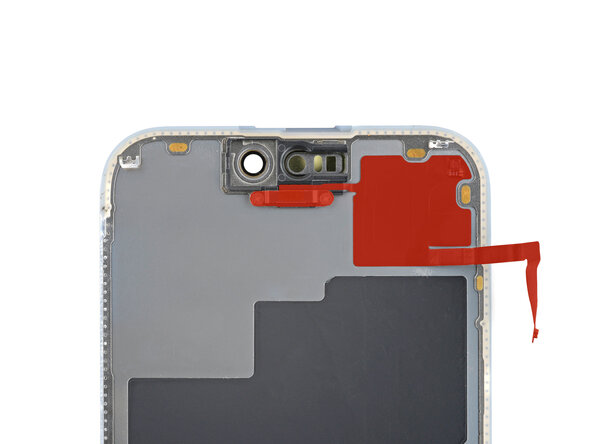
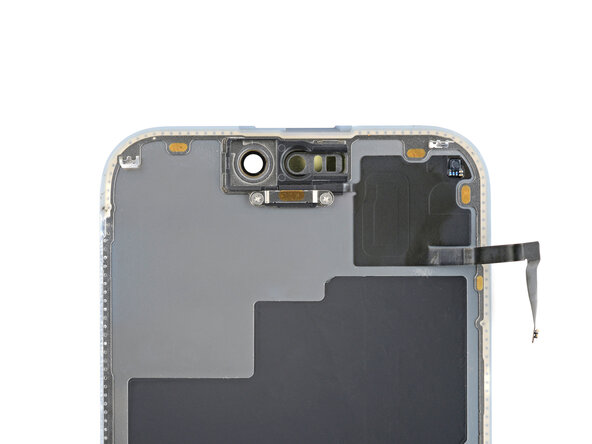
    1. iPhone 15 Pro Screen Replacement, Ambient light sensor information: crwdns2935265:025crwdnd2935265:01crwdnd2935265:02crwdne2935265:0 iPhone 15 Pro Screen Replacement, Ambient light sensor information: crwdns2935265:025crwdnd2935265:02crwdnd2935265:02crwdne2935265:0
      • Check if your new screen comes with an ambient light sensor installed.

      • If it doesn't, follow the remaining steps to remove and transfer the sensor from your original screen to your replacement.

      crwdns2952109:0crwdne2952109:0

      crwdns2917038:0crwdne2917038:0

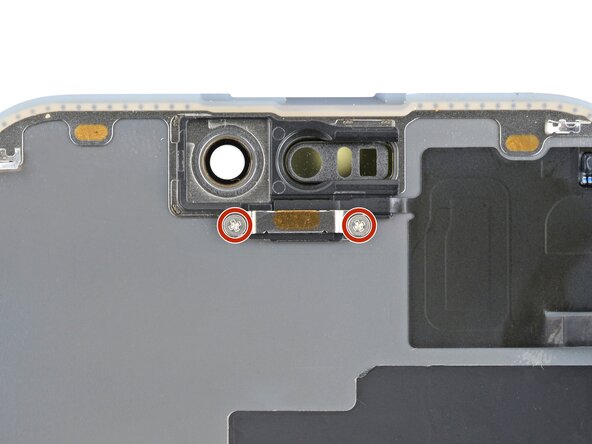
    2. iPhone 15 Pro Screen Replacement, Remove the ambient light sensor cover screws: crwdns2935265:026crwdnd2935265:01crwdnd2935265:02crwdne2935265:0 iPhone 15 Pro Screen Replacement, Remove the ambient light sensor cover screws: crwdns2935265:026crwdnd2935265:02crwdnd2935265:02crwdne2935265:0
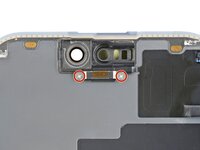
      • Use a Phillips #000 driver to remove the two 1.4 mm-long screws securing the ambient light sensor cover.

      crwdns2952109:0crwdne2952109:0

      crwdns2917038:0crwdne2917038:0

    3. iPhone 15 Pro Screen Replacement, Remove the ambient light sensor cover: crwdns2935265:027crwdnd2935265:01crwdnd2935265:01crwdne2935265:0
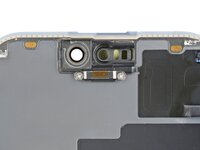
      • Remove the ambient light sensor cover.

      crwdns2952109:0crwdne2952109:0

      crwdns2917038:0crwdne2917038:0

    4. iPhone 15 Pro Screen Replacement, Heat the ambient light sensor adhesive: crwdns2935265:028crwdnd2935265:01crwdnd2935265:01crwdne2935265:0
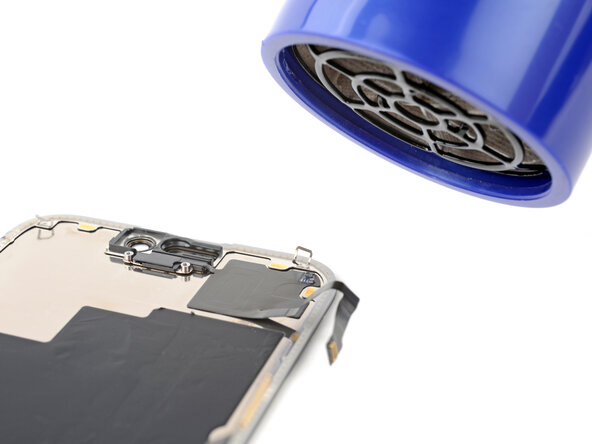
      • Be careful not to overheat the screen—the plastic components can melt if they get too hot.

      • Use a hair dryer or heat gun to heat the ambient light sensor until it's warm to the touch.

      crwdns2952109:0crwdne2952109:0

      crwdns2917038:0crwdne2917038:0

    5. iPhone 15 Pro Screen Replacement, Pry up the sensor: crwdns2935265:029crwdnd2935265:01crwdnd2935265:02crwdne2935265:0 iPhone 15 Pro Screen Replacement, Pry up the sensor: crwdns2935265:029crwdnd2935265:02crwdnd2935265:02crwdne2935265:0
      • Be very gentle handing the ambient light sensor, as its cable is extremely fragile.

      • Use the flat end of a spudger to gently lift the ambient light sensor out of its enclosure.

      crwdns2952109:0crwdne2952109:0

      crwdns2917038:0crwdne2917038:0

    6. iPhone 15 Pro Screen Replacement, Reheat the ambient light sensor: crwdns2935265:030crwdnd2935265:01crwdnd2935265:01crwdne2935265:0
      • By this point, the sensor has likely cooled down.

      • Apply more heat until the entire glued down part of the sensor is warm to the touch.

      crwdns2952109:0crwdne2952109:0

      crwdns2917038:0crwdne2917038:0

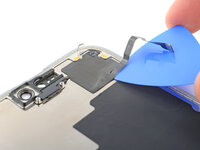
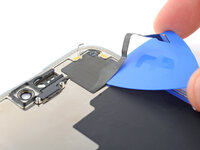
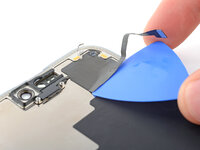
    7. iPhone 15 Pro Screen Replacement: crwdns2935265:031crwdnd2935265:01crwdnd2935265:03crwdne2935265:0 iPhone 15 Pro Screen Replacement: crwdns2935265:031crwdnd2935265:02crwdnd2935265:03crwdne2935265:0 iPhone 15 Pro Screen Replacement: crwdns2935265:031crwdnd2935265:03crwdnd2935265:03crwdne2935265:0
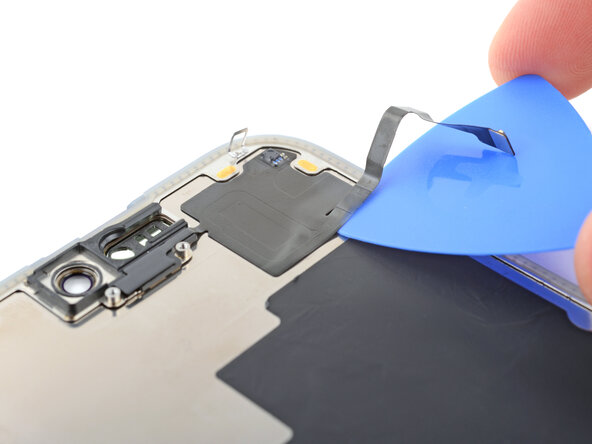
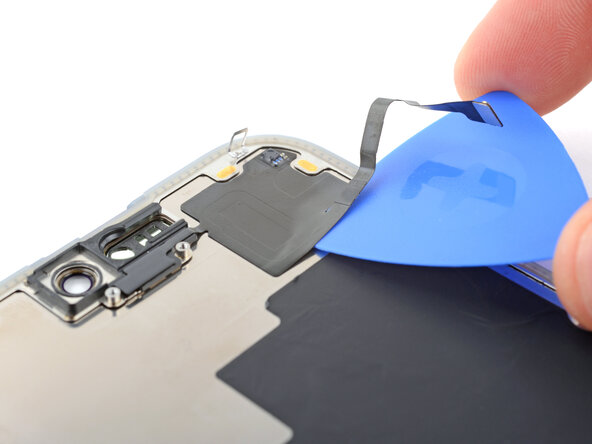
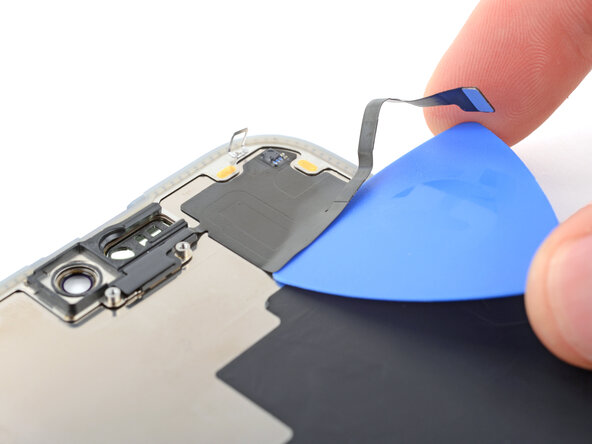
      • Insert the tip of an opening pick under the bottom right corner of the sensor.

      • Slide the pick under the sensor and lift until you can grip it with your fingers.

      crwdns2952109:0crwdne2952109:0

      crwdns2917038:0crwdne2917038:0

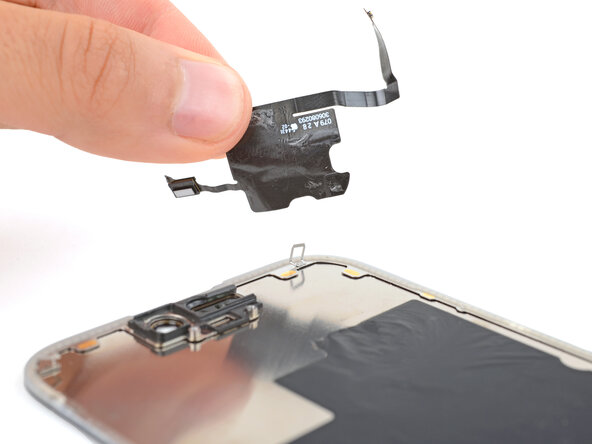
    8. iPhone 15 Pro Screen Replacement, Remove the ambient light sensor: crwdns2935265:032crwdnd2935265:01crwdnd2935265:01crwdne2935265:0
      • Use your fingers to slowly peel up and remove the sensor.

      crwdns2952109:0crwdne2952109:0

      crwdns2917038:0crwdne2917038:0

    1. iPhone 15 Pro Screen Replacement, Disassembly complete: crwdns2935265:033crwdnd2935265:01crwdnd2935265:01crwdne2935265:0
      • Congratulations on completing disassembly! The remaining steps show how to reassemble the iPhone.

      crwdns2952109:0crwdne2952109:0

      crwdns2917038:0crwdne2917038:0

    1. iPhone 15 Pro Screen Replacement, Prepare the ambient light sensor: crwdns2935265:034crwdnd2935265:01crwdnd2935265:02crwdne2935265:0 iPhone 15 Pro Screen Replacement, Prepare the ambient light sensor: crwdns2935265:034crwdnd2935265:02crwdnd2935265:02crwdne2935265:0
      crwdns2935267:0crwdne2935267:0
      Tesa 61395 Tape
      $2.95
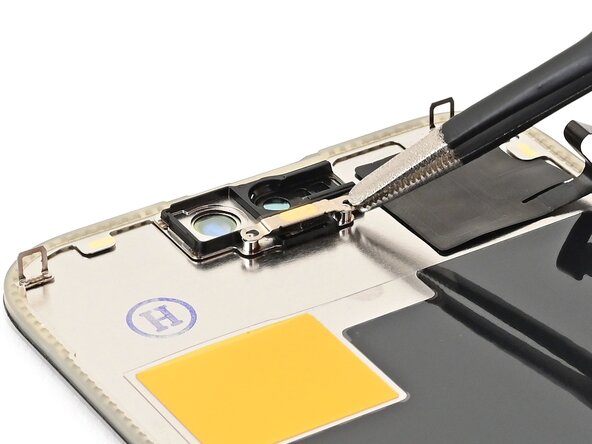
      • Use tweezers to reposition any adhesive that may have covered the ambient light sensor during removal. The adhesive should form a border around the raised white rectangle.

      • If the adhesive was damaged or stayed with the old screen, replace it with a 1 mm‑wide strip of thin, double-sided tape along its bottom border.

      crwdns2952109:0crwdne2952109:0

      crwdns2917038:0crwdne2917038:0

    2. iPhone 15 Pro Screen Replacement, Place the ambient light sensor: crwdns2935265:035crwdnd2935265:01crwdnd2935265:03crwdne2935265:0 iPhone 15 Pro Screen Replacement, Place the ambient light sensor: crwdns2935265:035crwdnd2935265:02crwdnd2935265:03crwdne2935265:0 iPhone 15 Pro Screen Replacement, Place the ambient light sensor: crwdns2935265:035crwdnd2935265:03crwdnd2935265:03crwdne2935265:0
      • Align the ambient light sensor with its recess in the back of the screen.

      • Use a spudger or your finger to place the ambient light sensor into its recess.

      crwdns2952109:0crwdne2952109:0

      crwdns2917038:0crwdne2917038:0

    3. iPhone 15 Pro Screen Replacement, Press the ambient light sensor: crwdns2935265:036crwdnd2935265:01crwdnd2935265:03crwdne2935265:0 iPhone 15 Pro Screen Replacement, Press the ambient light sensor: crwdns2935265:036crwdnd2935265:02crwdnd2935265:03crwdne2935265:0 iPhone 15 Pro Screen Replacement, Press the ambient light sensor: crwdns2935265:036crwdnd2935265:03crwdnd2935265:03crwdne2935265:0
      crwdns2935267:0crwdne2935267:0
      Tesa 61395 Tape
      $2.95
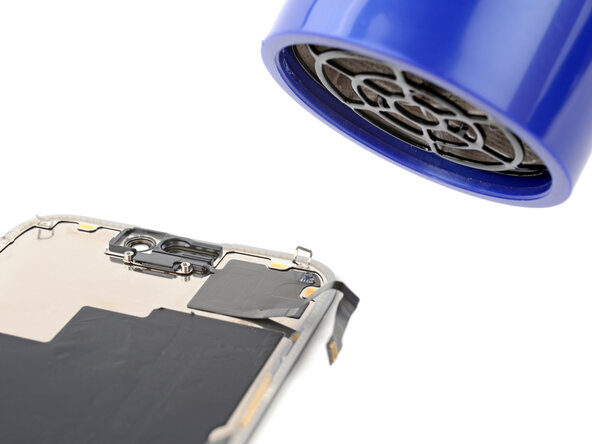
      • Use a hair dryer or heat gun to soften the adhesive under the ambient light sensor and its cable. It only needs to be warm—not hot.

      • Use your finger to press down the ambient light sensor cable.

      • If the ambient light sensor cable isn't sticking, apply a few small pieces of thin, double‑sided tape like Tesa tape to the back of the sensor cable.

      crwdns2952109:0crwdne2952109:0

      crwdns2917038:0crwdne2917038:0

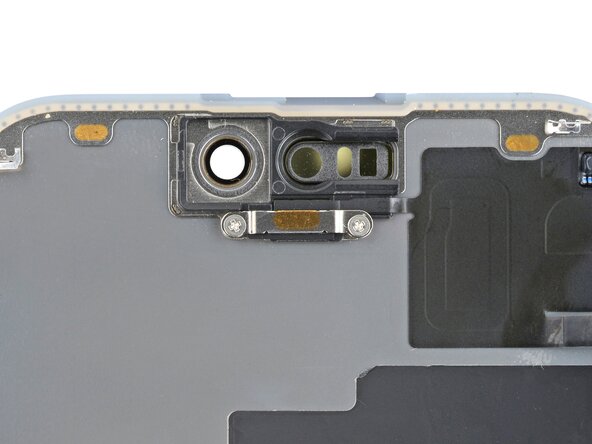
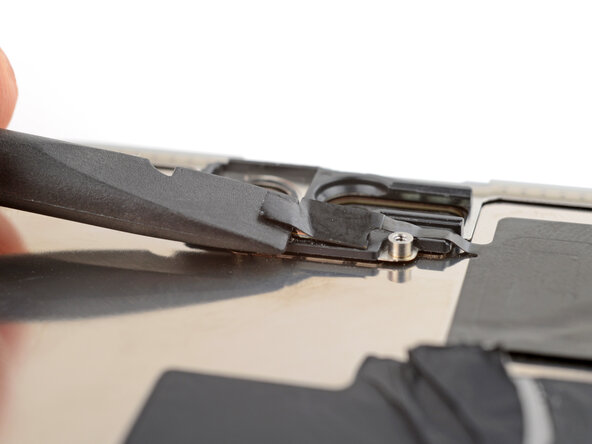
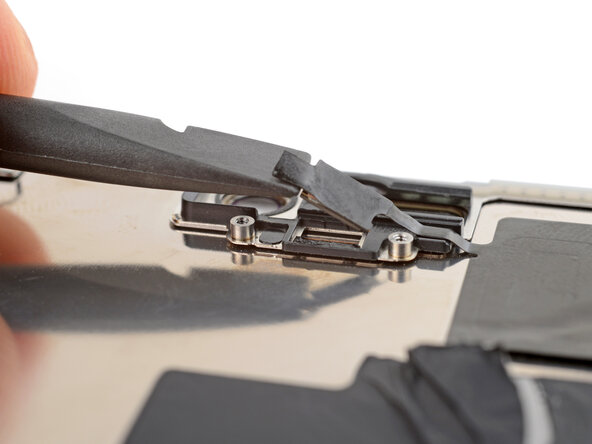
    4. iPhone 15 Pro Screen Replacement, Install the ambient light sensor bracket: crwdns2935265:037crwdnd2935265:01crwdnd2935265:03crwdne2935265:0 iPhone 15 Pro Screen Replacement, Install the ambient light sensor bracket: crwdns2935265:037crwdnd2935265:02crwdnd2935265:03crwdne2935265:0 iPhone 15 Pro Screen Replacement, Install the ambient light sensor bracket: crwdns2935265:037crwdnd2935265:03crwdnd2935265:03crwdne2935265:0
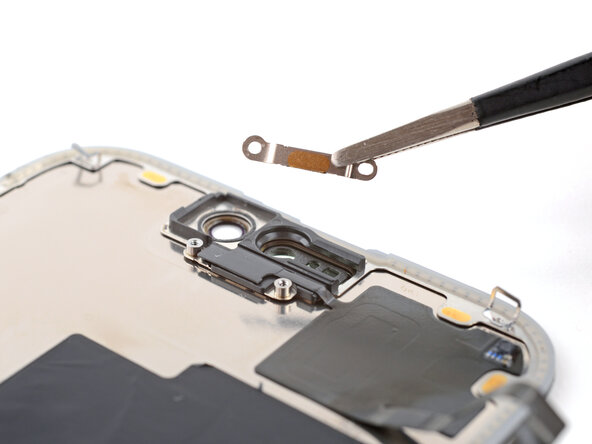
      • Use tweezers or your fingers to place the ambient light sensor bracket, foam side down, aligned with its screw holes.

      • Use a Phillips screwdriver to install the two 1.4 mm‑long screws securing the ambient light sensor bracket.

      crwdns2952109:0crwdne2952109:0

      crwdns2917038:0crwdne2917038:0

    1. iPhone 15 Pro Screen Replacement, Remove the screen adhesive: crwdns2935265:038crwdnd2935265:01crwdnd2935265:03crwdne2935265:0 iPhone 15 Pro Screen Replacement, Remove the screen adhesive: crwdns2935265:038crwdnd2935265:02crwdnd2935265:03crwdne2935265:0 iPhone 15 Pro Screen Replacement, Remove the screen adhesive: crwdns2935265:038crwdnd2935265:03crwdnd2935265:03crwdne2935265:0
      • The adhesive remaining on the phone is difficult to remove and leaves residue. If you have trouble removing the adhesive, apply some heat using a hair dryer or heat gun.

      • Use a spudger to push the screen adhesive up until you can grab it with a pair of tweezers.

      • Use a pair of tweezers, or your fingers, to remove the adhesive around the entire perimeter of the iPhone.

      crwdns2952109:0crwdne2952109:0

      crwdns2917038:0crwdne2917038:0

    2. iPhone 15 Pro Screen Replacement: crwdns2935265:039crwdnd2935265:01crwdnd2935265:03crwdne2935265:0 iPhone 15 Pro Screen Replacement: crwdns2935265:039crwdnd2935265:02crwdnd2935265:03crwdne2935265:0 iPhone 15 Pro Screen Replacement: crwdns2935265:039crwdnd2935265:03crwdnd2935265:03crwdne2935265:0
      • Any unevenness will compromise the iPhone's seal. Clean the frame thoroughly.

      • Apply a few drops of high-concentration (greater than 90%) isopropyl alcohol to a cotton swab or lint-free cloth.

      • Wipe along the perimeter of the frame to clean the adhesive residue.

      • Wait a few minutes before proceeding to make sure any excess alcohol has evaporated.

      crwdns2952109:0crwdne2952109:0

      crwdns2917038:0crwdne2917038:0

    3. iPhone 15 Pro Screen Replacement, Orient the adhesive: crwdns2935265:040crwdnd2935265:01crwdnd2935265:01crwdne2935265:0
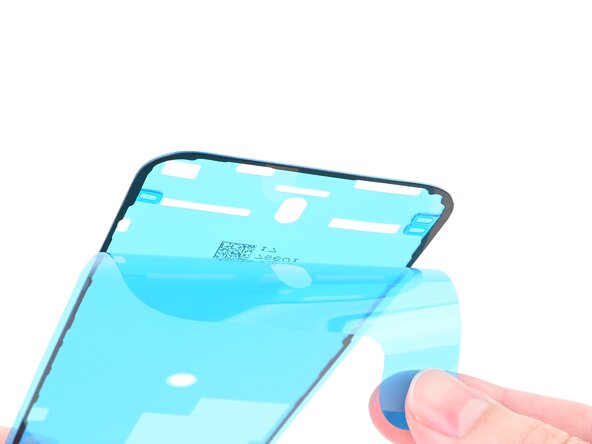
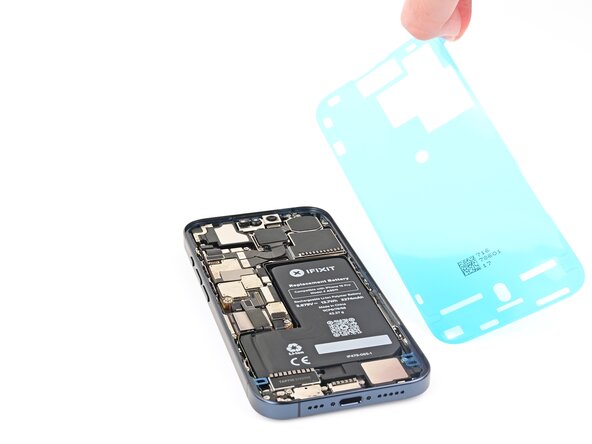
      • Lay the adhesive next to the phone and use features like cutouts for spring contacts and the front‑facing camera to orient it correctly.

      crwdns2952109:0crwdne2952109:0

      crwdns2917038:0crwdne2917038:0

    4. iPhone 15 Pro Screen Replacement, Apply the adhesive: crwdns2935265:041crwdnd2935265:01crwdnd2935265:03crwdne2935265:0 iPhone 15 Pro Screen Replacement, Apply the adhesive: crwdns2935265:041crwdnd2935265:02crwdnd2935265:03crwdne2935265:0 iPhone 15 Pro Screen Replacement, Apply the adhesive: crwdns2935265:041crwdnd2935265:03crwdnd2935265:03crwdne2935265:0
      • Once the adhesive is pressed into place, you can't reposition it—you'll have to remove it and start over with new adhesive.

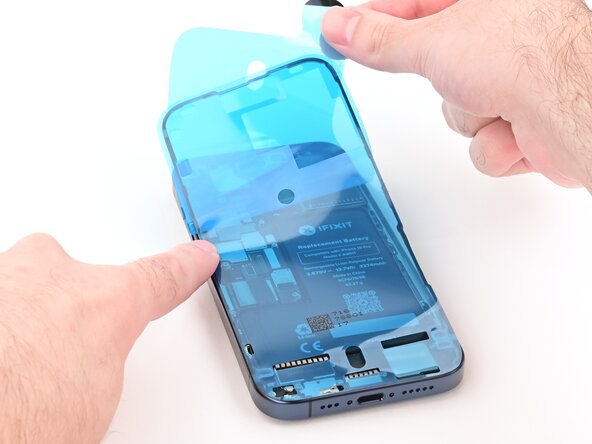
      • Use the pull tab to begin peeling the back liner off of the adhesive starting from the bottom, but don't remove it all the way.

      • While holding the back liner out of the way, carefully align the exposed edge of the adhesive to the bottom edge of the iPhone's frame.

      • When the adhesive is aligned, set it down along the bottom edge.

      crwdns2952109:0crwdne2952109:0

      crwdns2917038:0crwdne2917038:0

    5. iPhone 15 Pro Screen Replacement: crwdns2935265:042crwdnd2935265:01crwdnd2935265:03crwdne2935265:0 iPhone 15 Pro Screen Replacement: crwdns2935265:042crwdnd2935265:02crwdnd2935265:03crwdne2935265:0 iPhone 15 Pro Screen Replacement: crwdns2935265:042crwdnd2935265:03crwdnd2935265:03crwdne2935265:0
      • Continue peeling the back liner off of the adhesive while setting the adhesive into place along the edges of the iPhone's frame.

      • If you correctly aligned the lower edge of the adhesive, the side and top edges will fall perfectly into place. If the adhesive is misaligned, remove it and start over with new adhesive.

      • If you don't have another one handy, it's okay to put your iPhone back together without adhesive, but keep in mind that it won't be water resistant until you install new adhesive.

      crwdns2952109:0crwdne2952109:0

      crwdns2917038:0crwdne2917038:0

    6. iPhone 15 Pro Screen Replacement, Press the adhesive into place: crwdns2935265:043crwdnd2935265:01crwdnd2935265:03crwdne2935265:0 iPhone 15 Pro Screen Replacement, Press the adhesive into place: crwdns2935265:043crwdnd2935265:02crwdnd2935265:03crwdne2935265:0 iPhone 15 Pro Screen Replacement, Press the adhesive into place: crwdns2935265:043crwdnd2935265:03crwdnd2935265:03crwdne2935265:0
      • Use the flat end of a spudger to press the adhesive into place all around the iPhone.

      • Be careful not to press on the camera, spring contacts, or other internal components.

      crwdns2952109:0crwdne2952109:0

      crwdns2917038:0crwdne2917038:0

    7. iPhone 15 Pro Screen Replacement, Remove the top liner: crwdns2935265:044crwdnd2935265:01crwdnd2935265:02crwdne2935265:0 iPhone 15 Pro Screen Replacement, Remove the top liner: crwdns2935265:044crwdnd2935265:02crwdnd2935265:02crwdne2935265:0
      • Lift the pull tab in the top‑right corner of the frame to peel off the top liner and remove it.

      • Your pull tab may be in a different location. Make sure you're pulling the full-size top liner, not the thin liners along the edges.

      crwdns2952109:0crwdne2952109:0

      crwdns2917038:0crwdne2917038:0

    8. iPhone 15 Pro Screen Replacement, Adhesive information: crwdns2935265:045crwdnd2935265:01crwdnd2935265:01crwdne2935265:0
      • Once the top liner is removed, there should be three narrow liners on top of the adhesive with pull tabs near the bottom edge.

      • Your pull tabs may be in different positions.

      • If you don't see these pull tabs, you may have accidentally removed the thin liners in the previous step. Be careful not to touch anything to the exposed adhesive.

      crwdns2952109:0crwdne2952109:0

      crwdns2917038:0crwdne2917038:0

    9. iPhone 15 Pro Screen Replacement, Prop up the screen: crwdns2935265:046crwdnd2935265:01crwdnd2935265:01crwdne2935265:0
      • Prop the screen up along the left edge of the iPhone frame, using a box or similar sturdy object to support the screen.

      crwdns2952109:0crwdne2952109:0

      crwdns2917038:0crwdne2917038:0

    10. iPhone 15 Pro Screen Replacement, Connect the screen and ambient light sensor: crwdns2935265:047crwdnd2935265:01crwdnd2935265:03crwdne2935265:0 iPhone 15 Pro Screen Replacement, Connect the screen and ambient light sensor: crwdns2935265:047crwdnd2935265:02crwdnd2935265:03crwdne2935265:0 iPhone 15 Pro Screen Replacement, Connect the screen and ambient light sensor: crwdns2935265:047crwdnd2935265:03crwdnd2935265:03crwdne2935265:0
      • Use your finger or the flat end of a spudger to connect the screen and ambient light sensor press connectors.

      crwdns2952109:0crwdne2952109:0

      crwdns2917038:0crwdne2917038:0

    11. iPhone 15 Pro Screen Replacement, Connect the battery: crwdns2935265:048crwdnd2935265:01crwdnd2935265:02crwdne2935265:0 iPhone 15 Pro Screen Replacement, Connect the battery: crwdns2935265:048crwdnd2935265:02crwdnd2935265:02crwdne2935265:0
      • Use your finger or the flat end of a spudger to connect the battery press connector.

      crwdns2952109:0crwdne2952109:0

      crwdns2917038:0crwdne2917038:0

    12. iPhone 15 Pro Screen Replacement, Install the logic board cover: crwdns2935265:049crwdnd2935265:01crwdnd2935265:03crwdne2935265:0 iPhone 15 Pro Screen Replacement, Install the logic board cover: crwdns2935265:049crwdnd2935265:02crwdnd2935265:03crwdne2935265:0 iPhone 15 Pro Screen Replacement, Install the logic board cover: crwdns2935265:049crwdnd2935265:03crwdnd2935265:03crwdne2935265:0
      crwdns2952109:0crwdne2952109:0

      crwdns2917038:0crwdne2917038:0

    13. iPhone 15 Pro Screen Replacement, Fasten the logic board cover: crwdns2935265:050crwdnd2935265:01crwdnd2935265:01crwdne2935265:0
      • Use a Y000 screwdriver to install the six screws securing the logic board cover:

      • Four 1.6 mm‑long screws

      • Two 1.3 mm‑long screws

      crwdns2952109:0crwdne2952109:0

      crwdns2917038:0crwdne2917038:0

    14. iPhone 15 Pro Screen Replacement, Remove the final adhesive liners: crwdns2935265:051crwdnd2935265:01crwdnd2935265:03crwdne2935265:0 iPhone 15 Pro Screen Replacement, Remove the final adhesive liners: crwdns2935265:051crwdnd2935265:02crwdnd2935265:03crwdne2935265:0 iPhone 15 Pro Screen Replacement, Remove the final adhesive liners: crwdns2935265:051crwdnd2935265:03crwdnd2935265:03crwdne2935265:0
      • Once you remove the liners in this step, the adhesive will be fully exposed. Make sure nothing accidentally sticks to it.

      • Use tweezers to remove the two narrow liners covering the adhesive along the right, top, and bottom edges of the frame.

      crwdns2952109:0crwdne2952109:0

      crwdns2917038:0crwdne2917038:0

    15. iPhone 15 Pro Screen Replacement: crwdns2935265:052crwdnd2935265:01crwdnd2935265:02crwdne2935265:0 iPhone 15 Pro Screen Replacement: crwdns2935265:052crwdnd2935265:02crwdnd2935265:02crwdne2935265:0
      • Without letting the screen touch the adhesive, hold the screen over the phone so you can access the final liner along the left edge of the frame.

      • Use a pair of tweezers or your fingers to remove the final liner along the left edge of the frame.

      crwdns2952109:0crwdne2952109:0

      crwdns2917038:0crwdne2917038:0

    16. iPhone 15 Pro Screen Replacement, Place the screen: crwdns2935265:053crwdnd2935265:01crwdnd2935265:03crwdne2935265:0 iPhone 15 Pro Screen Replacement, Place the screen: crwdns2935265:053crwdnd2935265:02crwdnd2935265:03crwdne2935265:0 iPhone 15 Pro Screen Replacement, Place the screen: crwdns2935265:053crwdnd2935265:03crwdnd2935265:03crwdne2935265:0
      • Align the screen over the frame, then lower it into place.

      crwdns2952109:0crwdne2952109:0

      crwdns2917038:0crwdne2917038:0

    17. iPhone 15 Pro Screen Replacement, Press the screen: crwdns2935265:054crwdnd2935265:01crwdnd2935265:02crwdne2935265:0 iPhone 15 Pro Screen Replacement, Press the screen: crwdns2935265:054crwdnd2935265:02crwdnd2935265:02crwdne2935265:0
      • Firmly press along the edges of the screen to engage the clips and compress the adhesive.

      crwdns2952109:0crwdne2952109:0

      crwdns2917038:0crwdne2917038:0

    18. iPhone 15 Pro Screen Replacement, Install the pentalobe screws: crwdns2935265:055crwdnd2935265:01crwdnd2935265:01crwdne2935265:0
      • Use a P2 pentalobe screwdriver to install the two 7 mm‑long screws on either side of the charging port.

      crwdns2952109:0crwdne2952109:0

      crwdns2917038:0crwdne2917038:0

    19. iPhone 15 Pro Screen Replacement, Heat the screen: crwdns2935265:056crwdnd2935265:01crwdnd2935265:02crwdne2935265:0 iPhone 15 Pro Screen Replacement, Heat the screen: crwdns2935265:056crwdnd2935265:02crwdnd2935265:02crwdne2935265:0
      • To help the adhesive bond, apply heat to the edges of the screen using a hair dryer or heat gun until it's hot to the touch.

      • If you have screen vise clamps, use them to strengthen the bond of the new adhesive. If not, keep reading for more ways to secure the screen.

      crwdns2952109:0crwdne2952109:0

      crwdns2917038:0crwdne2917038:0

    1. iPhone 15 Pro Screen Replacement, Press the back glass: crwdns2935265:057crwdnd2935265:01crwdnd2935265:03crwdne2935265:0 iPhone 15 Pro Screen Replacement, Press the back glass: crwdns2935265:057crwdnd2935265:02crwdnd2935265:03crwdne2935265:0 iPhone 15 Pro Screen Replacement, Press the back glass: crwdns2935265:057crwdnd2935265:03crwdnd2935265:03crwdne2935265:0
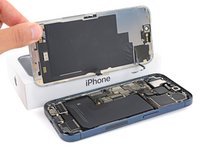
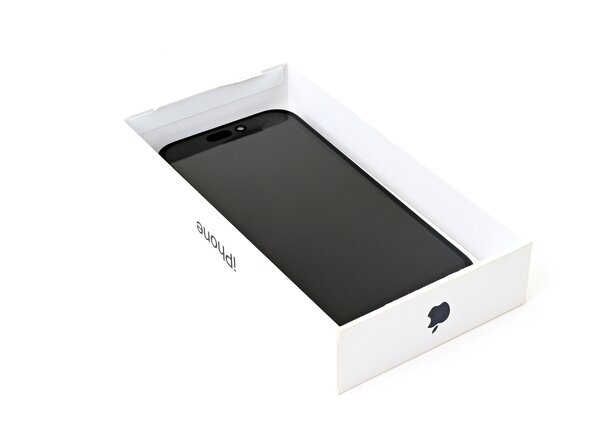
      • To evenly compress the iPhone and strengthen the bond of the screen to the frame, you need to account for the camera bump.

      • If you have the iPhone's original box, take the lid and place it on a flat surface.

      • If you don't have the original box, skip this step for an alternate method.

      • Place the iPhone screen-side-up in the lid of the box with the camera bump in its recess.

      • Find something close to the size of the iPhone, but taller than the sides of the box. Stack it on top of the iPhone, followed by a few heavy objects.

      • Leave the objects in place for at least thirty minutes, ideally overnight.

      crwdns2952109:0crwdne2952109:0

      crwdns2917038:0crwdne2917038:0

    2. iPhone 15 Pro Screen Replacement: crwdns2935265:058crwdnd2935265:01crwdnd2935265:03crwdne2935265:0 iPhone 15 Pro Screen Replacement: crwdns2935265:058crwdnd2935265:02crwdnd2935265:03crwdne2935265:0 iPhone 15 Pro Screen Replacement: crwdns2935265:058crwdnd2935265:03crwdnd2935265:03crwdne2935265:0
      • If you don't have the iPhone's original box, follow the these two steps for another method to evenly compress the screen.

      • Place the iPhone screen-side-down on a soft, flat surface.

      • Apply tape to the back glass to protect its finish.

      • Place three layers of coins or similarly thick objects on the tape along the edges of the back glass.

      • Evenly distribute the coins and make sure they are at least as thick as the camera bump.

      crwdns2952109:0crwdne2952109:0

      crwdns2917038:0crwdne2917038:0

    3. iPhone 15 Pro Screen Replacement: crwdns2935265:059crwdnd2935265:01crwdnd2935265:01crwdne2935265:0
      • Stack multiple books or other heavy objects on your iPhone.

      • The coins may leave an impression on the bottom object, so don't use anything valuable.

      • Leave the objects in place for at least thirty minutes, ideally overnight.

      crwdns2952109:0crwdne2952109:0

      crwdns2917038:0crwdne2917038:0

crwdns2915888:0crwdne2915888:0

Congratulations on completing the repair!

After your repair, depending on the replacement part, you may be able to pair it using Apple's Repair Assistant, available as of iOS 18. Update your device, navigate to Settings → General →About → Parts & Service History, tap Restart & Finish Repair, and follow the onscreen prompts.

Take your e-waste to an R2 or e-Stewards certified recycler.

Repair didn’t go as planned? Try some basic troubleshooting, or ask our Answers community for help.

crwdns2935221:0crwdne2935221:0

crwdns2935229:046crwdne2935229:0

Spencer Day

crwdns2935283:009/14/22crwdne2935283:0

208,395 crwdns2915208:0crwdne2915208:0

crwdns2935297:01,266crwdne2935297:0

crwdns2935287:0crwdne2935287:0

iFixit crwdns2935289:0iFixitcrwdne2935289:0

Staff

crwdns2931471:0121crwdne2931471:0

crwdns2935297:072,955crwdne2935297:0

crwdns2947412:015crwdne2947412:0

Pls also make the videos of your guides available on YouTube so it can be more understandable

Seyi Raji - crwdns2934203:0crwdne2934203:0 crwdns2950251:0crwdne2950251:0
Where the hell do you buy the replacement display on the iFixIt website?

Anonymous - crwdns2934203:0crwdne2934203:0 crwdns2950251:0crwdne2950251:0

You can buy it at selfservicerepair.com it is a lot cheaper there

nicholaswiding - crwdns2934203:0crwdne2934203:0 crwdns2950251:0crwdne2950251:0

@anonymous97496 if you search for iphone 15 pro, you can scroll a bit down to collections. once you click on it, there will be many options for what you want to repair, just click screen. alternatively, you can click the link on the top right of this guide, or find it here: iPhone 15 Pro Screen I'd recommend soft oled, and if you don't have the tools, just get the fix kit, but yeah.

Edward D - crwdns2934203:0crwdne2934203:0 crwdns2950251:0crwdne2950251:0

crwdns2917038:0crwdne2917038:0

crwdns2936625:0crwdne2936625:0:

crwdns2936751:024crwdne2936751:0 170

crwdns2936753:07crwdne2936753:0 1,303

crwdns2936753:030crwdne2936753:0 5,536

crwdns2959996:0crwdne2959996:0 122,483