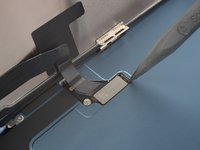
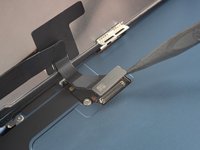
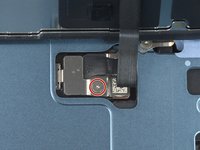
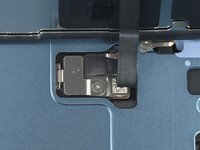
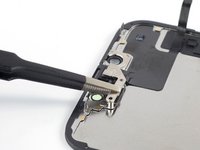
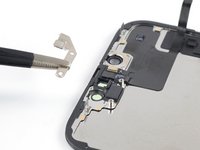
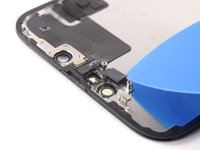
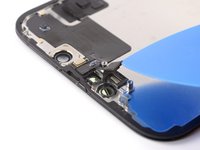
crwdns2933423:0crwdne2933423:0
crwdns2947577:0crwdnd2947577:0crwdne2947577:0

iPhone 14 Screen Replacement

crwdns2869540:0crwdne2869540:0: 151K

crwdns2959988:0crwdne2959988:0

crwdns2959990:0crwdne2959990:0
145
crwdns2959992:0crwdne2959992:0
893
crwdns2959994:0crwdne2959994:0
4,059
crwdns2959996:0crwdne2959996:0
150,636
crwdns2955950:0crwdne2955950:0: 60

crwdns2960004:043crwdne2960004:0, crwdns2960008:017crwdne2960008:0

crwdns2960000:0crwdne2960000:0
crwdns2959984:0crwdne2959984:0: 65

crwdns2959974:065crwdne2959974:0

crwdns2959986:0crwdne2959986:0: 9

crwdns2959982:09crwdne2959982:0

crwdns2955944:0crwdne2955944:0: crwdns2931287:045crwdne2931287:0 - crwdns2931289:01crwdne2931289:0
crwdns2955970:0crwdne2955970:0: crwdns2937801:0crwdne2937801:0
crwdns2862627:0crwdne2862627:0

crwdns2862628:0crwdne2862628:0

crwdns2869334:0crwdne2869334:0

crwdns2862610:0crwdne2862610:0

iPhone 14 Screen Replacement

crwdns2915892:0crwdne2915892:0

crwdns2959928:0crwdne2959928:0 ↓

If your iPhone 14 screen is cracked, not responding to touch, or not showing a picture when your phone is powered on, use this guide to restore your iPhone to working order with a new screen, a.k.a. display assembly.

This guide was created using the A2882 (international) model. If you're fixing a different iPhone 14 model, there may be some visual discrepancies, but the procedure should be the same.

Note: On iOS 17.6 and earlier, True Tone and auto brightness functionality is disabled after a screen replacement, even when using an original Apple screen. Face ID is also disabled, unless the iPhone is running iOS 15.2 or newer. On the latest iOS version, you can calibrate your new screen using Apple's Repair Assistant to restore True Tone functionality. This may happen automatically.

You’ll need replacement adhesive to reattach the screen when reassembling the device. Your device will function normally, but will most likely lose its IP (Ingress Protection) rating.

crwdns2959930:0crwdne2959930:0

crwdns2959948:0crwdne2959948:0

crwdns2959952:0crwdne2959952:0

crwdns2943213:0crwdne2943213:0

crwdns2943215:0crwdne2943215:0

    1. iPhone 14 Screen Replacement, Remove the pentalobe screws: crwdns2935265:01crwdnd2935265:01crwdnd2935265:02crwdne2935265:0 iPhone 14 Screen Replacement, Remove the pentalobe screws: crwdns2935265:01crwdnd2935265:02crwdnd2935265:02crwdne2935265:0
      • Power off your iPhone before beginning disassembly.

      • Use a P2 pentalobe screwdriver to remove the two 6.8 mm‑long screws on either side of the charging port.

      crwdns2952109:0crwdne2952109:0

      crwdns2917038:0crwdne2917038:0

    1. iPhone 14 Screen Replacement, Mark your opening picks: crwdns2935265:02crwdnd2935265:01crwdnd2935265:03crwdne2935265:0 iPhone 14 Screen Replacement, Mark your opening picks: crwdns2935265:02crwdnd2935265:02crwdnd2935265:03crwdne2935265:0 iPhone 14 Screen Replacement, Mark your opening picks: crwdns2935265:02crwdnd2935265:03crwdnd2935265:03crwdne2935265:0
      • If inserted too far, an opening pick can damage your device. Follow this step to mark your pick and prevent damage.

      • Measure 3 mm from the tip and mark the opening pick with a permanent marker.

      • You can also mark the other corners of the pick with different measurements.

      • Alternatively, tape a coin to a pick 3 mm from the tip.

      crwdns2952109:0crwdne2952109:0

      crwdns2917038:0crwdne2917038:0

    1. iPhone 14 Screen Replacement, Tape over any cracks: crwdns2935265:03crwdnd2935265:01crwdnd2935265:03crwdne2935265:0 iPhone 14 Screen Replacement, Tape over any cracks: crwdns2935265:03crwdnd2935265:02crwdnd2935265:03crwdne2935265:0 iPhone 14 Screen Replacement, Tape over any cracks: crwdns2935265:03crwdnd2935265:03crwdnd2935265:03crwdne2935265:0
      • If your iPhone has a cracked screen, keep further breakage contained and prevent bodily harm during your repair by taping over the glass.

      • Lay overlapping strips of clear packing tape over the iPhone's screen until the whole face is covered.

      • Wear safety glasses to protect your eyes from any glass shaken free during the repair.

      • If you can't get the suction cup to stick in the next few steps, fold a strong piece of tape (such as duct tape) into a handle and lift the screen with that instead.

      • If all else fails, you can superglue the suction cup to the screen.

      crwdns2952109:0crwdne2952109:0

      crwdns2917038:0crwdne2917038:0

    2. iPhone 14 Screen Replacement, Screen information: crwdns2935265:04crwdnd2935265:01crwdnd2935265:03crwdne2935265:0 iPhone 14 Screen Replacement, Screen information: crwdns2935265:04crwdnd2935265:02crwdnd2935265:03crwdne2935265:0 iPhone 14 Screen Replacement, Screen information: crwdns2935265:04crwdnd2935265:03crwdnd2935265:03crwdne2935265:0
      • For easier screen removal in the next steps, note the following:

      • There's a plastic bezel on the underside of the screen. Your opening pick will go underneath this bezel.

      • There's a seam between the plastic bezel and the display panel. Don't insert your pick here or you'll separate the two.

      • Sometimes the display panel separates from the bezel before you even get a chance to insert a pick. This may be unavoidable depending on the condition of the adhesive.

      crwdns2952109:0crwdne2952109:0

      crwdns2917038:0crwdne2917038:0

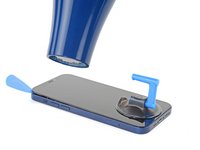
    3. iPhone 14 Screen Replacement, Heat the bottom edge: crwdns2935265:05crwdnd2935265:01crwdnd2935265:01crwdne2935265:0
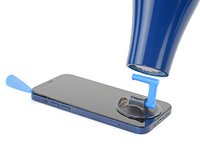
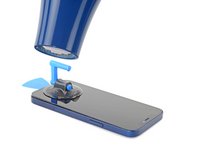
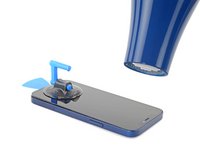
      • Use a hair dryer or heat gun to heat the bottom half of the screen until it’s slightly too hot to touch. This softens the adhesive securing it.

      • Improper use of a heat gun can destroy the display and/or battery—review this guide for instructions. To prevent screen damage, keep your heat source moving rather than focused on one spot.

      • For tips on using a hair dryer to soften adhesive, check out this guide.

      crwdns2952109:0crwdne2952109:0

      crwdns2917038:0crwdne2917038:0

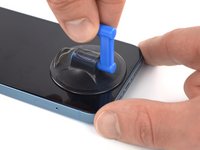
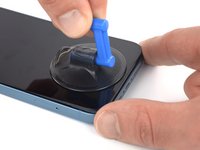
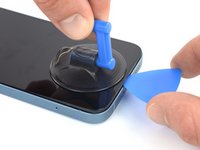
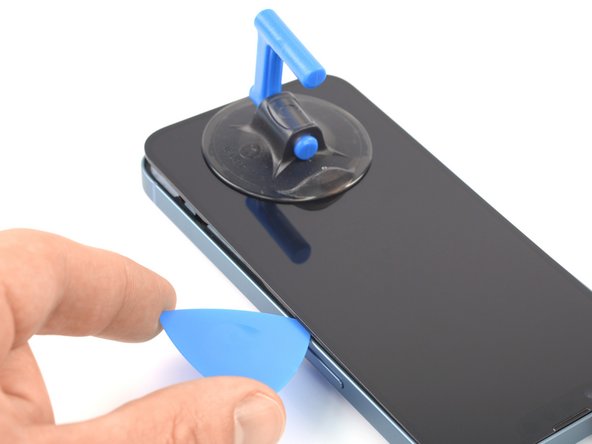
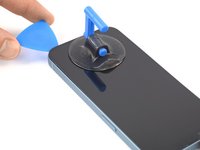
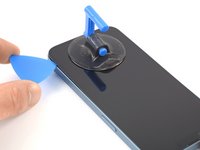
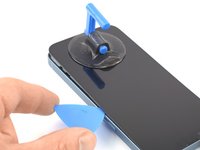
    4. iPhone 14 Screen Replacement, Insert an opening pick: crwdns2935265:06crwdnd2935265:01crwdnd2935265:03crwdne2935265:0 iPhone 14 Screen Replacement, Insert an opening pick: crwdns2935265:06crwdnd2935265:02crwdnd2935265:03crwdne2935265:0 iPhone 14 Screen Replacement, Insert an opening pick: crwdns2935265:06crwdnd2935265:03crwdnd2935265:03crwdne2935265:0
      • Apply a suction handle near the bottom edge of the screen.

      • Pull up on the suction handle with firm, constant pressure to create a slight gap under the screen.

      • The adhesive holding the screen in place is very strong. If you're having a hard time, apply more heat, and gently rock the screen up and down to weaken the adhesive until you create enough of a gap to insert your tool.

      • Pull up on the suction cup with firm, constant pressure to create a slight gap between the screen and the frame.

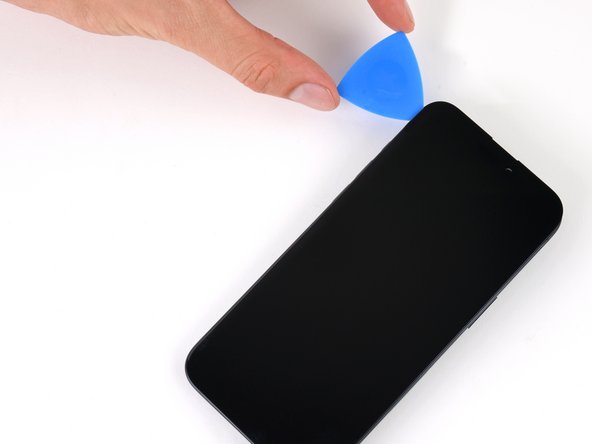
      • Insert an opening pick beneath the screen and its plastic bezel.

      • Make sure to insert the opening pick under the thick plastic bezel to avoid damaging your screen. You should see a visual gap, and the pick shouldn't catch on anything. If you can't see the gap, you'll need to pull the screen up more.

      • If you can't create a gap, apply more heat to the edge and try again.

      crwdns2952109:0crwdne2952109:0

      crwdns2917038:0crwdne2917038:0

    5. iPhone 14 Screen Replacement, Separate the bottom edge adhesive: crwdns2935265:07crwdnd2935265:01crwdnd2935265:03crwdne2935265:0 iPhone 14 Screen Replacement, Separate the bottom edge adhesive: crwdns2935265:07crwdnd2935265:02crwdnd2935265:03crwdne2935265:0 iPhone 14 Screen Replacement, Separate the bottom edge adhesive: crwdns2935265:07crwdnd2935265:03crwdnd2935265:03crwdne2935265:0
      • Don't insert your opening pick deeper than 3 mm along the bottom edge.

      • Slide your pick back and forth along the bottom edge to separate the adhesive.

      • Leave your pick inserted in the bottom right corner to prevent the adhesive from re-sealing.

      crwdns2952109:0crwdne2952109:0

      crwdns2917038:0crwdne2917038:0

    6. iPhone 14 Screen Replacement, Heat the right edge: crwdns2935265:08crwdnd2935265:01crwdnd2935265:02crwdne2935265:0 iPhone 14 Screen Replacement, Heat the right edge: crwdns2935265:08crwdnd2935265:02crwdnd2935265:02crwdne2935265:0
      • Heat the right edge of the iPhone (the edge with the power button) until the screen is slightly too hot to touch.

      crwdns2952109:0crwdne2952109:0

      crwdns2917038:0crwdne2917038:0

    7. iPhone 14 Screen Replacement, Separate the right adhesive: crwdns2935265:09crwdnd2935265:01crwdnd2935265:03crwdne2935265:0 iPhone 14 Screen Replacement, Separate the right adhesive: crwdns2935265:09crwdnd2935265:02crwdnd2935265:03crwdne2935265:0 iPhone 14 Screen Replacement, Separate the right adhesive: crwdns2935265:09crwdnd2935265:03crwdnd2935265:03crwdne2935265:0
      • Slide the opening pick around the bottom right corner of the iPhone to separate its adhesive.

      • Continue sliding up the right edge of the iPhone until you reach the top right corner.

      • Don't insert your pick more than 3 mm, as you may damage internal components.

      • Leave the pick in the top right corner before continuing.

      crwdns2952109:0crwdne2952109:0

      crwdns2917038:0crwdne2917038:0

    8. iPhone 14 Screen Replacement, Heat the top edge: crwdns2935265:010crwdnd2935265:01crwdnd2935265:01crwdne2935265:0
      • Heat the top edge of the iPhone until the screen is slightly too hot to touch.

      crwdns2952109:0crwdne2952109:0

      crwdns2917038:0crwdne2917038:0

    9. iPhone 14 Screen Replacement, Separate the top adhesive: crwdns2935265:011crwdnd2935265:01crwdnd2935265:03crwdne2935265:0 iPhone 14 Screen Replacement, Separate the top adhesive: crwdns2935265:011crwdnd2935265:02crwdnd2935265:03crwdne2935265:0 iPhone 14 Screen Replacement, Separate the top adhesive: crwdns2935265:011crwdnd2935265:03crwdnd2935265:03crwdne2935265:0
      • Don't insert your pick deeper than 3 mm along the top edge.

      • Slide your pick around the top right corner and along the top edge to release the two clips and adhesive securing it.

      crwdns2952109:0crwdne2952109:0

      crwdns2917038:0crwdne2917038:0

    10. iPhone 14 Screen Replacement, Heat the left edge: crwdns2935265:012crwdnd2935265:01crwdnd2935265:02crwdne2935265:0 iPhone 14 Screen Replacement, Heat the left edge: crwdns2935265:012crwdnd2935265:02crwdnd2935265:02crwdne2935265:0
      • Heat the left edge of the iPhone until the screen is slightly too hot to touch.

      crwdns2952109:0crwdne2952109:0

      crwdns2917038:0crwdne2917038:0

    11. iPhone 14 Screen Replacement, Separate the left adhesive: crwdns2935265:013crwdnd2935265:01crwdnd2935265:03crwdne2935265:0 iPhone 14 Screen Replacement, Separate the left adhesive: crwdns2935265:013crwdnd2935265:02crwdnd2935265:03crwdne2935265:0 iPhone 14 Screen Replacement, Separate the left adhesive: crwdns2935265:013crwdnd2935265:03crwdnd2935265:03crwdne2935265:0
      • There are delicate cables along the left edge of your iPhone. Don't insert your pick deeper than 2 mm here, as you may damage the cables.

      • Rotate your pick around the top left corner of the screen.

      • Slide your pick to the bottom left corner of the screen to separate the adhesive.

      • If you're having trouble separating the adhesive, reheat the left edge.

      crwdns2952109:0crwdne2952109:0

      crwdns2917038:0crwdne2917038:0

    12. iPhone 14 Screen Replacement, Open the iPhone: crwdns2935265:014crwdnd2935265:01crwdnd2935265:03crwdne2935265:0 iPhone 14 Screen Replacement, Open the iPhone: crwdns2935265:014crwdnd2935265:02crwdnd2935265:03crwdne2935265:0 iPhone 14 Screen Replacement, Open the iPhone: crwdns2935265:014crwdnd2935265:03crwdnd2935265:03crwdne2935265:0
      • Remove your suction handle from the screen.

      • Rotate your iPhone so the right edge faces you.

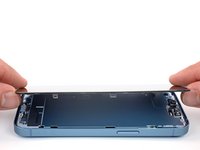
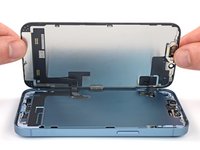
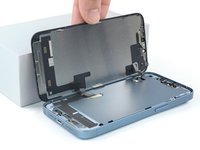
      • Open your iPhone by swinging the screen up from the right side, like the front cover of a book.

      • Lean the screen against something to keep it propped up while you're working on the phone.

      • If you don't have anything at hand to lean the screen against, your suction handle can do the trick.

      • During reassembly, lay the screen in position, align the clips along the top edge, and carefully press the top edge into place before snapping the rest of the screen down. If it doesn't click easily into place, check the condition of the clips around the perimeter of the screen and make sure they aren't bent.

      crwdns2952109:0crwdne2952109:0

      crwdns2917038:0crwdne2917038:0

    13. iPhone 14 Screen Replacement, Unfasten the display connector bracket screw: crwdns2935265:015crwdnd2935265:01crwdnd2935265:02crwdne2935265:0 iPhone 14 Screen Replacement, Unfasten the display connector bracket screw: crwdns2935265:015crwdnd2935265:02crwdnd2935265:02crwdne2935265:0
      crwdns2935267:0crwdne2935267:0
      Magnetic Project Mat
      $19.95
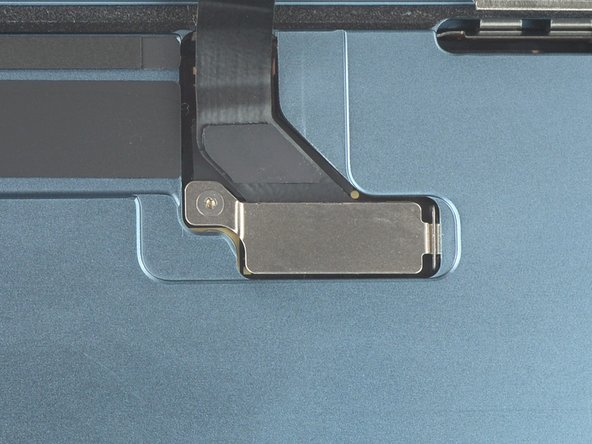
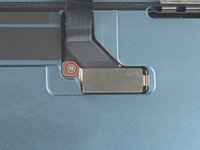
      • Use a Y000 screwdriver to remove the 0.9 mm-long screw securing the display connector bracket.

      • Throughout this repair, keep track of each screw and make sure it goes back exactly where it came from to avoid damaging your iPhone.

      • During reassembly, this is a good point to power on your iPhone and test all functions before you seal the screen in place. Be sure to power your iPhone back down completely before you continue working.

      crwdns2952109:0crwdne2952109:0

      crwdns2917038:0crwdne2917038:0

    14. iPhone 14 Screen Replacement, Remove the display connector bracket: crwdns2935265:016crwdnd2935265:01crwdnd2935265:03crwdne2935265:0 iPhone 14 Screen Replacement, Remove the display connector bracket: crwdns2935265:016crwdnd2935265:02crwdnd2935265:03crwdne2935265:0 iPhone 14 Screen Replacement, Remove the display connector bracket: crwdns2935265:016crwdnd2935265:03crwdnd2935265:03crwdne2935265:0
      crwdns2935267:0crwdne2935267:0
      Tweezers
      $4.99
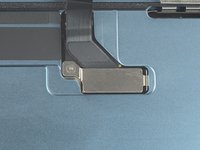
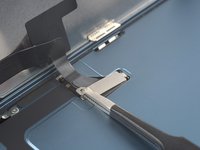
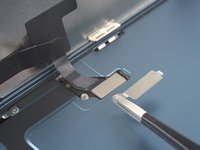
      • Grasp the screw hole end of the connector bracket with a pair of tweezers.

      • Lift the bracket slightly to loosen the latch on the other edge.

      • Remove the display connector bracket.

      • During reassembly, make sure the bracket latches properly.

      crwdns2952109:0crwdne2952109:0

      crwdns2917038:0crwdne2917038:0

    15. iPhone 14 Screen Replacement, Disconnect the display connector: crwdns2935265:017crwdnd2935265:01crwdnd2935265:02crwdne2935265:0 iPhone 14 Screen Replacement, Disconnect the display connector: crwdns2935265:017crwdnd2935265:02crwdnd2935265:02crwdne2935265:0
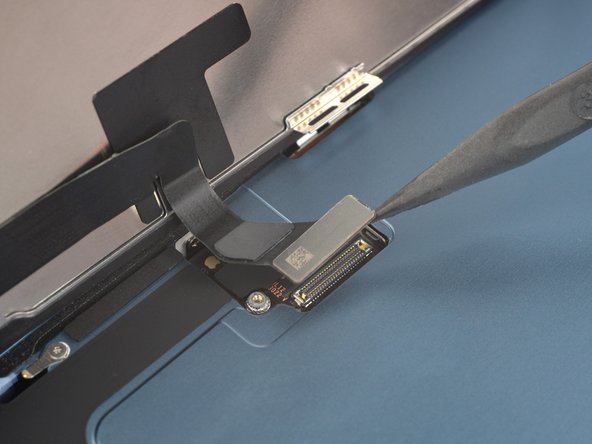
      • Use the pointed end of a spudger to disconnect the display cable by prying the connector straight up from its socket.

      • To re-attach press connectors like this one, carefully align and press down on one side until it clicks into place, then repeat on the other side. Do not press down on the middle. If the connector is misaligned, the pins can bend, causing permanent damage.

      crwdns2952109:0crwdne2952109:0

      crwdns2917038:0crwdne2917038:0

    16. iPhone 14 Screen Replacement, Unfasten the front sensor connector bracket: crwdns2935265:018crwdnd2935265:01crwdnd2935265:02crwdne2935265:0 iPhone 14 Screen Replacement, Unfasten the front sensor connector bracket: crwdns2935265:018crwdnd2935265:02crwdnd2935265:02crwdne2935265:0
      • Use a Y000 screwdriver to remove the 0.9 mm-long screw securing the front sensor connector bracket.

      crwdns2952109:0crwdne2952109:0

      crwdns2917038:0crwdne2917038:0

    17. iPhone 14 Screen Replacement, Remove the front sensor connector bracket: crwdns2935265:019crwdnd2935265:01crwdnd2935265:03crwdne2935265:0 iPhone 14 Screen Replacement, Remove the front sensor connector bracket: crwdns2935265:019crwdnd2935265:02crwdnd2935265:03crwdne2935265:0 iPhone 14 Screen Replacement, Remove the front sensor connector bracket: crwdns2935265:019crwdnd2935265:03crwdnd2935265:03crwdne2935265:0
      • Grasp the screw hole end of the connector bracket with a pair of tweezers.

      • Lift the bracket slightly to loosen the latch on the other edge.

      • Remove the front sensor connector bracket.

      • During reassembly, make sure the bracket latches properly.

      crwdns2952109:0crwdne2952109:0

      crwdns2917038:0crwdne2917038:0

    18. iPhone 14 Screen Replacement, Disconnect the front sensor cable: crwdns2935265:020crwdnd2935265:01crwdnd2935265:02crwdne2935265:0 iPhone 14 Screen Replacement, Disconnect the front sensor cable: crwdns2935265:020crwdnd2935265:02crwdnd2935265:02crwdne2935265:0
      • Use the pointed end of a spudger to disconnect the front sensor cable by prying the connector straight up from its socket.

      crwdns2952109:0crwdne2952109:0

      crwdns2917038:0crwdne2917038:0

    19. iPhone 14 Screen Replacement, Remove the screen: crwdns2935265:021crwdnd2935265:01crwdnd2935265:02crwdne2935265:0 iPhone 14 Screen Replacement, Remove the screen: crwdns2935265:021crwdnd2935265:02crwdnd2935265:02crwdne2935265:0
      • Remove the screen.

      • Apply new adhesive where it's necessary after cleaning the relevant areas with isopropyl alcohol (>90%).

      • During reassembly, pause here if you wish to replace the screen adhesives.

      crwdns2952109:0crwdne2952109:0

      crwdns2917038:0crwdne2917038:0

    1. iPhone 14 Screen Replacement, Front sensors information: crwdns2935265:022crwdnd2935265:01crwdnd2935265:01crwdne2935265:0
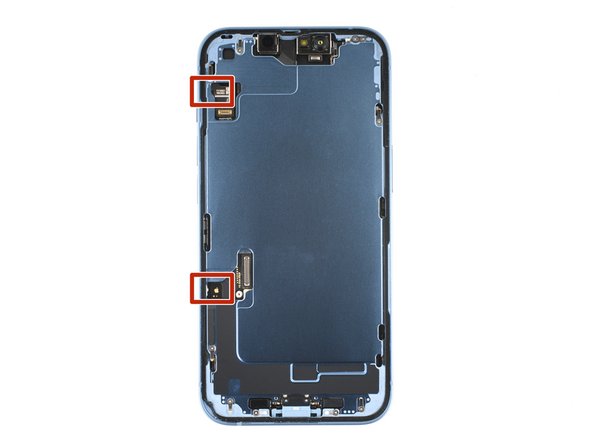
      • The front sensor assembly is located behind the screen, directly beneath the cut‑out for the Face ID sensors.

      • Check if the replacement screen comes with one installed. If it does, skip the rest of these steps.

      crwdns2952109:0crwdne2952109:0

      crwdns2917038:0crwdne2917038:0

    1. iPhone 14 Screen Replacement, Unfasten the front sensor bracket: crwdns2935265:023crwdnd2935265:01crwdnd2935265:01crwdne2935265:0
      • Use a Y000 screwdriver to remove the two 1.4 mm-long screws securing the sensor assembly bracket.

      crwdns2952109:0crwdne2952109:0

      crwdns2917038:0crwdne2917038:0

    2. iPhone 14 Screen Replacement, Remove the front sensor bracket: crwdns2935265:024crwdnd2935265:01crwdnd2935265:02crwdne2935265:0 iPhone 14 Screen Replacement, Remove the front sensor bracket: crwdns2935265:024crwdnd2935265:02crwdnd2935265:02crwdne2935265:0
      crwdns2935267:0crwdne2935267:0
      Tweezers
      $4.99
      • Use tweezers, or your fingers, to remove the front sensor assembly bracket.

      crwdns2952109:0crwdne2952109:0

      crwdns2917038:0crwdne2917038:0

    3. iPhone 14 Screen Replacement, Heat the front sensor assembly: crwdns2935265:025crwdnd2935265:01crwdnd2935265:02crwdne2935265:0 iPhone 14 Screen Replacement, Heat the front sensor assembly: crwdns2935265:025crwdnd2935265:02crwdnd2935265:02crwdne2935265:0
      • Heat an iOpener and apply it to the top edge of the screen for two minutes.

      • A hair dryer, heat gun, or hot plate may also be used, but be careful not to overheat the phone—the display is susceptible to heat damage.

      crwdns2952109:0crwdne2952109:0

      crwdns2917038:0crwdne2917038:0

    4. iPhone 14 Screen Replacement, Disconnect the ambient light sensor: crwdns2935265:026crwdnd2935265:01crwdnd2935265:02crwdne2935265:0 iPhone 14 Screen Replacement, Disconnect the ambient light sensor: crwdns2935265:026crwdnd2935265:02crwdnd2935265:02crwdne2935265:0
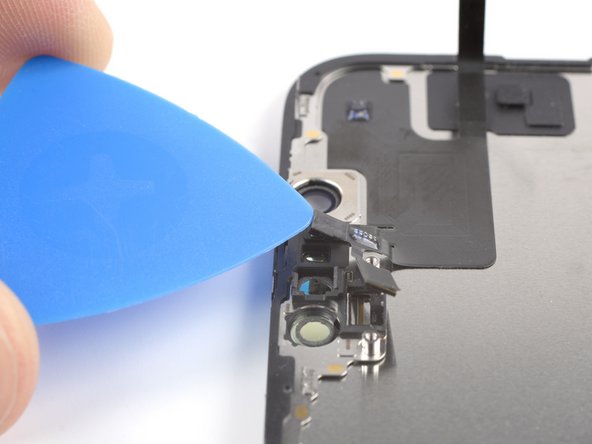
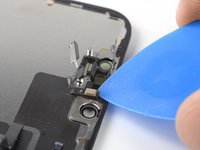
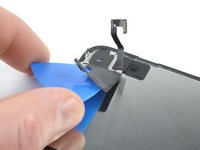
      • Insert an opening pick between the ambient light sensor and its recess in the screen.

      • Pry up with the pick to separate the ambient light sensor from the screen.

      crwdns2952109:0crwdne2952109:0

      crwdns2917038:0crwdne2917038:0

    5. iPhone 14 Screen Replacement, Disconnect the proximity sensor: crwdns2935265:027crwdnd2935265:01crwdnd2935265:02crwdne2935265:0 iPhone 14 Screen Replacement, Disconnect the proximity sensor: crwdns2935265:027crwdnd2935265:02crwdnd2935265:02crwdne2935265:0
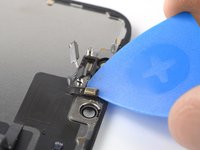
      • Insert an opening pick between the proximity sensor and its recess on the screen.

      • Pry up with the pick to separate the proximity sensor from the screen.

      crwdns2952109:0crwdne2952109:0

      crwdns2917038:0crwdne2917038:0

    6. iPhone 14 Screen Replacement, Reposition the proximity sensor: crwdns2935265:028crwdnd2935265:01crwdnd2935265:02crwdne2935265:0 iPhone 14 Screen Replacement, Reposition the proximity sensor: crwdns2935265:028crwdnd2935265:02crwdnd2935265:02crwdne2935265:0
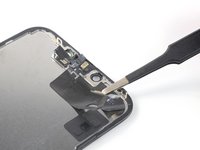
      • Use tweezers, or your fingers, to move the proximity sensor cable away from the screen.

      crwdns2952109:0crwdne2952109:0

      crwdns2917038:0crwdne2917038:0

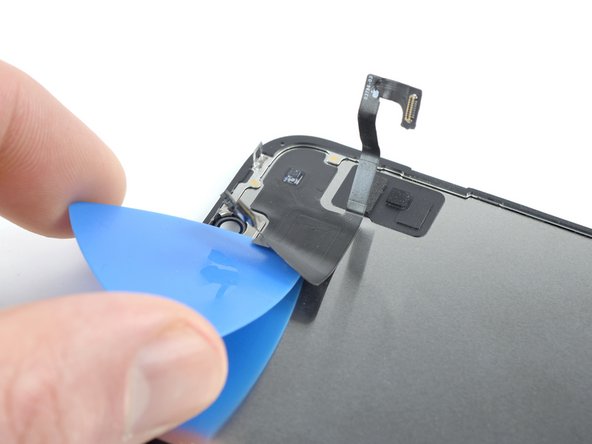
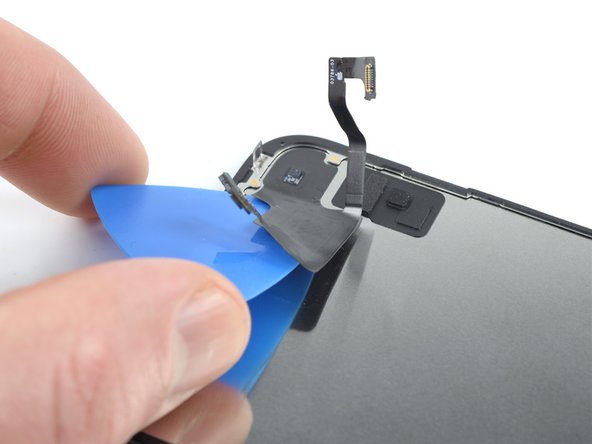
    7. iPhone 14 Screen Replacement, Disconnect the microphone: crwdns2935265:029crwdnd2935265:01crwdnd2935265:03crwdne2935265:0 iPhone 14 Screen Replacement, Disconnect the microphone: crwdns2935265:029crwdnd2935265:02crwdnd2935265:03crwdne2935265:0 iPhone 14 Screen Replacement, Disconnect the microphone: crwdns2935265:029crwdnd2935265:03crwdnd2935265:03crwdne2935265:0
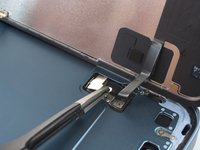
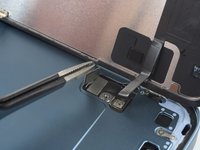
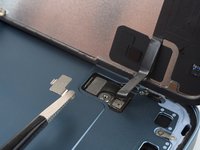
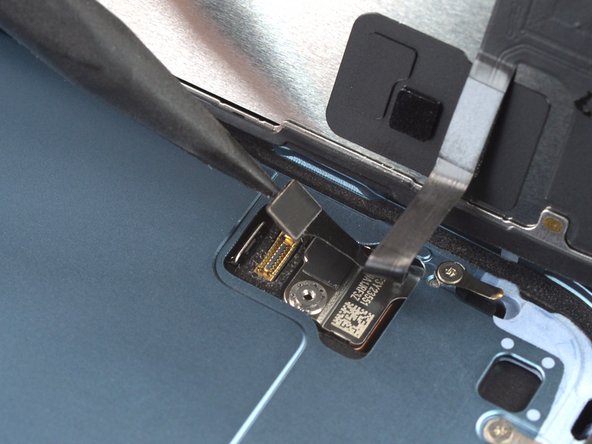
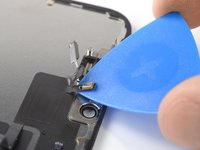
      • Insert an opening pick under the microphone cable, close to the microphone (the metal rectangle).

      • Slide the opening pick around the perimeter of the microphone to separate its adhesive.

      crwdns2952109:0crwdne2952109:0

      crwdns2917038:0crwdne2917038:0

    8. iPhone 14 Screen Replacement, Remove the front sensor assembly: crwdns2935265:030crwdnd2935265:01crwdnd2935265:03crwdne2935265:0 iPhone 14 Screen Replacement, Remove the front sensor assembly: crwdns2935265:030crwdnd2935265:02crwdnd2935265:03crwdne2935265:0 iPhone 14 Screen Replacement, Remove the front sensor assembly: crwdns2935265:030crwdnd2935265:03crwdnd2935265:03crwdne2935265:0
      • At this point, the adhesive may have cooled down. If so, apply a heated iOpener to the assembly for one minute before continuing.

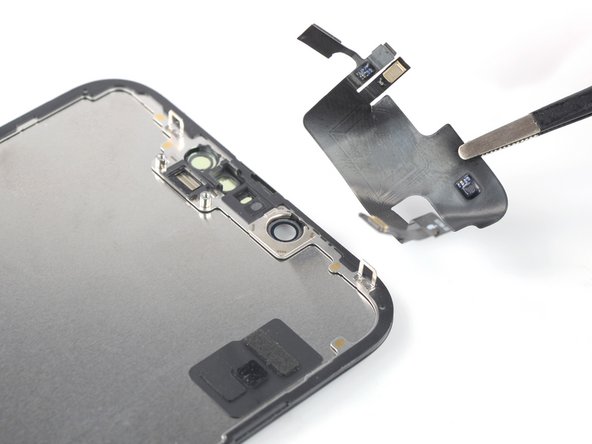
      • Insert an opening pick under the left side of the front sensor assembly.

      • Slide the pick under the assembly to separate it from the frame.

      crwdns2952109:0crwdne2952109:0

      crwdns2917038:0crwdne2917038:0

    9. iPhone 14 Screen Replacement: crwdns2935265:031crwdnd2935265:01crwdnd2935265:02crwdne2935265:0 iPhone 14 Screen Replacement: crwdns2935265:031crwdnd2935265:02crwdnd2935265:02crwdne2935265:0
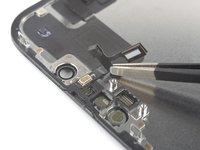
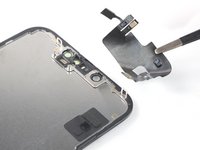
      • Remove the front sensor assembly.

      crwdns2952109:0crwdne2952109:0

      crwdns2917038:0crwdne2917038:0

crwdns2915888:0crwdne2915888:0

If possible, turn on your device and test your repair before installing new adhesive and resealing.

To reassemble your device, follow these instructions in reverse order.

After your repair, depending on the replacement part, you may be able to calibrate it using Apple's Repair Assistant, available as of iOS 18. Update your device, navigate to Settings → General →About → Parts & Service History, tap Restart & Finish Repair, and follow the onscreen prompts.

The best way to secure the new screen is to apply a sheet of custom-cut double-sided tape to the frame and place the screen back in its original position.

Take your e-waste to an R2 or e-Stewards certified recycler.

Repair didn’t go as planned? Try some basic troubleshooting, or ask our Answers community for help.

crwdns2935221:0crwdne2935221:0

crwdns2935229:065crwdne2935229:0

Tobias Isakeit

crwdns2935283:003/31/14crwdne2935283:0

136,137 crwdns2915208:0crwdne2915208:0

crwdns2935297:0189crwdne2935297:0

crwdns2947412:017crwdne2947412:0

Is there still a software lock that disables face id / auto brightness?

Yung Bruh - crwdns2934203:0crwdne2934203:0 crwdns2950251:0crwdne2950251:0
Your proximity cable was probably damaged while being moved. You would need to replace it and recalibrate the face ID to fix it

Travis - crwdns2934203:0crwdne2934203:0 crwdns2950251:0crwdne2950251:0
What about the battery isnt it a risk to connect it like this. Feels like half of the repair job,

atlas Tanko - crwdns2934203:0crwdne2934203:0 crwdns2950251:0crwdne2950251:0

Hi atlas Tanko, you're right, normally we recommend disconnecting the battery before replacing the screen. Due to the design of the iPhone 14 and 14 Plus (separate entry methods for screen and battery replacements), we consider it safe in this case. For the iPhone 14 Pro and Pro Max, we still include steps for disconnecting the battery during screen replacements.

Manuel Haeussermann - crwdns2934203:0crwdne2934203:0 crwdns2950251:0crwdne2950251:0

crwdns2917038:0crwdne2917038:0

crwdns2936625:0crwdne2936625:0:

crwdns2936751:024crwdne2936751:0 145

crwdns2936753:07crwdne2936753:0 893

crwdns2936753:030crwdne2936753:0 4,059

crwdns2959996:0crwdne2959996:0 150,636