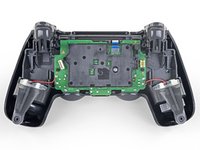
crwdns2933423:0crwdne2933423:0
crwdns2947577:0crwdnd2947577:0crwdne2947577:0

DualShock 4 CUH-ZCT2 Touchpad Replacement

crwdns2942213:0crwdne2942213:0

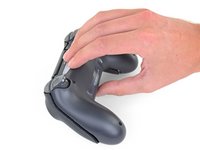
  1. DualShock 4 CUH-ZCT2 Touchpad Replacement, Remove the rear panel screws: crwdns2935265:01crwdnd2935265:01crwdnd2935265:02crwdne2935265:0 DualShock 4 CUH-ZCT2 Touchpad Replacement, Remove the rear panel screws: crwdns2935265:01crwdnd2935265:02crwdnd2935265:02crwdne2935265:0
    • Use a Phillips screwdriver to remove the four 6.4 mm-long screws from the rear panel.

    crwdns2952109:0crwdne2952109:0

    crwdns2917038:0crwdne2917038:0

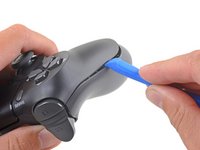
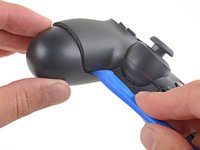
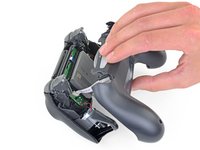
  2. DualShock 4 CUH-ZCT2 Touchpad Replacement, Separate the rear panel: crwdns2935265:02crwdnd2935265:01crwdnd2935265:02crwdne2935265:0 DualShock 4 CUH-ZCT2 Touchpad Replacement, Separate the rear panel: crwdns2935265:02crwdnd2935265:02crwdnd2935265:02crwdne2935265:0
    • Four fragile plastic clips hold the panels together. You can see their locations more clearly in this guide.

    • The clips help hold the seams together. If you break these clips, the controller will still work.

    • Insert an opening tool into the crease where the front and rear panel meet, starting from the outside edge of either handle.

    • Gently pry the rear panel off of the front panel until they become partially separated.

    crwdns2952109:0crwdne2952109:0

    crwdns2917038:0crwdne2917038:0

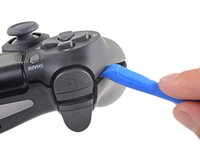
  3. DualShock 4 CUH-ZCT2 Touchpad Replacement, Release the plastic clips: crwdns2935265:03crwdnd2935265:01crwdnd2935265:03crwdne2935265:0 DualShock 4 CUH-ZCT2 Touchpad Replacement, Release the plastic clips: crwdns2935265:03crwdnd2935265:02crwdnd2935265:03crwdne2935265:0 DualShock 4 CUH-ZCT2 Touchpad Replacement, Release the plastic clips: crwdns2935265:03crwdnd2935265:03crwdnd2935265:03crwdne2935265:0
    • Use the opening tool to separate the panels by releasing the plastic clips around the perimeter of the controller.

    crwdns2952109:0crwdne2952109:0

    crwdns2917038:0crwdne2917038:0

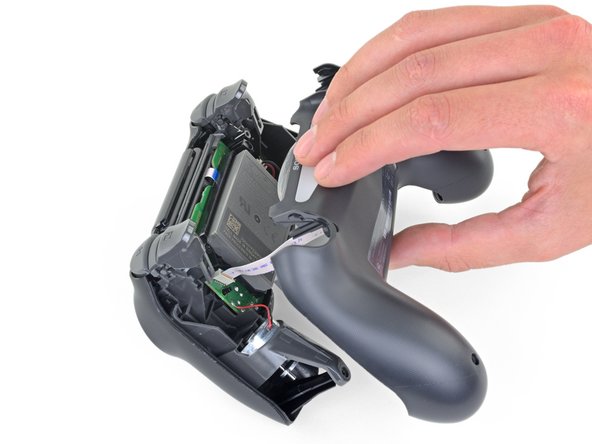
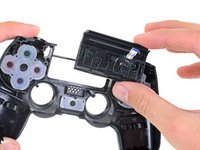
  4. DualShock 4 CUH-ZCT2 Touchpad Replacement, Remove the rear panel: crwdns2935265:04crwdnd2935265:01crwdnd2935265:02crwdne2935265:0 DualShock 4 CUH-ZCT2 Touchpad Replacement, Remove the rear panel: crwdns2935265:04crwdnd2935265:02crwdnd2935265:02crwdne2935265:0
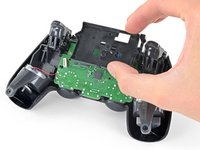
    • Lift the rear panel directly away from the controller.

    • Do not completely remove the rear panel. It is still attached to the controller by a ribbon cable.

    crwdns2952109:0crwdne2952109:0

    crwdns2917038:0crwdne2917038:0

  5. DualShock 4 CUH-ZCT2 Touchpad Replacement: crwdns2935265:05crwdnd2935265:01crwdnd2935265:02crwdne2935265:0 DualShock 4 CUH-ZCT2 Touchpad Replacement: crwdns2935265:05crwdnd2935265:02crwdnd2935265:02crwdne2935265:0
    crwdns2935267:0crwdne2935267:0
    Tweezers
    $4.99
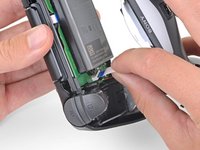
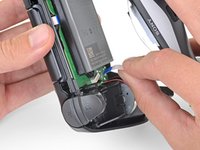
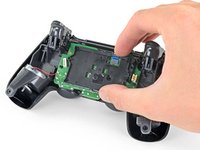
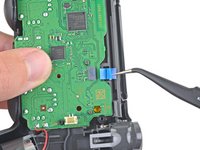
    • Use your fingers to gently pull the ribbon cable straight out of its connector on the motherboard.

    • Since this cable's pull tab is too small to grab with fingers or tweezers, grab the cable itself. Otherwise utilize pull tabs whenever possible.

    • During reassembly, grab the ribbon cable by the blue tab and gently press the cable straight into the connector. Push the blue tab rather than the ribbon cable itself.

    crwdns2952109:0crwdne2952109:0

    crwdns2917038:0crwdne2917038:0

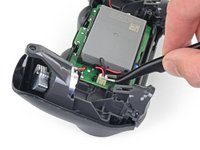
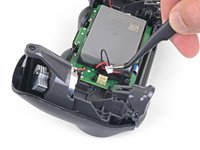
  6. DualShock 4 CUH-ZCT2 Touchpad Replacement, Remove the battery: crwdns2935265:06crwdnd2935265:01crwdnd2935265:02crwdne2935265:0 DualShock 4 CUH-ZCT2 Touchpad Replacement, Remove the battery: crwdns2935265:06crwdnd2935265:02crwdnd2935265:02crwdne2935265:0
    crwdns2935267:0crwdne2935267:0
    Tweezers
    $4.99
    • Use a pair of tweezers to pull the battery's power connector straight up from the motherboard.

    crwdns2952109:0crwdne2952109:0

    crwdns2917038:0crwdne2917038:0

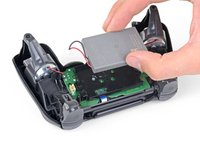
  7. DualShock 4 CUH-ZCT2 Touchpad Replacement: crwdns2935265:07crwdnd2935265:01crwdnd2935265:02crwdne2935265:0 DualShock 4 CUH-ZCT2 Touchpad Replacement: crwdns2935265:07crwdnd2935265:02crwdnd2935265:02crwdne2935265:0
    • Remove the battery.

    crwdns2952109:0crwdne2952109:0

    crwdns2917038:0crwdne2917038:0

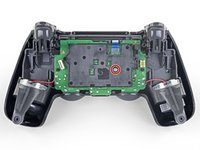
  8. DualShock 4 CUH-ZCT2 Touchpad Replacement, Remove the motherboard: crwdns2935265:08crwdnd2935265:01crwdnd2935265:02crwdne2935265:0 DualShock 4 CUH-ZCT2 Touchpad Replacement, Remove the motherboard: crwdns2935265:08crwdnd2935265:02crwdnd2935265:02crwdne2935265:0
    • Use a Phillips screwdriver to remove the 6.4 mm-long screw securing the battery bracket.

    crwdns2952109:0crwdne2952109:0

    crwdns2917038:0crwdne2917038:0

  9. DualShock 4 CUH-ZCT2 Touchpad Replacement: crwdns2935265:09crwdnd2935265:01crwdnd2935265:02crwdne2935265:0 DualShock 4 CUH-ZCT2 Touchpad Replacement: crwdns2935265:09crwdnd2935265:02crwdnd2935265:02crwdne2935265:0
    • Remove the battery bracket.

    crwdns2952109:0crwdne2952109:0

    crwdns2917038:0crwdne2917038:0

  10. DualShock 4 CUH-ZCT2 Touchpad Replacement: crwdns2935265:010crwdnd2935265:01crwdnd2935265:02crwdne2935265:0 DualShock 4 CUH-ZCT2 Touchpad Replacement: crwdns2935265:010crwdnd2935265:02crwdnd2935265:02crwdne2935265:0
    crwdns2935267:0crwdne2935267:0
    Tweezers
    $4.99
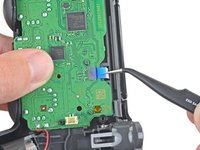
    • Use a pair of tweezers to disconnect the touch panel ribbon cable.

    • Pull the ribbon cable directly away from its connector on the motherboard by the blue pull tab, not by the cable itself.

    crwdns2952109:0crwdne2952109:0

    crwdns2917038:0crwdne2917038:0

  11. DualShock 4 CUH-ZCT2 Touchpad Replacement: crwdns2935265:011crwdnd2935265:01crwdnd2935265:02crwdne2935265:0 DualShock 4 CUH-ZCT2 Touchpad Replacement: crwdns2935265:011crwdnd2935265:02crwdnd2935265:02crwdne2935265:0
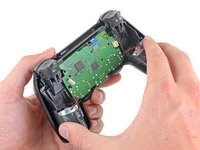
    • Separate the motherboard and midframe assembly from the front panel.

    crwdns2952109:0crwdne2952109:0

    crwdns2917038:0crwdne2917038:0

  12. DualShock 4 CUH-ZCT2 Touchpad Replacement, Remove the touchpad: crwdns2935265:012crwdnd2935265:01crwdnd2935265:03crwdne2935265:0 DualShock 4 CUH-ZCT2 Touchpad Replacement, Remove the touchpad: crwdns2935265:012crwdnd2935265:02crwdnd2935265:03crwdne2935265:0 DualShock 4 CUH-ZCT2 Touchpad Replacement, Remove the touchpad: crwdns2935265:012crwdnd2935265:03crwdnd2935265:03crwdne2935265:0
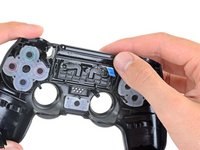
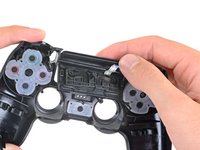
    • Push the bottom of the touchpad in from the front side of the controller to separate it from the front case.

    • Remove the touchpad from the bezel holding it to the front case.

    crwdns2952109:0crwdne2952109:0

    crwdns2917038:0crwdne2917038:0

crwdns2915888:0crwdne2915888:0

To reassemble your device, follow the above steps in reverse order.

Take your e-waste to an R2 or e-Stewards certified recycler.

Repair didn’t go as planned? Check out our Answers community for troubleshooting help.

crwdns2935221:0crwdne2935221:0

crwdns2935229:02crwdne2935229:0

Sam Omiotek

crwdns2935283:002/25/19crwdne2935283:0

99,080 crwdns2915208:0crwdne2915208:0

crwdns2935297:0290crwdne2935297:0

crwdns2947412:00crwdne2947412:0

crwdns2917038:0crwdne2917038:0

crwdns2936625:0crwdne2936625:0:

crwdns2936751:024crwdne2936751:0 7

crwdns2936753:07crwdne2936753:0 91

crwdns2936753:030crwdne2936753:0 321

crwdns2942667:0crwdne2942667:0 12,253