crwdns2915892:0crwdne2915892:0
Use this guide to replace the vibrator.
crwdns2942213:0crwdne2942213:0
-
-
Power off your iPhone before beginning disassembly.
-
Remove the two 3.6 mm P2 Pentalobe screws next to the Lightning connector.
 crwdns2952109:0crwdne2952109:0
-
-
crwdns2935267:0crwdne2935267:0Clampy - Anti-Clamp$24.95
-
Pull the blue handle backwards to unlock the Anti-Clamp's arms.
-
Slide the arms over either the left or right edge of your iPhone.
-
Position the suction cups near the bottom edge of the iPhone just above the home button—one on the front, and one on the back.
-
Squeeze the cups together to apply suction to the desired area.
-
-
-
Pull the blue handle forwards to lock the arms.
-
Turn the handle clockwise 360 degrees or until the cups start to stretch.
-
Insert an opening pick or tool under the screen when the Anti-Clamp creates a large enough gap.
-
Skip the next three steps.
-
-
-
Use a single suction cup to lift the front panel:
-
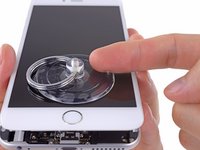
Press a suction cup onto the screen, just above the home button.
-
-
-
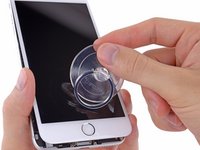
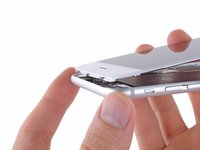
While holding the iPhone down with one hand, pull up on the suction cup to slightly separate the front panel assembly from the rear case.
-
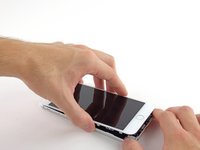
Using a plastic opening tool, begin to gently pry the rear case down, away from the display assembly, while continuing to pull up with the suction cup.
-
-
-
Pull the plastic nub to release the vacuum seal on the suction cup.
-
Remove the suction cup from the display assembly.
-
-
-
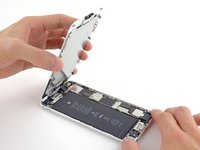
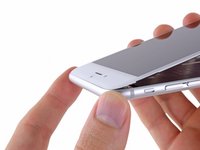
Pull the home button end of the front panel assembly away from the rear case, using the top of the phone as a hinge.
-
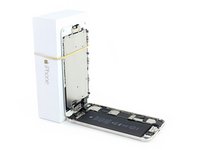
Open the display to about a 90º angle, and lean it against something to keep it propped up while you're working on the phone.
-
Add a rubber band to keep the display securely in place while you work. This prevents undue strain on the display cables.
-
-
-
-
Remove the following Phillips screws from the battery connector bracket:
-
One 2.3 mm screw
-
One 3.1 mm screw
-
-
-
Remove the metal battery connector bracket from the iPhone.
-
-
-
Use a clean fingernail or the edge of an opening tool to gently pry the battery connector up from its socket on the logic board.
-
-
-
Remove the following Phillips screws securing the front panel assembly cable bracket:
-
Three 1.2 mm screws
-
One 1.5 mm screw
-
One 2.9 mm screw
-
-
-
Remove the front panel assembly cable bracket from the logic board.
-
-
-
While still supporting the front panel, use a fingernail or the edge of an opening tool to disconnect the front-facing camera and earpiece speaker connector.
-
-
-
Disconnect the home button cable connector.
-
-
-
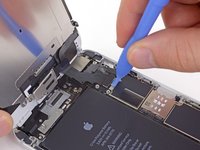
Use a plastic opening tool to disconnect the display data cable connector.
-
-
-
Finally, disconnect the digitizer cable connector.
-
-
-
Remove the front panel assembly from the rear case.
-
-
-
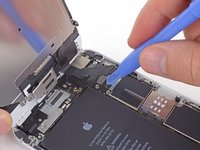
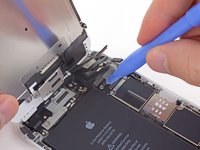
Pry the charge port connector cable up from its socket on the logic board with the flat end of a spudger.
-
-
-
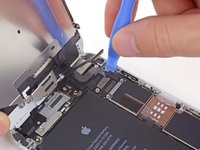
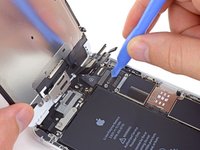
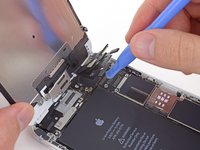
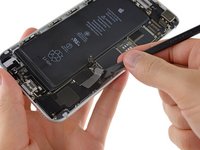
Use the tip of a spudger to disconnect the interconnect antenna cable from its socket on the logic board.
-
-
crwdns2935267:0crwdne2935267:0Tweezers$4.99
-
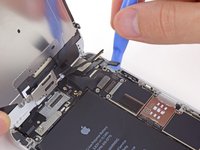
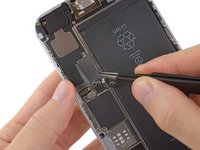
Grasp the interconnect antenna cable with a pair of tweezers and carefully de-route it from its channel on the vibrator assembly.
-
-
-
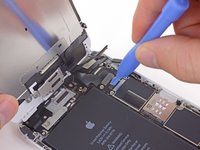
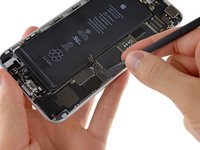
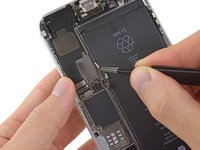
Remove the two 2.5 mm Phillips #00 screws securing the vibrator to the rear case.
-
-
-
Remove the vibrator from the iPhone.
-




















To reassemble your device, follow these instructions in reverse order.
crwdns2935221:0crwdne2935221:0
crwdns2935229:043crwdne2935229:0

crwdns2947412:05crwdne2947412:0
Was fantastic in helping me fix my phone
cjprzy126 - crwdns2934203:0crwdne2934203:0 crwdns2950251:0crwdne2950251:0
Do you have to remove the screen completely? Or can you just hold it at a 90 degree angle?
robinvanzutphen11 - crwdns2934203:0crwdne2934203:0 crwdns2950251:0crwdne2950251:0
You can hold it open at 90 degrees if you like. Prop the display open, disconnect the battery, and then skip on down to the vibrator section.
Jeff Suovanen - crwdns2934203:0crwdne2934203:0 crwdns2950251:0crwdne2950251:0
Did anyone come across the vibrator button switch not functioning after replacing the LCD screen & vibrator? It was working for a second, and after a few more tries, it stopped. It doesn’t even register that the switch is functioning either (you don’t get the quick image on the screen).
(iPhone 6 Plus)
CHARLES ALMERO - crwdns2934203:0crwdne2934203:0 crwdns2950251:0crwdne2950251:0
Was fantastic in helping me fix my phone
toufik tnt - crwdns2934203:0crwdne2934203:0 crwdns2950251:0crwdne2950251:0
