crwdns2933423:0crwdne2933423:0

iPhone 15 Pro Max Screen Replacement

crwdns2942213:0crwdne2942213:0

  1. iPhone 15 Pro Max Screen Replacement, Prepare your phone for disassembly: crwdns2935265:01crwdnd2935265:01crwdnd2935265:02crwdne2935265:0 iPhone 15 Pro Max Screen Replacement, Prepare your phone for disassembly: crwdns2935265:01crwdnd2935265:02crwdnd2935265:02crwdne2935265:0
    • Allow your phone's battery to drain below 25%, as a charged lithium-ion battery is a potential safety hazard.

    • Unplug any cables from your phone.

    • Hold the power and either volume buttons and slide to power off your phone.

  2. iPhone 15 Pro Max Screen Replacement, Tape over any cracks: crwdns2935265:02crwdnd2935265:01crwdnd2935265:02crwdne2935265:0 iPhone 15 Pro Max Screen Replacement, Tape over any cracks: crwdns2935265:02crwdnd2935265:02crwdnd2935265:02crwdne2935265:0
    • If your screen or back glass is badly cracked, lay overlapping strips of packing tape over the glass to protect yourself and make disassembly easier.

    • Make sure there's a smooth area near the bottom edge that's big enough for a suction cup to stick to.

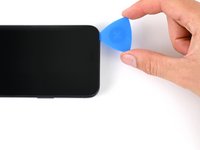
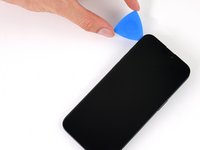
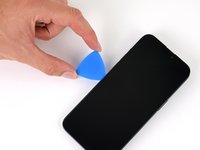
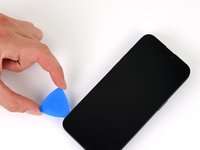
  3. iPhone 15 Pro Max Screen Replacement, Mark your opening picks: crwdns2935265:03crwdnd2935265:01crwdnd2935265:03crwdne2935265:0 iPhone 15 Pro Max Screen Replacement, Mark your opening picks: crwdns2935265:03crwdnd2935265:02crwdnd2935265:03crwdne2935265:0 iPhone 15 Pro Max Screen Replacement, Mark your opening picks: crwdns2935265:03crwdnd2935265:03crwdnd2935265:03crwdne2935265:0
    • If inserted too far, an opening pick can damage your device. Follow this step to mark your pick and prevent damage.

    • Measure 3 mm from the tip and mark the opening pick with a permanent marker.

    • You can also mark the other corners of the pick with different measurements.

    • Alternatively, tape a coin to a pick 3 mm from the tip.

    • Apple sells an Adhesive Cutter tool for cutting the display adhesive safely in their Self Repair Store.

  4. iPhone 15 Pro Max Screen Replacement, Remove the pentalobe screws: crwdns2935265:04crwdnd2935265:01crwdnd2935265:01crwdne2935265:0
    • Use a P2 pentalobe driver to remove the two 7.2 mm-long screws on either side of the charging port.

  5. iPhone 15 Pro Max Screen Replacement, Heat the bottom edge: crwdns2935265:05crwdnd2935265:01crwdnd2935265:01crwdne2935265:0
    • Use a hair dryer or heat gun to heat the bottom edge of the screen until it's hot to the touch.

    • Be careful not to heat the phone hotter than this—the battery is susceptible to heat damage.

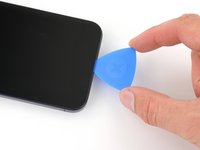
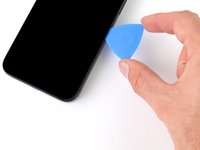
  6. iPhone 15 Pro Max Screen Replacement, Insert an opening pick: crwdns2935265:06crwdnd2935265:01crwdnd2935265:03crwdne2935265:0 iPhone 15 Pro Max Screen Replacement, Insert an opening pick: crwdns2935265:06crwdnd2935265:02crwdnd2935265:03crwdne2935265:0 iPhone 15 Pro Max Screen Replacement, Insert an opening pick: crwdns2935265:06crwdnd2935265:03crwdnd2935265:03crwdne2935265:0
    • Apply a suction handle to the bottom edge of the screen.

    • Pull up on the handle with a strong, steady force to create a gap between the screen and the frame.

    • Insert the tip of an opening pick into the gap.

  7. iPhone 15 Pro Max Screen Replacement, Screen information: crwdns2935265:07crwdnd2935265:01crwdnd2935265:01crwdne2935265:0
    • As you slice the adhesive securing the screen in the next steps, be careful of the following areas:

    • There are two delicate cables connecting the screen to the phone: one just above the action button, and the other near the middle of the left edge.

    • There are multiple spring contacts around the perimeter of the phone. Be extra careful not to insert your pick deeper than suggested in these locations to avoid bending the contacts.

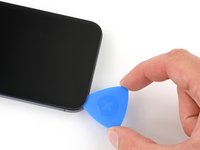
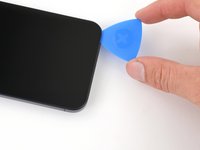
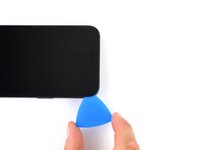
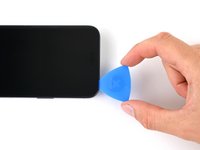
  8. iPhone 15 Pro Max Screen Replacement, Separate the bottom edge adhesive: crwdns2935265:08crwdnd2935265:01crwdnd2935265:03crwdne2935265:0 iPhone 15 Pro Max Screen Replacement, Separate the bottom edge adhesive: crwdns2935265:08crwdnd2935265:02crwdnd2935265:03crwdne2935265:0 iPhone 15 Pro Max Screen Replacement, Separate the bottom edge adhesive: crwdns2935265:08crwdnd2935265:03crwdnd2935265:03crwdne2935265:0
    • Don't insert your opening pick deeper than 3 mm along the bottom edge.

    • Slide your pick back and forth along the bottom edge to separate the adhesive.

    • Leave your pick inserted in the bottom right corner to prevent the adhesive from re-sealing.

  9. iPhone 15 Pro Max Screen Replacement, Heat the right edge: crwdns2935265:09crwdnd2935265:01crwdnd2935265:01crwdne2935265:0
    • Heat the right edge of the screen until it's hot to the touch.

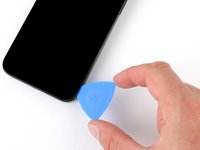
  10. iPhone 15 Pro Max Screen Replacement, Position the opening pick: crwdns2935265:010crwdnd2935265:01crwdnd2935265:03crwdne2935265:0 iPhone 15 Pro Max Screen Replacement, Position the opening pick: crwdns2935265:010crwdnd2935265:02crwdnd2935265:03crwdne2935265:0 iPhone 15 Pro Max Screen Replacement, Position the opening pick: crwdns2935265:010crwdnd2935265:03crwdnd2935265:03crwdne2935265:0
    • Don't insert your pick deeper than 5 mm along the right edge.

    • Slide your pick around the bottom right corner of the screen and toward the power button until you feel a hard stop at a clip securing the screen.

    • Rotate your pick so the flat edge is under the screen.

  11. iPhone 15 Pro Max Screen Replacement, Release the right clip: crwdns2935265:011crwdnd2935265:01crwdnd2935265:03crwdne2935265:0 iPhone 15 Pro Max Screen Replacement, Release the right clip: crwdns2935265:011crwdnd2935265:02crwdnd2935265:03crwdne2935265:0 iPhone 15 Pro Max Screen Replacement, Release the right clip: crwdns2935265:011crwdnd2935265:03crwdnd2935265:03crwdne2935265:0
    • Twist the pick to increase the gap between the screen and the frame until the right clip releases.

    • Insert a second opening pick to the right of the first pick.

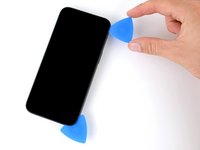
  12. iPhone 15 Pro Max Screen Replacement, Separate the right edge adhesive: crwdns2935265:012crwdnd2935265:01crwdnd2935265:03crwdne2935265:0 iPhone 15 Pro Max Screen Replacement, Separate the right edge adhesive: crwdns2935265:012crwdnd2935265:02crwdnd2935265:03crwdne2935265:0 iPhone 15 Pro Max Screen Replacement, Separate the right edge adhesive: crwdns2935265:012crwdnd2935265:03crwdnd2935265:03crwdne2935265:0
    • Slide the first pick back to the bottom right corner of the screen.

    • Slide the second pick to the top right corner of the screen to separate the adhesive.

    • Leave these picks inserted to prevent the adhesive from resealing.

  13. iPhone 15 Pro Max Screen Replacement, Heat the top edge: crwdns2935265:013crwdnd2935265:01crwdnd2935265:01crwdne2935265:0
    • Heat the top edge of the screen until it's hot to the touch.

  14. iPhone 15 Pro Max Screen Replacement, Separate the top edge adhesive: crwdns2935265:014crwdnd2935265:01crwdnd2935265:03crwdne2935265:0 iPhone 15 Pro Max Screen Replacement, Separate the top edge adhesive: crwdns2935265:014crwdnd2935265:02crwdnd2935265:03crwdne2935265:0 iPhone 15 Pro Max Screen Replacement, Separate the top edge adhesive: crwdns2935265:014crwdnd2935265:03crwdnd2935265:03crwdne2935265:0
    • Don't insert your pick deeper than 3 mm along the top edge.

    • Slide your pick around the top right corner and along the top edge to release the two clips and adhesive securing it.

  15. iPhone 15 Pro Max Screen Replacement, Heat the left edge: crwdns2935265:015crwdnd2935265:01crwdnd2935265:01crwdne2935265:0
    • Heat the left edge of the screen until it's hot to the touch.

  16. iPhone 15 Pro Max Screen Replacement, Separate the left edge adhesive: crwdns2935265:016crwdnd2935265:01crwdnd2935265:03crwdne2935265:0 iPhone 15 Pro Max Screen Replacement, Separate the left edge adhesive: crwdns2935265:016crwdnd2935265:02crwdnd2935265:03crwdne2935265:0 iPhone 15 Pro Max Screen Replacement, Separate the left edge adhesive: crwdns2935265:016crwdnd2935265:03crwdnd2935265:03crwdne2935265:0
    • Don't insert your pick deeper than 2 mm along the left edge to avoid the two cables connecting the screen to the phone.

    • Rotate your pick around the top left corner of the screen.

    • Slide your pick to the bottom left corner of the screen to separate the adhesive.

  17. iPhone 15 Pro Max Screen Replacement, Swing open the screen: crwdns2935265:017crwdnd2935265:01crwdnd2935265:03crwdne2935265:0 iPhone 15 Pro Max Screen Replacement, Swing open the screen: crwdns2935265:017crwdnd2935265:02crwdnd2935265:03crwdne2935265:0 iPhone 15 Pro Max Screen Replacement, Swing open the screen: crwdns2935265:017crwdnd2935265:03crwdnd2935265:03crwdne2935265:0
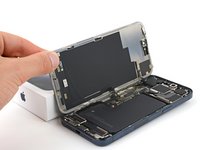
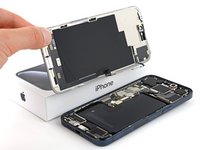
    • Gently swing open the screen to the left of the phone.

    • If the screen feels stuck, go back around the perimeter to check for missed sections of adhesive or stuck clips.

    • Rest the screen against a box or similar object so it doesn't strain the cables.

  18. iPhone 15 Pro Max Screen Replacement, Unfasten the logic board cover: crwdns2935265:018crwdnd2935265:01crwdnd2935265:02crwdne2935265:0 iPhone 15 Pro Max Screen Replacement, Unfasten the logic board cover: crwdns2935265:018crwdnd2935265:02crwdnd2935265:02crwdne2935265:0
    crwdns2935267:0crwdne2935267:0
    FixMat
    $36.95
    • Throughout this repair, keep track of each screw and make sure it goes back exactly where it came from.

    • Use a tri-point Y000 driver to remove the six screws securing the logic board cover:

    • One 2.1 mm‑long screw

    • Five 1.5 mm‑long screws

  19. iPhone 15 Pro Max Screen Replacement, Remove the logic board cover: crwdns2935265:019crwdnd2935265:01crwdnd2935265:03crwdne2935265:0 iPhone 15 Pro Max Screen Replacement, Remove the logic board cover: crwdns2935265:019crwdnd2935265:02crwdnd2935265:03crwdne2935265:0 iPhone 15 Pro Max Screen Replacement, Remove the logic board cover: crwdns2935265:019crwdnd2935265:03crwdnd2935265:03crwdne2935265:0
    crwdns2935267:0crwdne2935267:0
    Tweezers
    $4.99
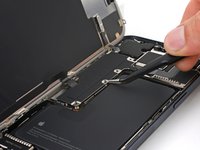
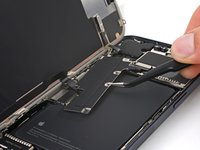
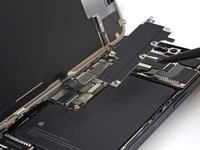
    • Use tweezers or your fingers to grab and slide the logic board cover toward the bottom of the phone to clear the sensor cable.

    • Remove the cover.

  20. iPhone 15 Pro Max Screen Replacement, Disconnect the battery: crwdns2935265:020crwdnd2935265:01crwdnd2935265:03crwdne2935265:0 iPhone 15 Pro Max Screen Replacement, Disconnect the battery: crwdns2935265:020crwdnd2935265:02crwdnd2935265:03crwdne2935265:0 iPhone 15 Pro Max Screen Replacement, Disconnect the battery: crwdns2935265:020crwdnd2935265:03crwdnd2935265:03crwdne2935265:0
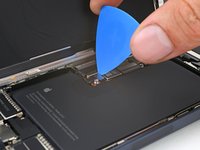
    • Use the tip of an opening pick to pry up and disconnect the battery press connector.

    • To reconnect a press connector, align it over its socket and gently press down on one side until it clicks into place, then press down on the other side. Make sure it sits flat, as the insulating rubber around the sockets might prevent it from connecting fully.

  21. iPhone 15 Pro Max Screen Replacement, Disconnect the ambient light sensor: crwdns2935265:021crwdnd2935265:01crwdnd2935265:02crwdne2935265:0 iPhone 15 Pro Max Screen Replacement, Disconnect the ambient light sensor: crwdns2935265:021crwdnd2935265:02crwdnd2935265:02crwdne2935265:0
    • Use the point of a spudger to pry up and disconnect the ambient light sensor press connector from the top left of the logic board.

  22. iPhone 15 Pro Max Screen Replacement, Disconnect the screen: crwdns2935265:022crwdnd2935265:01crwdnd2935265:02crwdne2935265:0 iPhone 15 Pro Max Screen Replacement, Disconnect the screen: crwdns2935265:022crwdnd2935265:02crwdnd2935265:02crwdne2935265:0
    • Disconnect the screen press connector.

  23. iPhone 15 Pro Max Screen Replacement, Remove the screen: crwdns2935265:023crwdnd2935265:01crwdnd2935265:02crwdne2935265:0 iPhone 15 Pro Max Screen Replacement, Remove the screen: crwdns2935265:023crwdnd2935265:02crwdnd2935265:02crwdne2935265:0
    • Remove the screen.

    • During reassembly, stop here and use this guide to install new screen adhesive.

    • Be careful not to damage any of the spring contacts as you clean the frame.

  24. iPhone 15 Pro Max Screen Replacement, Ambient light sensor information: crwdns2935265:024crwdnd2935265:01crwdnd2935265:02crwdne2935265:0 iPhone 15 Pro Max Screen Replacement, Ambient light sensor information: crwdns2935265:024crwdnd2935265:02crwdnd2935265:02crwdne2935265:0
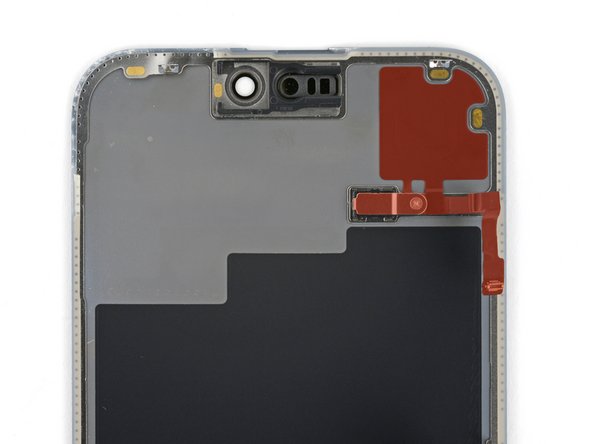
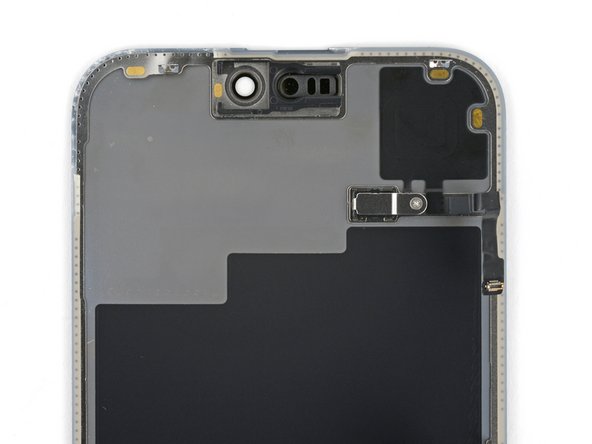
    • Check if your new screen comes with an ambient light sensor installed.

    • If it doesn't, follow the remaining steps to remove and transfer the sensor from your original screen to your replacement.

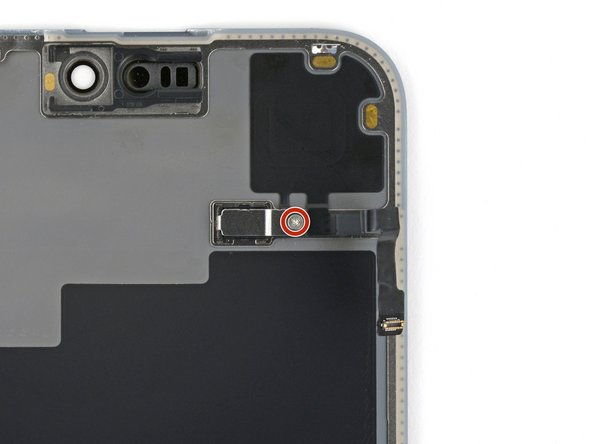
  25. iPhone 15 Pro Max Screen Replacement, Remove the ambient light sensor cover screw: crwdns2935265:025crwdnd2935265:01crwdnd2935265:01crwdne2935265:0
    • Use a Phillips #000 driver to remove the 1.4 mm screw securing the ambient light sensor cover.

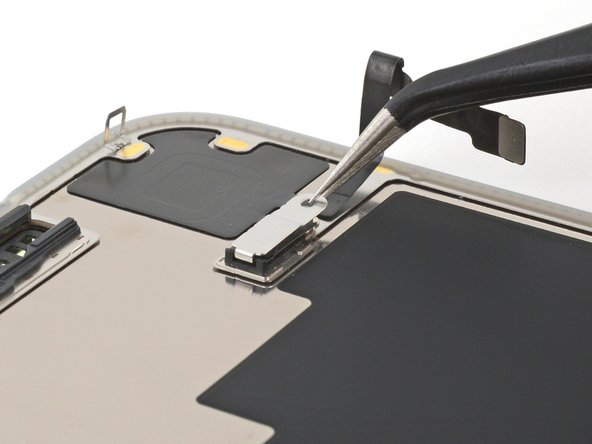
  26. iPhone 15 Pro Max Screen Replacement, Remove the ambient light sensor cover: crwdns2935265:026crwdnd2935265:01crwdnd2935265:03crwdne2935265:0 iPhone 15 Pro Max Screen Replacement, Remove the ambient light sensor cover: crwdns2935265:026crwdnd2935265:02crwdnd2935265:03crwdne2935265:0 iPhone 15 Pro Max Screen Replacement, Remove the ambient light sensor cover: crwdns2935265:026crwdnd2935265:03crwdnd2935265:03crwdne2935265:0
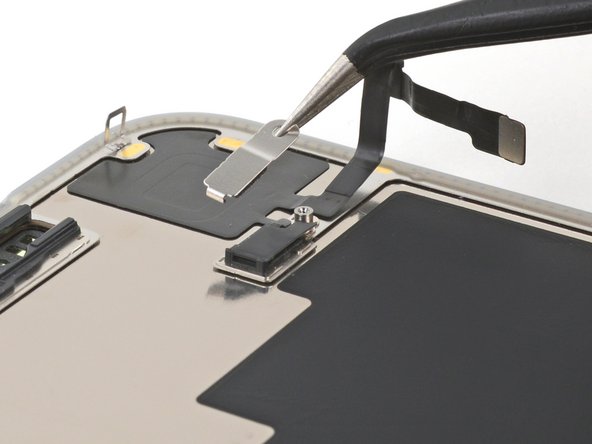
    • Use tweezers or your fingers to unlatch the ambient light sensor cover and remove it.

    • During reassembly, make sure to hook the latch into the small groove on the left side of the black plastic enclosure.

  27. iPhone 15 Pro Max Screen Replacement, Heat the ambient light sensor adhesive: crwdns2935265:027crwdnd2935265:01crwdnd2935265:01crwdne2935265:0
    • Be careful not to overheat the screen—the plastic components can melt if they get too hot.

    • Use a hair dryer or heat gun to heat the ambient light sensor until it's warm to the touch.

  28. iPhone 15 Pro Max Screen Replacement, Pry up the sensor: crwdns2935265:028crwdnd2935265:01crwdnd2935265:03crwdne2935265:0 iPhone 15 Pro Max Screen Replacement, Pry up the sensor: crwdns2935265:028crwdnd2935265:02crwdnd2935265:03crwdne2935265:0 iPhone 15 Pro Max Screen Replacement, Pry up the sensor: crwdns2935265:028crwdnd2935265:03crwdnd2935265:03crwdne2935265:0
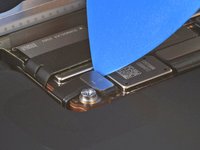
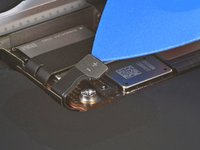
    • Be very gentle handing the ambient light sensor, as its cable is extremely fragile and thin. Avoid using your tool in the direction of the cable.

    • Use the tip of an opening pick to pry up the edge of the ambient light sensor out of its black plastic enclosure.

    • This may be tricky. The enclosure prevents you from inserting a tool underneath the sensor. Try from a couple angles, if your tool tends to slip.

  29. iPhone 15 Pro Max Screen Replacement, Reheat the ambient light sensor: crwdns2935265:029crwdnd2935265:01crwdnd2935265:01crwdne2935265:0
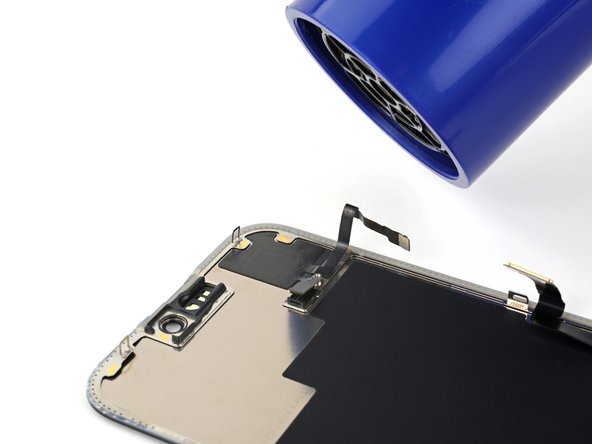
    • By this point, your sensor likely cooled down. Apply more heat until the entire glued down component is warm to the touch.

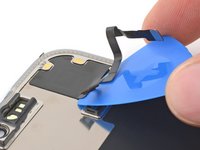
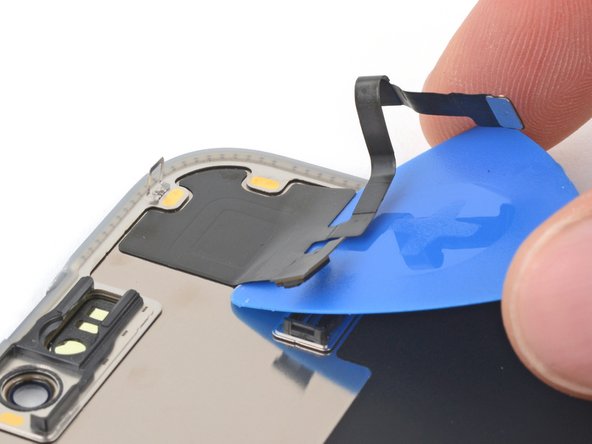
  30. iPhone 15 Pro Max Screen Replacement, Separate the adhesive: crwdns2935265:030crwdnd2935265:01crwdnd2935265:03crwdne2935265:0 iPhone 15 Pro Max Screen Replacement, Separate the adhesive: crwdns2935265:030crwdnd2935265:02crwdnd2935265:03crwdne2935265:0 iPhone 15 Pro Max Screen Replacement, Separate the adhesive: crwdns2935265:030crwdnd2935265:03crwdnd2935265:03crwdne2935265:0
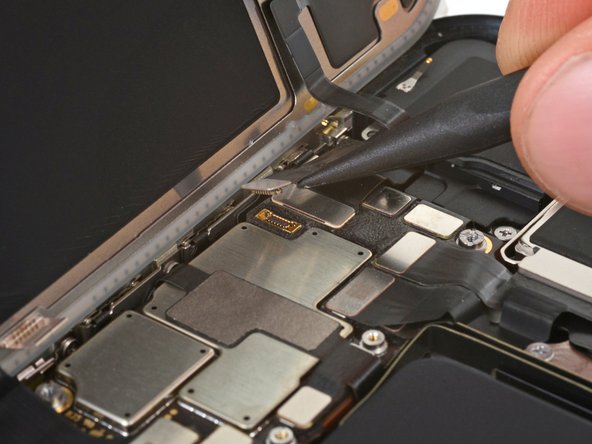
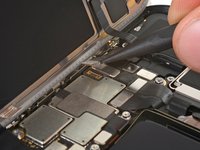
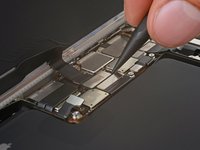
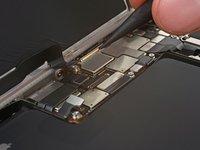
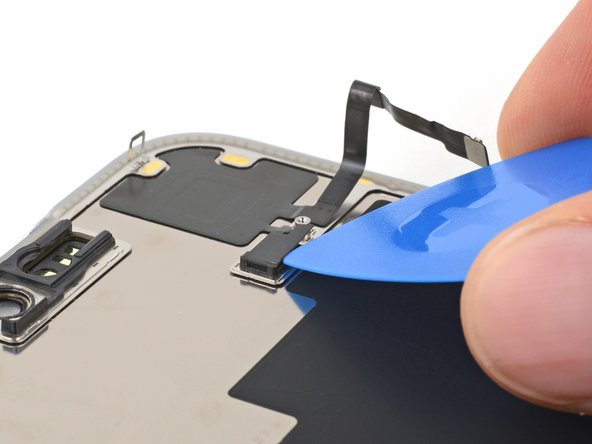
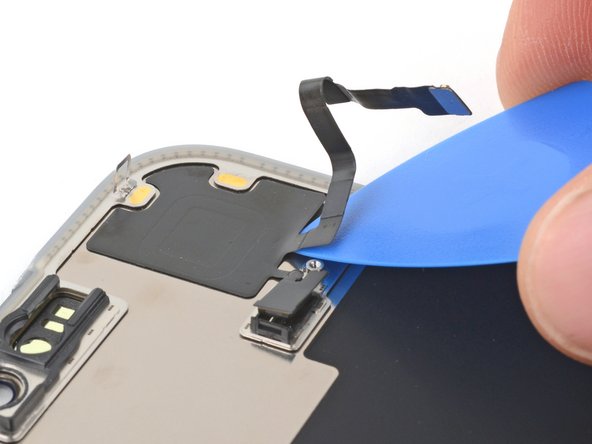
    • Insert the tip of your opening pick underneath the press connector cable.

    • Slide your pick back and forth underneath both cables to separate the lower section of adhesive.

  31. iPhone 15 Pro Max Screen Replacement: crwdns2935265:031crwdnd2935265:01crwdnd2935265:03crwdne2935265:0 iPhone 15 Pro Max Screen Replacement: crwdns2935265:031crwdnd2935265:02crwdnd2935265:03crwdne2935265:0 iPhone 15 Pro Max Screen Replacement: crwdns2935265:031crwdnd2935265:03crwdnd2935265:03crwdne2935265:0
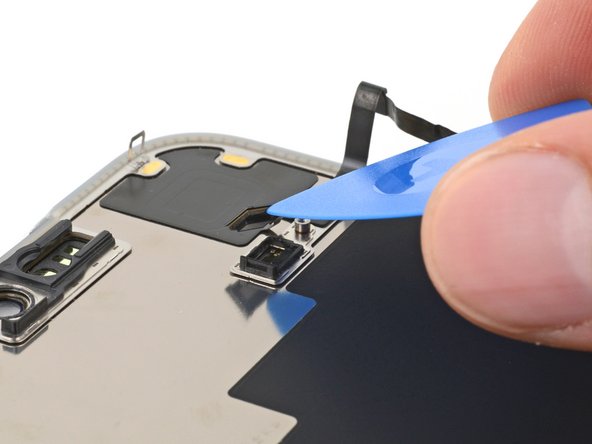
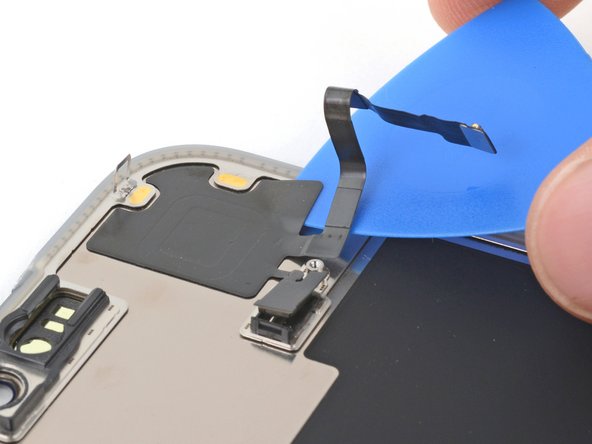
    • Be careful not to sharply crease or tear the ambient light sensor.

    • Reheat the glued down section of the component at any point if the adhesive cools and becomes stubborn to cut.

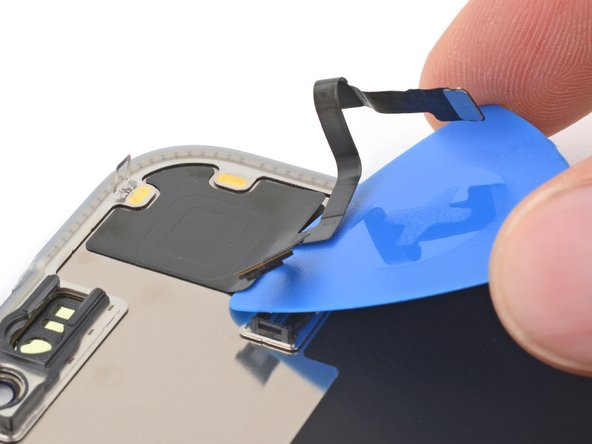
    • Use the flat end of your pick to slide back and forth underneath the sensor until you've separated roughly half of it from the screen.

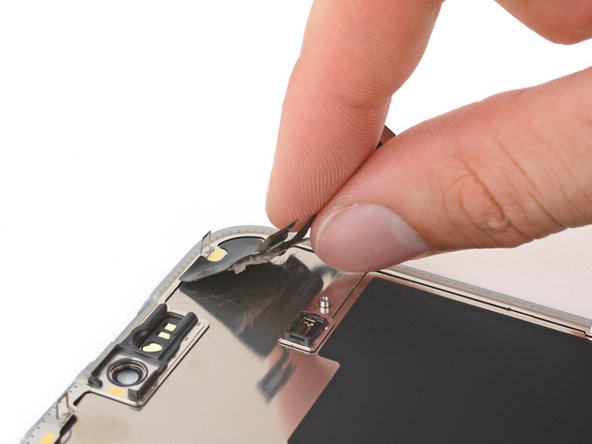
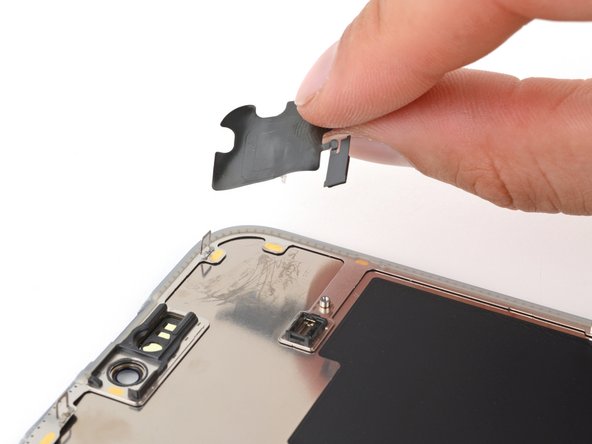
  32. iPhone 15 Pro Max Screen Replacement, Remove the ambient light sensor: crwdns2935265:032crwdnd2935265:01crwdnd2935265:02crwdne2935265:0 iPhone 15 Pro Max Screen Replacement, Remove the ambient light sensor: crwdns2935265:032crwdnd2935265:02crwdnd2935265:02crwdne2935265:0
    • Use your fingers to grab the raised half of the sensor and peel it from the screen.

crwdns2915888:0crwdne2915888:0

To reassemble your device, follow these instructions in reverse order.

After your repair, depending on the replacement part, you may be able to calibrate it using Apple's Repair Assistant, available as of iOS 18. Update your device, navigate to Settings General About Parts & Service History, tap Restart & Finish Repair, and follow the onscreen prompts.

Take your e-waste to an R2 or e-Stewards certified recycler.

Repair didn’t go as planned? Try some basic troubleshooting, or ask our Answers community for help.

crwdns2935229:031crwdne2935229:0

Clay Eickemeyer

crwdns2935283:009/19/22crwdne2935283:0

95 641 crwdns2915208:0crwdne2915208:0

crwdns2935297:0466crwdne2935297:0

crwdns2935287:0crwdne2935287:0

Guide Team crwdns2935289:0Guide Teamcrwdne2935289:0

Staff

crwdns2931471:010crwdne2931471:0

crwdns2935297:015 803crwdne2935297:0

crwdns2947412:06crwdne2947412:0

My iFixit replacement screen (“Aftermarket Soft OLED”) did not include the sensor from the original display, and the guide doesn’t explain how to transfer that part. The video about swapping the light sensor on an iPhone 15 gave me the confidence to perform the same procedure on the iPhone 15 Pro Max screen sensor.

After carefully loosening the adhesive on the cable, I was able to gently pull the small tab to detach the sensor head. The remaining glue on the sensor was sufficient to secure it onto the new screen.

Conrad Peyer - crwdns2934203:0crwdne2934203:0

Thank you for the comment! We've just updated the guide accordingly with steps to remove and transfer the sensor.

Spencer Day -

I have a question, did your soft Oled 120hz display on your iphone 15 pro max still produce its 120hz capability, if so, was there anything different in the way you changed the steps. I am starting to think I got the wrong display when I ordered the soft OLED 120hz display, thanks.

Denis C -
crwdns2917038:0crwdne2917038:0

crwdns2936625:0crwdne2936625:0:

crwdns2936751:024crwdne2936751:0 136

crwdns2936753:07crwdne2936753:0 1,219

crwdns2936753:030crwdne2936753:0 4,994

crwdns2942667:0crwdne2942667:0 85,187