crwdns2915892:0crwdne2915892:0
Follow this guide to replace a worn out battery for the Motorola Droid Turbo 2. If your battery is swollen, take appropriate precautions.
For your safety, discharge your existing battery below 25% before disassembling your phone. This reduces the risk of a dangerous thermal event if the battery is accidentally damaged during the repair.
crwdns2942213:0crwdne2942213:0
-
-
-
Insert a SIM eject tool, SIM eject bit, or a straightened paperclip into the small hole in the SIM card tray.
-
Press to eject the tray.
-
Remove the SIM card tray assembly from the phone.
 crwdns2952109:0crwdne2952109:0
-
-
-
Heat an iOpener and apply it to the top edge of the phone for a minute.
-
-
-
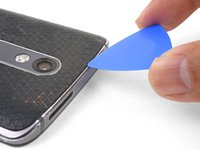
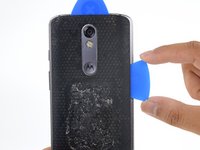
Angle an opening pick and firmly press so that it slips under the back cover.
-
-
-
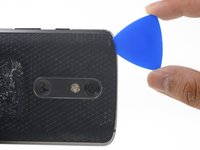
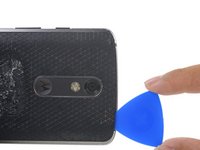
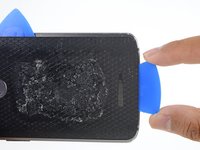
Slide the opening pick along the top edge of the phone to break up the adhesive.
-
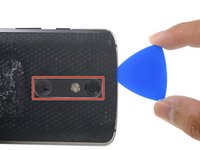
Use the pick to release the deeper areas but avoid slicing through the camera bezel area.
-
-
-
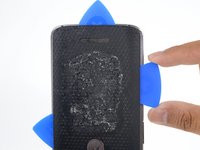
Repeat the iOpener heating and slicing procedures for the remaining three sides.
-
-
-
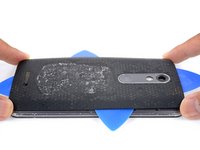
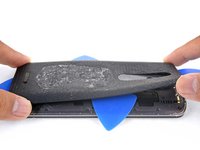
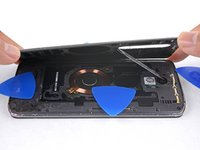
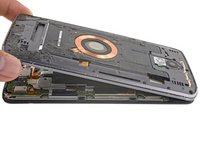
Once you have cut through the adhesive, slowly peel the back cover away from the frame.
-
Remove the back cover.
-
-
-
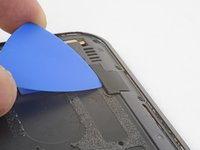
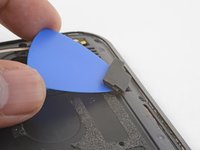
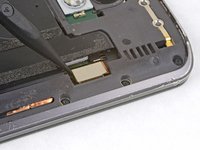
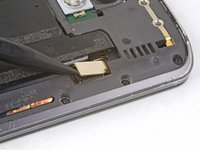
Insert an opening pick under the flash connector rubber cover and pry forward to remove it.
-
-
-
-
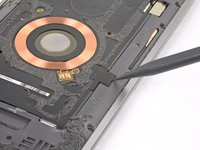
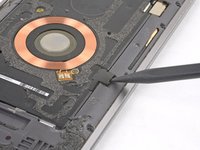
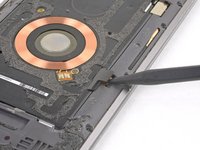
Use the point of a spudger to pry up and remove the coil connector rubber cover.
-
To reinstall the cover, align the cover and use your finger to push it forward into place.
-
-
-
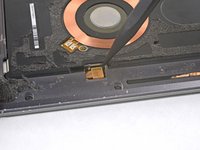
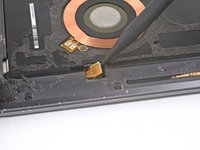
Use the point of a spudger to pry up and disconnect the flash connector.
-
-
-
Use the point of a spudger to pry up and disconnect the wireless charging coil connector.
-
-
-
Remove the following T3 screws securing the midframe:
-
Thirteen 3.1 mm black screws
-
Four 4.3 mm silver screws
-
-
-
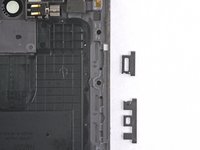
Insert an opening pick along the frame seam and twist slightly to release the midframe from the phone.
-
-
-
Remove the midframe from the phone.
-
-
-
-
-
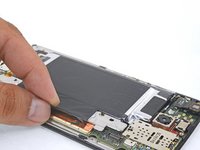
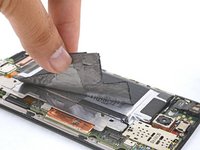
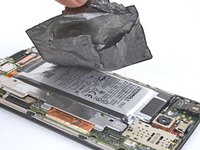
Carefully peel the black graphite layer from the phone.
-
-
-
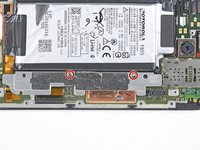
Remove the two 4.2 mm T3 screws securing the metal bracket adjacent to the battery.
-
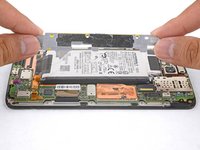
Remove the metal bracket.
-
-
-
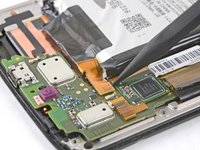
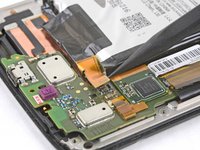
Use the point of a spudger to pry up and disconnect the battery pack connector.
-
-
-
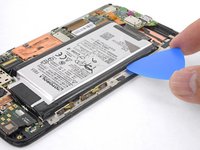
Angle and insert an opening pick under the long edge of the battery away from the motherboard side.
-
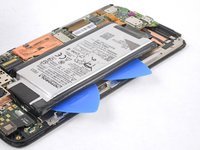
Insert a second opening pick along the same battery edge next to the first pick.
-
-
-
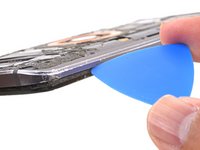
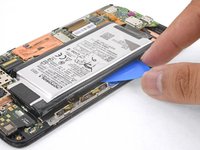
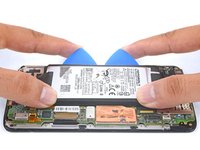
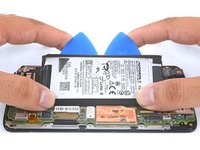
Apply firm, constant prying pressure to the picks to release the battery from the frame.
-
As the battery loosens from the frame, move the picks inward and continue to pry upwards.
-
-
crwdns2935267:0crwdne2935267:0Tesa 61395 Tape$8.95
-
Remove the battery.
-
To help with alignment, connect the battery temporarily to the motherboard before adhering it in place. Disconnect the battery before you continue with re-assembly.
-
-



































To reassemble your device, follow these instructions in reverse order.
Take your e-waste to an R2 or e-Stewards certified recycler.
Repair didn’t go as planned? Check out our Motorola Moto Droid Turbo 2 Answers community for troubleshooting help.
crwdns2935221:0crwdne2935221:0
crwdns2935229:078crwdne2935229:0


crwdns2947412:030crwdne2947412:0
Despite being careful, I lost one screw that seemingly disappeared as I tried to place it back. Even a rare earth magnet didn't find it. It would be nice to have spare screws.
Bill Koonce - crwdns2934203:0crwdne2934203:0 crwdns2950251:0crwdne2950251:0
From whom would get those?
Dan Lo Fat - crwdns2934203:0crwdne2934203:0 crwdns2950251:0crwdne2950251:0
Your neighbors Turbo 2…it would've up to you whether or not to tell the neighbors that you got them, lol. Everyone seems to have a junk phone around, open it up and find the closest matching one….. I be yet to find anyone that sells spare phone
Jack Gaites - crwdns2934203:0crwdne2934203:0 crwdns2950251:0crwdne2950251:0
Replaced the battery, but now the display is pixelated on the right side. Any ideas? Need help ASAP.
Cameron Barringer - crwdns2934203:0crwdne2934203:0 crwdns2950251:0crwdne2950251:0
The only thing that got me hung up on this was the volume button reassembly. I can't seem to get the volume button to work properly again.
Richard Drawdy - crwdns2934203:0crwdne2934203:0 crwdns2950251:0crwdne2950251:0
