crwdns2915892:0crwdne2915892:0
Use this guide to replace the speakers in your Lenovo Legion Y7000P laptop.
You may need to replace the speakers if they are scratchy, very quiet, or sound fuzzy.
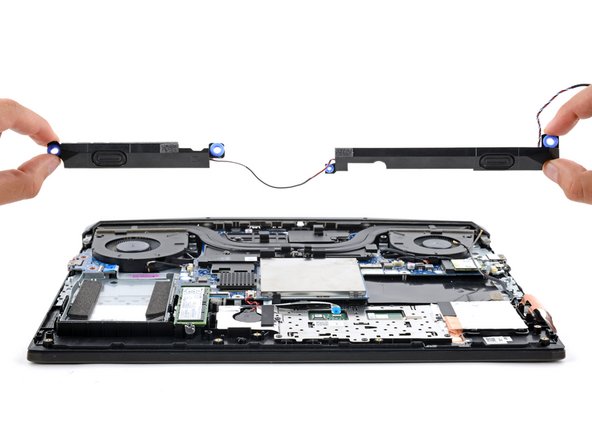
Note: The left and right speakers are connected by a wire and must be removed and replaced together.
crwdns2942213:0crwdne2942213:0
-
-
Unplug all cables and fully shut down your laptop.
-
-
-
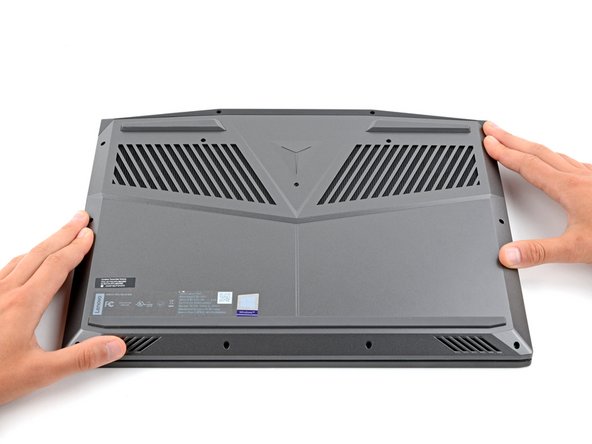
Flip your laptop over so the rubber feet are facing up.
-
-
-
Use a Phillips screwdriver to remove the 11 screws securing the back cover:
-
Five 11.5 mm‑long screws
-
Six 4.7 mm-long screws
-
-
-
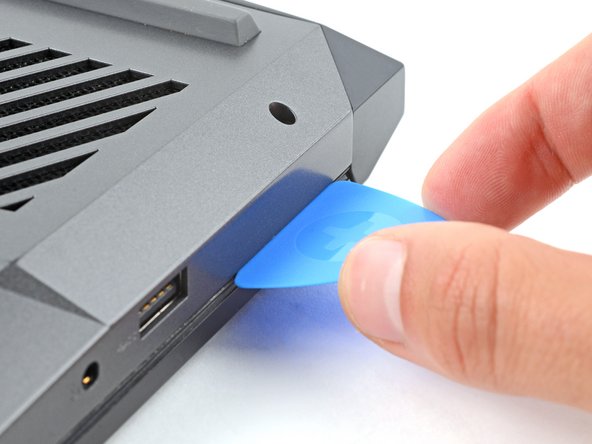
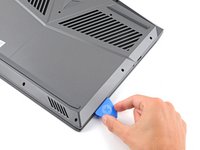
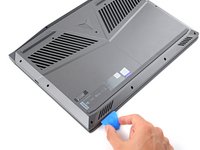
Insert the flat side of an opening pick between the top right corner of the back cover and frame.
-
-
-
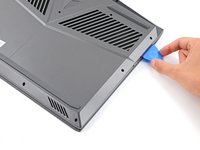
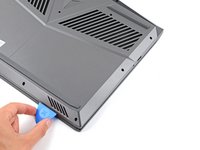
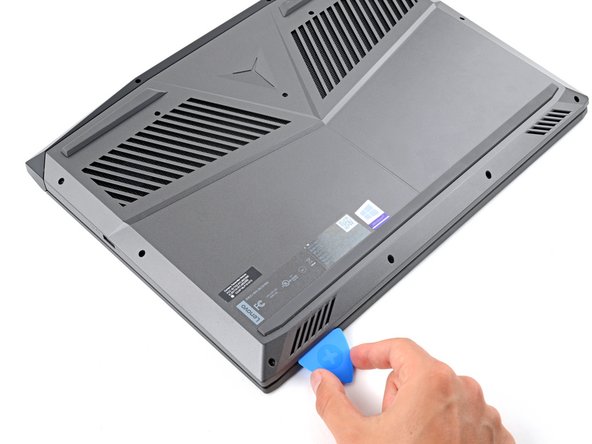
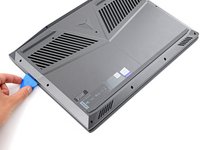
Slide the opening pick down the right edge and around the bottom right corner to release the clips.
-
-
-
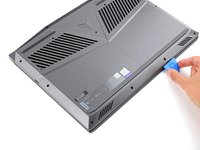
Slide the opening pick along the front edge and up to the top left corner to release the remaining clips securing the back cover.
-
-
-
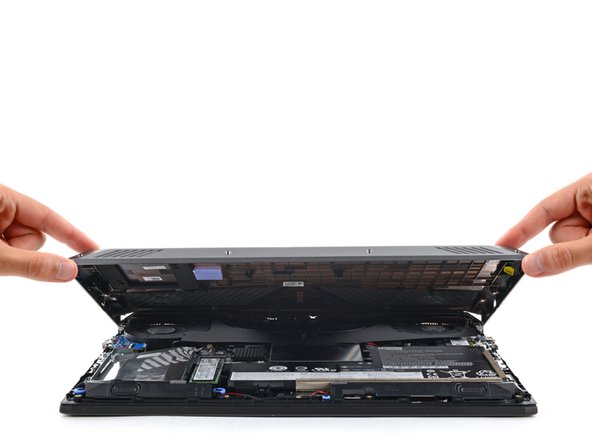
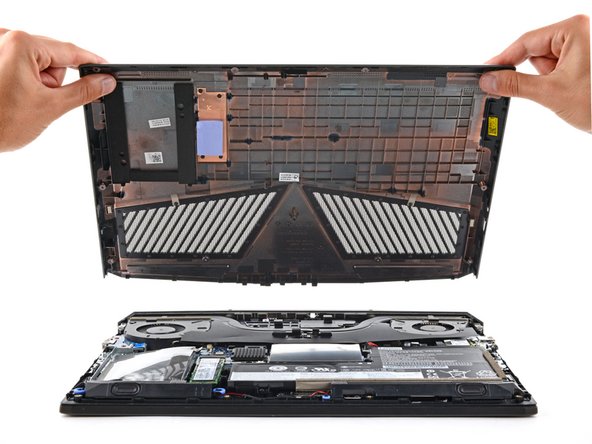
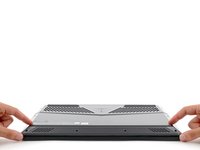
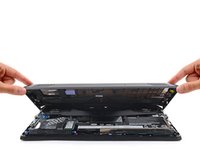
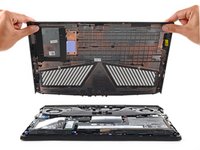
Remove the back cover.
-
-
-
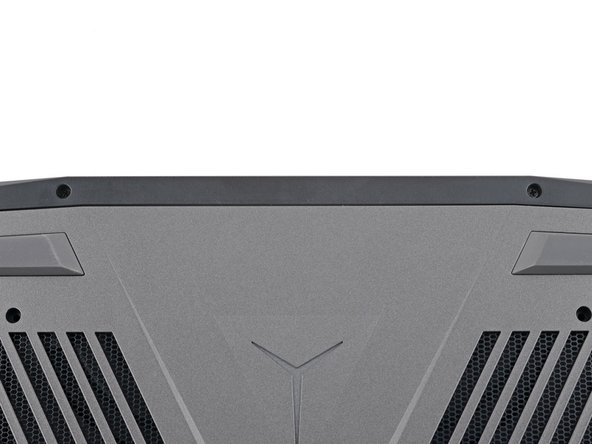
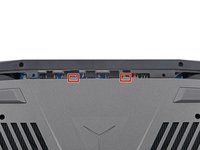
Slide the two tabs near the center of the back cover's top edge under the hinge cover.
-
Press down firmly around the perimeter of the back cover to engage all the clips.
-
-
-
-
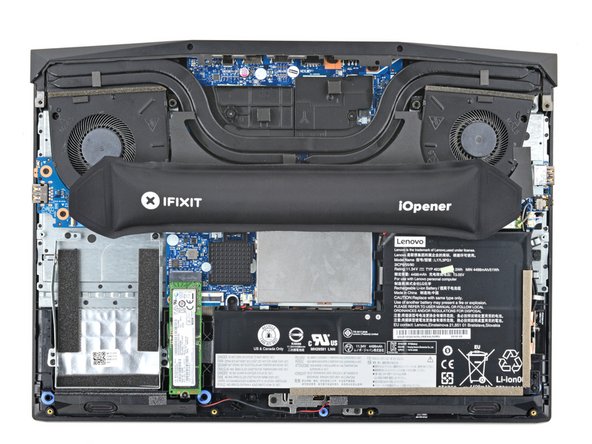
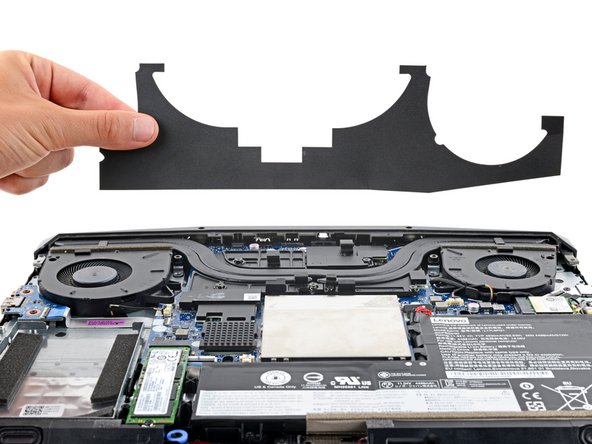
A stiff, black cover runs across the heatsink and fans.
-
Heat an iOpener and apply it to the cover for two minutes.
-
-
-
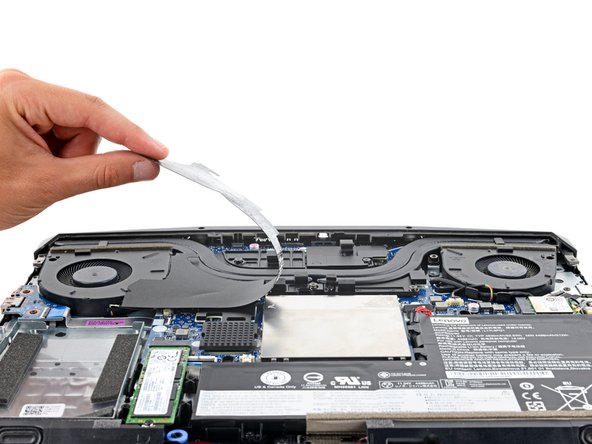
Gently peel up and remove the black cover.
-
-
-
Use the flat end of a spudger to push the battery connector straight out of its socket.
-
-
-
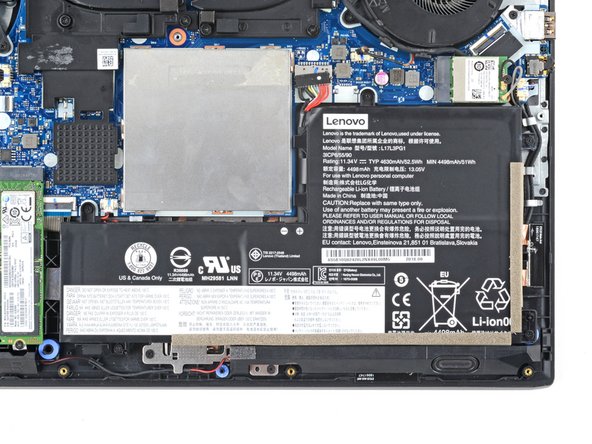
Use a Phillips screwdriver to remove the five 5.7 mm‑long screws securing the battery.
-
-
-
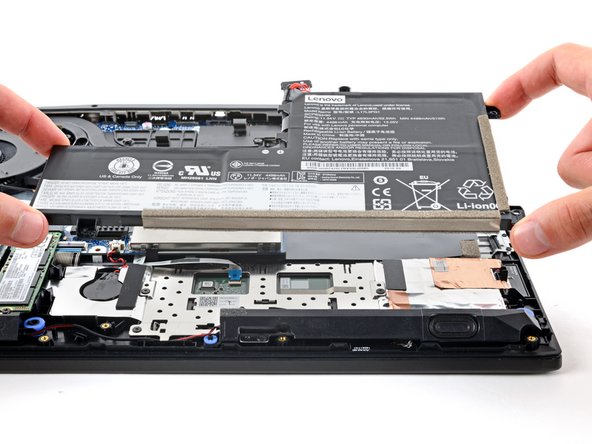
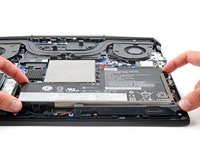
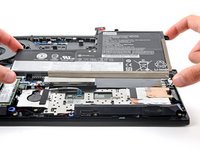
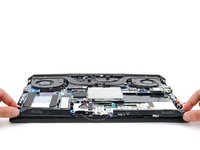
Remove the battery.
-
-
-
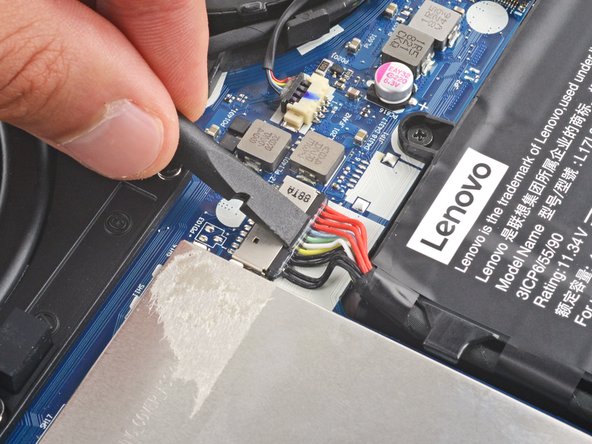
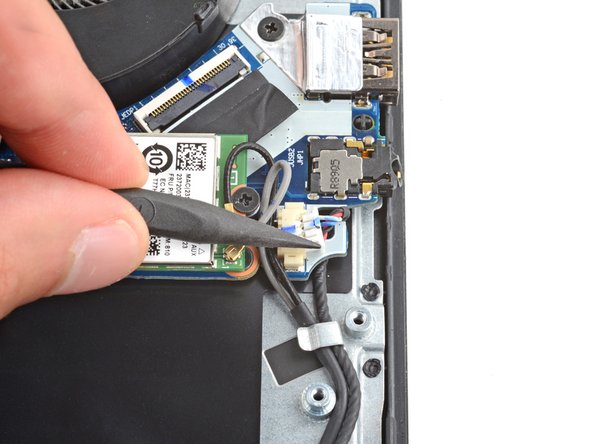
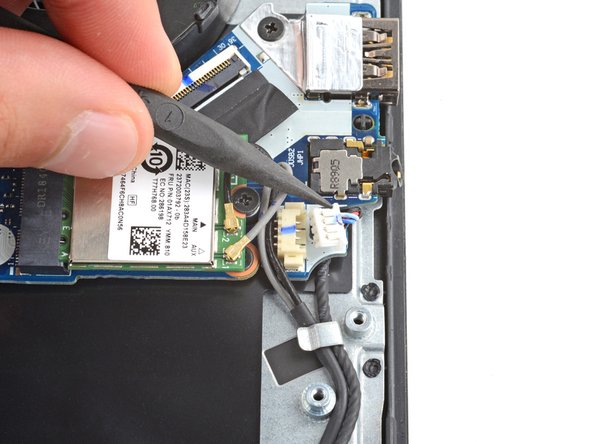
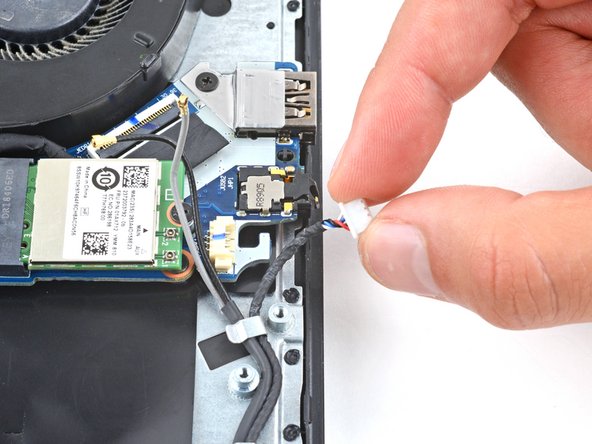
Use the point of a spudger to push on alternating sides of the speaker cable connector and "walk" it out of its socket.
-
-
crwdns2935267:0crwdne2935267:0Tweezers$3.99
-
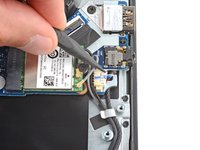
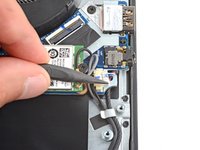
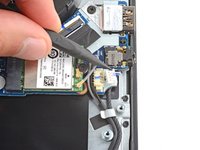
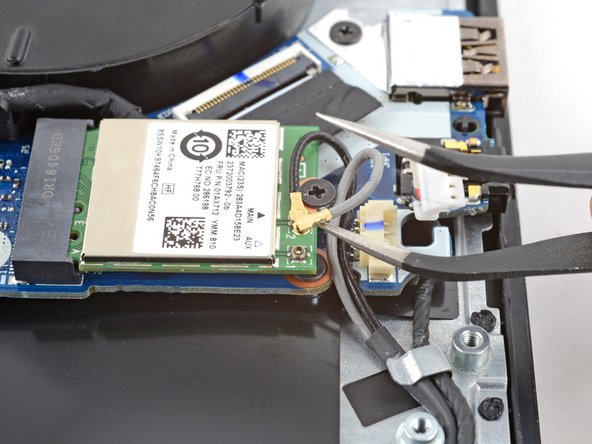
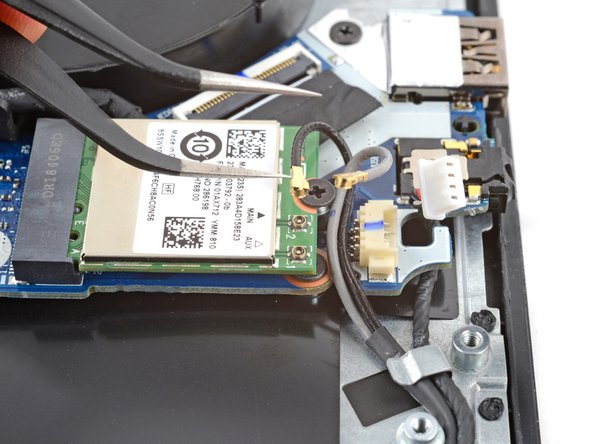
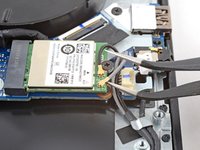
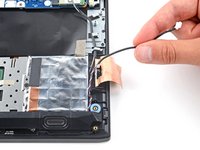
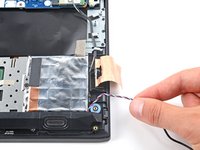
Insert one arm of your angled tweezers under the connector head of the grey antenna cable and gently pry up to disconnect it.
-
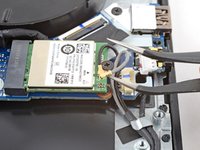
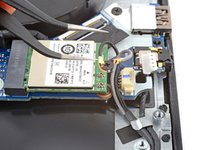
Repeat the process to disconnect the black antenna cable.
-
-
-
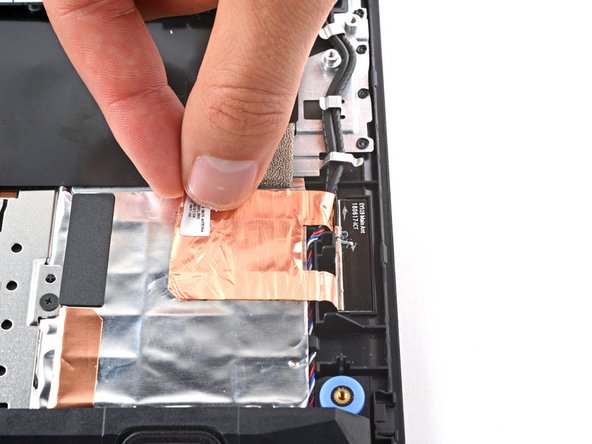
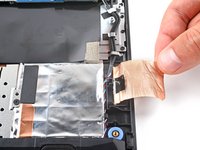
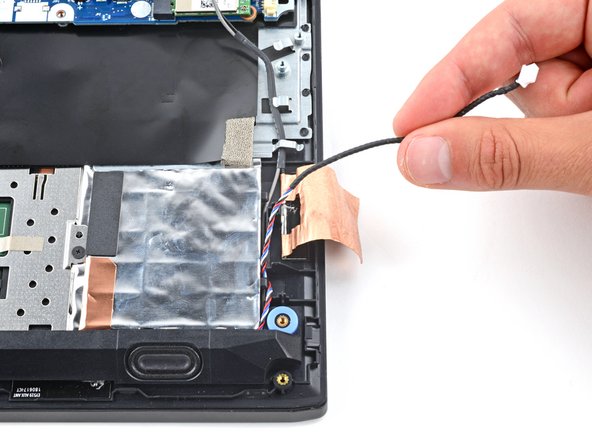
Use the flat end of a spudger to peel up a corner of the copper tape until you can grip it with your fingers.
-
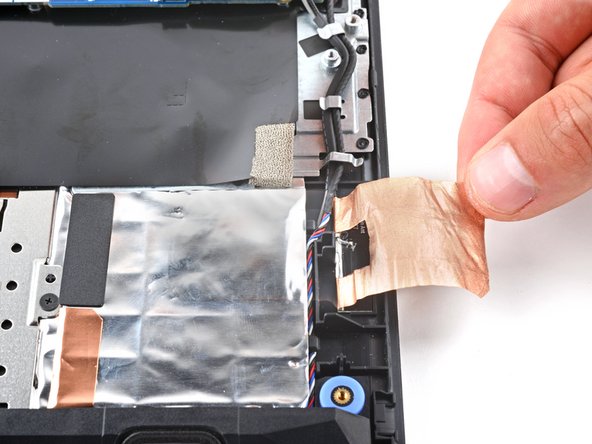
Gently peel the copper tape from the frame and position it over the right edge of the laptop.
-
-
-
Guide the speaker cable out of its cutout on the motherboard.
-
-
-
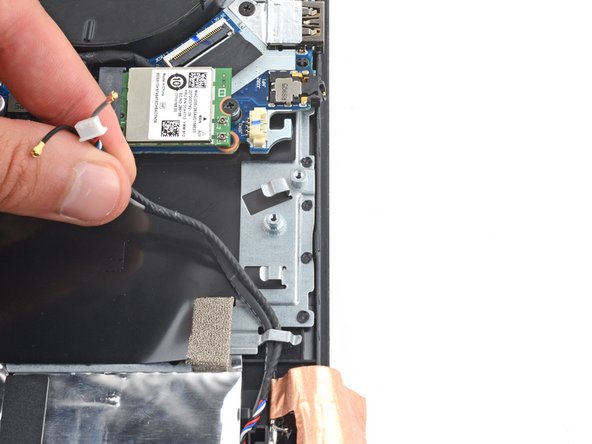
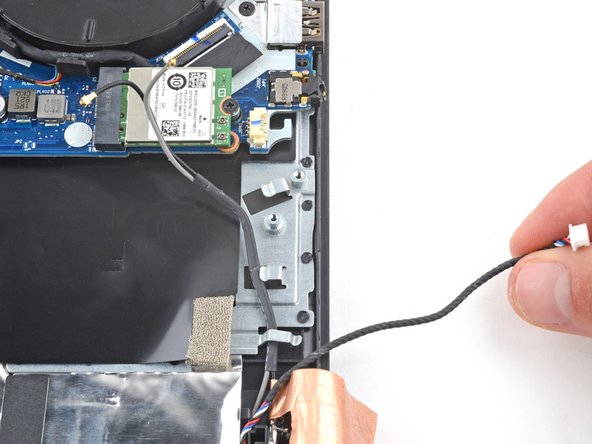
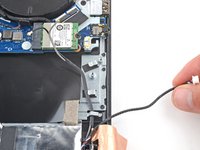
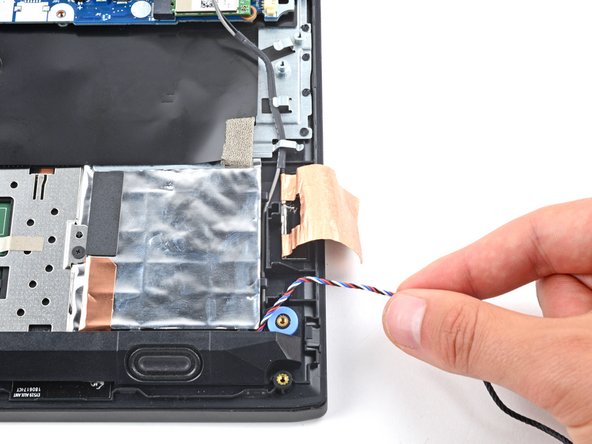
Guide the speaker cable and the Wi-Fi cables out of the upper two metal clips.
-
Guide only the speaker cable out of the bottom clip.
-
-
-
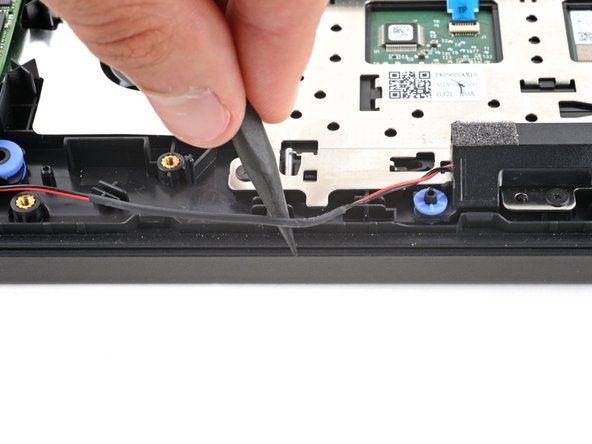
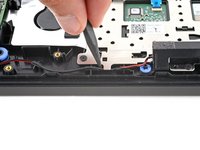
Gently guide the speaker cable out of the two plastic clips securing it.
-
-
-
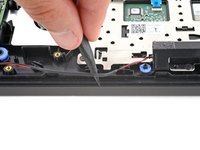
Use the point of a spudger to guide the wire out from under the metal clip.
-
-
-
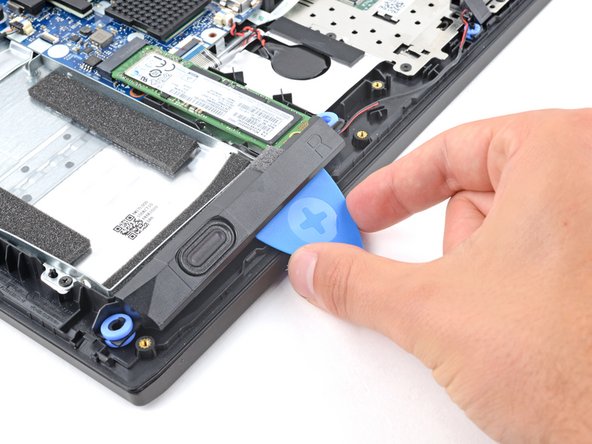
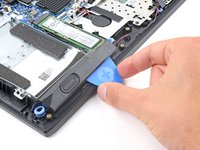
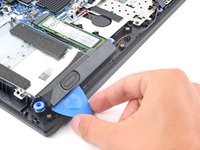
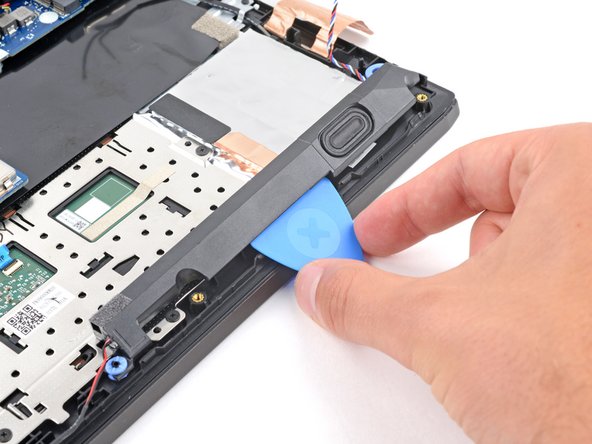
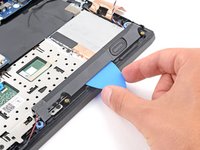
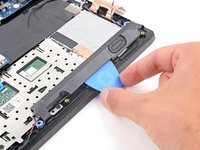
Insert the flat end of an opening pick between the speaker labeled R and the frame.
-
Pry the speaker up and free it from the frame.
-
-
-
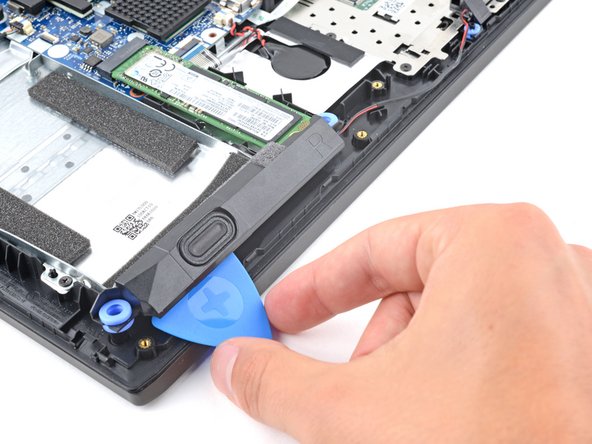
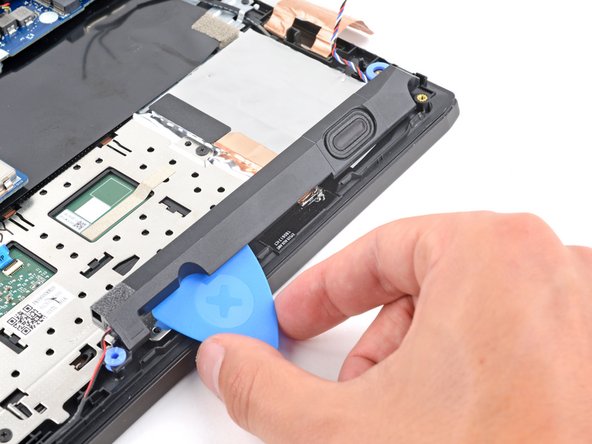
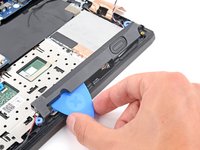
Use an opening pick to pry up the speaker labeled L.
-
-
-
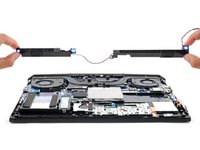
Remove the speakers.
-

























To reassemble your device, follow these instructions in reverse order.
Check your repair by running hardware tests with Lenovo Diagnostics.
Take your e-waste to an R2 or e-Stewards certified recycler.
Repair didn’t go as planned? Try some basic troubleshooting, or ask our Answers community for help.



