crwdns2915892:0crwdne2915892:0
Follow this guide to replace worn-out or damaged feet (also known as skates, glides, slides, or pads) on your Logitech MX Keys wireless keyboard.
crwdns2942213:0crwdne2942213:0
-
-
Slide the keyboard's power switch into the OFF position.
-
Unplug all cables from your keyboard.
-
Lay your keyboard down with the feet facing up on a clean work surface.
-
-
-
Heat an iOpener and lay it on the top left foot for one minute.
-
-
-
-
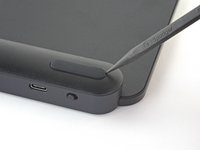
Insert the point of a spudger under an end of the foot.
-
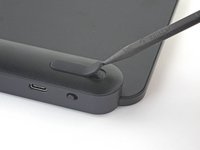
Push the spudger underneath the foot and lift until you can grip it with your fingers.
-
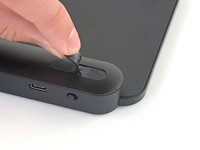
Peel the foot up and remove it.
-
Repeat the process to remove the remaining feet.
-
-
crwdns2935267:0crwdne2935267:0Tesa 61395 Tape$2.95
-
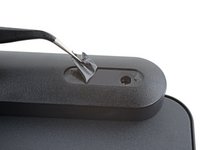
Use a pair of angled tweezers to peel up and remove all the plastic film from the foot recesses.
-
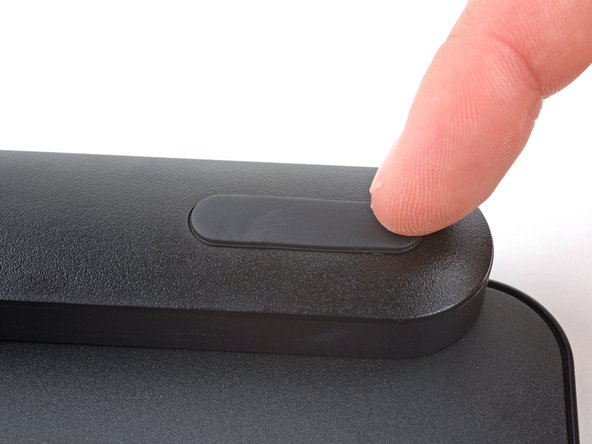
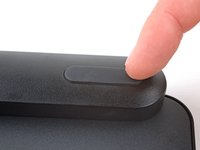
If you're installing new feet, remove them from their backing and firmly press them into place.
-
If you're reusing the feet, use a strip of double-sided tape to secure them in their recesses.
-




Repair didn’t go as planned? Try some basic troubleshooting, or ask our Answers community for help.
crwdns2935221:0crwdne2935221:0
crwdns2935229:02crwdne2935229:0


crwdns2947412:02crwdne2947412:0
Where do you buy replacement 'feet' for the MX Keys?
maxtraxpro - crwdns2934203:0crwdne2934203:0 crwdns2950251:0crwdne2950251:0
Hi, mooie uitleg.
Vraagje: Heeft iemand een idee waar ik de voetjes van een mx toetsenbord kan kopen? Bij mij bord zijn er twee uitgevallen.
En een geweldig initiatief is ifixit!
Groet Henk Volkers
Henk Volkers - crwdns2934203:0crwdne2934203:0 crwdns2950251:0crwdne2950251:0
