crwdns2933423:0crwdne2933423:0
crwdns2947577:0crwdnd2947577:0crwdne2947577:0

Huawei P8 Display Replacement

crwdns2942213:0crwdne2942213:0

    1. Huawei P8 Display Replacement, Display: crwdns2935265:01crwdnd2935265:01crwdnd2935265:02crwdne2935265:0 Huawei P8 Display Replacement, Display: crwdns2935265:01crwdnd2935265:02crwdnd2935265:02crwdne2935265:0
      • First switch off your phone.

      • Remove the trays for the SD card and the SIM card.

      crwdns2952109:0crwdne2952109:0

      crwdns2917038:0crwdne2917038:0

    2. Huawei P8 Display Replacement: crwdns2935265:02crwdnd2935265:01crwdnd2935265:01crwdne2935265:0
      • Remove the two Torx T2 screws located at the bottom next to the micro USB port.

      • If the screen is cracked you might want to use some tape to protect your eyes from glass shreds and get a better grip to open the phone.

      crwdns2952109:0crwdne2952109:0

      crwdns2917038:0crwdne2917038:0

    3. Huawei P8 Display Replacement: crwdns2935265:03crwdnd2935265:01crwdnd2935265:02crwdne2935265:0 Huawei P8 Display Replacement: crwdns2935265:03crwdnd2935265:02crwdnd2935265:02crwdne2935265:0
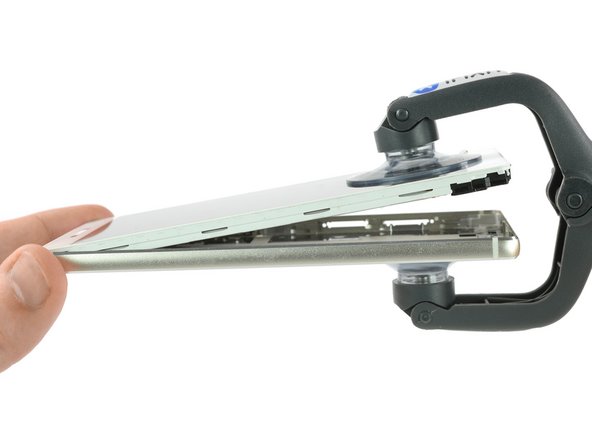
      • Use an iSclack or a suction handle to separate the display unit from the rear panel.

      crwdns2952109:0crwdne2952109:0

      crwdns2917038:0crwdne2917038:0

    4. Huawei P8 Display Replacement: crwdns2935265:04crwdnd2935265:01crwdnd2935265:01crwdne2935265:0
      • Remove the two Phillips #00 that hold down the two metal clamps covering the front camera, the display and battery flex connectors.

      crwdns2952109:0crwdne2952109:0

      crwdns2917038:0crwdne2917038:0

    5. Huawei P8 Display Replacement: crwdns2935265:05crwdnd2935265:01crwdnd2935265:03crwdne2935265:0 Huawei P8 Display Replacement: crwdns2935265:05crwdnd2935265:02crwdnd2935265:03crwdne2935265:0 Huawei P8 Display Replacement: crwdns2935265:05crwdnd2935265:03crwdnd2935265:03crwdne2935265:0
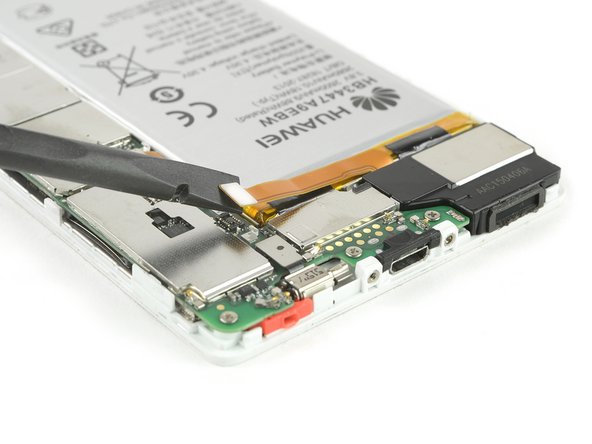
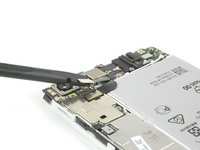
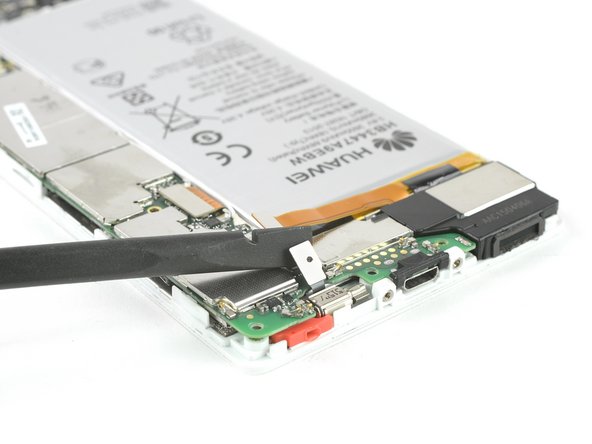
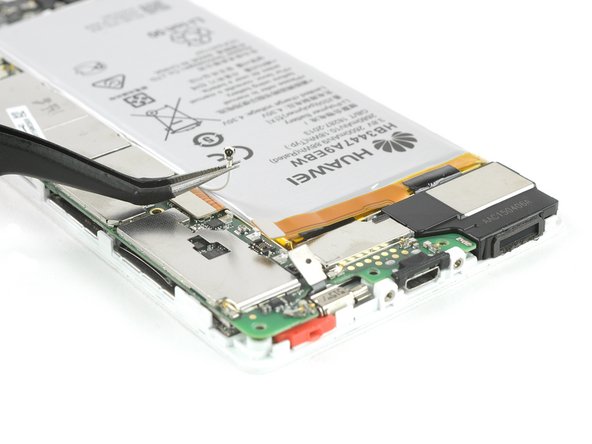
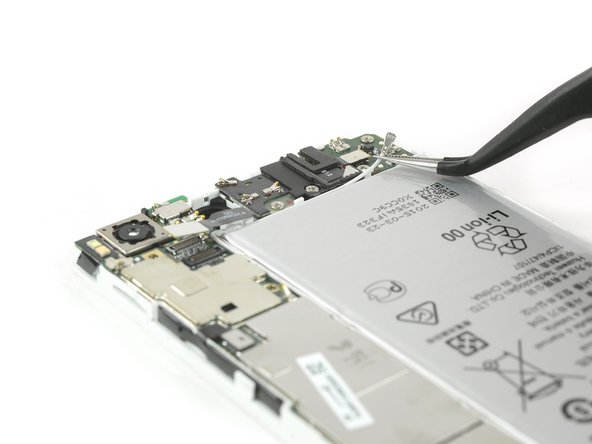
      • Use a tweezer to remove the metal clamp covering the display and the battery flex connector.

      • Unplug the battery flex connector with a Spudger.

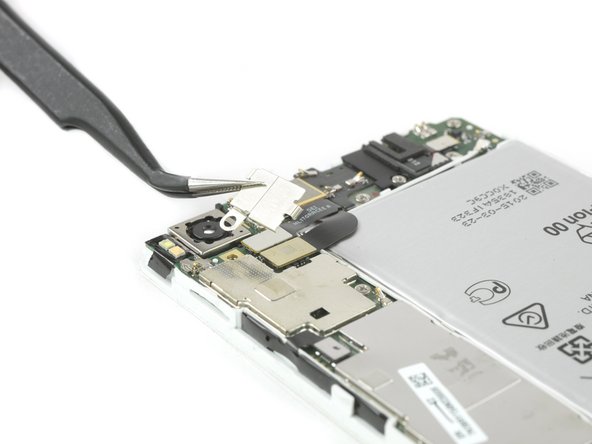
      • Remove the metal clamp covering the flex connector of the front camera.

      crwdns2952109:0crwdne2952109:0

      crwdns2917038:0crwdne2917038:0

    6. Huawei P8 Display Replacement: crwdns2935265:06crwdnd2935265:01crwdnd2935265:03crwdne2935265:0 Huawei P8 Display Replacement: crwdns2935265:06crwdnd2935265:02crwdnd2935265:03crwdne2935265:0 Huawei P8 Display Replacement: crwdns2935265:06crwdnd2935265:03crwdnd2935265:03crwdne2935265:0
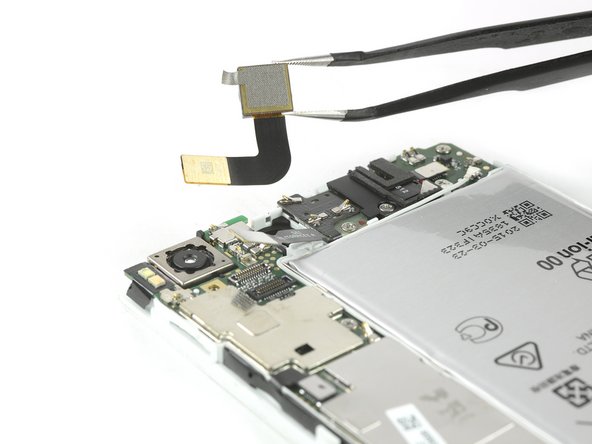
      • Unplug the headphone jack and the front camera flex connectors.

      • Remove the front camera.

      crwdns2952109:0crwdne2952109:0

      crwdns2917038:0crwdne2917038:0

    7. Huawei P8 Display Replacement: crwdns2935265:07crwdnd2935265:01crwdnd2935265:03crwdne2935265:0 Huawei P8 Display Replacement: crwdns2935265:07crwdnd2935265:02crwdnd2935265:03crwdne2935265:0 Huawei P8 Display Replacement: crwdns2935265:07crwdnd2935265:03crwdnd2935265:03crwdne2935265:0
      • Unscrew the four Phillips #00 screws that hold down the motherboard of your Huawei P8.

      • Unplug the vibration motor flex connector.

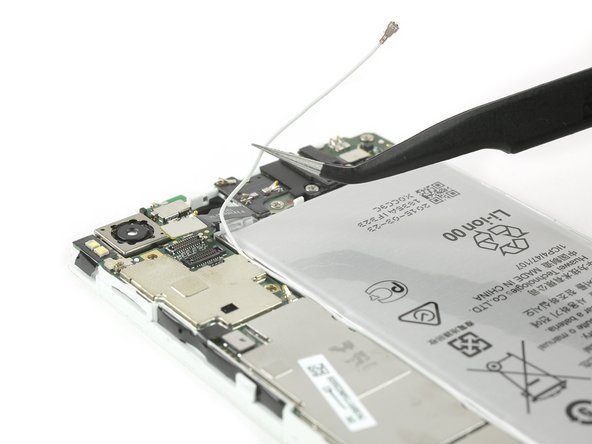
      • Disconnect the antenna cable.

      crwdns2952109:0crwdne2952109:0

      crwdns2917038:0crwdne2917038:0

    8. Huawei P8 Display Replacement: crwdns2935265:08crwdnd2935265:01crwdnd2935265:03crwdne2935265:0 Huawei P8 Display Replacement: crwdns2935265:08crwdnd2935265:02crwdnd2935265:03crwdne2935265:0 Huawei P8 Display Replacement: crwdns2935265:08crwdnd2935265:03crwdnd2935265:03crwdne2935265:0
      • Unplug the display flex connector from the main board with a Spudger.

      • Disconnect and remove the antenna cable with a tweezer.

      crwdns2952109:0crwdne2952109:0

      crwdns2917038:0crwdne2917038:0

    9. Huawei P8 Display Replacement: crwdns2935265:09crwdnd2935265:01crwdnd2935265:02crwdne2935265:0 Huawei P8 Display Replacement: crwdns2935265:09crwdnd2935265:02crwdnd2935265:02crwdne2935265:0
      • Use a spudger to disconnect the flex cable of the power and volume buttons.

      • Remove the liquid contact indicator that sits on top of the last screw holding down your main board.

      crwdns2952109:0crwdne2952109:0

      crwdns2917038:0crwdne2917038:0

    10. Huawei P8 Display Replacement: crwdns2935265:010crwdnd2935265:01crwdnd2935265:02crwdne2935265:0 Huawei P8 Display Replacement: crwdns2935265:010crwdnd2935265:02crwdnd2935265:02crwdne2935265:0
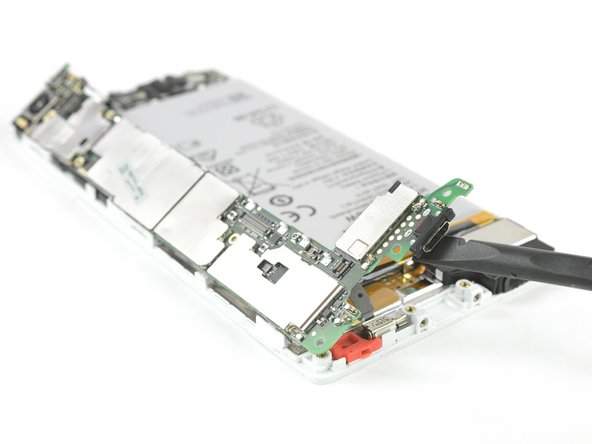
      • Unscrew the Phillips #00 screw.

      • Lift up the main board with a spudger and remove it.

      crwdns2952109:0crwdne2952109:0

      crwdns2917038:0crwdne2917038:0

    11. Huawei P8 Display Replacement: crwdns2935265:011crwdnd2935265:01crwdnd2935265:03crwdne2935265:0 Huawei P8 Display Replacement: crwdns2935265:011crwdnd2935265:02crwdnd2935265:03crwdne2935265:0 Huawei P8 Display Replacement: crwdns2935265:011crwdnd2935265:03crwdnd2935265:03crwdne2935265:0
      • Remove the adhesive tape which is covering the display flex cable.

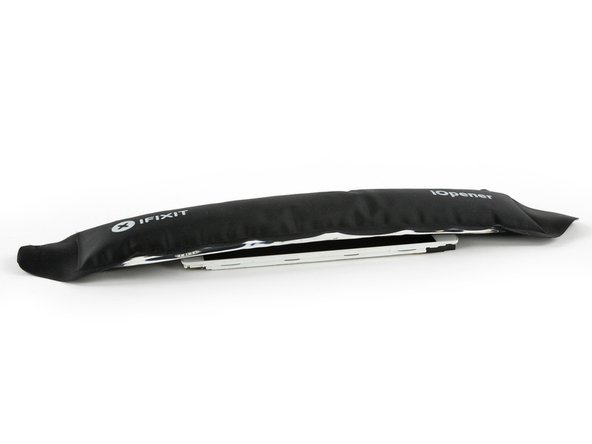
      • Loosen the adhesive around the mid frame with an iOpener.

      • In particular take care of the adhesive under the top and bottom of the display.

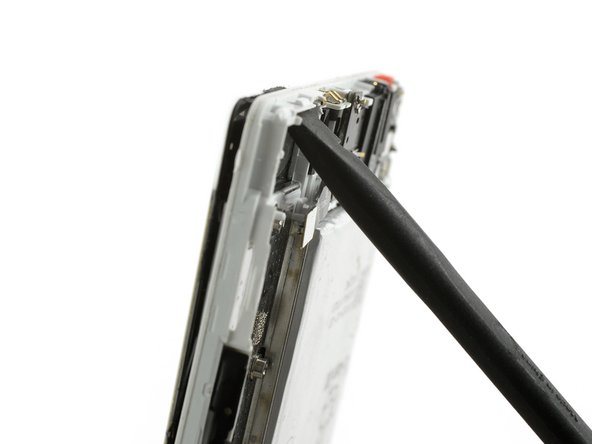
      • When the glue is softened you can use a spudger to get behind the display through the camera bay and get between the frame and the display.

      crwdns2952109:0crwdne2952109:0

      crwdns2917038:0crwdne2917038:0

    12. Huawei P8 Display Replacement: crwdns2935265:012crwdnd2935265:01crwdnd2935265:03crwdne2935265:0 Huawei P8 Display Replacement: crwdns2935265:012crwdnd2935265:02crwdnd2935265:03crwdne2935265:0 Huawei P8 Display Replacement: crwdns2935265:012crwdnd2935265:03crwdnd2935265:03crwdne2935265:0
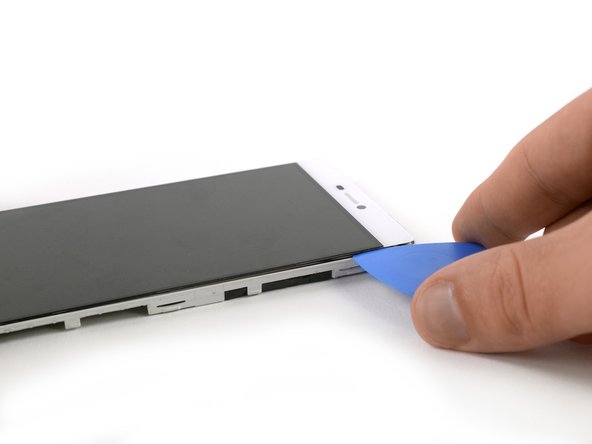
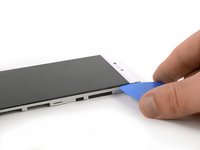
      • Insert an opening pick in the gap where you separated the display from the mid frame.

      • Insert just the tip of the opening pick and slide it along the right side to separate the display from the frame.

      crwdns2952109:0crwdne2952109:0

      crwdns2917038:0crwdne2917038:0

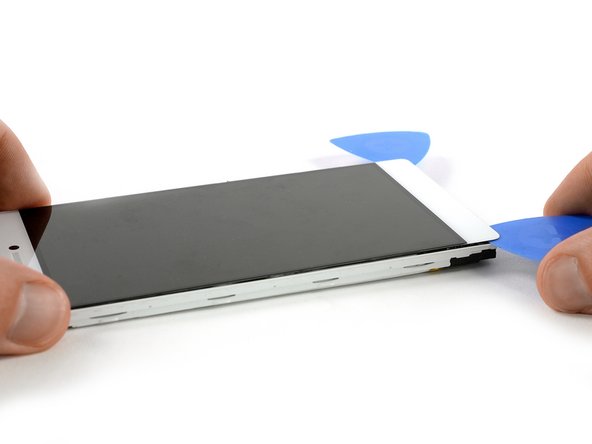
    13. Huawei P8 Display Replacement: crwdns2935265:013crwdnd2935265:01crwdnd2935265:02crwdne2935265:0 Huawei P8 Display Replacement: crwdns2935265:013crwdnd2935265:02crwdnd2935265:02crwdne2935265:0
      • Insert another opening pick at the top of the phone and loosen the adhesive under the upper part of the display.

      crwdns2952109:0crwdne2952109:0

      crwdns2917038:0crwdne2917038:0

    14. Huawei P8 Display Replacement: crwdns2935265:014crwdnd2935265:01crwdnd2935265:03crwdne2935265:0 Huawei P8 Display Replacement: crwdns2935265:014crwdnd2935265:02crwdnd2935265:03crwdne2935265:0 Huawei P8 Display Replacement: crwdns2935265:014crwdnd2935265:03crwdnd2935265:03crwdne2935265:0
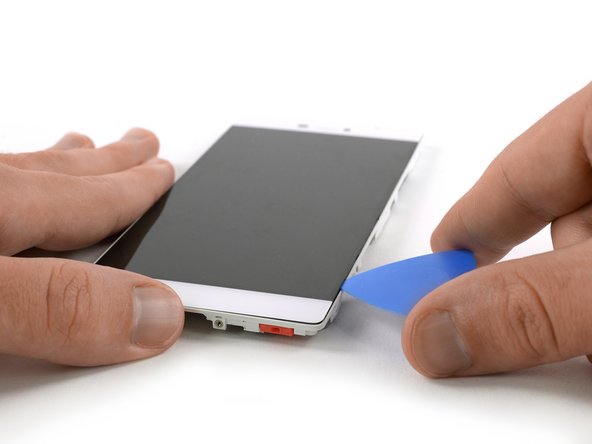
      • Insert just the tip of the opening pick and slide it along the left side of the phone to separate the display from the frame.

      crwdns2952109:0crwdne2952109:0

      crwdns2917038:0crwdne2917038:0

    15. Huawei P8 Display Replacement: crwdns2935265:015crwdnd2935265:01crwdnd2935265:02crwdne2935265:0 Huawei P8 Display Replacement: crwdns2935265:015crwdnd2935265:02crwdnd2935265:02crwdne2935265:0
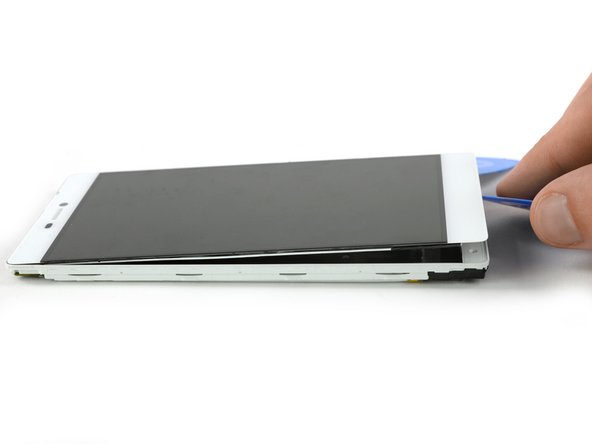
      • Loosen the adhesive under the bottom part of the display unit with the opening pick.

      • Flip the opening pick a little to separate the display from the mid frame.

      • If you notice that there is still some adhesive which isn't loosened, use the iOpener to loosen it and slide once more along the mid frame with an opening pick.

      crwdns2952109:0crwdne2952109:0

      crwdns2917038:0crwdne2917038:0

    16. Huawei P8 Display Replacement: crwdns2935265:016crwdnd2935265:01crwdnd2935265:02crwdne2935265:0 Huawei P8 Display Replacement: crwdns2935265:016crwdnd2935265:02crwdnd2935265:02crwdne2935265:0
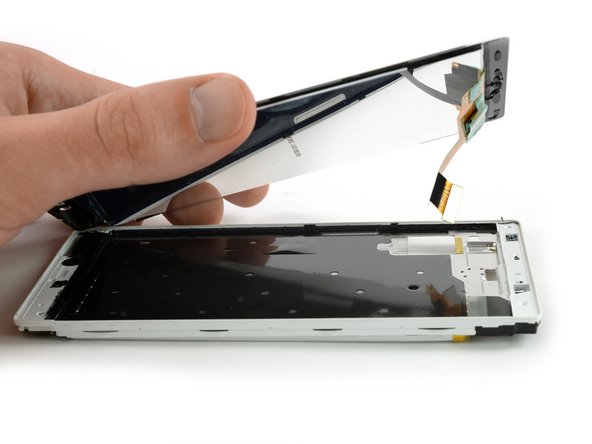
      • Lift up the display and remove it.

      • The display flex cable should easily go through the recess in the mid frame while removing the display.

      crwdns2952109:0crwdne2952109:0

      crwdns2917038:0crwdne2917038:0

crwdns2915888:0crwdne2915888:0

To reassemble your device, follow these instructions in reverse order. Reapply adhesive where necessary.

crwdns2935221:0crwdne2935221:0

crwdns2935229:010crwdne2935229:0

Dominik Schnabelrauch

crwdns2935283:011/23/16crwdne2935283:0

264,625 crwdns2915208:0crwdne2915208:0

crwdns2935297:0682crwdne2935297:0

crwdns2935287:0crwdne2935287:0

iFixit EU Team crwdns2935289:0iFixit EU Teamcrwdne2935289:0

Staff

crwdns2931471:037crwdne2931471:0

crwdns2935297:03,069crwdne2935297:0

crwdns2947412:02crwdne2947412:0

Is there any difference on screen frame between GRA-L09 and GRA-TL10??? The l09 is the single sim and the TL10 is the dual sim…

Rafail Petridis - crwdns2934203:0crwdne2934203:0 crwdns2950251:0crwdne2950251:0

installing a new screen the first time, i was looking at darkness. then, taking it apart again and taking away the protective foil on the back of the screen, it just showed pink/purple colors and started heating up pretty bad around the charging connector. my idea would be a short circuit. any idea what is going wrong and can this still be saved?

Albert Einbein - crwdns2934203:0crwdne2934203:0 crwdns2950251:0crwdne2950251:0

crwdns2917038:0crwdne2917038:0

crwdns2936625:0crwdne2936625:0:

crwdns2936751:024crwdne2936751:0 4

crwdns2936753:07crwdne2936753:0 41

crwdns2936753:030crwdne2936753:0 78

crwdns2942667:0crwdne2942667:0 18,925