crwdns2915892:0crwdne2915892:0
In this guide, we will show you how to take apart the mouse carefully and how to readjust a deformed microswitch contact plate in order to get some more life out of the component. We will then demonstrate how to switch the contact plate from the right to the left, as the right one is generally used much less and will therefore likely have a longer lifespan before needing full replacement.
This guide can also be used as a basic disassembly guide in order to access the clicker for a full microswitch replacement. Follow this guide to fix a common double-clicking issue for the Roccat Kova gaming mouse. In order for the mouse to function properly, this fix is fundamental for the longevity of the mouse.
This guide applies only to the Roccat Kova gaming mouse, but should work for many different mice.
crwdns2942213:0crwdne2942213:0
-
-
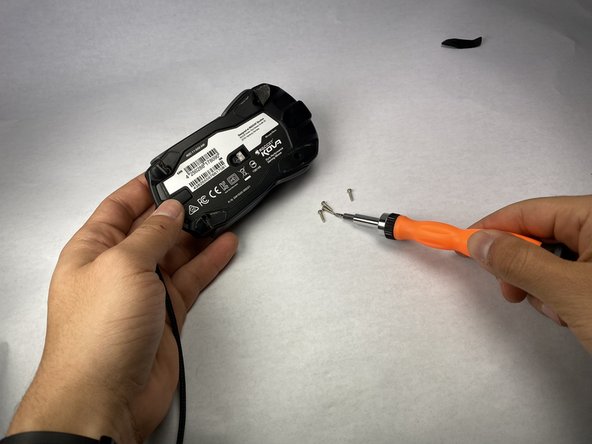
Turn the Roccat Kova over, with the bottom facing up.
-
-
-
Peel off the four plastic mouse skates.
-
-
-
Unscrew four screws using a Phillips screwdriver.
-
-
-
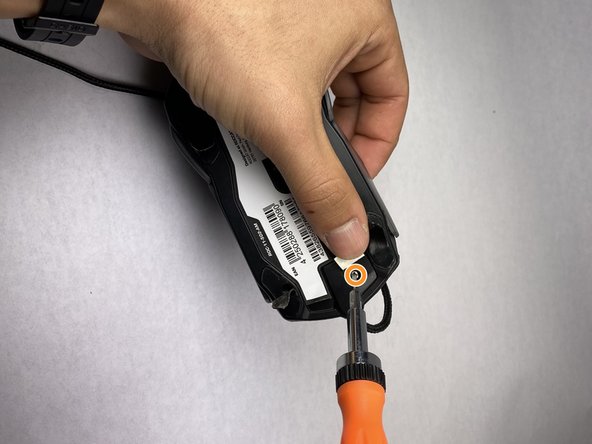
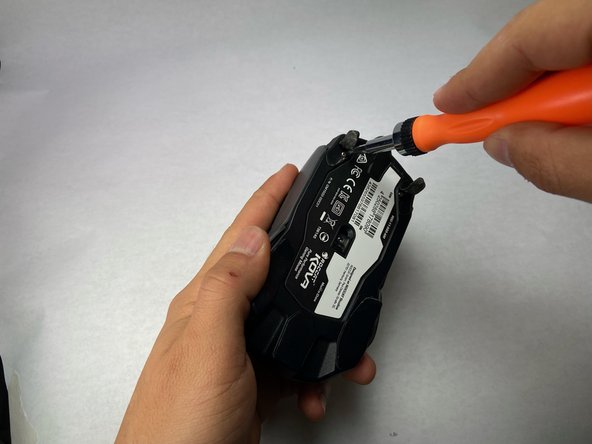
Slightly peel back the front edge of the plastic label. You should peel the label from the front of the mouse. This is the end of the mouse that has the attached wire. Keep peeling until you see two screw holes.
-
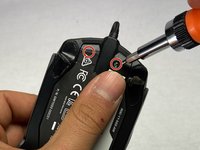
Use a Phillips #00 screwdriver to remove the two screws.
-
-
-
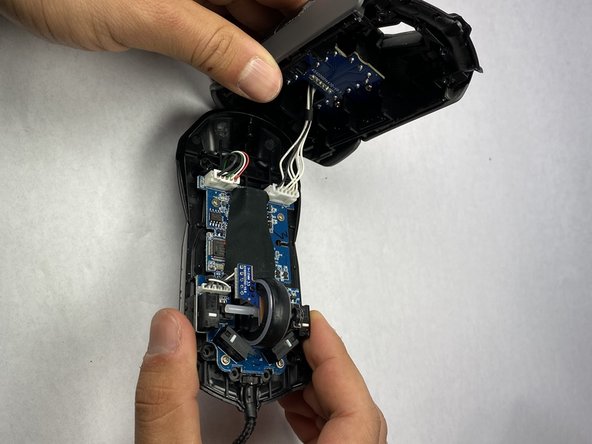
After unscrewing the mouse, you will be able to pull the two halves of the mouse apart. Open the mouse carefully until you are able to see the white wires that connect the top case of the mouse to the bottom housing.
-
Carefully set the mouse on your work surface. Move the top casing of the mouse to the side, giving you an unobstructed workspace on the bottom housing.
-
-
-
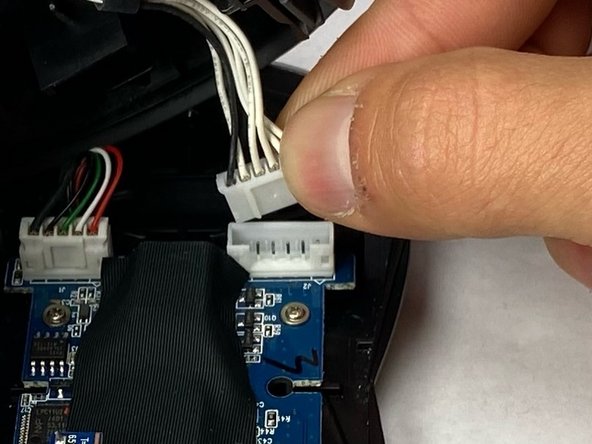
Next, detach the wires that hold the top casing and the bottom of the mouse together. Grab the white plastic connector that the wires are attached to and pull it directly up and out of its port.
-
-
-
Locate the four microswitch boxes at the front edge of the mouse.
-
Each have a little white dash (clicking dash) in the middle.
-
Focus on the two front microswitch boxes and locate the microswitch under the clicker that has been malfunctioning. If you are not sure which is malfunctioning, look for damage, dirt, or a loose connection.
-
-
-
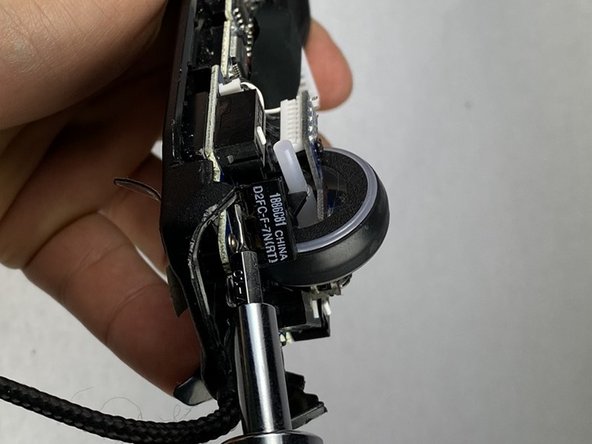
Once you have identified the functioning and malfunctioning clicker, remove the functioning clicker's microswitch first.
-
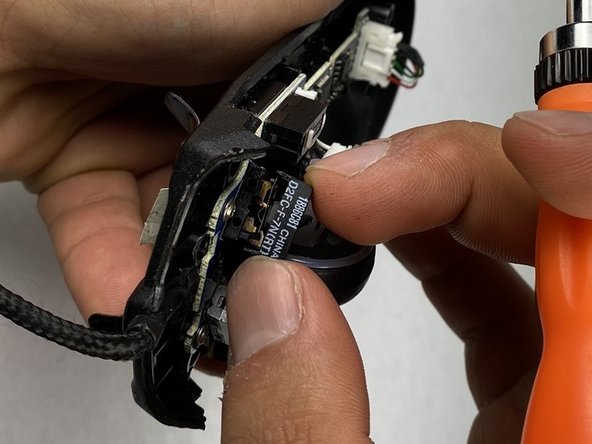
Unclip the two edges of the box, using a thin flat head (1.0 mm). Gently push the flat head into the crack from the sides of the black box to pry it loose.
-
-
-
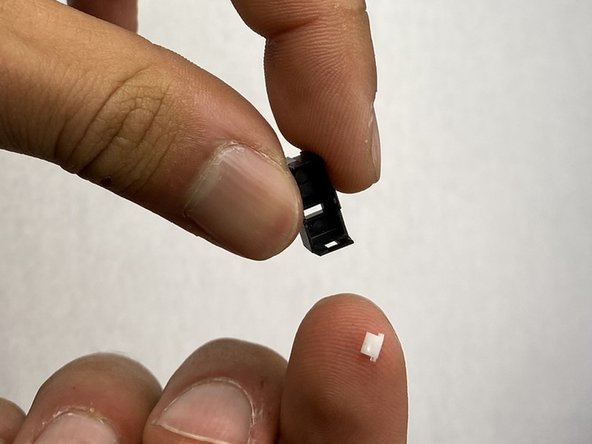
Gently remove the box while tilting the mouse (45-90 degrees) to avoid losing the small white piece of plastic.
-
-
-
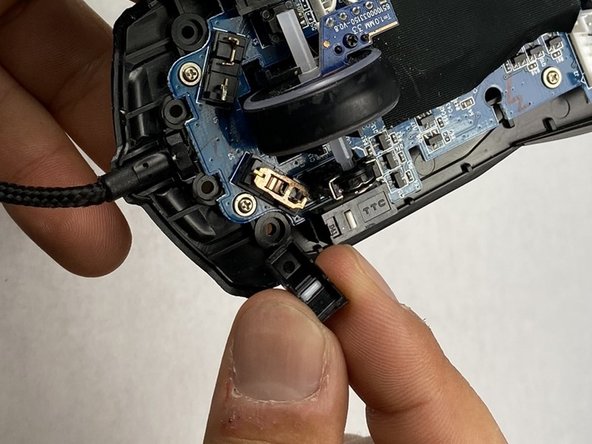
Locate the contact plate underneath the box.
-
-
-
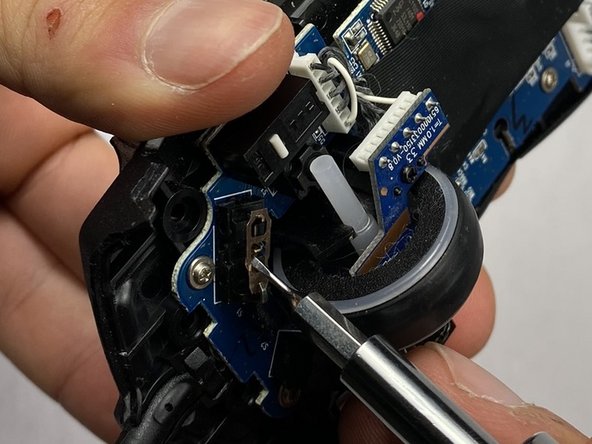
Use a flat head (1.0 mm) to carefully remove the plate. You can use the flat head to wiggle the plate out of place, moving it side to side and back and forth to remove it.
-
-
-
Repeat the previous three steps for the other box.
-
-
-
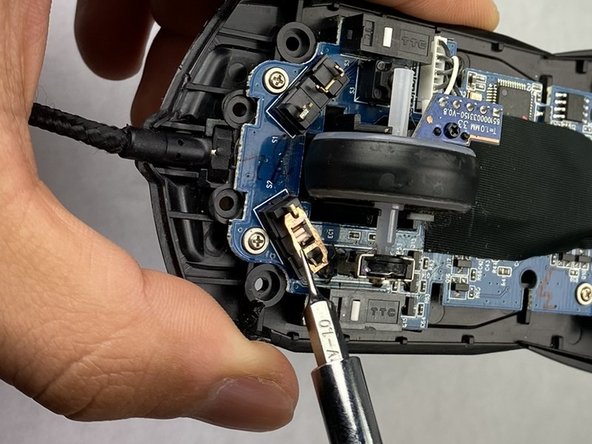
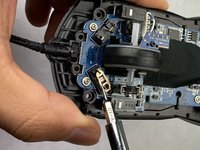
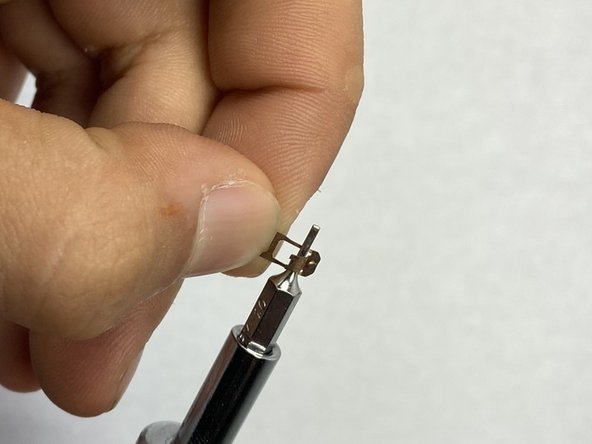
Grab the deformed contact plate from under the broken clicker.
-
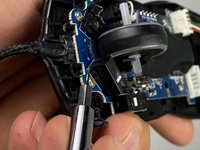
Insert a thin flat headed (1.0 mm) screwdriver in the arched metal area, and give it a little push as if you are trying to open that arched door.
-
Gently, push the arched area to an angle of 45-80 degrees to try to reinstall its integrity of functioning.
-
-
-
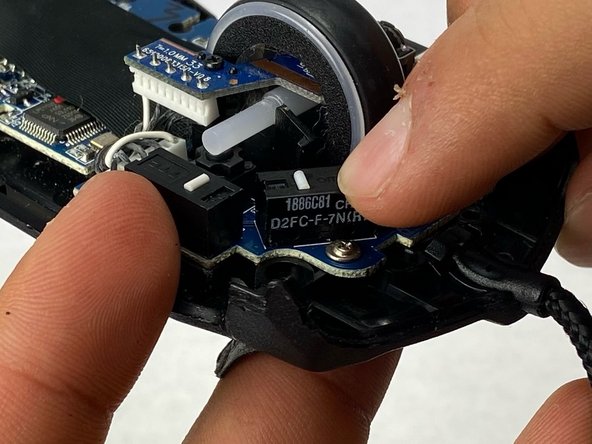
Tilt the bottom half of the mouse to 45-90 degrees to avoid the white piece falling out.
-
Position the cover so that its aligned with its initial position.
-
Push the cover into the mouse until you feel it clicking in place, and double check the clips are in place.
-
-
-
Similar to Step 15, repeat the process for the other cover.
-
-
-
Screw back the four long screws to each corner by rotating each screw in a clockwise direction until it is tight enough.
-
-
-
Screw back the two small screws under the front portion of the sticker by turning them in a clockwise direction.
-
-
-
Check if the mouse is working correctly by attaching it to a monitor, computer, etc. and clicking items. If there are no issues with the clicking feature, the repair was successful.
-






























Now that you have repaired your mouse, you have extended its lifespan and corrected any clicking issues. Please let us know if you have any questions, and if there are any suggestions or feedback.
crwdns2935221:0crwdne2935221:0
crwdns2935229:04crwdne2935229:0


crwdns2935287:0crwdne2935287:0

UC Davis, Team 2-1, Morris Spring 2024 crwdns2935289:0UC Davis, Team 2-1, Morris Spring 2024crwdne2935289:0
UCD-MORRIS-S24S2G1
crwdns2931471:03crwdne2931471:0
crwdns2935303:01crwdne2935303:0
crwdns2947412:03crwdne2947412:0
Excellent, thank you very much! This helped me open the mouse. Didn't realize there are two more screws under the sticker.
However, I replaced the switches. There are ones that are 50M rated. They should last much longer that the 5M ones the mouse came with.
Looking to do the same to my Kova, may I ask where you acquired the 50M rated switches from?
The six screws under the mouse supriesed me. Couldn't do the bend correcly so I soldered just a new switch, works perfectly. Non then less, thanks ifixit for the guide. It's a quite rare mouse and it's good to see that for this type of devices there is a repair guide.
