crwdns2933423:0crwdne2933423:0
crwdns2947577:0crwdnd2947577:0crwdne2947577:0

HP ProBook 440 G6 Touchpad Replacement

crwdns2942213:0crwdne2942213:0

    1. HP ProBook 440 G6 Touchpad Replacement, Lower Case: crwdns2935265:01crwdnd2935265:01crwdnd2935265:03crwdne2935265:0 HP ProBook 440 G6 Touchpad Replacement, Lower Case: crwdns2935265:01crwdnd2935265:02crwdnd2935265:03crwdne2935265:0 HP ProBook 440 G6 Touchpad Replacement, Lower Case: crwdns2935265:01crwdnd2935265:03crwdnd2935265:03crwdne2935265:0
      • Using a Phillips #0 Screwdriver, remove the two 5 mm screws on the front-facing side of the lower case.

      • Using a Phillips #0 Screwdriver, remove the remaining five 5 mm Phillips screws securing the lower case.

      • The two screws in the front of the backplate are of a differing size to the other five.

      crwdns2952109:0crwdne2952109:0

      crwdns2917038:0crwdne2917038:0

    2. HP ProBook 440 G6 Touchpad Replacement: crwdns2935265:02crwdnd2935265:01crwdnd2935265:03crwdne2935265:0 HP ProBook 440 G6 Touchpad Replacement: crwdns2935265:02crwdnd2935265:02crwdnd2935265:03crwdne2935265:0 HP ProBook 440 G6 Touchpad Replacement: crwdns2935265:02crwdnd2935265:03crwdnd2935265:03crwdne2935265:0
      • Starting under the display, carefully use a plastic prying tool (iFixit opening tool) to disengage the retaining clips.

      • You may hear soft clicking sounds as the clips come undone.

      • Once a corner or edge starts to lift, slowly slide the tool along the edge to loosen more of the bottom panel.

      • Keep working around the edges until all the clips are loose.

      crwdns2952109:0crwdne2952109:0

      crwdns2917038:0crwdne2917038:0

    3. HP ProBook 440 G6 Touchpad Replacement: crwdns2935265:03crwdnd2935265:01crwdnd2935265:03crwdne2935265:0 HP ProBook 440 G6 Touchpad Replacement: crwdns2935265:03crwdnd2935265:02crwdnd2935265:03crwdne2935265:0 HP ProBook 440 G6 Touchpad Replacement: crwdns2935265:03crwdnd2935265:03crwdnd2935265:03crwdne2935265:0
      • Gently lift the rear of the cover to disengage it from the computer.

      • Carefully remove the bottom cover from the computer.

      crwdns2952109:0crwdne2952109:0

      crwdns2917038:0crwdne2917038:0

    1. HP ProBook 440 G6 Touchpad Replacement, Battery: crwdns2935265:04crwdnd2935265:01crwdnd2935265:02crwdne2935265:0 HP ProBook 440 G6 Touchpad Replacement, Battery: crwdns2935265:04crwdnd2935265:02crwdnd2935265:02crwdne2935265:0
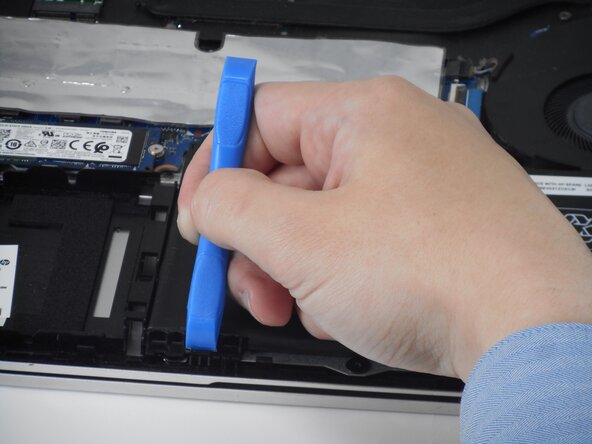
      • Using a Phillips #0 Screwdriver, remove the two 4mm Phillips screws that secure the battery to the computer.

      crwdns2952109:0crwdne2952109:0

      crwdns2917038:0crwdne2917038:0

    2. HP ProBook 440 G6 Touchpad Replacement: crwdns2935265:05crwdnd2935265:01crwdnd2935265:01crwdne2935265:0
      • Use a tool to push the tab back on the bottom left of the battery.

      crwdns2952109:0crwdne2952109:0

      crwdns2917038:0crwdne2917038:0

    3. HP ProBook 440 G6 Touchpad Replacement: crwdns2935265:06crwdnd2935265:01crwdnd2935265:03crwdne2935265:0 HP ProBook 440 G6 Touchpad Replacement: crwdns2935265:06crwdnd2935265:02crwdnd2935265:03crwdne2935265:0 HP ProBook 440 G6 Touchpad Replacement: crwdns2935265:06crwdnd2935265:03crwdnd2935265:03crwdne2935265:0
      • Lift the top of the battery.

      • Lift the battery out of the computer.

      crwdns2952109:0crwdne2952109:0

      crwdns2917038:0crwdne2917038:0

    1. HP ProBook 440 G6 Touchpad Replacement, Touchpad: crwdns2935265:07crwdnd2935265:01crwdnd2935265:03crwdne2935265:0 HP ProBook 440 G6 Touchpad Replacement, Touchpad: crwdns2935265:07crwdnd2935265:02crwdnd2935265:03crwdne2935265:0 HP ProBook 440 G6 Touchpad Replacement, Touchpad: crwdns2935265:07crwdnd2935265:03crwdnd2935265:03crwdne2935265:0
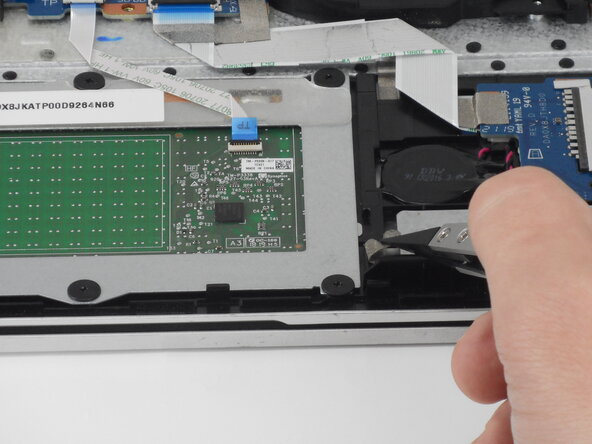
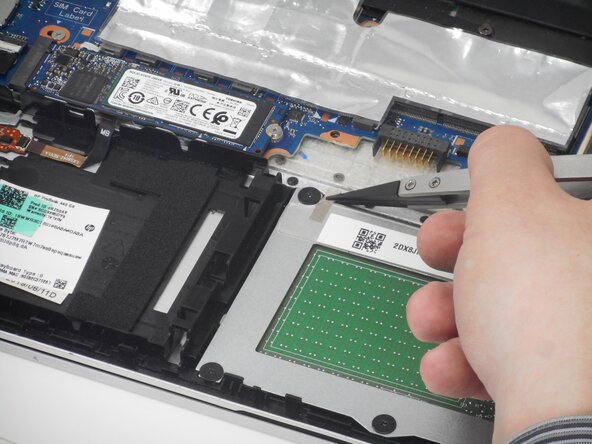
      • Use tweezers to carefully lift and disconnect the silver tape from the touchpad.

      • It may help to use a plastic prying tool, a spudger, to remove the silver tape.

      crwdns2952109:0crwdne2952109:0

      crwdns2917038:0crwdne2917038:0

    2. HP ProBook 440 G6 Touchpad Replacement: crwdns2935265:08crwdnd2935265:01crwdnd2935265:03crwdne2935265:0 HP ProBook 440 G6 Touchpad Replacement: crwdns2935265:08crwdnd2935265:02crwdnd2935265:03crwdne2935265:0 HP ProBook 440 G6 Touchpad Replacement: crwdns2935265:08crwdnd2935265:03crwdnd2935265:03crwdne2935265:0
      • Carefully lift the small black locking flap on the ZIF connector.

      • Disconnect the cable from the ZIF connector on the touchpad.

      crwdns2952109:0crwdne2952109:0

      crwdns2917038:0crwdne2917038:0

    3. HP ProBook 440 G6 Touchpad Replacement: crwdns2935265:09crwdnd2935265:01crwdnd2935265:03crwdne2935265:0 HP ProBook 440 G6 Touchpad Replacement: crwdns2935265:09crwdnd2935265:02crwdnd2935265:03crwdne2935265:0 HP ProBook 440 G6 Touchpad Replacement: crwdns2935265:09crwdnd2935265:03crwdnd2935265:03crwdne2935265:0
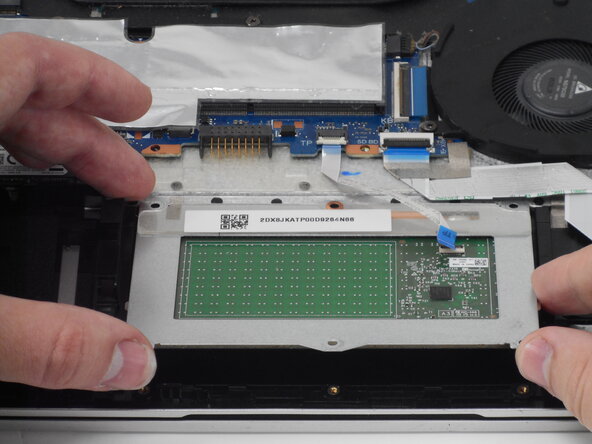
      • Using a Phillips #0 screwdriver, remove the six Phillips 2 mm screws that secure the touchpad.

      crwdns2952109:0crwdne2952109:0

      crwdns2917038:0crwdne2917038:0

    4. HP ProBook 440 G6 Touchpad Replacement: crwdns2935265:010crwdnd2935265:01crwdnd2935265:03crwdne2935265:0 HP ProBook 440 G6 Touchpad Replacement: crwdns2935265:010crwdnd2935265:02crwdnd2935265:03crwdne2935265:0 HP ProBook 440 G6 Touchpad Replacement: crwdns2935265:010crwdnd2935265:03crwdnd2935265:03crwdne2935265:0
      • Lift the touchpad out of the computer.

      crwdns2952109:0crwdne2952109:0

      crwdns2917038:0crwdne2917038:0

crwdns2915888:0crwdne2915888:0

To reassemble your device, follow the above steps in reverse order.
Take your e-waste to an R2 or e-Stewards certified recycler.
Repair didn’t go as planned? Try some basic troubleshooting or ask our Answers community for help.

crwdns2935221:0crwdne2935221:0

Elijah Cain

crwdns2935283:002/18/26crwdne2935283:0

397 crwdns2915208:0crwdne2915208:0

crwdns2935297:04crwdne2935297:0

crwdns2935287:0crwdne2935287:0

University of Memphis, Team 1-4, Sneed Spring 2026 crwdns2935289:0University of Memphis, Team 1-4, Sneed Spring 2026crwdne2935289:0

UM-SNEED-S26S1G4

crwdns2931471:03crwdne2931471:0

crwdns2935297:012crwdne2935297:0

crwdns2947412:00crwdne2947412:0

crwdns2917038:0crwdne2917038:0

crwdns2936625:0crwdne2936625:0:

crwdns2936751:024crwdne2936751:0 0

crwdns2936753:07crwdne2936753:0 8

crwdns2936753:030crwdne2936753:0 32

crwdns2942667:0crwdne2942667:0 147