crwdns2933423:0crwdne2933423:0
crwdns2947577:0crwdnd2947577:0crwdne2947577:0

Framework Laptop 16 Expansion Bay Shell Cover Replacement

crwdns2869540:0crwdne2869540:0: 338

crwdns2959988:0crwdne2959988:0

crwdns2959990:0crwdne2959990:0
13
crwdns2959992:0crwdne2959992:0
31
crwdns2959994:0crwdne2959994:0
96
crwdns2959996:0crwdne2959996:0
338
crwdns2955950:0crwdne2955950:0: 1

crwdns2960002:01crwdne2960002:0.

crwdns2959984:0crwdne2959984:0: 0

crwdns2959956:0crwdne2959956:0

crwdns2959986:0crwdne2959986:0: 0

crwdns2959958:0crwdne2959958:0

crwdns2955944:0crwdne2955944:0: 10 - 20 crwdns2931279:0crwdne2931279:0
crwdns2955970:0crwdne2955970:0: crwdns2937799:0crwdne2937799:0
crwdns2918348:0crwdne2918348:0

crwdns2942335:0crwdne2942335:0

Framework Laptop 16 Expansion Bay Shell Cover Replacement

crwdns2915892:0crwdne2915892:0

crwdns2959928:0crwdne2959928:0 ↓

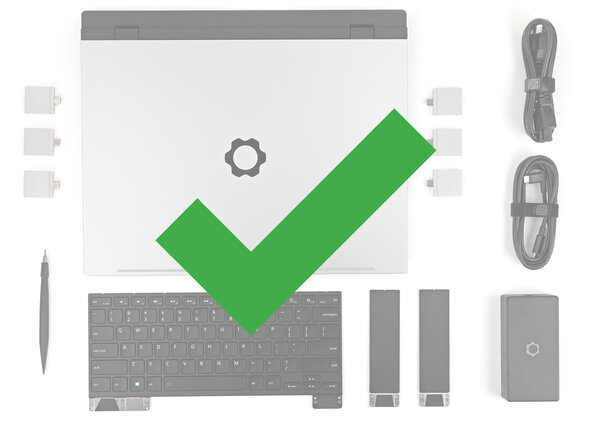
Use this guide to remove and replace the Expansion Bay Shell Cover in your Framework Laptop 16.

crwdns2959930:0crwdne2959930:0

crwdns2943213:0crwdne2943213:0

crwdns2943215:0crwdne2943215:0

    1. Framework Laptop 16 Expansion Bay Shell Cover Replacement, Before you begin: crwdns2935265:01crwdnd2935265:01crwdnd2935265:01crwdne2935265:0
      • Unplug all cables and fully shut down your laptop.

      crwdns2952109:0crwdne2952109:0

      crwdns2917038:0crwdne2917038:0

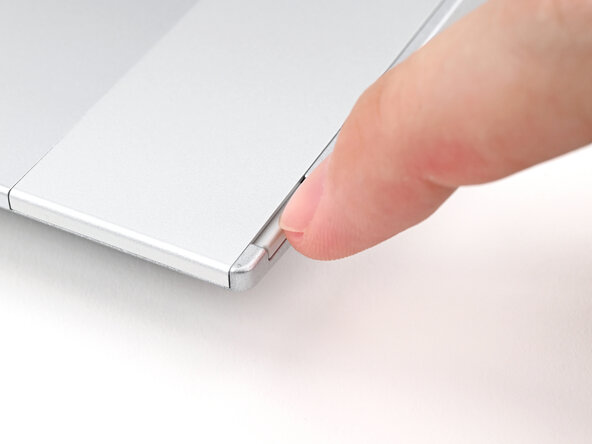
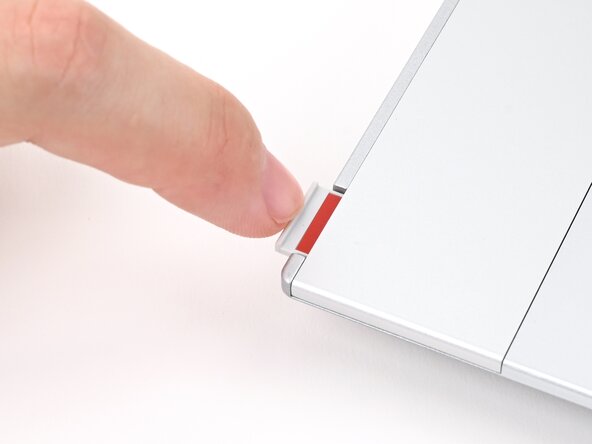
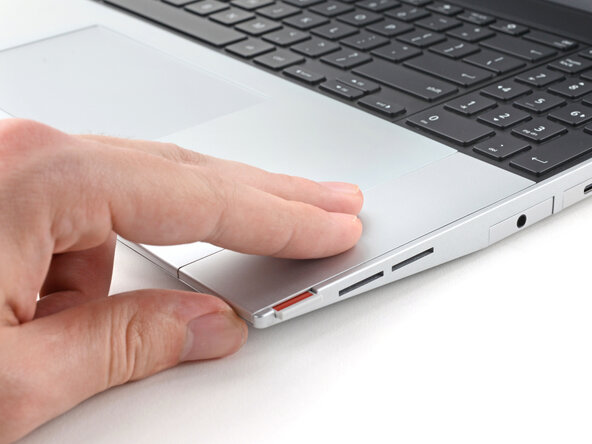
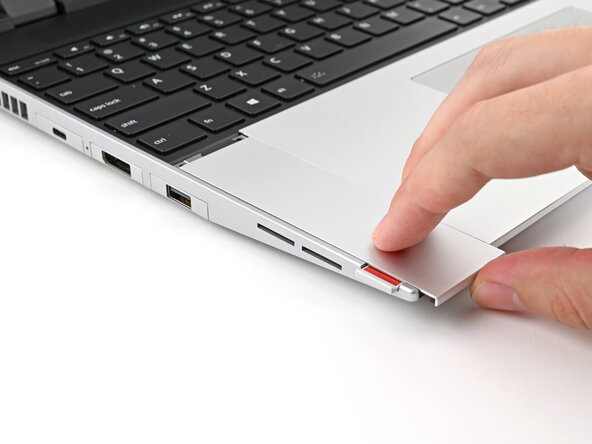
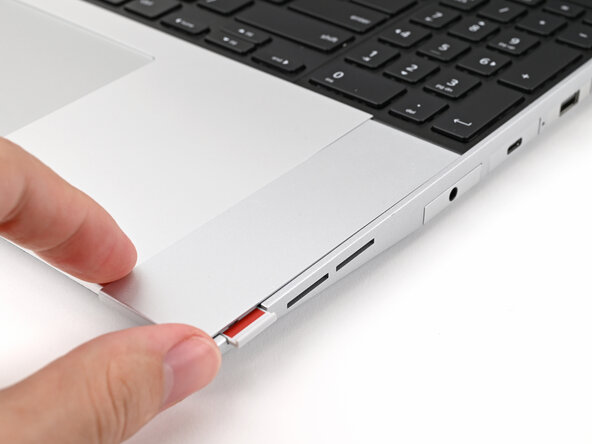
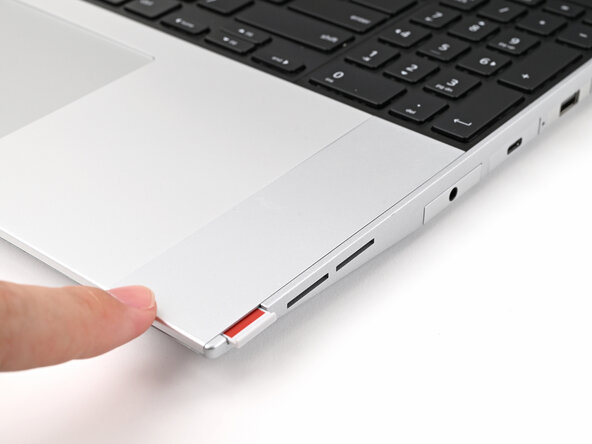
    1. Framework Laptop 16 Expansion Bay Shell Cover Replacement, Unlock the Input Modules: crwdns2935265:02crwdnd2935265:01crwdnd2935265:03crwdne2935265:0 Framework Laptop 16 Expansion Bay Shell Cover Replacement, Unlock the Input Modules: crwdns2935265:02crwdnd2935265:02crwdnd2935265:03crwdne2935265:0 Framework Laptop 16 Expansion Bay Shell Cover Replacement, Unlock the Input Modules: crwdns2935265:02crwdnd2935265:03crwdnd2935265:03crwdne2935265:0
      • Use your fingernail to pull out the two Input Module latches and unlock them.

      • The latch will show red if it's unlocked.

      crwdns2952109:0crwdne2952109:0

      crwdns2917038:0crwdne2917038:0

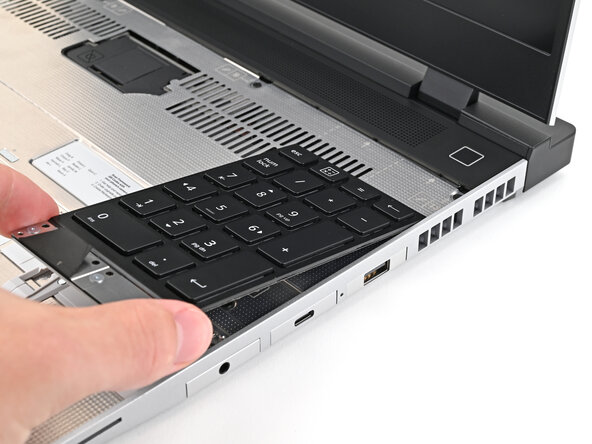
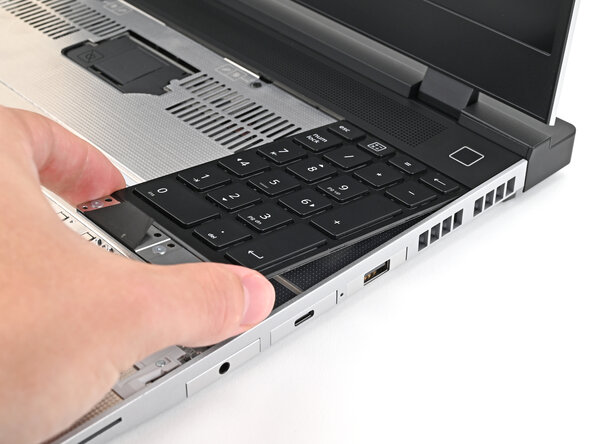
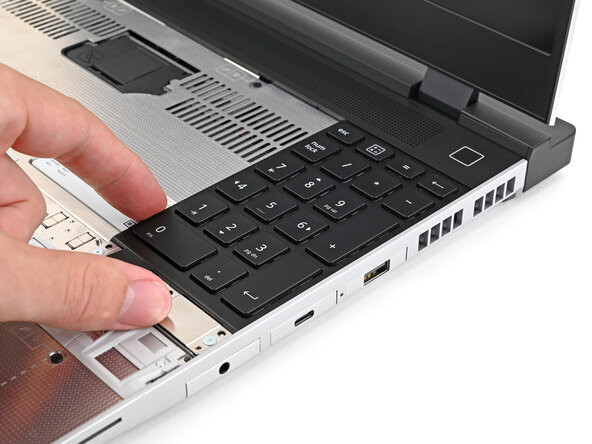
    2. Framework Laptop 16 Expansion Bay Shell Cover Replacement, Remove the Touchpad Spacers: crwdns2935265:03crwdnd2935265:01crwdnd2935265:03crwdne2935265:0 Framework Laptop 16 Expansion Bay Shell Cover Replacement, Remove the Touchpad Spacers: crwdns2935265:03crwdnd2935265:02crwdnd2935265:03crwdne2935265:0 Framework Laptop 16 Expansion Bay Shell Cover Replacement, Remove the Touchpad Spacers: crwdns2935265:03crwdnd2935265:03crwdnd2935265:03crwdne2935265:0
      • Use your fingers to slide the Touchpad Spacer toward the bottom edge of the laptop and unclip it.

      • If you're having trouble, check if the corresponding Input Module latch is properly unlocked.

      • Lift the Touchpad Spacer off the laptop and remove it.

      crwdns2952109:0crwdne2952109:0

      crwdns2917038:0crwdne2917038:0

    3. Framework Laptop 16 Expansion Bay Shell Cover Replacement: crwdns2935265:04crwdnd2935265:01crwdnd2935265:03crwdne2935265:0 Framework Laptop 16 Expansion Bay Shell Cover Replacement: crwdns2935265:04crwdnd2935265:02crwdnd2935265:03crwdne2935265:0 Framework Laptop 16 Expansion Bay Shell Cover Replacement: crwdns2935265:04crwdnd2935265:03crwdnd2935265:03crwdne2935265:0
      • Repeat the same procedure for the other touchpad spacer.

      crwdns2952109:0crwdne2952109:0

      crwdns2917038:0crwdne2917038:0

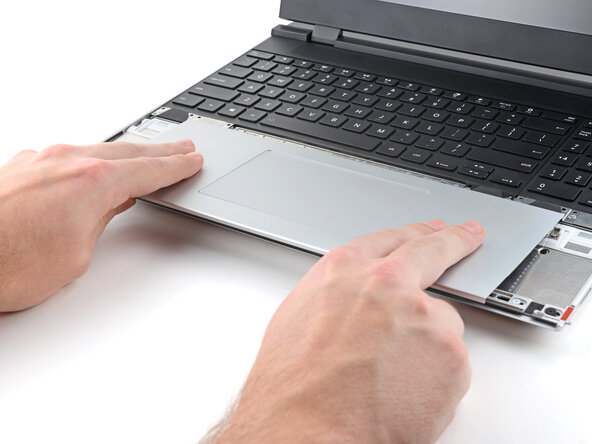
    4. Framework Laptop 16 Expansion Bay Shell Cover Replacement, Remove the Touchpad Module: crwdns2935265:05crwdnd2935265:01crwdnd2935265:03crwdne2935265:0 Framework Laptop 16 Expansion Bay Shell Cover Replacement, Remove the Touchpad Module: crwdns2935265:05crwdnd2935265:02crwdnd2935265:03crwdne2935265:0 Framework Laptop 16 Expansion Bay Shell Cover Replacement, Remove the Touchpad Module: crwdns2935265:05crwdnd2935265:03crwdnd2935265:03crwdne2935265:0
      • Use your fingers to slide the Touchpad Module toward the bottom edge of the laptop and disconnect it.

      • If you're having trouble, check if the Input Module latches are properly unlocked.

      • Lift the Touchpad Module and remove it.

      crwdns2952109:0crwdne2952109:0

      crwdns2917038:0crwdne2917038:0

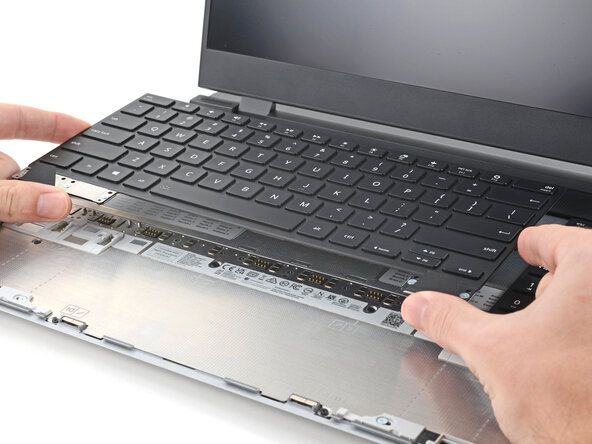
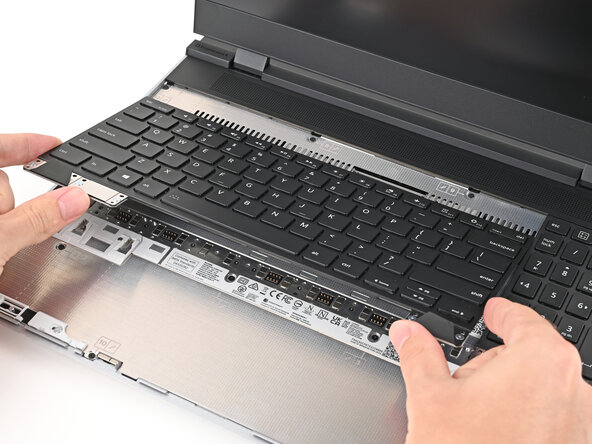
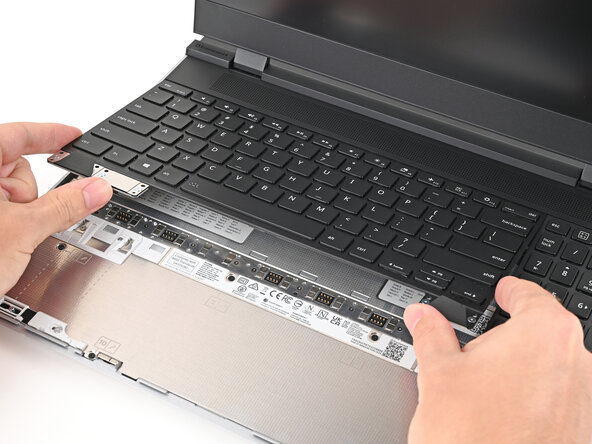
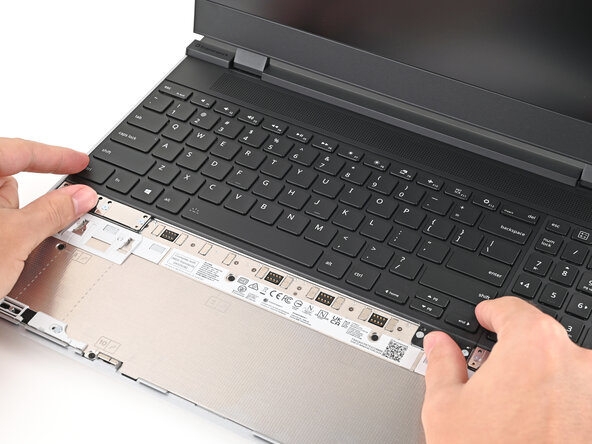
    1. Framework Laptop 16 Expansion Bay Shell Cover Replacement, Remove the keyboard: crwdns2935265:06crwdnd2935265:01crwdnd2935265:03crwdne2935265:0 Framework Laptop 16 Expansion Bay Shell Cover Replacement, Remove the keyboard: crwdns2935265:06crwdnd2935265:02crwdnd2935265:03crwdne2935265:0 Framework Laptop 16 Expansion Bay Shell Cover Replacement, Remove the keyboard: crwdns2935265:06crwdnd2935265:03crwdnd2935265:03crwdne2935265:0
      • The keyboard is held in place with strong magnets. Apply gradually increasing force to avoid having the keyboard violently eject.

      • Grip the two pull tabs along the bottom of the keyboard and lift until its magnets release.

      • Remove the keyboard.

      crwdns2952109:0crwdne2952109:0

      crwdns2917038:0crwdne2917038:0

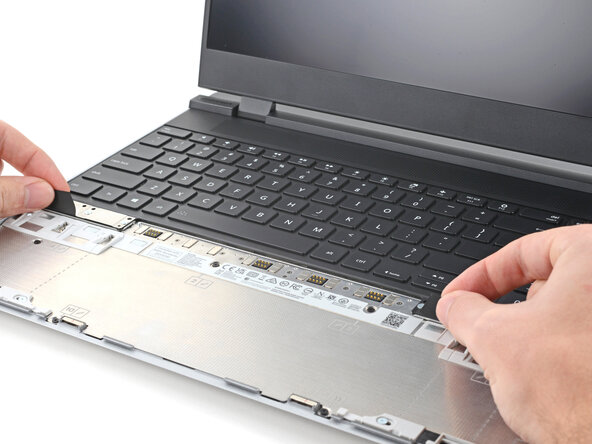
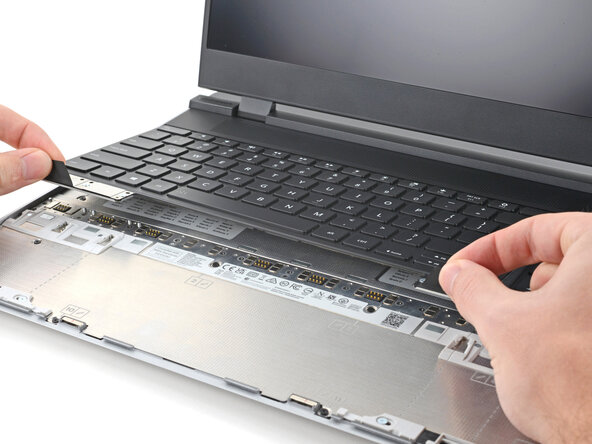
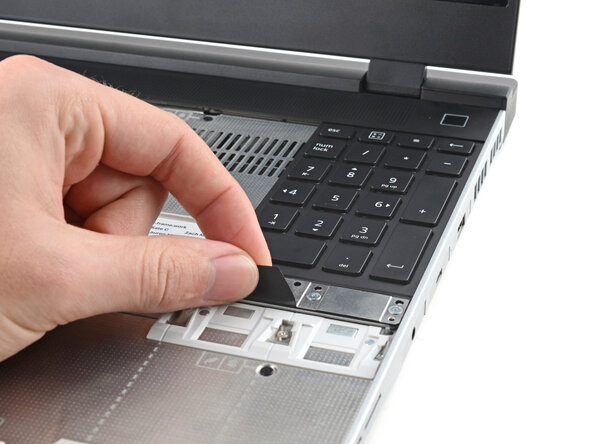
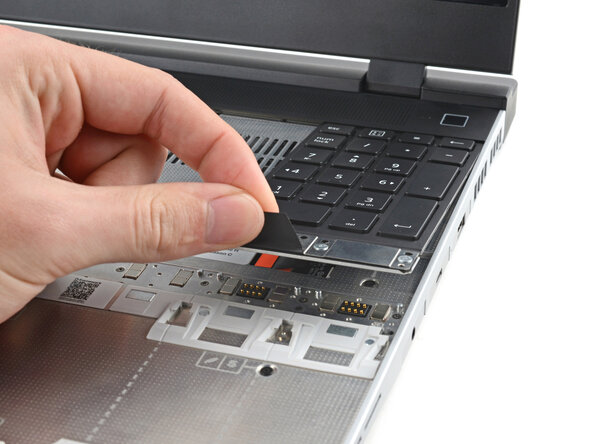
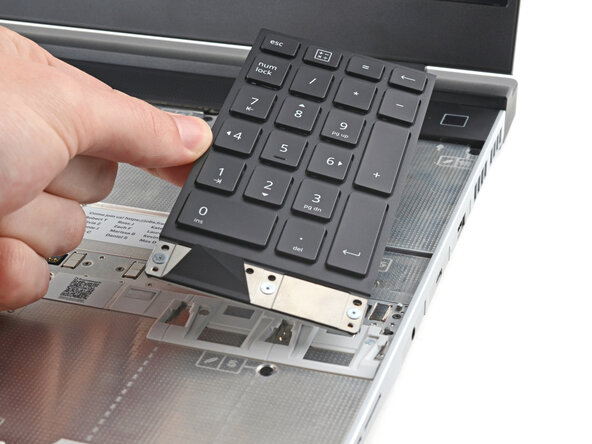
    1. Framework Laptop 16 Expansion Bay Shell Cover Replacement, Remove the Input Modules: crwdns2935265:07crwdnd2935265:01crwdnd2935265:03crwdne2935265:0 Framework Laptop 16 Expansion Bay Shell Cover Replacement, Remove the Input Modules: crwdns2935265:07crwdnd2935265:02crwdnd2935265:03crwdne2935265:0 Framework Laptop 16 Expansion Bay Shell Cover Replacement, Remove the Input Modules: crwdns2935265:07crwdnd2935265:03crwdnd2935265:03crwdne2935265:0
      • Your Input Module(s) might be different, but the procedure to remove them is the same.

      • Grip the pull tab at the bottom of the Input Module and lift until its magnets release.

      • Remove the Input Module.

      • Repeat for any remaining Input Modules.

      crwdns2952109:0crwdne2952109:0

      crwdns2917038:0crwdne2917038:0

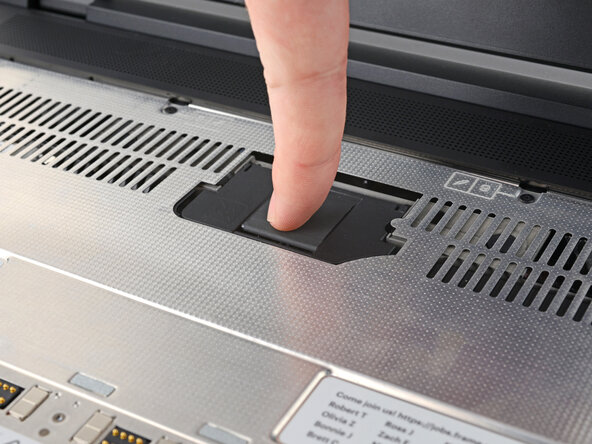
    1. Framework Laptop 16 Expansion Bay Shell Cover Replacement, Lift the interposer door: crwdns2935265:08crwdnd2935265:01crwdnd2935265:02crwdne2935265:0 Framework Laptop 16 Expansion Bay Shell Cover Replacement, Lift the interposer door: crwdns2935265:08crwdnd2935265:02crwdnd2935265:02crwdne2935265:0
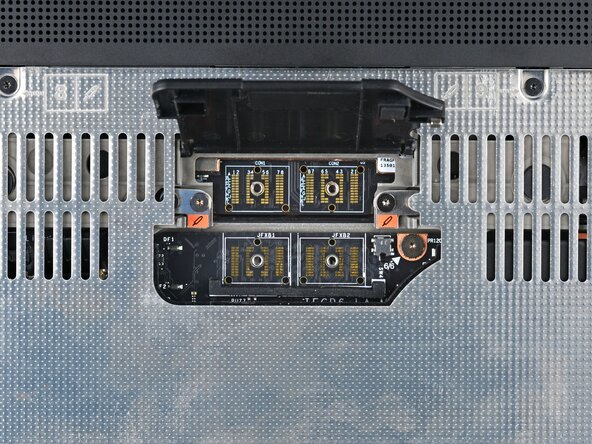
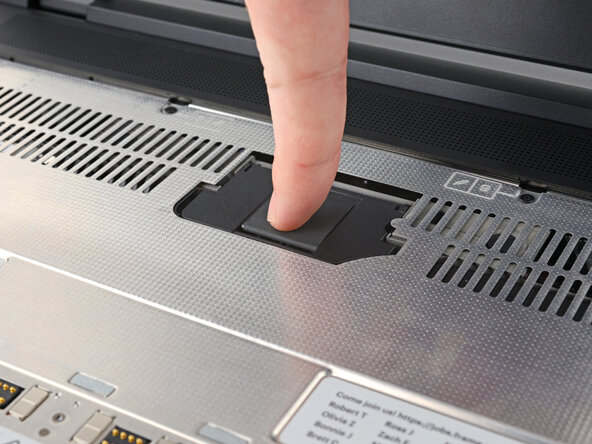
      • Lift the interposer door by its black pull tab and let it rest upright.

      crwdns2952109:0crwdne2952109:0

      crwdns2917038:0crwdne2917038:0

    2. Framework Laptop 16 Expansion Bay Shell Cover Replacement, Loosen the interposer screws: crwdns2935265:09crwdnd2935265:01crwdnd2935265:01crwdne2935265:0
      • Use your Framework Screwdriver to loosen the three captive T5 Torx screws securing the interposer.

      crwdns2952109:0crwdne2952109:0

      crwdns2917038:0crwdne2917038:0

    3. Framework Laptop 16 Expansion Bay Shell Cover Replacement, Remove the interposer: crwdns2935265:010crwdnd2935265:01crwdnd2935265:02crwdne2935265:0 Framework Laptop 16 Expansion Bay Shell Cover Replacement, Remove the interposer: crwdns2935265:010crwdnd2935265:02crwdnd2935265:02crwdne2935265:0
      • Lift the interposer by its pull tab and remove it.

      crwdns2952109:0crwdne2952109:0

      crwdns2917038:0crwdne2917038:0

    4. Framework Laptop 16 Expansion Bay Shell Cover Replacement, Loosen the Expansion Bay Module screws: crwdns2935265:011crwdnd2935265:01crwdnd2935265:02crwdne2935265:0 Framework Laptop 16 Expansion Bay Shell Cover Replacement, Loosen the Expansion Bay Module screws: crwdns2935265:011crwdnd2935265:02crwdnd2935265:02crwdne2935265:0
      • Use your Framework Screwdriver to loosen the two captive T5 Torx screws securing the Expansion Bay Shell.

      • Close the interposer door before continuing.

      crwdns2952109:0crwdne2952109:0

      crwdns2917038:0crwdne2917038:0

    5. Framework Laptop 16 Expansion Bay Shell Cover Replacement, Remove the Expansion Bay Shell: crwdns2935265:012crwdnd2935265:01crwdnd2935265:03crwdne2935265:0 Framework Laptop 16 Expansion Bay Shell Cover Replacement, Remove the Expansion Bay Shell: crwdns2935265:012crwdnd2935265:02crwdnd2935265:03crwdne2935265:0 Framework Laptop 16 Expansion Bay Shell Cover Replacement, Remove the Expansion Bay Shell: crwdns2935265:012crwdnd2935265:03crwdnd2935265:03crwdne2935265:0
      • Close your laptop and flip it over.

      • Slide the Expansion Bay Shell out of the laptop and remove it.

      • The shell should slide out easily. If you feel any resistance, check that the screws holding it in place are fully loosened.

      crwdns2952109:0crwdne2952109:0

      crwdns2917038:0crwdne2917038:0

    1. Framework Laptop 16 Expansion Bay Shell Cover Replacement, Disconnect the right fan: crwdns2935265:013crwdnd2935265:01crwdnd2935265:03crwdne2935265:0 Framework Laptop 16 Expansion Bay Shell Cover Replacement, Disconnect the right fan: crwdns2935265:013crwdnd2935265:02crwdnd2935265:03crwdne2935265:0 Framework Laptop 16 Expansion Bay Shell Cover Replacement, Disconnect the right fan: crwdns2935265:013crwdnd2935265:03crwdnd2935265:03crwdne2935265:0
      • Use the flat end of your Framework Screwdriver, or a clean fingernail, to lift up and release the locking tab on the right fan ZIF connector.

      • Use your fingers to grip the brown pull tab and slide the right fan cable straight out of its socket.

      crwdns2952109:0crwdne2952109:0

      crwdns2917038:0crwdne2917038:0

    2. Framework Laptop 16 Expansion Bay Shell Cover Replacement, Loosen the right fan screws: crwdns2935265:014crwdnd2935265:01crwdnd2935265:02crwdne2935265:0 Framework Laptop 16 Expansion Bay Shell Cover Replacement, Loosen the right fan screws: crwdns2935265:014crwdnd2935265:02crwdnd2935265:02crwdne2935265:0
      • Use your Framework Screwdriver to loosen the four captive Torx T5 screws securing the right fan.

      crwdns2952109:0crwdne2952109:0

      crwdns2917038:0crwdne2917038:0

    3. Framework Laptop 16 Expansion Bay Shell Cover Replacement, Remove the right fan: crwdns2935265:015crwdnd2935265:01crwdnd2935265:03crwdne2935265:0 Framework Laptop 16 Expansion Bay Shell Cover Replacement, Remove the right fan: crwdns2935265:015crwdnd2935265:02crwdnd2935265:03crwdne2935265:0 Framework Laptop 16 Expansion Bay Shell Cover Replacement, Remove the right fan: crwdns2935265:015crwdnd2935265:03crwdnd2935265:03crwdne2935265:0
      • Use one hand to press the right fan cable flat to the module.

      • Use your other hand to pull the fan out of its housing, making sure to thread the cable through its slot.

      crwdns2952109:0crwdne2952109:0

      crwdns2917038:0crwdne2917038:0

    4. Framework Laptop 16 Expansion Bay Shell Cover Replacement, Disconnect the left fan: crwdns2935265:016crwdnd2935265:01crwdnd2935265:03crwdne2935265:0 Framework Laptop 16 Expansion Bay Shell Cover Replacement, Disconnect the left fan: crwdns2935265:016crwdnd2935265:02crwdnd2935265:03crwdne2935265:0 Framework Laptop 16 Expansion Bay Shell Cover Replacement, Disconnect the left fan: crwdns2935265:016crwdnd2935265:03crwdnd2935265:03crwdne2935265:0
      • Use the flat end of your Framework Screwdriver, or a clean fingernail, to lift up and release the locking tab on the left fan ZIF connector.

      • Use your fingers to grip the brown pull tab and slide the left fan cable straight out of its socket.

      crwdns2952109:0crwdne2952109:0

      crwdns2917038:0crwdne2917038:0

    5. Framework Laptop 16 Expansion Bay Shell Cover Replacement, Loosen the left fan screws: crwdns2935265:017crwdnd2935265:01crwdnd2935265:02crwdne2935265:0 Framework Laptop 16 Expansion Bay Shell Cover Replacement, Loosen the left fan screws: crwdns2935265:017crwdnd2935265:02crwdnd2935265:02crwdne2935265:0
      • Use your Framework Screwdriver to loosen the four captive Torx T5 screws securing the left fan.

      crwdns2952109:0crwdne2952109:0

      crwdns2917038:0crwdne2917038:0

    6. Framework Laptop 16 Expansion Bay Shell Cover Replacement, Remove the left fan: crwdns2935265:018crwdnd2935265:01crwdnd2935265:03crwdne2935265:0 Framework Laptop 16 Expansion Bay Shell Cover Replacement, Remove the left fan: crwdns2935265:018crwdnd2935265:02crwdnd2935265:03crwdne2935265:0 Framework Laptop 16 Expansion Bay Shell Cover Replacement, Remove the left fan: crwdns2935265:018crwdnd2935265:03crwdnd2935265:03crwdne2935265:0
      • Use one hand to press the left fan cable flat to the module.

      • Use your other hand to pull the fan out of its housing, making sure to thread the cable through its slot.

      crwdns2952109:0crwdne2952109:0

      crwdns2917038:0crwdne2917038:0

    7. Framework Laptop 16 Expansion Bay Shell Cover Replacement, Remove the Expansion Bay Shell Fan Board screws: crwdns2935265:019crwdnd2935265:01crwdnd2935265:02crwdne2935265:0 Framework Laptop 16 Expansion Bay Shell Cover Replacement, Remove the Expansion Bay Shell Fan Board screws: crwdns2935265:019crwdnd2935265:02crwdnd2935265:02crwdne2935265:0
      • Use your Framework Screwdriver to remove the two 3.6 mm‑long screws securing the Expansion Bay Shell Fan Board.

      crwdns2952109:0crwdne2952109:0

      crwdns2917038:0crwdne2917038:0

    8. Framework Laptop 16 Expansion Bay Shell Cover Replacement, Remove the Expansion Bay Shell Fan Board: crwdns2935265:020crwdnd2935265:01crwdnd2935265:03crwdne2935265:0 Framework Laptop 16 Expansion Bay Shell Cover Replacement, Remove the Expansion Bay Shell Fan Board: crwdns2935265:020crwdnd2935265:02crwdnd2935265:03crwdne2935265:0 Framework Laptop 16 Expansion Bay Shell Cover Replacement, Remove the Expansion Bay Shell Fan Board: crwdns2935265:020crwdnd2935265:03crwdnd2935265:03crwdne2935265:0
      • Use your fingers to lift the board straight off the Expansion Bay Shell and remove it.

      crwdns2952109:0crwdne2952109:0

      crwdns2917038:0crwdne2917038:0

    1. Framework Laptop 16 Expansion Bay Shell Cover Replacement, Disassembly complete: crwdns2935265:021crwdnd2935265:01crwdnd2935265:01crwdne2935265:0
      • Congratulations on completing disassembly! The remaining steps will show how to reassemble your Framework Laptop.

      crwdns2952109:0crwdne2952109:0

      crwdns2917038:0crwdne2917038:0

    1. Framework Laptop 16 Expansion Bay Shell Cover Replacement, Place the Expansion Bay Shell Fan Board: crwdns2935265:022crwdnd2935265:01crwdnd2935265:03crwdne2935265:0 Framework Laptop 16 Expansion Bay Shell Cover Replacement, Place the Expansion Bay Shell Fan Board: crwdns2935265:022crwdnd2935265:02crwdnd2935265:03crwdne2935265:0 Framework Laptop 16 Expansion Bay Shell Cover Replacement, Place the Expansion Bay Shell Fan Board: crwdns2935265:022crwdnd2935265:03crwdnd2935265:03crwdne2935265:0
      • Place the board straight on its alignment pegs on the Expansion Bay Shell.

      crwdns2952109:0crwdne2952109:0

      crwdns2917038:0crwdne2917038:0

    2. Framework Laptop 16 Expansion Bay Shell Cover Replacement, Install the Expansion Bay Shell Fan Board screws: crwdns2935265:023crwdnd2935265:01crwdnd2935265:02crwdne2935265:0 Framework Laptop 16 Expansion Bay Shell Cover Replacement, Install the Expansion Bay Shell Fan Board screws: crwdns2935265:023crwdnd2935265:02crwdnd2935265:02crwdne2935265:0
      • Use your Framework Screwdriver to install the two 3.6 mm‑long screws securing the Expansion Bay Shell Fan Board.

      crwdns2952109:0crwdne2952109:0

      crwdns2917038:0crwdne2917038:0

    3. Framework Laptop 16 Expansion Bay Shell Cover Replacement, Place the left fan: crwdns2935265:024crwdnd2935265:01crwdnd2935265:03crwdne2935265:0 Framework Laptop 16 Expansion Bay Shell Cover Replacement, Place the left fan: crwdns2935265:024crwdnd2935265:02crwdnd2935265:03crwdne2935265:0 Framework Laptop 16 Expansion Bay Shell Cover Replacement, Place the left fan: crwdns2935265:024crwdnd2935265:03crwdnd2935265:03crwdne2935265:0
      • Place the left fan onto the Expansion Bay Shell, making sure to thread the cable through its slot.

      crwdns2952109:0crwdne2952109:0

      crwdns2917038:0crwdne2917038:0

    4. Framework Laptop 16 Expansion Bay Shell Cover Replacement, Install the left fan screws: crwdns2935265:025crwdnd2935265:01crwdnd2935265:02crwdne2935265:0 Framework Laptop 16 Expansion Bay Shell Cover Replacement, Install the left fan screws: crwdns2935265:025crwdnd2935265:02crwdnd2935265:02crwdne2935265:0
      • Use your Framework Screwdriver to tighten the four captive Torx T5 screws securing the left fan.

      crwdns2952109:0crwdne2952109:0

      crwdns2917038:0crwdne2917038:0

    5. Framework Laptop 16 Expansion Bay Shell Cover Replacement, Connect the left fan: crwdns2935265:026crwdnd2935265:01crwdnd2935265:03crwdne2935265:0 Framework Laptop 16 Expansion Bay Shell Cover Replacement, Connect the left fan: crwdns2935265:026crwdnd2935265:02crwdnd2935265:03crwdne2935265:0 Framework Laptop 16 Expansion Bay Shell Cover Replacement, Connect the left fan: crwdns2935265:026crwdnd2935265:03crwdnd2935265:03crwdne2935265:0
      • Use your fingers to grip the brown pull tab and slide the left fan cable straight into its socket.

      • Use the flat end of your Framework Screwdriver, or a clean fingernail, to press down the locking tab on the left fan ZIF connector.

      crwdns2952109:0crwdne2952109:0

      crwdns2917038:0crwdne2917038:0

    6. Framework Laptop 16 Expansion Bay Shell Cover Replacement, Place the right fan: crwdns2935265:027crwdnd2935265:01crwdnd2935265:03crwdne2935265:0 Framework Laptop 16 Expansion Bay Shell Cover Replacement, Place the right fan: crwdns2935265:027crwdnd2935265:02crwdnd2935265:03crwdne2935265:0 Framework Laptop 16 Expansion Bay Shell Cover Replacement, Place the right fan: crwdns2935265:027crwdnd2935265:03crwdnd2935265:03crwdne2935265:0
      • Place the right fan onto the Expansion Bay Shell, making sure to thread the cable through its slot.

      crwdns2952109:0crwdne2952109:0

      crwdns2917038:0crwdne2917038:0

    7. Framework Laptop 16 Expansion Bay Shell Cover Replacement, Install the right fan screws: crwdns2935265:028crwdnd2935265:01crwdnd2935265:02crwdne2935265:0 Framework Laptop 16 Expansion Bay Shell Cover Replacement, Install the right fan screws: crwdns2935265:028crwdnd2935265:02crwdnd2935265:02crwdne2935265:0
      • Use your Framework Screwdriver to tighten the four captive Torx T5 screws securing the right fan.

      crwdns2952109:0crwdne2952109:0

      crwdns2917038:0crwdne2917038:0

    8. Framework Laptop 16 Expansion Bay Shell Cover Replacement, Connect the right fan: crwdns2935265:029crwdnd2935265:01crwdnd2935265:03crwdne2935265:0 Framework Laptop 16 Expansion Bay Shell Cover Replacement, Connect the right fan: crwdns2935265:029crwdnd2935265:02crwdnd2935265:03crwdne2935265:0 Framework Laptop 16 Expansion Bay Shell Cover Replacement, Connect the right fan: crwdns2935265:029crwdnd2935265:03crwdnd2935265:03crwdne2935265:0
      • Use your fingers to grip the brown pull tab and slide the right fan cable straight into its socket.

      • Use the flat end of your Framework Screwdriver, or a clean fingernail, to press down the locking tab on the right fan ZIF connector.

      crwdns2952109:0crwdne2952109:0

      crwdns2917038:0crwdne2917038:0

    1. Framework Laptop 16 Expansion Bay Shell Cover Replacement, Insert the Expansion Bay Shell: crwdns2935265:030crwdnd2935265:01crwdnd2935265:02crwdne2935265:0 Framework Laptop 16 Expansion Bay Shell Cover Replacement, Insert the Expansion Bay Shell: crwdns2935265:030crwdnd2935265:02crwdnd2935265:02crwdne2935265:0
      crwdns2952109:0crwdne2952109:0

      crwdns2917038:0crwdne2917038:0

    2. Framework Laptop 16 Expansion Bay Shell Cover Replacement: crwdns2935265:031crwdnd2935265:01crwdnd2935265:02crwdne2935265:0 Framework Laptop 16 Expansion Bay Shell Cover Replacement: crwdns2935265:031crwdnd2935265:02crwdnd2935265:02crwdne2935265:0
      • When installing the shell, keep it level to the laptop so it doesn't buckle on the rails.

      • There should be no gaps between the laptop and the shell when it's installed correctly.

      crwdns2952109:0crwdne2952109:0

      crwdns2917038:0crwdne2917038:0

    3. Framework Laptop 16 Expansion Bay Shell Cover Replacement: crwdns2935265:032crwdnd2935265:01crwdnd2935265:03crwdne2935265:0 Framework Laptop 16 Expansion Bay Shell Cover Replacement: crwdns2935265:032crwdnd2935265:02crwdnd2935265:03crwdne2935265:0 Framework Laptop 16 Expansion Bay Shell Cover Replacement: crwdns2935265:032crwdnd2935265:03crwdnd2935265:03crwdne2935265:0
      • While keeping the shell level with the laptop, slide it into its slot.

      • The shell should slide in easily. If you feel any resistance, pull the module out and realign it.

      • You should hear an audible "click" when the shell's clips snap into place.

      crwdns2952109:0crwdne2952109:0

      crwdns2917038:0crwdne2917038:0

    4. Framework Laptop 16 Expansion Bay Shell Cover Replacement, Lift the interposer door: crwdns2935265:033crwdnd2935265:01crwdnd2935265:02crwdne2935265:0 Framework Laptop 16 Expansion Bay Shell Cover Replacement, Lift the interposer door: crwdns2935265:033crwdnd2935265:02crwdnd2935265:02crwdne2935265:0
      • Flip over the laptop and open it.

      • Lift the interposer door by its black pull tab and let it rest upright.

      crwdns2952109:0crwdne2952109:0

      crwdns2917038:0crwdne2917038:0

    5. Framework Laptop 16 Expansion Bay Shell Cover Replacement, Tighten the Expansion Bay Shell screws: crwdns2935265:034crwdnd2935265:01crwdnd2935265:02crwdne2935265:0 Framework Laptop 16 Expansion Bay Shell Cover Replacement, Tighten the Expansion Bay Shell screws: crwdns2935265:034crwdnd2935265:02crwdnd2935265:02crwdne2935265:0
      • Use your Framework Screwdriver to tighten the two captive T5 Torx screws securing the Expansion Bay Shell.

      crwdns2952109:0crwdne2952109:0

      crwdns2917038:0crwdne2917038:0

    6. Framework Laptop 16 Expansion Bay Shell Cover Replacement, Place the interposer: crwdns2935265:035crwdnd2935265:01crwdnd2935265:02crwdne2935265:0 Framework Laptop 16 Expansion Bay Shell Cover Replacement, Place the interposer: crwdns2935265:035crwdnd2935265:02crwdnd2935265:02crwdne2935265:0
      • Place the interposer over its spot between the Mainboard and the Expansion Bay.

      crwdns2952109:0crwdne2952109:0

      crwdns2917038:0crwdne2917038:0

    7. Framework Laptop 16 Expansion Bay Shell Cover Replacement, Tighten the interposer screws: crwdns2935265:036crwdnd2935265:01crwdnd2935265:02crwdne2935265:0 Framework Laptop 16 Expansion Bay Shell Cover Replacement, Tighten the interposer screws: crwdns2935265:036crwdnd2935265:02crwdnd2935265:02crwdne2935265:0
      • Use your Framework Screwdriver to tighten the three captive T5 Torx screws securing the interposer.

      • Close the interposer door.

      crwdns2952109:0crwdne2952109:0

      crwdns2917038:0crwdne2917038:0

    1. Framework Laptop 16 Expansion Bay Shell Cover Replacement, Install the Input Modules: crwdns2935265:037crwdnd2935265:01crwdnd2935265:03crwdne2935265:0 Framework Laptop 16 Expansion Bay Shell Cover Replacement, Install the Input Modules: crwdns2935265:037crwdnd2935265:02crwdnd2935265:03crwdne2935265:0 Framework Laptop 16 Expansion Bay Shell Cover Replacement, Install the Input Modules: crwdns2935265:037crwdnd2935265:03crwdnd2935265:03crwdne2935265:0
      • Your Input Module(s) might be different, but the procedure to remove them is the same.

      • Align the top edge of the Input Module with the top edge of the laptop.

      • Lay the Input Module on the laptop and let the magnets pull the keyboard into place

      • Make sure the Input Module is seated properly on its alignment pegs and sits flush with the edges of the laptop.

      • Repeat for any remaining Input Modules.

      crwdns2952109:0crwdne2952109:0

      crwdns2917038:0crwdne2917038:0

    1. Framework Laptop 16 Expansion Bay Shell Cover Replacement, Install the keyboard: crwdns2935265:038crwdnd2935265:01crwdnd2935265:03crwdne2935265:0 Framework Laptop 16 Expansion Bay Shell Cover Replacement, Install the keyboard: crwdns2935265:038crwdnd2935265:02crwdnd2935265:03crwdne2935265:0 Framework Laptop 16 Expansion Bay Shell Cover Replacement, Install the keyboard: crwdns2935265:038crwdnd2935265:03crwdnd2935265:03crwdne2935265:0
      • Align the top edge of the keyboard with the top edge of the laptop.

      • Lay the keyboard on the laptop and let the magnets pull the keyboard into place

      • Make sure the keyboard is seated properly on its alignment pegs and sits flush with the edges of the laptop.

      crwdns2952109:0crwdne2952109:0

      crwdns2917038:0crwdne2917038:0

    1. Framework Laptop 16 Expansion Bay Shell Cover Replacement, Install the Touchpad Module: crwdns2935265:039crwdnd2935265:01crwdnd2935265:02crwdne2935265:0 Framework Laptop 16 Expansion Bay Shell Cover Replacement, Install the Touchpad Module: crwdns2935265:039crwdnd2935265:02crwdnd2935265:02crwdne2935265:0
      • Place the Touchpad Module flat on its cutout so its clips are properly aligned.

      • Press the Touchpad Module down and slide it into place so it lines up evenly with the bottom edge of the laptop.

      crwdns2952109:0crwdne2952109:0

      crwdns2917038:0crwdne2917038:0

    2. Framework Laptop 16 Expansion Bay Shell Cover Replacement, Install the Touchpad Spacers: crwdns2935265:040crwdnd2935265:01crwdnd2935265:03crwdne2935265:0 Framework Laptop 16 Expansion Bay Shell Cover Replacement, Install the Touchpad Spacers: crwdns2935265:040crwdnd2935265:02crwdnd2935265:03crwdne2935265:0 Framework Laptop 16 Expansion Bay Shell Cover Replacement, Install the Touchpad Spacers: crwdns2935265:040crwdnd2935265:03crwdnd2935265:03crwdne2935265:0
      • Place the Touchpad Spacer over its spot on the laptop with the bottom edge overhanging slightly.

      • Slide the Touchpad Spacer towards the top of the laptop to secure it.

      • Repeat the same procedure for the other Touchpad Spacer.

      crwdns2952109:0crwdne2952109:0

      crwdns2917038:0crwdne2917038:0

crwdns2915888:0crwdne2915888:0

You finished fixing your Framework Laptop!

Take your e-waste to an R2 or e-Stewards certified recycler.

If you need help, contact Framework support.

crwdns2935221:0crwdne2935221:0

Alex Diaz-Kokaisl

crwdns2935283:001/16/22crwdne2935283:0

252.181 crwdns2915208:0crwdne2915208:0

crwdns2935297:01.200crwdne2935297:0

crwdns2947412:00crwdne2947412:0

crwdns2917038:0crwdne2917038:0

crwdns2936625:0crwdne2936625:0:

crwdns2936751:024crwdne2936751:0 13

crwdns2936753:07crwdne2936753:0 31

crwdns2936753:030crwdne2936753:0 96

crwdns2959996:0crwdne2959996:0 338