crwdns2915892:0crwdne2915892:0
If your Kindle does not respond when pressing the power button, but wakes and goes back to sleep sporadically, this is the result of a malfunctioning cover sensor, which is a hall effect sensor located on the same flex cable as the LEDs for the frontlight.
On some e-readers, like those from Kobo, this sensor can be disabled in software, but disabling it on a Kindle requires a hardware modification that can be undone relatively easily.
Normally, fixing this would require a replacement of the entire display assembly, but what if you wanted a temporary solution to tide you over until you are able to replace the display assembly, or upgrade to a new Kindle (or other e-reader), and have the skills and tools to take apart electronics?
This guide requires that your Kindle remain powered on but in sleep mode, and that a plastic opening tool, and a PH000 screwdriver are used. You will also need to react quickly to disconnect the frontlight before it goes back to sleep again.
This guide will not work with the original Kindle Paperwhite (model EY21) that was released in 2013 as part of the 5th generation of Kindle e-readers, as its cover sensor detection mechanism defaults to to assuming that the case cover was closed when the frontlight cable was disconnected.
It does, however, work with the 3rd iteration (model DP75SDI) that was released in 2015 as part of the 7th generation of Kindle e-readers, as its cover sensor detection mechanism seems to retain the last state before the frontlight cable was disconnected.
crwdns2942213:0crwdne2942213:0
-
-
crwdns2935267:0crwdne2935267:0Plastic Cards$2.99
-
Gently pry the bezel off the screen using a plastic opening tool. Start at the corners and slide around the edges until you return to your starting point.
 crwdns2952109:0crwdne2952109:0
-
-
-
Unscrew the eleven 3.2 mm Phillips #000 screws surrounding the frame.
-
-
-
-
Gently lift the mid-frame out of the case with your hands.
-
-
-
Now comes the hard part.
-
Your Kindle may not respond to the power button, and disconnecting the frontlight at this point will leave it in that unusable state.
-
Tap on or bring a magnet close to the hall effect sensor.
-
When the frontlight lights up, immediately unplug its connector.
-
If your Kindle remains awake for more than 3 seconds, you may now put it back to sleep by pressing the power button.
-
If not, you may have to repeat this step.
-
-
-
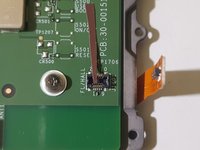
You will then need to cover pins 2 and 4 of the front light connector.
-
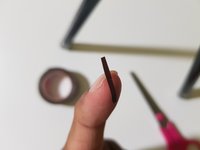
Cut a small piece of electrical tape that is thin enough to cover both pins, and apply it.
-
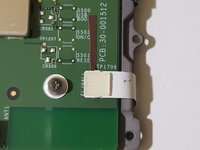
Reconnect the frontlight.
-
-


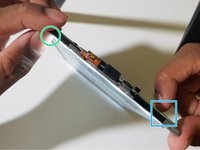

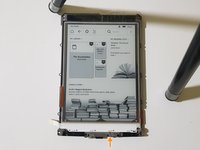

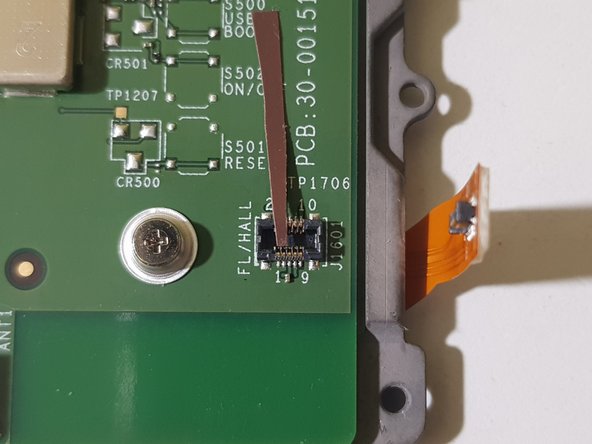
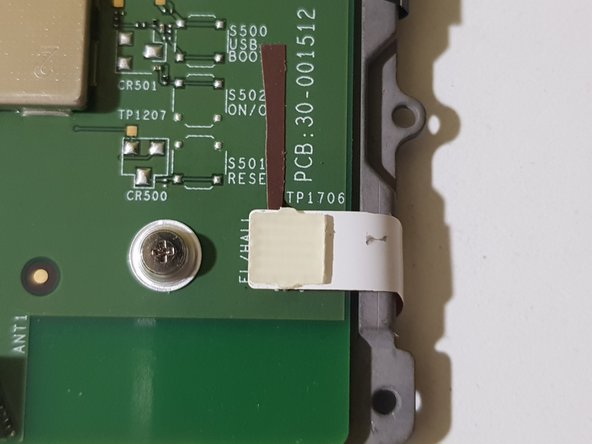
To reassemble your device, follow steps 1-3 in reverse order.
crwdns2935221:0crwdne2935221:0
crwdns2935227:0crwdne2935227:0

crwdns2947412:03crwdne2947412:0
Brilliant! I just went through the process of disconnecting my hall sensor harness to fix an intermittent wake/lock issue. It worked, but i didn’t realize I’d nerfed the backlights until after getting it all reassembled. Thankfully found this guide and it worked perfectly.
Daniel Swick - crwdns2934203:0crwdne2934203:0 crwdns2950251:0crwdne2950251:0
Cover sensor was malfunctioning after a battery replacement so I followed your guide and it worked wonderfully! Hope to get another 8 years from this thing instead of dropping it in a landfill! Thanks
Andrew McDonnell - crwdns2934203:0crwdne2934203:0 crwdns2950251:0crwdne2950251:0
Very clever! Thank you. In the event, changing the battery on my 7th generation Kindle Paperwhite seems to have fixed the problem with the cover sensor. That triggered a hard reset, so it might be worth trying that before continuing with this mod.
Charles Butcher - crwdns2934203:0crwdne2934203:0 crwdns2950251:0crwdne2950251:0
