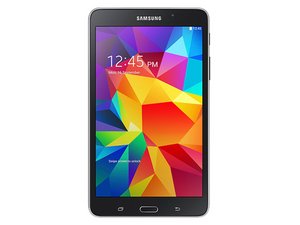
crwdns2862678:0crwdne2862678:0
crwdns2895503:0crwdne2895503:0
Tablet is not charging
Even when you try using multiple chargers, your tablet won't charge.
Debris in charge port
Initially, it would be best to check the charge port for any obstructions such as sand or dirt. Because this tablet does not have a port cover, it is very possible that you may have picked up sand from the beach or dirt from the park. If so, you may want to first try using an air duster to clean out any debris (even if it isn't visible to the naked eye). There is also the possibility of water damage. If so read on to the next section.
Faulty/Damaged charge port
Along the way and after many collisions, the bottom of your tablet (and therefore the charge port) may have taken physical damage that leaves it useless and unable to charge. Since Samsung does not sell individual charge ports, at this point, it may be necessary to Replace the Motherboard
Faulty/Run Down Battery
As your tablet ages, so does the battery. One reason your tablet may not be charging is because the battery needs to be replaced. Follow the link to Replace the Battery.
Tablet is running slowly
You have to wait longer than normal for your tablet to load applications, music, etc.
Reset the tablet
If your tablet is consistently running slowly, you may need to reset/restart it.
Check active applications
When installing your new applications or games, it may be necessary to check what applications are already active. Having multiple running applications can cause your tablet to run slowly. You can check active applications through “menu > settings > applications > running” and can “stop”.
Install SD card
You may need some extra storage space to get your tablet running quickly again. For the Samsung Galaxy Tab 4, you’ll need a micro SD card, and the tablet will hold one up to 32 GB.
There are muffled/static sounds coming from the tablet
When you try playing a video or listening to a song aloud, the sounds coming from your tablet are muffled, or there’s no sound at all
There is debris in your speaker
It’s pretty easy for your table to pick up dirt or dust particles, and that can get stuck in the speaker. Try cleaning the speaker with an air duster and see if that helps to enhance the sound quality.
Your speaker needs to be replaced
If you’ve tried cleaning out your speaker and it’s still not working, it may be time to just Replace the Speaker.
No sound is coming through your headphones
When you plug your headphones into the headphone jack, for some strange reason, you can’t hear anything!
Your headphones are broken
Before diving into your device, make sure it’s not your headphones that are faulty. Try plugging them into another device to see if you can hear sound in them. If not, then you may need to purchase new headphones. If you can hear sound in another device, something is wrong with your tablet - read on to see what the issue may be.
There is debris in the headphone jack
Just like every other open space in your tablet, the headphone jack can easily pick up debris from its environment. Try cleaning out the headphone jack with an air duster. If that doesn’t work, read on for another solution.
The headphone jack is broken
Your tablet’s headphone jack may be broken if there is no sound coming from the headphones. Since Samsung does not sell individual sound ports, follow the link to Replace the Motherboard.
Your screen is not displaying images or is cracked
Through your tablet’s adventurous life, it either fell down or has accumulated too many scratches to see what’s on the screen.
The screen needs to be replaced
Follow this link for steps on how to Replace the Screen of your tablet.
Camera will not work
While trying to take that "kodak moment" photo, your camera decides to take the day off.
Possible software updates may be needed
To be sure that the problem isn't a physically broken camera, be sure to first check for updates that may fix camera glitches.
Broken camera
If the tablet has been dropped at any point in its life, it may be possible that the camera (front or back) has been compromised. The following link will lead you to Replace the Camera.

crwdns2935287:0crwdne2935287:0

USF Tampa, Team 1-3, Remmell Fall 2015 crwdns2935289:0USF Tampa, Team 1-3, Remmell Fall 2015crwdne2935289:0
USFT-REMMELL-F15S1G3
crwdns2931471:04crwdne2931471:0
crwdns2935297:072crwdne2935297:0

crwdns2944067:017crwdne2944067:0
My tab 4 10" tablet use to sleep and awake with the protective cover being opened and closed.
I just changed the battery and now it will no longer operate with the cover. Any help will be much appreciated. Thanks.
Jeffery Brown - crwdns2934203:0crwdne2934203:0 crwdns2950251:0crwdne2950251:0
Hi - My son's tablet will not download some games from the playstore & there is almost 30 gb of free storage on the SD card. Any recommendations? We re-formatted SD card & even tried a new one. If we get a game to install & try to move to SD card, tablet says "unable to move. Free up space". Thanks!! Kathy
Kathy Kuny - crwdns2934203:0crwdne2934203:0 crwdns2950251:0crwdne2950251:0
My tablet 4 will not open when swiping the screen in safe mode cant open homepage
Karen Davis - crwdns2934203:0crwdne2934203:0 crwdns2950251:0crwdne2950251:0
idk if this would work but try increasing Device side storage, EG remove some apps from the device or try moving them to the microSD before installing on microSD as the device may need device side storage for the transfer
Connor “Jamie” Carlson - crwdns2934203:0crwdne2934203:0 crwdns2950251:0crwdne2950251:0
Oops, 32 mb not gb.
Kathy Kuny - crwdns2934203:0crwdne2934203:0 crwdns2950251:0crwdne2950251:0