crwdns2862678:0crwdne2862678:0
crwdns2895503:0crwdne2895503:0
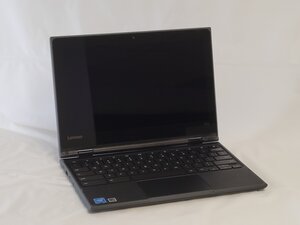
Is your Lenovo 500e Chromebook 81ES not powering on? Use this troubleshooting guide to help diagnose why.
Dead Battery due to damage
Batteries in devices are not foolproof; they have a certain number of charging cycles. Once they reach their limit, they decay rapidly. This is a very common problem when laptops do not power on.
- Hold your power button for 30 seconds, then wait to see if that will turn your screen on or any lights on your laptop.
- Batteries, especially Lithium-ion batteries, if they are damaged, can start to swell and create a bulge, making the battery not hold a charge. To check to see if your laptop's battery is bulging, view this guide.
- For Battery replacement refer please this Guide Lenovo 500e Chromebook 81ES Battery Replacement
Damaged SSD/HDD Hard Drive
- Laptops need an operating system to power on. If your SSD/HDD Hard Drive is corrupted or damaged, this could prevent your device from powering on.
- You can check your device's Hard Drive by plugging your computer into another computer and trying to see if you can transfer files from the working computer to the non-working laptop.
- You can also connect a USB stick to a USB port with your laptop's operating system loaded to see if you can upload the correct operating system.
Damaged Motherboard causing Issues
When a computer fails to turn on, it may very well be due to the Motherboard failing or malfunctioning.
- Inspect the motherboard for any loose components and ensure that all components are in good condition and not damaged. If components are damaged, replace the damaged components.
- Follow the Step-by-Step guide [here] to repair or replace damaged components
- Check the Motherboard for proper cooling and ensure all gluing and soldering components are sealed correctly. And everything is connected correctly as well.
USB-C not Accepting Power due to faulty connection
When a computer fails to turn on, it may be that the charging port, the USB-C in this case, may not be accepting power to charge the system.
- Inspect the USB-C port and ensure no water or dust has entered the port. If water and dust have entered the port, use a can of compressed air to clean the port out for about 30 seconds to 1 Minute and then test.
- Ensure that the USB-C port is not damaged. Try a different USB-C cable and check if the cable is the problem or if it's the port.
- Ensure that the cable and the computer are compatible and ensure that the USB-C cable is delivering the appropriate amount of power for that computer.
crwdns2935287:0crwdne2935287:0

University of North Texas, Team 2-3, Harold Fall 2025 crwdns2935289:0University of North Texas, Team 2-3, Harold Fall 2025crwdne2935289:0
UNT-HAROLD-F25S2G3
crwdns2931471:04crwdne2931471:0
crwdns2935297:05crwdne2935297:0

crwdns2944067:00crwdne2944067:0