crwdns2862678:0crwdne2862678:0
crwdns2895503:0crwdne2895503:0
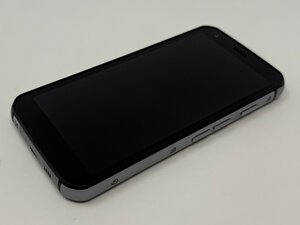
If your CAT S62 loses battery charge extremely quickly or fails to hold a charge, follow this page for possible solutions.
Background Apps are Draining Battery
Apps running in the background may use a significant amount of battery, which can cause the device's battery to drain quickly.
Method 1: Close recent apps
- Tap the square button on the bottom right of the screen.
- To close one app, swipe up on its thumbnail.
- To close all apps, find an option such as "Clear all" or "Close all," and then tap it.
Method 2: Force stop an app
- Go to Settings.
- Tap on Apps & notifications.
- Tap See all apps.
- Scroll down and select the app you want to close.
- On the App info page, tap "Force stop" and confirm by tapping "OK".
High Screen Brightness
- Swipe down from the top of the screen to open the drop-down menu.
- Find the brightness slider and swipe left to lower the brightness.
Unnecessary Features Running in Background
- Swipe down from the top of the screen to open the drop-down menu.
- Find the Wi-Fi, Bluetooth, or other toggles and tap them to turn them off. The icons should turn from colored to grey.
Battery Saver Mode Disabled
Method 1: Drop-down Menu
- Swipe down from the top of the screen to access the quick settings panel.
- Tap the battery icon to toggle Battery Saver on.
Method 2: Direct Settings
- Go to Settings.
- Find the battery tab.
- Find the Battery Saver option and tap "Turn On".
Outdated Software
- Open the Settings menu. You can do this from the home screen by swiping up to view all apps, then finding and tapping the "Settings" icon.
- Scroll down and select "System".
- Tap on "Advanced" in the System menu.
- Select "System update".
- Tap "Check for update" or wait for the phone to automatically begin searching for available updates.
- Follow the on-screen instructions if an update is found.

crwdns2935287:0crwdne2935287:0

Utah Tech University, Team 1-1, McMurrin Fall 2025 crwdns2935289:0Utah Tech University, Team 1-1, McMurrin Fall 2025crwdne2935289:0
UTAHTECH-MCMURRIN-F25S1G1
crwdns2931471:03crwdne2931471:0
crwdns2935297:072crwdne2935297:0

crwdns2944067:00crwdne2944067:0