crwdns2915892:0crwdne2915892:0
Connection on the fritz? Ping getting you down? Follow this guide to replace your Wi-Fi Board.
crwdns2942213:0crwdne2942213:0
-
-
-
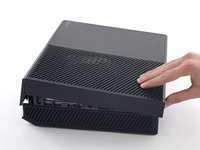
To open your Xbox, you're going to have to cut or peel up this tamper-evident tape. But don't worry—Microsoft can't legally void your warranty, as long as you don't damage anything. Have fun!
 crwdns2952109:0crwdne2952109:0
-
-
-
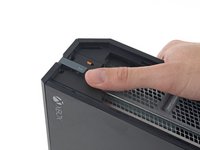
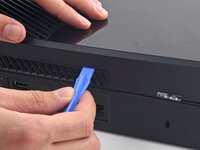
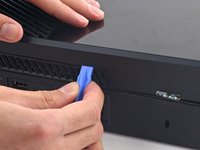
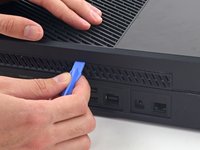
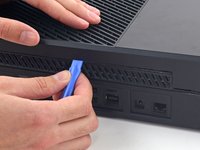
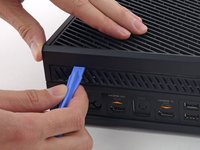
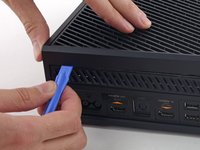
Use a plastic opening tool to pry up and remove the plastic vent that surrounds the side USB port.
-
The vent is fairly flexible, and held in place with weak plastic clips—start prying from the back and peel it out.
-
-
-
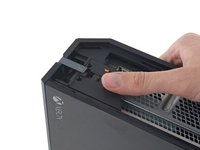
Slide the tab straight back and remove it.
-
-
-
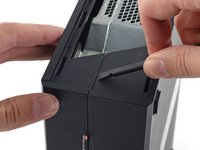
Insert the flat end of a spudger between the upper and lower case where they meet at the rear of the side vent opening.
-
-
-
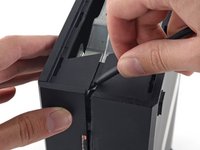
Insert a plastic opening tool between the upper and lower case to separate the clip over the rear vent.
-
-
-
Keep moving along the rear of the Xbox, prying up clips.
-
-
-
-
Keep popping clips. It may help to slide the plastic opening tool across the clips.
-
-
-
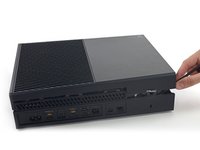
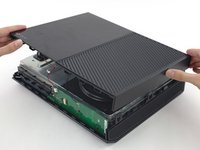
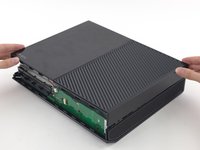
Starting with the spudger you left in the crack, pry the upper case up to free the last few clips.
-
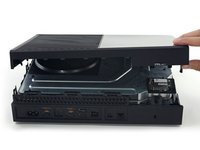
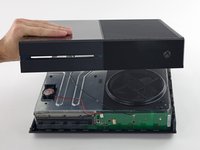
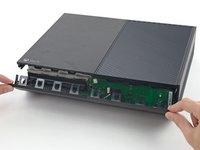
Lift the upper case slightly and shift it to give access to the front panel board.
-
-
crwdns2935267:0crwdne2935267:0Tweezers$4.99
-
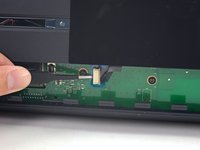
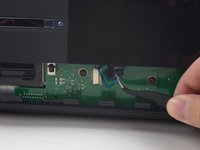
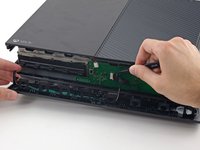
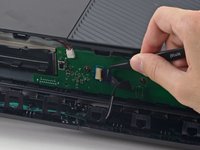
Use tweezers to lift the blue plastic retaining loop over the white connector on the board.
-
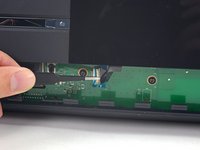
Use the tip of a spudger to push the connector's locking tab toward the cable to unlatch it.
-
-
-
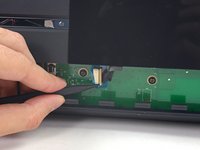
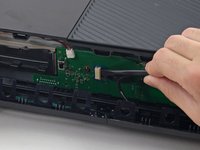
Use tweezers to pull the cable straight out of the connector on the board.
-
Remove the upper case.
-
-
-
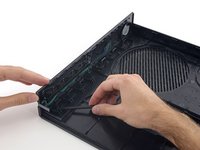
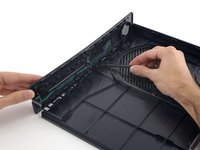
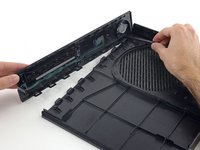
Use the flat end of a spudger to free the clips securing the front panel to the upper case.
-
Remove the front panel from the rest of the upper case.
-
-
-
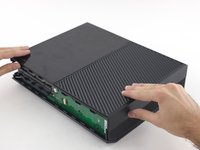
Replace the top part of the upper case.
-
Line up the clips and press firmly to re-seat them around the perimeter.
-
-
-
Support the front panel near the front of the Xbox.
-
Use tweezers to replace the front button cable in its ZIF socket.
-
Use the flat end of a spudger to push the ZIF lock to the left to secure the cable.
-
-
-
With the front panel at a 45 degree angle, interlock its plastic hooks with those in the lower case.
-
Push the top of the front panel into the Xbox, like closing a mailbox. Press firmly so that the clips securing the front panel to the upper case lock securely.
-
-
-
-
-
Remove the two 9.5 mm T9 Torx screws from the WI-Fi board.
-
-
-
Use the flat end of a spudger to disconnect the Wi-Fi antenna cable from its socket on the Wi-Fi board.
-
-
-
Lift straight up on the W-Fi board to disconnect it from its connector and remove it from the Xbox.
-
-
























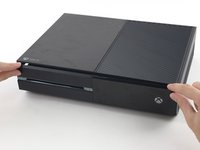
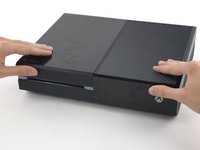


To reassemble your device, follow these instructions in reverse order.
crwdns2935221:0crwdne2935221:0
crwdns2935229:072crwdne2935229:0


crwdns2947412:053crwdne2947412:0
I think I'm going to try this. This would fix my: "I think there's a problem" error not being able scan for wifi, Id safely assume.
Stephen Erickson - crwdns2934203:0crwdne2934203:0 crwdns2950251:0crwdne2950251:0
On top of that when I factory reset the box it gives me the error right away not even letting me bypass wireless connection and straight to hardwire.
Stephen Erickson - crwdns2934203:0crwdne2934203:0 crwdns2950251:0crwdne2950251:0
Same here. Factory reset and made the system obsolete. Did you end up replacing the card and did it work?
Lightning Shaft - crwdns2934203:0crwdne2934203:0 crwdns2950251:0crwdne2950251:0
Hi,
Did you managed to fix WiFi error with this method?
iminem - crwdns2934203:0crwdne2934203:0 crwdns2950251:0crwdne2950251:0
has anyone figured this out?
Nicholas Everett - crwdns2934203:0crwdne2934203:0 crwdns2950251:0crwdne2950251:0
