crwdns2933423:0crwdne2933423:0
crwdns2947577:0crwdnd2947577:0crwdne2947577:0

Xbox 360 Wireless Controller Buttons Replacement

crwdns2942213:0crwdne2942213:0

    1. Xbox 360 Wireless Controller Buttons Replacement, Battery: crwdns2935265:01crwdnd2935265:01crwdnd2935265:02crwdne2935265:0 Xbox 360 Wireless Controller Buttons Replacement, Battery: crwdns2935265:01crwdnd2935265:02crwdnd2935265:02crwdne2935265:0
      • Depress the battery release button on the top of the controller.

      • Remove the battery holder from the controller.

      • The standard option for Xbox 360 Wireless Controllers Battery Packs is AA batteries. A rechargeable battery is also available, but both battery options are removed from the controller in the same way.

      crwdns2952109:0crwdne2952109:0

      crwdns2917038:0crwdne2917038:0

    1. Xbox 360 Wireless Controller Buttons Replacement, Rear Case: crwdns2935265:02crwdnd2935265:01crwdnd2935265:01crwdne2935265:0
      crwdns2935267:0crwdne2935267:0
      Tweezers
      $4.99
      • Use a pair of tweezers to peel the barcode sticker from the battery compartment.

      crwdns2952109:0crwdne2952109:0

      crwdns2917038:0crwdne2917038:0

    2. Xbox 360 Wireless Controller Buttons Replacement: crwdns2935265:03crwdnd2935265:01crwdnd2935265:01crwdne2935265:0
      • Remove the seven 9.3 mm T8 Security Torx screws securing the rear case to the front case.

      crwdns2952109:0crwdne2952109:0

      crwdns2917038:0crwdne2917038:0

    3. Xbox 360 Wireless Controller Buttons Replacement: crwdns2935265:04crwdnd2935265:01crwdnd2935265:02crwdne2935265:0 Xbox 360 Wireless Controller Buttons Replacement: crwdns2935265:04crwdnd2935265:02crwdnd2935265:02crwdne2935265:0
      crwdns2935267:0crwdne2935267:0
      Spudger
      $2.99
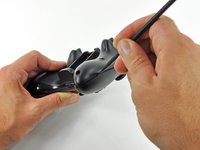
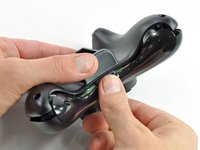
      • Insert a Spudger between the front and rear cases along the left edge of the controller.

      • Rotate the spudger toward the front of the controller, prying the two cases apart.

      crwdns2952109:0crwdne2952109:0

      crwdns2917038:0crwdne2917038:0

    4. Xbox 360 Wireless Controller Buttons Replacement: crwdns2935265:05crwdnd2935265:01crwdnd2935265:02crwdne2935265:0 Xbox 360 Wireless Controller Buttons Replacement: crwdns2935265:05crwdnd2935265:02crwdnd2935265:02crwdne2935265:0
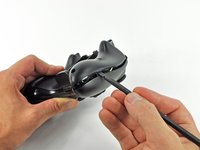
      • Insert a spudger between the front and rear cases, near the headphone jack.

      • Rotate the spudger toward the front of the controller to pry the two cases apart.

      crwdns2952109:0crwdne2952109:0

      crwdns2917038:0crwdne2917038:0

    5. Xbox 360 Wireless Controller Buttons Replacement: crwdns2935265:06crwdnd2935265:01crwdnd2935265:02crwdne2935265:0 Xbox 360 Wireless Controller Buttons Replacement: crwdns2935265:06crwdnd2935265:02crwdnd2935265:02crwdne2935265:0
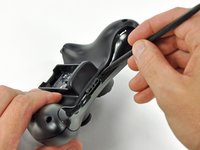
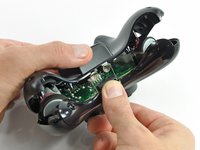
      • Grasp the controller by the battery compartment and the headphone jack.

      • Lift the battery compartment away from the headphone jack, separating the rear case from the front case and logic board.

      • The battery contact springs are held in place by slots in the battery housing in the rear case. Be sure to realign them properly during reassembly.

      crwdns2952109:0crwdne2952109:0

      crwdns2917038:0crwdne2917038:0

    1. Xbox 360 Wireless Controller Buttons Replacement, Vibration Motors: crwdns2935265:07crwdnd2935265:01crwdnd2935265:02crwdne2935265:0 Xbox 360 Wireless Controller Buttons Replacement, Vibration Motors: crwdns2935265:07crwdnd2935265:02crwdnd2935265:02crwdne2935265:0
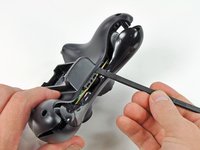
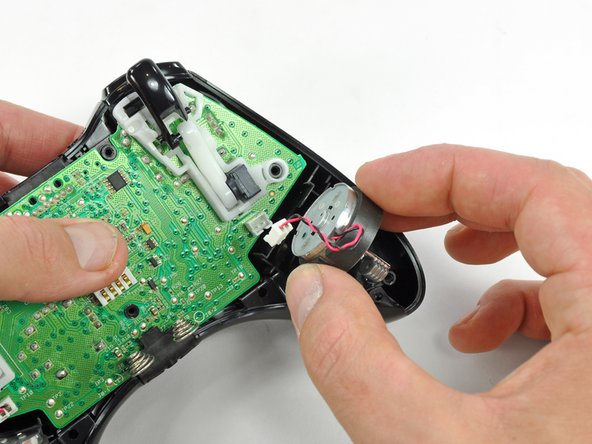
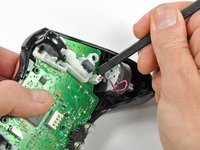
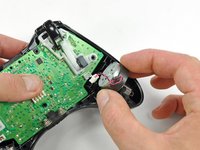
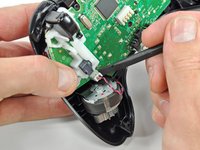
      • Use the flat end of a spudger to remove the vibration motor cable, moving it upward from its socket on the logic board.

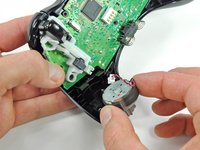
      • Lift the vibration motor out of the front case.

      crwdns2952109:0crwdne2952109:0

      crwdns2917038:0crwdne2917038:0

    2. Xbox 360 Wireless Controller Buttons Replacement: crwdns2935265:08crwdnd2935265:01crwdnd2935265:02crwdne2935265:0 Xbox 360 Wireless Controller Buttons Replacement: crwdns2935265:08crwdnd2935265:02crwdnd2935265:02crwdne2935265:0
      • Remove the vibration motor from the other side of the controller using the same method previously described.

      • The left motor has significantly more counterweight than the right motor.

      crwdns2952109:0crwdne2952109:0

      crwdns2917038:0crwdne2917038:0

    1. Xbox 360 Wireless Controller Buttons Replacement, Logic Board: crwdns2935265:09crwdnd2935265:01crwdnd2935265:02crwdne2935265:0 Xbox 360 Wireless Controller Buttons Replacement, Logic Board: crwdns2935265:09crwdnd2935265:02crwdnd2935265:02crwdne2935265:0
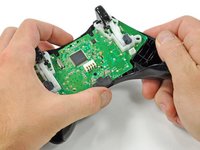
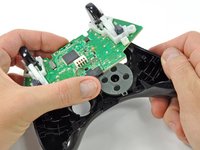
      • Lifting from the headphone jack and power plug, remove the logic board from the front case.

      crwdns2952109:0crwdne2952109:0

      crwdns2917038:0crwdne2917038:0

    1. Xbox 360 Wireless Controller Buttons Replacement, Buttons: crwdns2935265:010crwdnd2935265:01crwdnd2935265:01crwdne2935265:0
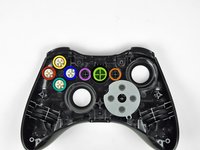
      • Remove the rubber pad from the back of the input buttons.

      crwdns2952109:0crwdne2952109:0

      crwdns2917038:0crwdne2917038:0

    2. Xbox 360 Wireless Controller Buttons Replacement: crwdns2935265:011crwdnd2935265:01crwdnd2935265:02crwdne2935265:0 Xbox 360 Wireless Controller Buttons Replacement: crwdns2935265:011crwdnd2935265:02crwdnd2935265:02crwdne2935265:0
      crwdns2935267:0crwdne2935267:0
      Tweezers
      $4.99
      • Using a pair of tweezers, remove the buttons from the front case.

      • A Button

      • B Button

      • X Button

      • Y Button

      • Start Button

      • Select Button

      • Guide Button

      crwdns2952109:0crwdne2952109:0

      crwdns2917038:0crwdne2917038:0

    3. Xbox 360 Wireless Controller Buttons Replacement: crwdns2935265:012crwdnd2935265:01crwdnd2935265:01crwdne2935265:0
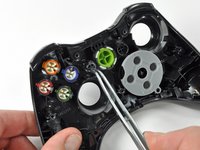
      • Using a pair of tweezers, lift the home button's LED ring out of the front case of the controller.

      • All of the buttons have tabs that correspond to slots in the front case. This prevents buttons from being placed in the incorrect position or orientation.

      crwdns2952109:0crwdne2952109:0

      crwdns2917038:0crwdne2917038:0

crwdns2915888:0crwdne2915888:0

To reassemble your device, follow these instructions in reverse order.

crwdns2935221:0crwdne2935221:0

crwdns2935229:068crwdne2935229:0

Brett Hartt

crwdns2935283:004/12/10crwdne2935283:0

132.329 crwdns2915208:0crwdne2915208:0

crwdns2935297:0144crwdne2935297:0

crwdns2935287:0crwdne2935287:0

iFixit crwdns2935289:0iFixitcrwdne2935289:0

Staff

crwdns2931471:0123crwdne2931471:0

crwdns2935297:084.333crwdne2935297:0

crwdns2947412:03crwdne2947412:0

Hello I have had an Xbox for about 1-2years and everything has been working fine until the A button on one of my controllers stopped working I don't think it has gunk or anything because I can press it down and it comes back up just that when I press it in screen nothing happens but the other buttons work fine

Saul Escalon - crwdns2934203:0crwdne2934203:0 crwdns2950251:0crwdne2950251:0

Thank you for the teardown! My cat has just vomitted on my joystick…. I could have cleaned it now! I appreciate it , thanks…

Nathan St-Onge - crwdns2934203:0crwdne2934203:0 crwdns2950251:0crwdne2950251:0

Has anyone ever replaced the spring contacts in the logic board???

BJ Robbins - crwdns2934203:0crwdne2934203:0 crwdns2950251:0crwdne2950251:0

crwdns2917038:0crwdne2917038:0

crwdns2936625:0crwdne2936625:0:

crwdns2936751:024crwdne2936751:0 11

crwdns2936753:07crwdne2936753:0 96

crwdns2936753:030crwdne2936753:0 422

crwdns2942667:0crwdne2942667:0 79,385