
Wacom Intuos4 Express Keys Replacement

crwdns2959932:0crwdnd2959932:0Aidan Sullivancrwdnd2959932:0crwdnd2959932:0crwdnd2959932:04crwdnd2959932:0crwdne2959932:0
crwdns2959936:0Mud 7, 2024crwdne2959936:0
crwdns2869540:0crwdne2869540:0: 829
crwdns2959988:0crwdne2959988:0
- crwdns2959990:0crwdne2959990:0
- 0
- crwdns2959992:0crwdne2959992:0
- 6
- crwdns2959994:0crwdne2959994:0
- 49
- crwdns2959996:0crwdne2959996:0
- 829
crwdns2955950:0crwdne2955950:0: 0
crwdns2959998:0crwdne2959998:0
crwdns2960000:0crwdne2960000:0crwdns2959984:0crwdne2959984:0: 0 1
crwdns2959956:0crwdne2959956:0
crwdns2959968:01crwdne2959968:0
crwdns2959986:0crwdne2959986:0: 0 1
crwdns2959958:0crwdne2959958:0
crwdns2959976:01crwdne2959976:0
crwdns2915892:0crwdne2915892:0
crwdns2959928:0crwdne2959928:0 ↓Use this guide to replace the express keys of a Wacom Intuos4.
Express keys are buttons on the Wacom Intuos4 used to quickly navigate your computer while using the tablet. The express keys may be broken or destroyed by physical damage.
This guide was created with a model PTK-640 Wacom Intuos4. Different models may vary in design.
crwdns2959930:0crwdne2959930:0
crwdns2943215:0crwdne2943215:0


-
-
-
Flip device on its back and remove all fourteen 7.1 mm screws using a Phillips #1 screwdriver.
-
There is a single screw located under each of the rubber leg pieces. Use a shimmy tool to remove these pieces to access the screws.
 crwdns2952109:0crwdne2952109:0
-
-
-
Lift the screen's foam backing connecting the motherboard/drawing board to the two smaller express-key boards, placing it onto the motherboard.
-
Separate the outer casing from the rest of the tablet.
-
-
-
-
-
crwdns2935267:0crwdne2935267:0Tweezers$4.99
-
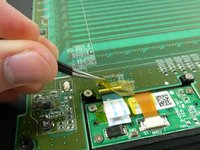
Lift yellow tape covering the flat wires with a pair of tweezers.
-
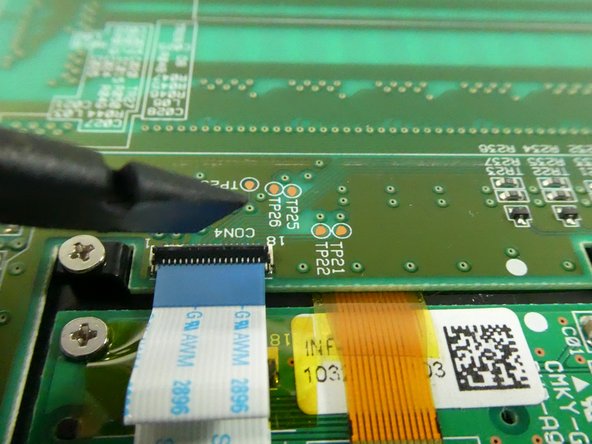
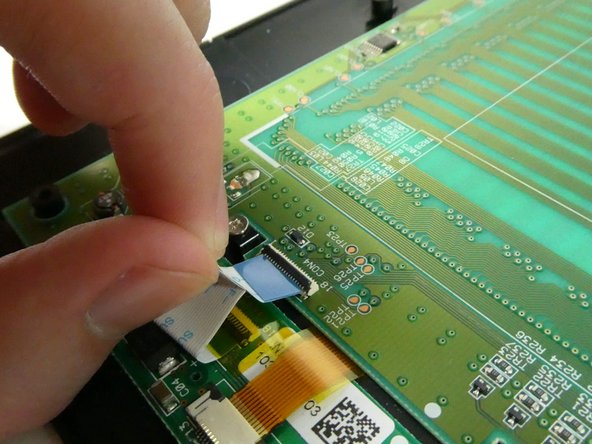
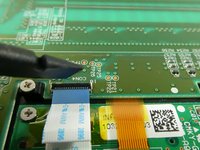
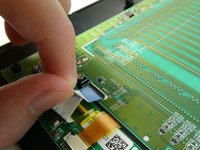
Lift the black plastic clip holding the flat wire to the connector.
-
Pull on the white plastic tab to disconnect the flat wire.
-
Do this for the left and right express key chips.
-
-
-
Pull the black plastic clip away from the flat wire connector, and pull the flat wire out.
-
-
-
Use a #1 Phillips head screwdriver to unscrew the four 5mm screws on the express key board you want to replace.
-
-
-
Lift the board and rubber buttons up from the case.
-
Separate the rubber buttons from the board.
-
-




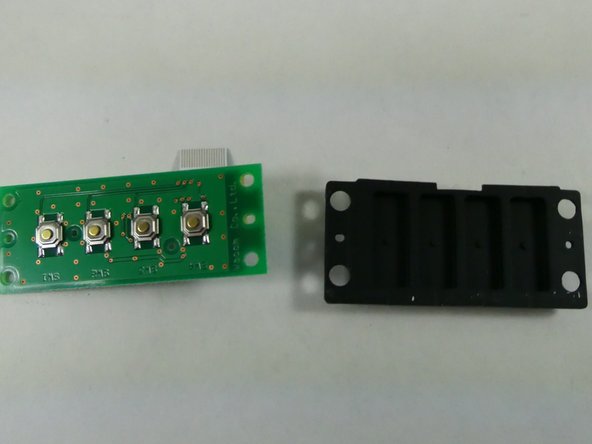
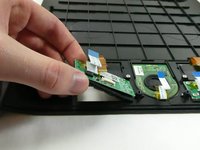
To reassemble your device, follow these instructions in reverse order.

crwdns2935287:0crwdne2935287:0

UMass Dartmouth, Team 3-6, Botvin Fall 2022 crwdns2935289:0UMass Dartmouth, Team 3-6, Botvin Fall 2022crwdne2935289:0
UMASSD-BOTVIN-F22S3G6
crwdns2931471:04crwdne2931471:0
crwdns2935297:060crwdne2935297:0
