
VTech Little Apps Tablet Screen Replacement

crwdns2959932:0crwdnd2959932:0Dakota Wiersmacrwdnd2959932:0crwdnd2959932:0crwdnd2959932:04crwdnd2959932:0crwdne2959932:0
crwdns2959936:0Mud 3, 2016crwdne2959936:0
crwdns2869540:0crwdne2869540:0: 1.5천
crwdns2959988:0crwdne2959988:0
- crwdns2959990:0crwdne2959990:0
- 3
- crwdns2959992:0crwdne2959992:0
- 20
- crwdns2959994:0crwdne2959994:0
- 101
- crwdns2959996:0crwdne2959996:0
- 1,539
crwdns2955950:0crwdne2955950:0: 1
crwdns2960006:01crwdne2960006:0
crwdns2960000:0crwdne2960000:0crwdns2959984:0crwdne2959984:0: 0 1
crwdns2959956:0crwdne2959956:0
crwdns2959968:01crwdne2959968:0
crwdns2959986:0crwdne2959986:0: 0 1
crwdns2959958:0crwdne2959958:0
crwdns2959976:01crwdne2959976:0
crwdns2915892:0crwdne2915892:0
crwdns2959928:0crwdne2959928:0 ↓The screen of the device is attached to the motherboard by a ribbon cable, which is a fragile piece of circuitry. This guide will help you in removing the screen from the motherboard without damaging these elements.
crwdns2959930:0crwdne2959930:0
crwdns2943215:0crwdne2943215:0
-
-
-
-
Spudger4.9


-
-
-
Remove the 9.9 mm screw covering the batteries with a PH1 driver head.
 crwdns2952109:0crwdne2952109:0
-
-
-
Use a plastic opening tool to pry the batteries out of their holding.
-
-
-
-
-
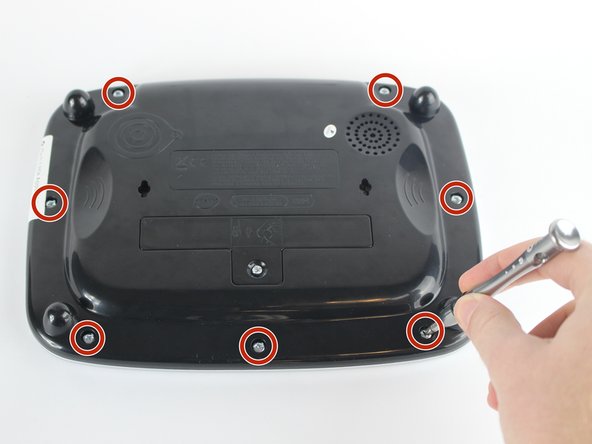
Position the VTech Little Apps Tablet face-down on a flat surface so that you can clearly see the back of the device.
-
Remove all seven 9.6 mm screws located around the perimeter of the back cover with a PH1 driver head.
-
-
-
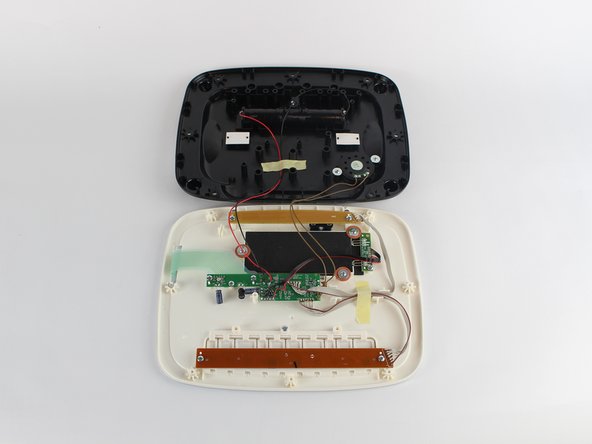
Gently remove the back cover then flip it 180 degrees so that the back cover of the device is now face-down.
-
-
-
-
-
Unscrew the two 7.3 mm screws using a PH0 driver head.
-
Gently lift the beige circuit board and set aside.
-
-
-
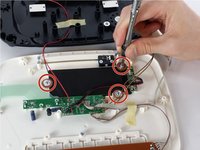
Unscrew three 7.3 mm panhead screws with the PH0 driver.
-
Remove the red-brown washer after removing the screws.
-
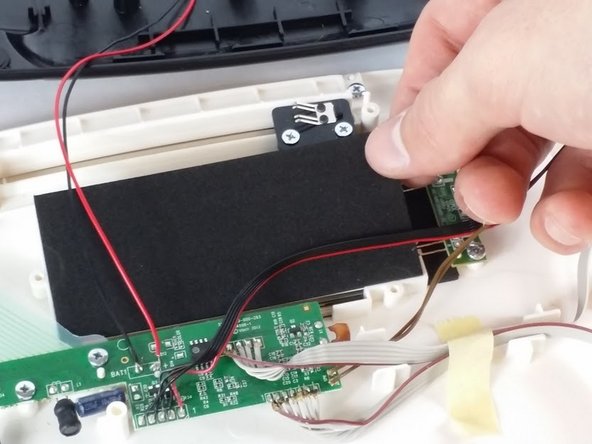
Remove the black foam insert and set aside.
-
-
-
Unscrew the 7.3 mm screw fastening the LED circuit board to the device shell with a PH0 driver head.
-
-
-
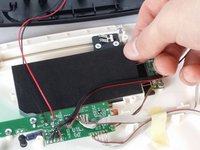
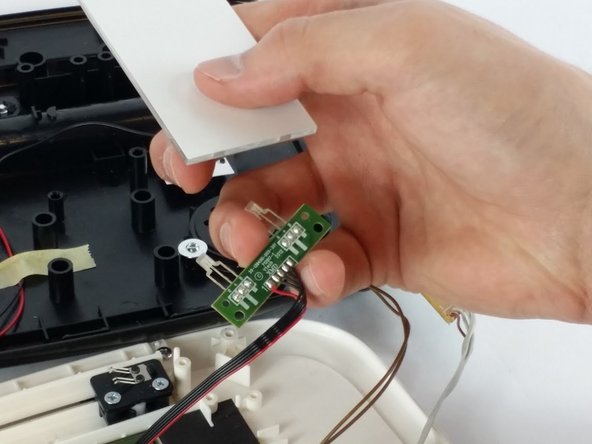
Gently lift both LED circuit board and the white glass light refractor panel away from the device.
-
Separate the LED circuit board and light refractor panel by gently pulling apart. Place the light panel to the side.
-
-
-
-
Carefully desolder the LED leads (labeled "R", "+" and "B" on the circuit board) to disconnect the LED from the circuit board.
-
Replace the LED and solder the new connection to the LED circuit board.
-
-
-
-
-
Remove the three 7.3mm screws securing motherboard to the device shell.
-
-
-
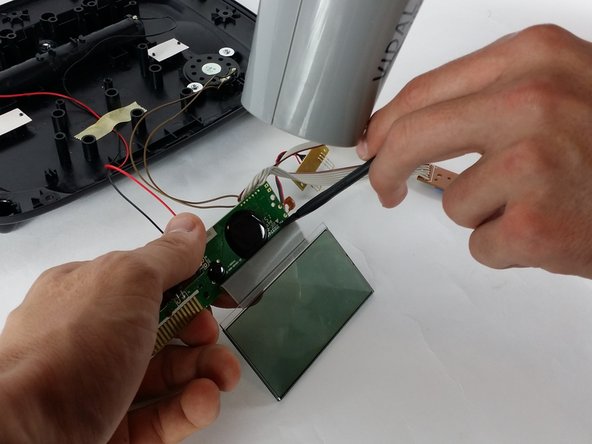
Carefully lift both the screen and motherboard, to access to the ribbon cable underneath.
-
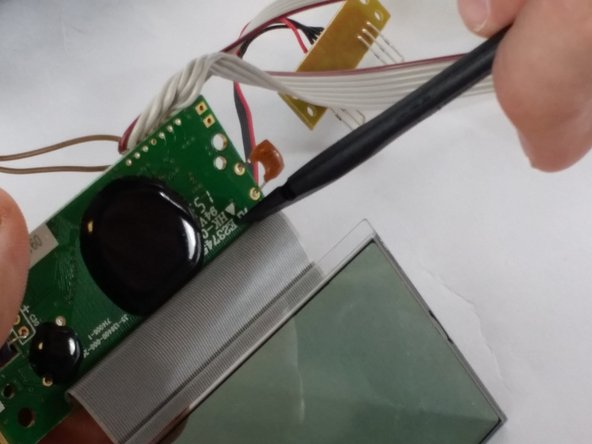
Use a heat gun (or hair dryer) to apply low heat to the ribbon cable attachment on the motherboard.
-
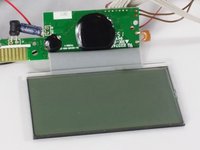
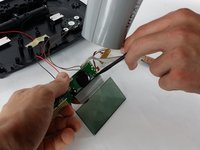
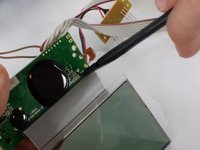
Carefully use a nylon spudger to separate the ribbon cable from the motherboard and remove the screen.
-
-










To reassemble your device, follow these instructions in reverse order.

crwdns2935287:0crwdne2935287:0

USF Tampa, Team 2-6, Sullivan Spring 2016 crwdns2935289:0USF Tampa, Team 2-6, Sullivan Spring 2016crwdne2935289:0
USFT-SULLIVAN-S16S2G6
crwdns2931471:03crwdne2931471:0
crwdns2935297:072crwdne2935297:0
crwdns2947410:01crwdne2947410:0
Where do you get a replacement LCD?
Timothy Miller - crwdns2934203:0crwdne2934203:0 crwdns2950251:0crwdne2950251:0
