crwdns2933423:0crwdne2933423:0
crwdns2947577:0crwdnd2947577:0crwdne2947577:0

VTech Kidizoom Action Cam Lens Replacement

crwdns2942213:0crwdne2942213:0

  1. VTech Kidizoom Action Cam Lens Replacement, Display Assembly: crwdns2935265:01crwdnd2935265:01crwdnd2935265:01crwdne2935265:0
    • Make sure that the master power switch is set to the (O) position.

    crwdns2952109:0crwdne2952109:0
  2. VTech Kidizoom Action Cam Lens Replacement: crwdns2935265:02crwdnd2935265:01crwdnd2935265:01crwdne2935265:0
    • Using a plastic opening tool, gently pry off the circular plating over the camera lens.

    • The circular plating is held by a mild adhesive. It will not be necessary to replace this adhesive during the reassembly process.

    crwdns2952109:0crwdne2952109:0
  3. VTech Kidizoom Action Cam Lens Replacement: crwdns2935265:03crwdnd2935265:01crwdnd2935265:01crwdne2935265:0
    crwdns2935267:0crwdne2935267:0
    Magnetic Project Mat
    $19.95
    • Use a #0 screwdriver to remove the two 2.5mm Phillips head screws located on the second layer of plating.

    • Remove the second layer of plating previously held down by the screws by gripping it with your fingers and pulling upward.

    • As there will be many screws being removed from the device, we recommend using a magnetic device such as the iFixit Magnetic Project Mat.

    crwdns2952109:0crwdne2952109:0
  4. VTech Kidizoom Action Cam Lens Replacement: crwdns2935265:04crwdnd2935265:01crwdnd2935265:01crwdne2935265:0
    • Pry off the transparent plating and paper design using a plastic opening tool.

    crwdns2952109:0crwdne2952109:0
  5. VTech Kidizoom Action Cam Lens Replacement: crwdns2935265:05crwdnd2935265:01crwdnd2935265:01crwdne2935265:0
    • Unscrew the (4) 2.5mm Phillips head screws from the third layer of plating using a #0 screwdriver.

    crwdns2952109:0crwdne2952109:0
  6. VTech Kidizoom Action Cam Lens Replacement: crwdns2935265:06crwdnd2935265:01crwdnd2935265:01crwdne2935265:0
    • Turn the camera around and gently remove the plating that surrounds the LCD screen by grasping it with your fingers and pulling away from the device.

    crwdns2952109:0crwdne2952109:0
  7. VTech Kidizoom Action Cam Lens Replacement: crwdns2935265:07crwdnd2935265:01crwdnd2935265:03crwdne2935265:0 VTech Kidizoom Action Cam Lens Replacement: crwdns2935265:07crwdnd2935265:02crwdnd2935265:03crwdne2935265:0 VTech Kidizoom Action Cam Lens Replacement: crwdns2935265:07crwdnd2935265:03crwdnd2935265:03crwdne2935265:0
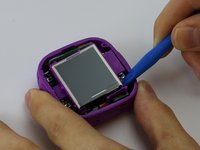
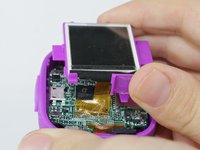
    • Use the plastic opening tool to lift the LCD screen, including the purple casing and set it aside, revealing the motherboard and connector ribbon.

    • Exercise caution while performing this step, as any excessive pulling may tear the connector ribbon from the motherboard.

    crwdns2952109:0crwdne2952109:0
  8. VTech Kidizoom Action Cam Lens Replacement, Lens: crwdns2935265:08crwdnd2935265:01crwdnd2935265:01crwdne2935265:0
    • Use the plastic opening tool to pry the lens from it's holder.

    • This can be the final step before reassembling, but doing this before removing the ribbon makes the process easier.

    crwdns2952109:0crwdne2952109:0
  9. VTech Kidizoom Action Cam Lens Replacement: crwdns2935265:09crwdnd2935265:01crwdnd2935265:02crwdne2935265:0 VTech Kidizoom Action Cam Lens Replacement: crwdns2935265:09crwdnd2935265:02crwdnd2935265:02crwdne2935265:0
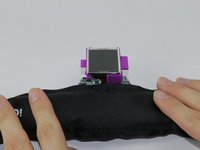
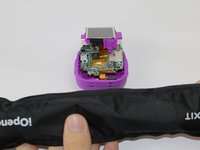
    • Heat the iOpener tool, then press the iOpener tool onto the connectors to heat the glue on the connector ribbon.

    • If the iOpener tool is not available, use a hair dryer to heat the glue on the connector ribbon and then use a Q-tip dabbed in Isopropyl alcohol to dab the heated glue.

    crwdns2952109:0crwdne2952109:0
  10. VTech Kidizoom Action Cam Lens Replacement: crwdns2935265:010crwdnd2935265:01crwdnd2935265:01crwdne2935265:0
    • Gently peel the connector ribbon being held down by the heated glue until it is completely removed.

    • Be cautious of very hot glue when peeling the connector ribbon off of the motherboard

    • When connecting the new camera lense, press the new connector ribbon to the original ribbon's position.

    crwdns2952109:0crwdne2952109:0
crwdns2915888:0crwdne2915888:0

To reassemble your device, follow these instructions in reverse order.

crwdns2935227:0crwdne2935227:0

Anthony Teresi

crwdns2935283:002/10/16crwdne2935283:0

713 crwdns2915208:0crwdne2915208:0

crwdns2935297:04crwdne2935297:0

crwdns2935287:0crwdne2935287:0

USF Tampa, Team 3-5, Sullivan Spring 2016 crwdns2935289:0USF Tampa, Team 3-5, Sullivan Spring 2016crwdne2935289:0

USFT-SULLIVAN-S16S3G5

crwdns2931471:03crwdne2931471:0

crwdns2935297:06crwdne2935297:0

crwdns2947412:00crwdne2947412:0

crwdns2917038:0crwdne2917038:0

crwdns2936625:0crwdne2936625:0:

crwdns2936751:024crwdne2936751:0 2

crwdns2936753:07crwdne2936753:0 12

crwdns2936753:030crwdne2936753:0 68

crwdns2942667:0crwdne2942667:0 1,412