
VTech Kidizoom Action Cam Buttons Replacement

crwdns2959932:0crwdnd2959932:0Ross Andersoncrwdnd2959932:0crwdnd2959932:0crwdnd2959932:02crwdnd2959932:0crwdne2959932:0
crwdns2959936:0Mud 10, 2016crwdne2959936:0
crwdns2869540:0crwdne2869540:0: 3281
crwdns2959988:0crwdne2959988:0
- crwdns2959990:0crwdne2959990:0
- 8
- crwdns2959992:0crwdne2959992:0
- 26
- crwdns2959994:0crwdne2959994:0
- 98
- crwdns2959996:0crwdne2959996:0
- 3,281
crwdns2955950:0crwdne2955950:0: 1
crwdns2960002:01crwdne2960002:0.
crwdns2959984:0crwdne2959984:0: 3 4
crwdns2959974:03crwdne2959974:0
crwdns2959970:04crwdne2959970:0
crwdns2959986:0crwdne2959986:0: 0 1
crwdns2959958:0crwdne2959958:0
crwdns2959976:01crwdne2959976:0
crwdns2862591:0crwdne2862591:0
crwdns2862592:0crwdne2862592:0
crwdns2915892:0crwdne2915892:0
crwdns2959928:0crwdne2959928:0 ↓The buttons on the device can become stuck after wear and tear, and may no longer function as they should. sometimes the buttons may not need to be replaced, as a good cleaning can remove dirt that may be causing stickiness.
crwdns2959930:0crwdne2959930:0
crwdns2943215:0crwdne2943215:0


-
-
 crwdns2952109:0crwdne2952109:0
-
-
Using a plastic opening tool, gently pry off the circular plating over the camera lens.
-
-
crwdns2935267:0crwdne2935267:0Magnetic Project Mat$19.95
-
Use a #0 screwdriver to remove the two 2.5mm Phillips head screws located on the second layer of plating.
-
Remove the second layer of plating previously held down by the screws by gripping it with your fingers and pulling upward.
-
-
-
Pry off the transparent plating and paper design using a plastic opening tool.
-
-
-
Unscrew the (4) 2.5mm Phillips head screws from the third layer of plating using a #0 screwdriver.
-
-
-
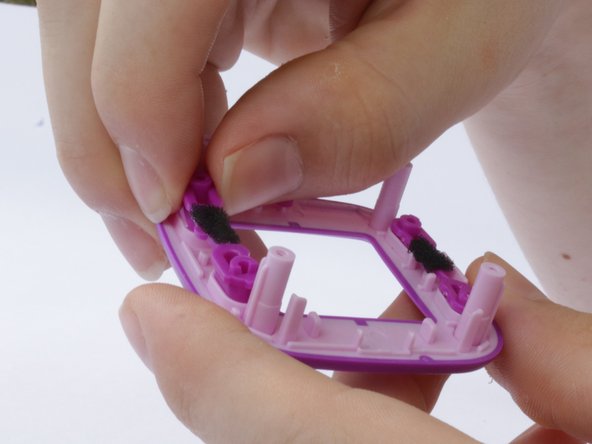
Turn the camera around and gently remove the plating that surrounds the LCD screen by grasping it with your fingers and pulling away from the device.
-
-
-
-
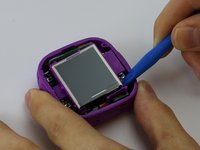
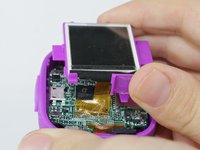
Use the plastic opening tool to lift the LCD screen, including the purple casing and set it aside, revealing the motherboard and connector ribbon.
-
-
-
-
-
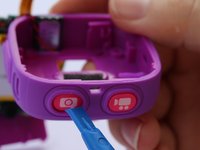
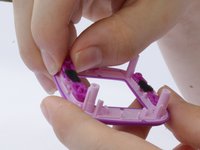
Push out the buttons that you wish to take out, and replace them with the new buttons.
-
-



To reassemble your device, follow these instructions in reverse order.
crwdns2935221:0crwdne2935221:0
crwdns2935229:03crwdne2935229:0

crwdns2935287:0crwdne2935287:0

USF Tampa, Team 3-5, Sullivan Spring 2016 crwdns2935289:0USF Tampa, Team 3-5, Sullivan Spring 2016crwdne2935289:0
USFT-SULLIVAN-S16S3G5
crwdns2931471:03crwdne2931471:0
crwdns2935297:072crwdne2935297:0
