crwdns2915892:0crwdne2915892:0
This manual will successfully take you step by step through the process of replacing the screen in the Tungsten T3 Palm Pilot.
When beginning the process of replacing your Motherboard control panel have all of your tools readily at hand. These can be purchased through IFixit.com
crwdns2942213:0crwdne2942213:0
-
-
-
To remove the cover press down on the center indentation and remove from device.
-
Reminder: If you have a memory card inserted into your device make sure to remove it.
 crwdns2952109:0crwdne2952109:0
-
-
-
There will be a set of screws located on each side of your device. Remove these by using a Phillips head screwdriver.
-
-
-
The back panel must be removed in order to proceed. Slide the cover so that it is fully extended.
-
The arrows in the picture indicate two small holes located at the top of the device. Insert a paper clip or a tack simultaneously into each of these holes and moderately push downward.
-
The springs will give as pressure is exerted. Once you feel this take place, pull down the cover with the paper clip/tack while continuing to push downward. This will release the back cover.
-
-
-
Now the buttons and sliding tray will be connected to the main body only by an orange cable.
-
Gently peel this cable from the device.
-
-
-
Make sure that the cable remains connected to the buttons. Do not sever its connection to the sliding tray.
-
Disconnect the cable from the main body of the device by pulling upward.
-
Set aside the buttons and slide tray, making sure the orange cable is with it.
-
-
-
The arrows indicate two small screws. Using a Phillips head screwdriver, remove them.
-
-
-
-
To open the device, the sides must be (with moderate force) pried apart using a prying tool as seen in the picture.
-
Both sides must be separated from one another.
-
Tip: The right side may be slightly more difficult. It will be easiest to begin on the left.
-
Beginning with the left side, gently pry at the division of the face plates until they separate from one another.
-
Repeat this process on the other side of the device.
-
-
-
Hint: There will be pressure points along the side (as seen in the picture). Exerting pressure in these points will allow the sides to separate more easily.
-
-
-
Remove the face plate and set aside. This will leave the core of the device in front of you.
-
Reminder: The core of the device will be connected by various cables. Gently lift the screen and mother board (as in picture).
-
As labeled in the picture, the orange screen cable will connect on the lower right side of the motherboard.
-
Disconnect the cable by pulling it upward from the motherboard connection. Depending on your device, it may require little to moderate force.
-
Carefully remove your screen.
-
-
-
Next, the new screen must be connected to the motherboard.
-
Connect the new orange cable into the same location as the previous screen. (Location noted in picture by arrow). Make sure the cable is placed facing downward on the connection.
-
Lower the motherboard into place. Make sure to keep the back facing downward. Hint: This will be the side where all cables are connected.
-
Gently lay the screen on the core of the device.
-
-
-
As seen in figure one, the core and screen are now in tact.
-
Lay the face plate on device. It must be snapped into place.
-
-
-
Hint: when attaching the tray to the main device, the cable must be in the position as seen in the left figure.
-
Hint: On each side, the prongs must be adjusted so that they fit into their respective slots.
-
-
-
To reconnect the sliding tray and buttons, lay the device on its face.
-
Reminder: The orange button cable must be raised above sliding tray and connected to its respective port (as seen in picture).
-
-
-
To reconnect the sliding track, align the hooks and tracks (noted in picture).
-
Push the hooks into the tracks and slide the tray upward. This should lock the hooks in place.
-
To ensure that it has been connected properly, slide up and down.
-
-
-
Install the screws on both sides of device as seen in the picture.
-
-
-
Here is your repaired Tungsten T3 Palm Pilot. Enjoy!
-
-


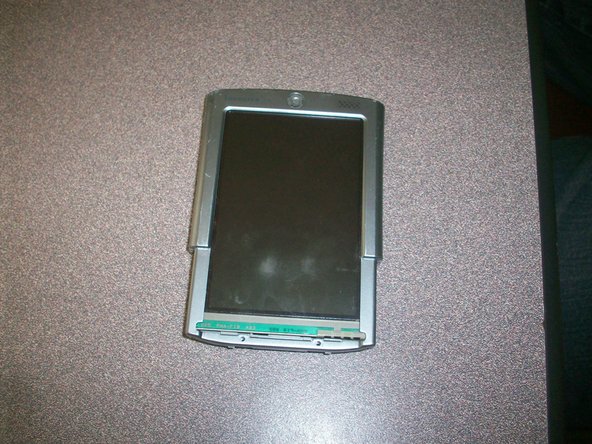


To reassemble your device, follow these instructions in reverse order.

crwdns2935287:0crwdne2935287:0

University of Maine, Team 1-14, Diaz Fall 2011 crwdns2935289:0University of Maine, Team 1-14, Diaz Fall 2011crwdne2935289:0
UMAINE-DIAZ-F11S1G14
crwdns2931471:02crwdne2931471:0
crwdns2935297:035crwdne2935297:0
