crwdns2915892:0crwdne2915892:0
This guide will help users replace the battery on their Sony Tablet S. This requires a Phillips #0 and #000 screw driver, as well as a spudger and some plastic opening tools.
crwdns2942213:0crwdne2942213:0
-
-
-
Use a plastic opening tool to remove the two rubber grips on the back of the tablet.
 crwdns2952109:0crwdne2952109:0
-
-
-
Remove the two 10mm Phillips #0 screws located under the grips.
-
-
-
Flip the tablet over and use a plastic opening tool to pry the casing away from the top of the screen. Push the back cover off.
-
-
-
Once the casing is off, remove the nine 5mm Phillips #0 screws shown.
-
-
-
-
Remove the white ribbon cable by pulling the blue tab straight up out of the socket and then peeling up the tape securing it to the tablet.
-
-
-
Remove the copper ribbon cable by gently using a spudger to pry it up from its socket.
-
-
-
Slide the bottom grey cover piece away from the body and remove it.
-
-
-
Remove the five 4mm Phillips #000 screws.
-
Remove the two 5mm Phillips #000 screws holding the charger in place.
-
-
-
Position the charging port at an angle so you can thread it through the opening as you remove the black plastic cover from the back of the tablet.
-
-
-
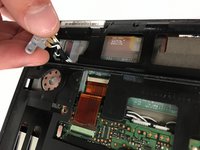
Use a spudger to lift the zero insertion force connector latch for the long ribbon cable to the right of the battery, then pull the cable loose from its socket.
-
-
-
Remove the three 5mm Phillips #0 screws securing the original battery.
-
-
-
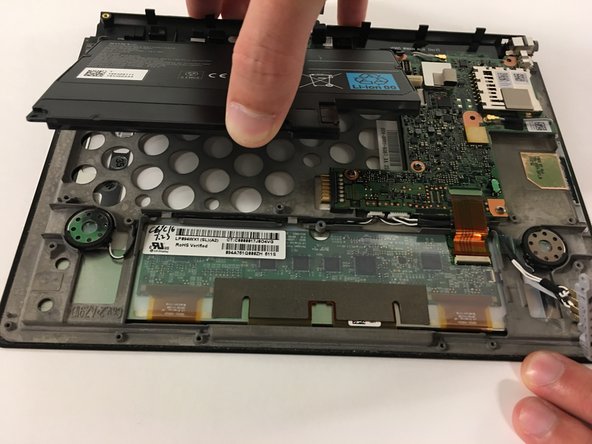
Use the spudger to pop the battery loose and remove the battery.
-
-






To reassemble your device, follow these instructions in reverse order.
crwdns2935221:0crwdne2935221:0
crwdns2935229:04crwdne2935229:0

crwdns2935287:0crwdne2935287:0

USF Tampa, Team 3-5, Passmore Fall 2016 crwdns2935289:0USF Tampa, Team 3-5, Passmore Fall 2016crwdne2935289:0
USFT-PASSMORE-F16S3G5
crwdns2931471:03crwdne2931471:0
crwdns2935297:060crwdne2935297:0
crwdns2947410:01crwdne2947410:0
To change polarizer sticker of the screen, is it necessary to remove battery, motherboard etc. or I can just go with removing the adhesive of the bezel? Even after removing the bezel adhesive, is it easy to replace the sticker without damaging the lcd or digitizer?
Saravanan Theckyam - crwdns2934203:0crwdne2934203:0 crwdns2950251:0crwdne2950251:0
