crwdns2942213:0crwdne2942213:0
-
-
-
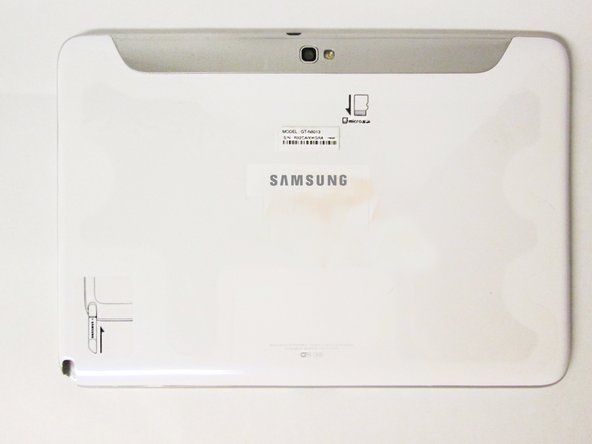
This is the back of the device and where you willl begin to take it apart.
-
It is necessary to remove the silver piece covering the camera first before removing the bigger back piece.
-
Use the plastic opening tools to pry along the indicated box.
-
Lift up the silver piece to reveal the rest of the back cover.
 crwdns2952109:0crwdne2952109:0
-
-
-
Unscrew the three 5 mm screws indicated by the red circles with the Philips #00 screwdriver.
-
Using the plastic opening tools pry along the bottom of the device, moving to the sides of the cover to the top.
-
Remove the back cover.
-
-
-
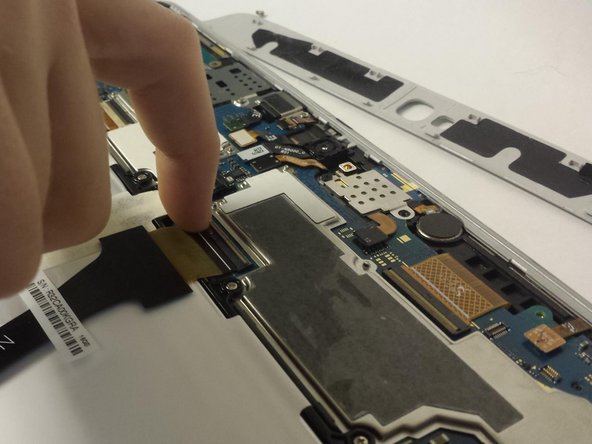
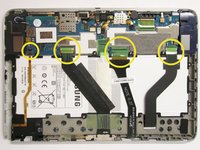
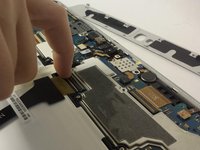
Carefully remove all of the ribbons that connect over the battery from the locations indicated by the yellow circles.
-
-
-
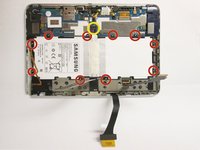
Remove all of the 3 mm screws indicated by a red circle with the #00 Philips screwdriver.
-
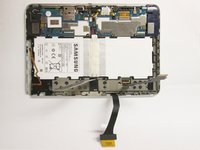
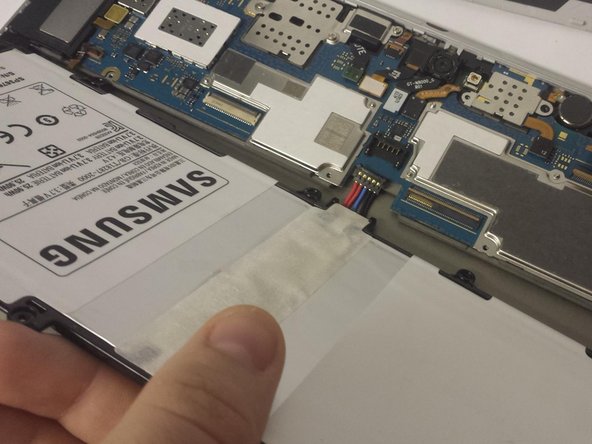
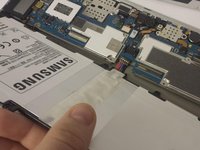
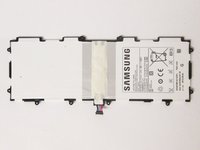
Disconnect the battery from the location indicated by a yellow circle
-
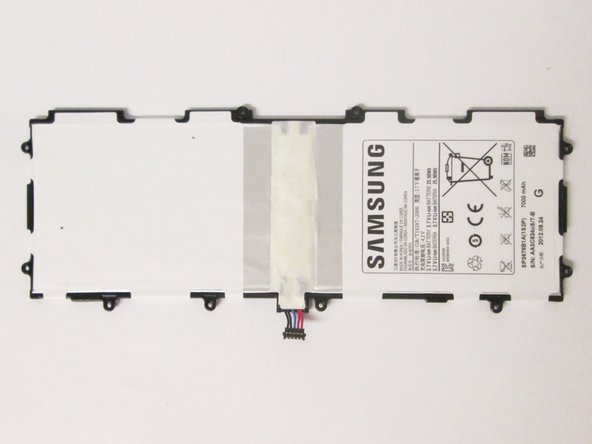
Now you may remove the battery.
-
-
-
-
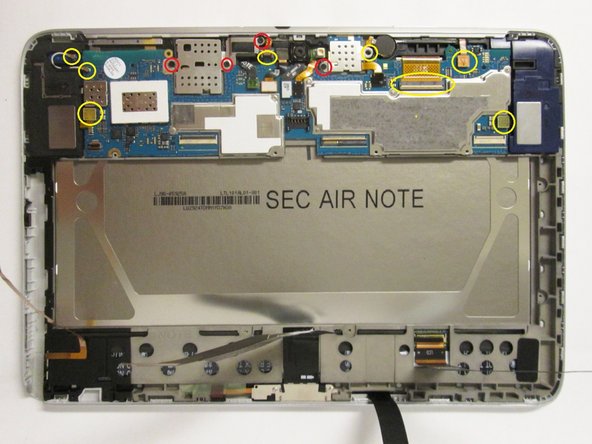
From the first photo:
-
Remove all the components marked by yellow circles
-
Unscrew all the 3 mm and 2 mm screws marked by the red circles with the #00 Philips screwdriver.
-
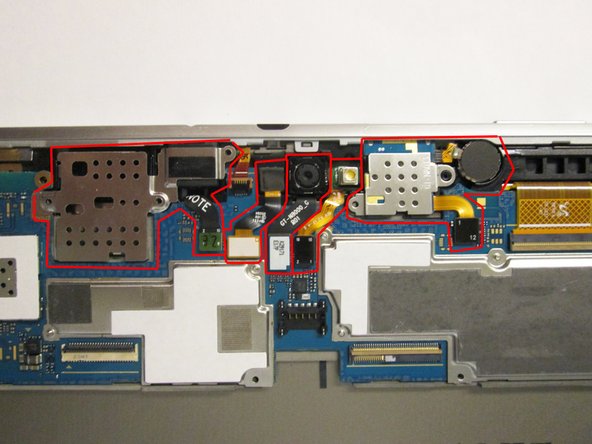
From the second photo:
-
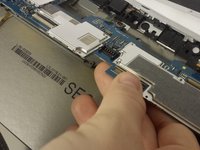
Starting with the motherboard connectors, remove all the components marked in red.
-
-
-
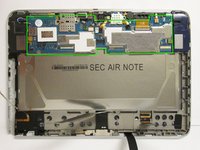
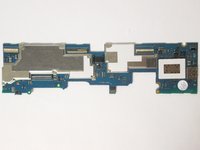
Once you have removed all the components connected to the motherboard, gently lift up on the area surrounding the green box and remove your motherboard.
-
-
-
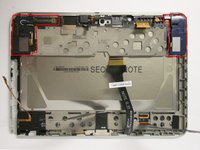
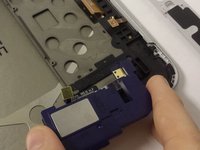
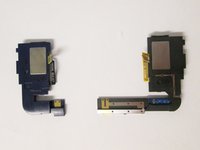
Apply pressure to the locations boxed in red to remove the loudspeaker modules.
-
-
-
From the first photo:
-
Unscrew the 2 mm screws marked by red circles with the #00 Philips screwdriver.
-
Be sure to lift the tape marked by the yellow circle from the frame.
-
Gently pry the ribbon from the frame and lift the charging port from the frame.
-
-
-
Starting from the under the right speaker casing, use one plastic prying tool to start lifting up on the LCD frame.
-
Use two of the plastic prying tools, one for support and the other for prying, to completely separate the LCD casing from the digitizer frame.
-
-
-
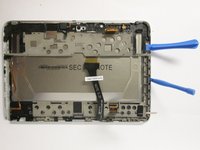
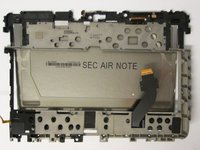
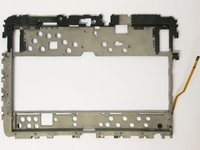
Gently tear the LCD from its frame by lifting it from the tape connecting the two.
-
-
-
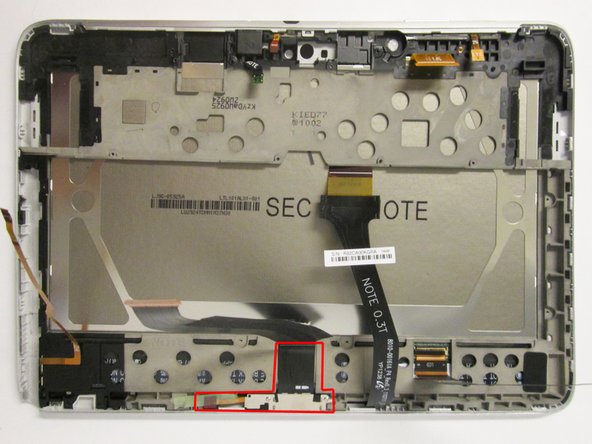
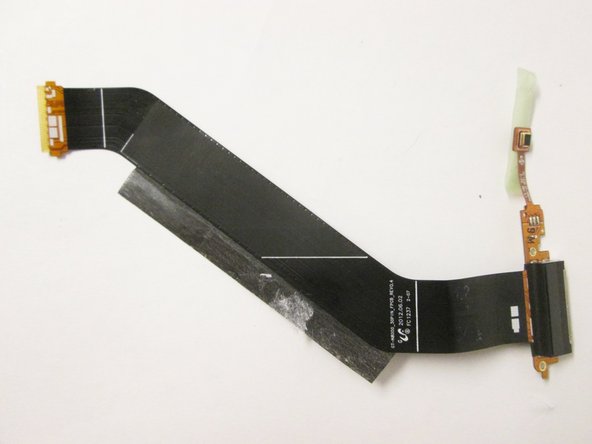
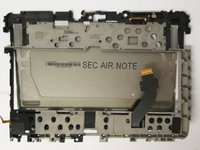
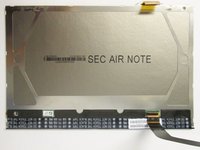
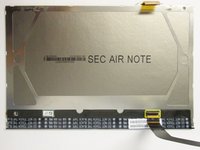
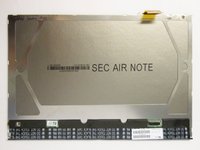
Remove the ribbon indicated by the yellow box and place it on your replacement LCD screen.
-
-




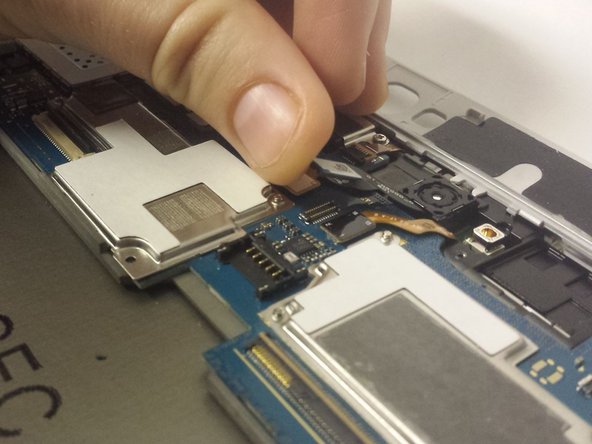
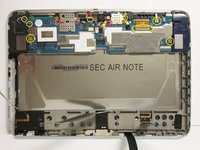
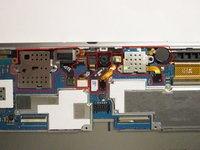





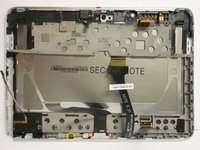
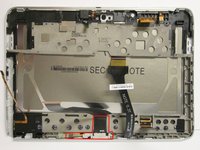
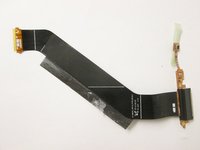


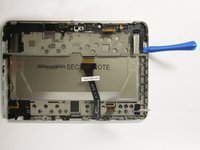




To reassemble your device, follow these instructions in reverse order.
crwdns2935221:0crwdne2935221:0
crwdns2935229:029crwdne2935229:0

crwdns2935287:0crwdne2935287:0

USF Tampa, Team 3-7, Brown Fall 2014 crwdns2935289:0USF Tampa, Team 3-7, Brown Fall 2014crwdne2935289:0
USFT-BROWN-F14S3G7
crwdns2931471:03crwdne2931471:0
crwdns2935297:060crwdne2935297:0
crwdns2947412:04crwdne2947412:0
In Step 7, mention that you should use the plastic tools to pop the speakers out of the device.
John Peterson - crwdns2934203:0crwdne2934203:0 crwdns2950251:0crwdne2950251:0
In the final step, I would not say that you should "tear" the screen out ("gently remove" would probably be better)
John Peterson - crwdns2934203:0crwdne2934203:0 crwdns2950251:0crwdne2950251:0
Very detailed and allowed me to successfully replace the broken LCD screen on my Galaxy Note. Thanks!
Daniel Schwegler - crwdns2934203:0crwdne2934203:0 crwdns2950251:0crwdne2950251:0
Pls is n8000 lcd screen compatible for n8020?
ben lee - crwdns2934203:0crwdne2934203:0 crwdns2950251:0crwdne2950251:0
