crwdns2933423:0crwdne2933423:0
crwdns2947577:0crwdnd2947577:0crwdne2947577:0

Replacing Creative Zen X-Fi Battery

crwdns2869540:0crwdne2869540:0: 9.2천

crwdns2959988:0crwdne2959988:0

crwdns2959990:0crwdne2959990:0
4
crwdns2959992:0crwdne2959992:0
41
crwdns2959994:0crwdne2959994:0
171
crwdns2959996:0crwdne2959996:0
9,211
crwdns2955950:0crwdne2955950:0: 3

crwdns2960002:01crwdne2960002:0, crwdns2960008:02crwdne2960008:0

crwdns2960000:0crwdne2960000:0
crwdns2959984:0crwdne2959984:0: 5

crwdns2959974:05crwdne2959974:0

crwdns2959986:0crwdne2959986:0: 0

crwdns2959958:0crwdne2959958:0

crwdns2955944:0crwdne2955944:0: crwdns2931287:05crwdne2931287:0
crwdns2955970:0crwdne2955970:0: crwdns2937803:0crwdne2937803:0
crwdns2862611:0crwdne2862611:0

crwdns2862612:0crwdne2862612:0

Replacing Creative Zen X-Fi Battery

crwdns2915892:0crwdne2915892:0

crwdns2959928:0crwdne2959928:0 ↓

The battery stores the power that enables the device to run.

crwdns2959930:0crwdne2959930:0

crwdns2943215:0crwdne2943215:0

    1. Replacing Creative Zen X-Fi Battery, Detaching Front Case: crwdns2935265:01crwdnd2935265:01crwdnd2935265:03crwdne2935265:0 Replacing Creative Zen X-Fi Battery, Detaching Front Case: crwdns2935265:01crwdnd2935265:02crwdnd2935265:03crwdne2935265:0 Replacing Creative Zen X-Fi Battery, Detaching Front Case: crwdns2935265:01crwdnd2935265:03crwdnd2935265:03crwdne2935265:0
      • Using a spudger, wedge the tip between the front and back case to pry them apart.

      • Be careful to not apply excessive force since there are six fasteners on the screen's side that holds the cases firmly together.

      crwdns2952109:0crwdne2952109:0

      crwdns2917038:0crwdne2917038:0

    1. Replacing Creative Zen X-Fi Battery, Rubber Button Cover: crwdns2935265:02crwdnd2935265:01crwdnd2935265:01crwdne2935265:0
      • The black rubber button pad can be removed by simply picking it up.

      crwdns2952109:0crwdne2952109:0

      crwdns2917038:0crwdne2917038:0

    1. Replacing Creative Zen X-Fi Battery, Button Input Chip Part 1: crwdns2935265:03crwdnd2935265:01crwdnd2935265:01crwdne2935265:0
      • Flip the LCD screen off the midsection plate to gain access to the space around the input button chip.

      crwdns2952109:0crwdne2952109:0

      crwdns2917038:0crwdne2917038:0

    2. Replacing Creative Zen X-Fi Battery, Button Input Chip: crwdns2935265:04crwdnd2935265:01crwdnd2935265:01crwdne2935265:0
      • Using a spudger, pry off the button input chip from the mid-section of the device. To gain best leverage, start at the bottom right corner and level your way up the side of the chip.

      • Be aware that the button input chip is glued to the mid-section, so some extra force may be required.

      crwdns2952109:0crwdne2952109:0

      crwdns2917038:0crwdne2917038:0

    1. Replacing Creative Zen X-Fi Battery, Access Midsection Plate: crwdns2935265:05crwdnd2935265:01crwdnd2935265:01crwdne2935265:0
      • Lift open the LCD screen and button input chip to access the entire midsection plate.

      crwdns2952109:0crwdne2952109:0

      crwdns2917038:0crwdne2917038:0

    2. Replacing Creative Zen X-Fi Battery, Unscrew below Button Chip: crwdns2935265:06crwdnd2935265:01crwdnd2935265:01crwdne2935265:0
      • Use a Phillips Head screwdriver to unscrew the three 3/16 inch screws that were underneath the button input chip.

      crwdns2952109:0crwdne2952109:0

      crwdns2917038:0crwdne2917038:0

    3. Replacing Creative Zen X-Fi Battery, Unscrew below LCD Screen: crwdns2935265:07crwdnd2935265:01crwdnd2935265:01crwdne2935265:0
      • Use a Phillips Head screwdriver to unscrew the three 3/16 inch screws that were underneath the LCD screen.

      crwdns2952109:0crwdne2952109:0

      crwdns2917038:0crwdne2917038:0

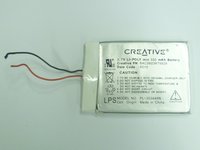
    1. Replacing Creative Zen X-Fi Battery, Separating the Battery: crwdns2935265:08crwdnd2935265:01crwdnd2935265:01crwdne2935265:0
      • Use a spudger to pry the battery from the midsection plate.

      • There is adhesive glue underneath the battery, so additional force might be required to separate the battery.

      crwdns2952109:0crwdne2952109:0

      crwdns2917038:0crwdne2917038:0

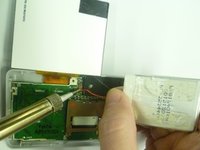
    2. Replacing Creative Zen X-Fi Battery, Disconnecting Power Supply: crwdns2935265:09crwdnd2935265:01crwdnd2935265:02crwdne2935265:0 Replacing Creative Zen X-Fi Battery, Disconnecting Power Supply: crwdns2935265:09crwdnd2935265:02crwdnd2935265:02crwdne2935265:0
      • Locate the soldering joint connecting the battery wires to the power supply, marked by the letters "PS" on the motherboard.

      • Hold the battery wires in place so that access to the soldering joints is not blocked.

      • When using a soldering iron, keep your hands and fingers as far as possible from the iron's tip to avoid burning your skin.

      • Using a soldering iron, melt the solder connecting the red wire to the motherboard. Do the same action to the black wire.

      crwdns2952109:0crwdne2952109:0

      crwdns2917038:0crwdne2917038:0

crwdns2915888:0crwdne2915888:0

To reassemble your device, follow these instructions in reverse order.

crwdns2935221:0crwdne2935221:0

crwdns2935229:05crwdne2935229:0

Westley Courchene

crwdns2935283:001/13/15crwdne2935283:0

3,410 crwdns2915208:0crwdne2915208:0

crwdns2935297:014crwdne2935297:0

crwdns2947412:02crwdne2947412:0

разбирать нужно со стороны противоположной гнезда наушников!!! поломал так же как и на фото все защелки со стороны кнопок(

Cooper21 - crwdns2934203:0crwdne2934203:0 crwdns2950251:0crwdne2950251:0

crwdns2917038:0crwdne2917038:0

crwdns2936625:0crwdne2936625:0:

crwdns2936751:024crwdne2936751:0 4

crwdns2936753:07crwdne2936753:0 41

crwdns2936753:030crwdne2936753:0 171

crwdns2959996:0crwdne2959996:0 9,211