crwdns2933423:0crwdne2933423:0
crwdns2947577:0crwdnd2947577:0crwdne2947577:0

Removing the HP Elitebook 6930p WLAN Module

crwdns2942213:0crwdne2942213:0

    1. Removing the HP Elitebook 6930p WLAN Module, Battery Removal: crwdns2935265:01crwdnd2935265:01crwdnd2935265:03crwdne2935265:0 Removing the HP Elitebook 6930p WLAN Module, Battery Removal: crwdns2935265:01crwdnd2935265:02crwdnd2935265:03crwdne2935265:0 Removing the HP Elitebook 6930p WLAN Module, Battery Removal: crwdns2935265:01crwdnd2935265:03crwdnd2935265:03crwdne2935265:0
      • Flip laptop over and locate the battery release button

      • Push release button to the left to release battery and gently pull battery from the laptop

      crwdns2952109:0crwdne2952109:0

      crwdns2917038:0crwdne2917038:0

    1. Removing the HP Elitebook 6930p WLAN Module, Keyboard: crwdns2935265:02crwdnd2935265:01crwdnd2935265:03crwdne2935265:0 Removing the HP Elitebook 6930p WLAN Module, Keyboard: crwdns2935265:02crwdnd2935265:02crwdnd2935265:03crwdne2935265:0 Removing the HP Elitebook 6930p WLAN Module, Keyboard: crwdns2935265:02crwdnd2935265:03crwdnd2935265:03crwdne2935265:0
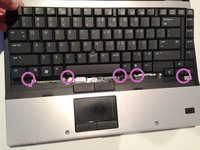
      • Loosen the three Phillips 2.5×9.0 captive screws that secure the keyboard to the laptop

      • Turn the laptop so the keyboard is facing up and locate the 4 retention tabs along the back edge of the keyboard

      • Slide the retention clips toward the keyboard to release the keyboard

      crwdns2952109:0crwdne2952109:0

      crwdns2917038:0crwdne2917038:0

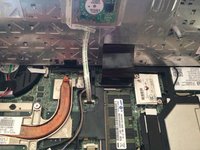
    2. Removing the HP Elitebook 6930p WLAN Module: crwdns2935265:03crwdnd2935265:01crwdnd2935265:03crwdne2935265:0 Removing the HP Elitebook 6930p WLAN Module: crwdns2935265:03crwdnd2935265:02crwdnd2935265:03crwdne2935265:0 Removing the HP Elitebook 6930p WLAN Module: crwdns2935265:03crwdnd2935265:03crwdnd2935265:03crwdne2935265:0
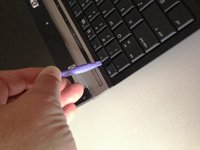
      • Use a plastic pry tool to lift the rear edge of the keyboard.

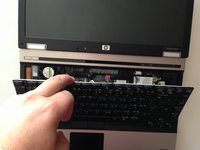
      • Pull the keyboard slightly towards the display to disengage the tabs along the front of the keyboard from the laptop palm rest.

      • Lift the keyboard up to reveal the ribbon connectors

      crwdns2952109:0crwdne2952109:0

      crwdns2917038:0crwdne2917038:0

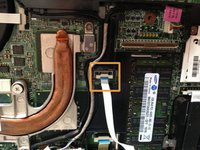
    3. Removing the HP Elitebook 6930p WLAN Module: crwdns2935265:04crwdnd2935265:01crwdnd2935265:03crwdne2935265:0 Removing the HP Elitebook 6930p WLAN Module: crwdns2935265:04crwdnd2935265:02crwdnd2935265:03crwdne2935265:0 Removing the HP Elitebook 6930p WLAN Module: crwdns2935265:04crwdnd2935265:03crwdnd2935265:03crwdne2935265:0
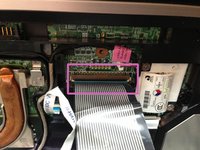
      • Release the larger ribbon cable by flipping the brown retainer up so it is parallel with the ribbon cable

      • Release the smaller ribbon cable by lifting up the white retainer

      • I found it easier to reinstall both cables with the new keyboard resting on the back edge

      crwdns2952109:0crwdne2952109:0

      crwdns2917038:0crwdne2917038:0

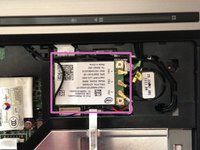
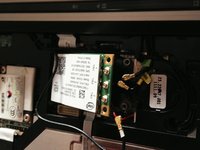
    1. Removing the HP Elitebook 6930p WLAN Module, WLAN (WiFi) Module: crwdns2935265:05crwdnd2935265:01crwdnd2935265:03crwdne2935265:0 Removing the HP Elitebook 6930p WLAN Module, WLAN (WiFi) Module: crwdns2935265:05crwdnd2935265:02crwdnd2935265:03crwdne2935265:0 Removing the HP Elitebook 6930p WLAN Module, WLAN (WiFi) Module: crwdns2935265:05crwdnd2935265:03crwdnd2935265:03crwdne2935265:0
      • Locate the WLAN module

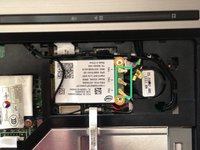
      • Use a plastic spugder or similar to carefully remove the 3 antenna wires from the WLAN module.

      • The antenna wires are colour coded tabs on them for easy reinstallation so be sure to take note of the correct order. there are coloured tabs on the wires!

      • Remove the 2 M2.5×4.0 screws that secure the WLAN module into the laptop

      • With the screws removed the right hand end of the WLAN module will pop up. You may now simply remove the module from the edge connector.

      crwdns2952109:0crwdne2952109:0

      crwdns2917038:0crwdne2917038:0

crwdns2915888:0crwdne2915888:0

To reassemble your device, follow these instructions in reverse order.

crwdns2935221:0crwdne2935221:0

crwdns2935229:03crwdne2935229:0

Richdave

crwdns2935283:004/09/10crwdne2935283:0

32.882 crwdns2915208:0crwdne2915208:0

crwdns2935297:030crwdne2935297:0

crwdns2935287:0crwdne2935287:0

Master Techs crwdns2935289:0Master Techscrwdne2935289:0

Community

crwdns2931471:0335crwdne2931471:0

crwdns2935297:08.260crwdne2935297:0

crwdns2947412:00crwdne2947412:0

crwdns2917038:0crwdne2917038:0

crwdns2936625:0crwdne2936625:0:

crwdns2936751:024crwdne2936751:0 1

crwdns2936753:07crwdne2936753:0 28

crwdns2936753:030crwdne2936753:0 50

crwdns2942667:0crwdne2942667:0 9,056