crwdns2933423:0crwdne2933423:0
crwdns2947577:0crwdnd2947577:0crwdne2947577:0

PowerBook 3400 M3553 Track Pad Replacement

crwdns2942213:0crwdne2942213:0

  1. PowerBook 3400 M3553 Track Pad Replacement, Battery: crwdns2935265:01crwdnd2935265:01crwdnd2935265:01crwdne2935265:0
    • Close the screen and turn the PowerBook over, orienting the computer upside down, using the label to guide you.

    crwdns2952109:0crwdne2952109:0
  2. PowerBook 3400 M3553 Track Pad Replacement: crwdns2935265:02crwdnd2935265:01crwdnd2935265:02crwdne2935265:0 PowerBook 3400 M3553 Track Pad Replacement: crwdns2935265:02crwdnd2935265:02crwdnd2935265:02crwdne2935265:0
    • Hold the button on the front left side and slide the battery out.

    crwdns2952109:0crwdne2952109:0
  3. PowerBook 3400 M3553 Track Pad Replacement, Keyboard: crwdns2935265:03crwdnd2935265:01crwdnd2935265:01crwdne2935265:0
    • With a Torx T8 screwdriver, remove the three Torx 24mm screws along the center of the back panel.

    crwdns2952109:0crwdne2952109:0
  4. PowerBook 3400 M3553 Track Pad Replacement: crwdns2935265:04crwdnd2935265:01crwdnd2935265:03crwdne2935265:0 PowerBook 3400 M3553 Track Pad Replacement: crwdns2935265:04crwdnd2935265:02crwdnd2935265:03crwdne2935265:0 PowerBook 3400 M3553 Track Pad Replacement: crwdns2935265:04crwdnd2935265:03crwdnd2935265:03crwdne2935265:0
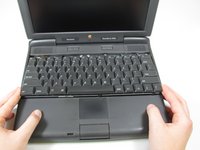
    • Turn the computer over and open the display. You should see that the keyboard is loose.

    • Before attempting to remove the keyboard, note that a ribbon cable connects the keyboard to the logic board. Improper removal may damage your keyboard.

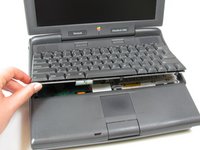
    • Slightly lift the front of the keyboard up, and slide the keyboard towards yourself.

    • Carefully lift the top half of the keyboard and pull it towards yourself.

    crwdns2952109:0crwdne2952109:0
  5. PowerBook 3400 M3553 Track Pad Replacement: crwdns2935265:05crwdnd2935265:01crwdnd2935265:02crwdne2935265:0 PowerBook 3400 M3553 Track Pad Replacement: crwdns2935265:05crwdnd2935265:02crwdnd2935265:02crwdne2935265:0
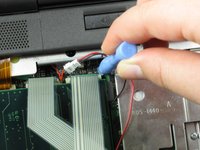
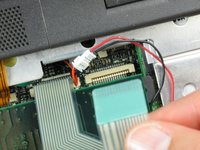
    • Loosen the ribbon cables connecting the keyboard to the computer by using a plastic opening tool to lift the tabs on either side of the cable port.

    • Gently remove the ribbons from its tabs.

    crwdns2952109:0crwdne2952109:0
  6. PowerBook 3400 M3553 Track Pad Replacement, RAM: crwdns2935265:06crwdnd2935265:01crwdnd2935265:02crwdne2935265:0 PowerBook 3400 M3553 Track Pad Replacement, RAM: crwdns2935265:06crwdnd2935265:02crwdnd2935265:02crwdne2935265:0
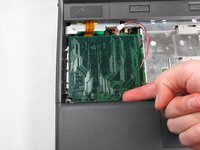
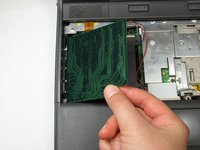
    • Gently wiggle the RAM card to loosen the connection until it pulls free.

    crwdns2952109:0crwdne2952109:0
  7. PowerBook 3400 M3553 Track Pad Replacement, Track Pad Panel: crwdns2935265:07crwdnd2935265:01crwdnd2935265:01crwdne2935265:0
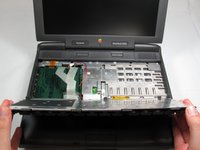
    • Push the display screen back to give yourself enough space to remove the side panels.

    • Before removing the side panels, note that removing the side panels hastily will damage the underlying panel screw. However, this will not affect the functionality of your PowerBook.

    • Remove the panels on either side by gently but firmly pulling up on them with both hands.

    crwdns2952109:0crwdne2952109:0
  8. PowerBook 3400 M3553 Track Pad Replacement: crwdns2935265:08crwdnd2935265:01crwdnd2935265:02crwdne2935265:0 PowerBook 3400 M3553 Track Pad Replacement: crwdns2935265:08crwdnd2935265:02crwdnd2935265:02crwdne2935265:0
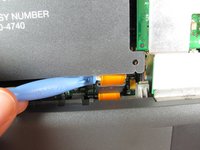
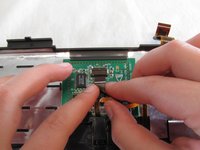
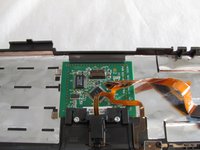
    • Use the plastic opening tool to lift up the tabs on either side of the ribbon cable port and then gently pull the ribbon cable free.

    crwdns2952109:0crwdne2952109:0
  9. PowerBook 3400 M3553 Track Pad Replacement: crwdns2935265:09crwdnd2935265:01crwdnd2935265:03crwdne2935265:0 PowerBook 3400 M3553 Track Pad Replacement: crwdns2935265:09crwdnd2935265:02crwdnd2935265:03crwdne2935265:0 PowerBook 3400 M3553 Track Pad Replacement: crwdns2935265:09crwdnd2935265:03crwdnd2935265:03crwdne2935265:0
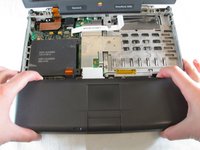
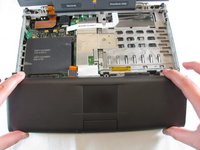
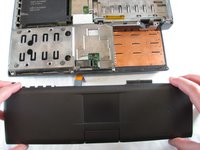
    • WARNING: There is a high risk of breaking the tabs that lock the panel to the casing. Remove the panel slowly and cautiously to avoid damage.

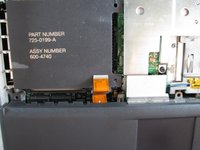
    • With your index finger and your thumb, squeeze the track pad panel to loosen the clamps. Then slide the panel towards yourself.

    crwdns2952109:0crwdne2952109:0
  10. PowerBook 3400 M3553 Track Pad Replacement, Track Pad: crwdns2935265:010crwdnd2935265:01crwdnd2935265:03crwdne2935265:0 PowerBook 3400 M3553 Track Pad Replacement, Track Pad: crwdns2935265:010crwdnd2935265:02crwdnd2935265:03crwdne2935265:0 PowerBook 3400 M3553 Track Pad Replacement, Track Pad: crwdns2935265:010crwdnd2935265:03crwdnd2935265:03crwdne2935265:0
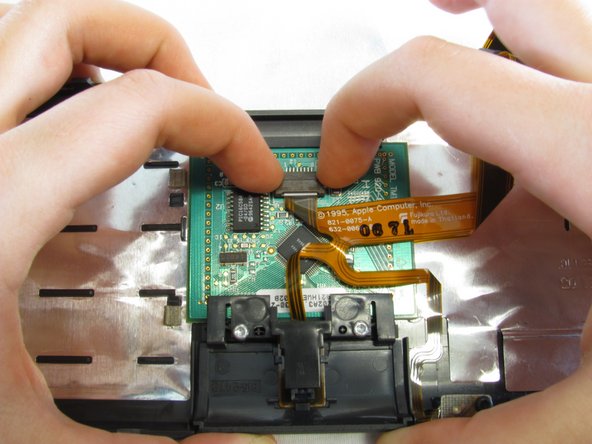
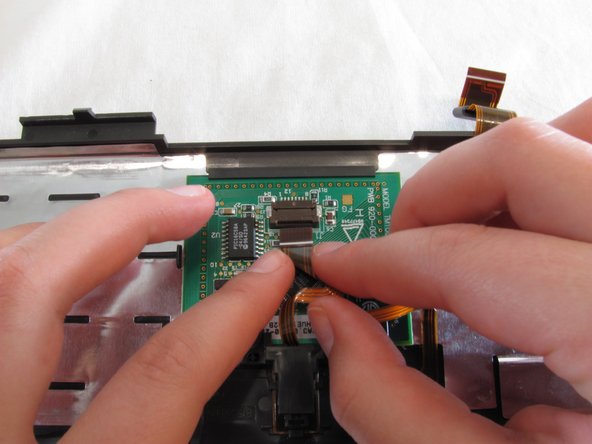
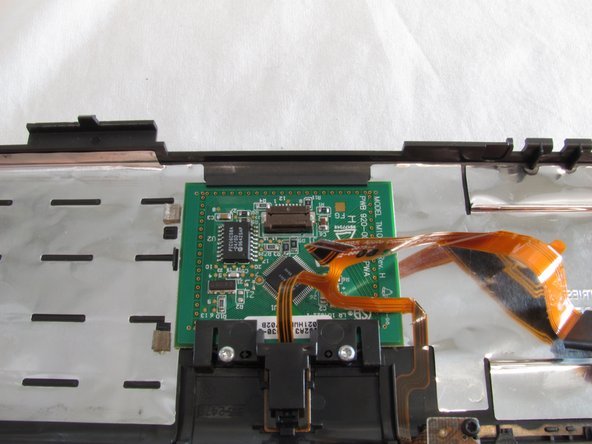
    • Push the buttons on the side of the ribbon cable port on the track pad to release the ribbon cable. Then gently pull the ribbon cable free.

    crwdns2952109:0crwdne2952109:0
  11. PowerBook 3400 M3553 Track Pad Replacement: crwdns2935265:011crwdnd2935265:01crwdnd2935265:01crwdne2935265:0
    • Remove two T8 7mm long torx screws from the bottom of the track pad panel.

    crwdns2952109:0crwdne2952109:0
  12. PowerBook 3400 M3553 Track Pad Replacement: crwdns2935265:012crwdnd2935265:01crwdnd2935265:01crwdne2935265:0
    • Slide the track pad button off of the track pad panel.

    crwdns2952109:0crwdne2952109:0
  13. PowerBook 3400 M3553 Track Pad Replacement: crwdns2935265:013crwdnd2935265:01crwdnd2935265:01crwdne2935265:0
    • Remove the track pad by gently lifting up.

    crwdns2952109:0crwdne2952109:0
crwdns2915888:0crwdne2915888:0

To reassemble your device, follow these instructions in reverse order.

Michael Mondragon

crwdns2935283:004/12/11crwdne2935283:0

397 crwdns2915208:0crwdne2915208:0

crwdns2935297:09crwdne2935297:0

crwdns2935287:0crwdne2935287:0

Cal Poly, Team 24-59, Amido Spring 2011 crwdns2935289:0Cal Poly, Team 24-59, Amido Spring 2011crwdne2935289:0

CPSU-AMIDO-S11S24G59

crwdns2931471:04crwdne2931471:0

crwdns2935297:09crwdne2935297:0

crwdns2947412:00crwdne2947412:0

crwdns2917038:0crwdne2917038:0

crwdns2936625:0crwdne2936625:0:

crwdns2936751:024crwdne2936751:0 5

crwdns2936753:07crwdne2936753:0 13

crwdns2936753:030crwdne2936753:0 71

crwdns2942667:0crwdne2942667:0 1,683