crwdns2933423:0crwdne2933423:0
crwdns2947577:0crwdnd2947577:0crwdne2947577:0

Pangolin PC Assembly

crwdns2942213:0crwdne2942213:0

  1. Pangolin PC Assembly, Print Your Parts!: crwdns2935265:01crwdnd2935265:01crwdnd2935265:01crwdne2935265:0
    • Before beginning, you must have all the required parts already printed.

    • You may not be able to assemble your PC properly without printing all the parts provided.

    • Actually, you won’t be able to do anything if you don’t have your parts printed before you begin.

    crwdns2952109:0crwdne2952109:0

    crwdns2917038:0crwdne2917038:0

  2. Pangolin PC Assembly, Bottom Plate & Display Arm: crwdns2935265:02crwdnd2935265:01crwdnd2935265:02crwdne2935265:0 Pangolin PC Assembly, Bottom Plate & Display Arm: crwdns2935265:02crwdnd2935265:02crwdnd2935265:02crwdne2935265:0
    • For steps 2-4, you will use the following:

    • 1x pangolinpc_base.

    • 1x pangolinpc_display_arm.

    • 4x M5 screws.

    crwdns2952109:0crwdne2952109:0

    crwdns2917038:0crwdne2917038:0

  3. Pangolin PC Assembly, Bottom Plate & Display Arm (cont.): crwdns2935265:03crwdnd2935265:01crwdnd2935265:03crwdne2935265:0 Pangolin PC Assembly, Bottom Plate & Display Arm (cont.): crwdns2935265:03crwdnd2935265:02crwdnd2935265:03crwdne2935265:0 Pangolin PC Assembly, Bottom Plate & Display Arm (cont.): crwdns2935265:03crwdnd2935265:03crwdnd2935265:03crwdne2935265:0
    • Grab the pangolinpc_display_arm and place it on top of the pangolinpc_base and flip over these pieces.

    • Make sure that the holes outlined match up so you may screw them together.

    • The reason that there isn’t a fourth hole in the third photo is because this is a pre-release prototype. Versions 0.3-alpha and later should have the fourth hole.

    crwdns2952109:0crwdne2952109:0

    crwdns2917038:0crwdne2917038:0

  4. Pangolin PC Assembly, Bottom Plate & Display Arm (cont.): crwdns2935265:04crwdnd2935265:01crwdnd2935265:03crwdne2935265:0 Pangolin PC Assembly, Bottom Plate & Display Arm (cont.): crwdns2935265:04crwdnd2935265:02crwdnd2935265:03crwdne2935265:0 Pangolin PC Assembly, Bottom Plate & Display Arm (cont.): crwdns2935265:04crwdnd2935265:03crwdnd2935265:03crwdne2935265:0
    • Screw in 4x M5 screws into the four holes.

    crwdns2952109:0crwdne2952109:0

    crwdns2917038:0crwdne2917038:0

  5. Pangolin PC Assembly, Installing the SBC: crwdns2935265:05crwdnd2935265:01crwdnd2935265:03crwdne2935265:0 Pangolin PC Assembly, Installing the SBC: crwdns2935265:05crwdnd2935265:02crwdnd2935265:03crwdne2935265:0 Pangolin PC Assembly, Installing the SBC: crwdns2935265:05crwdnd2935265:03crwdnd2935265:03crwdne2935265:0
    • For step 5, you will need the following:

    • The assembly from steps 2-4, which will be referred to now on as the "pangolinpc_base assembly."

    • The Single Board Computer (SBC), which in this case is a Raspberry Pi 5.

    • If you are going to install any HATs or accessories to the SBC, such as an PCIe HAT or the Active Cooler, install them now before proceeding.

    • You will place the SBC in the special slide-in area.

    • Line up the edges of the SBC with the notches in the slide-in area. Then slide the SBC down towards the rear of the pangolinpc_base.

    crwdns2952109:0crwdne2952109:0

    crwdns2917038:0crwdne2917038:0

  6. Pangolin PC Assembly, Installing the Webcam Cable: crwdns2935265:06crwdnd2935265:01crwdnd2935265:03crwdne2935265:0 Pangolin PC Assembly, Installing the Webcam Cable: crwdns2935265:06crwdnd2935265:02crwdnd2935265:03crwdne2935265:0 Pangolin PC Assembly, Installing the Webcam Cable: crwdns2935265:06crwdnd2935265:03crwdnd2935265:03crwdne2935265:0
    • For steps 6-8, you will need the following:

    • 1x Webcam cable.

    • The pangolinpc_base assembly.

    • Find the display/camera connectors on the right side of the SBC.

    • You will be plugging the cable into the connector nearest the Ethernet port on the SBC. This port is also labeled "CAM/DISP 0."

    • Pull up the brown clip of the connector.

    crwdns2952109:0crwdne2952109:0

    crwdns2917038:0crwdne2917038:0

  7. Pangolin PC Assembly, Installing the Webcam Cable (cont.): crwdns2935265:07crwdnd2935265:01crwdnd2935265:02crwdne2935265:0 Pangolin PC Assembly, Installing the Webcam Cable (cont.): crwdns2935265:07crwdnd2935265:02crwdnd2935265:02crwdne2935265:0
    • Make sure you insert the smaller side of the cable into the SBC. The other side won't fit!

    • Insert the cable into the port. Don't force it! They are called "ZIF" (Zero Insertion Force) for a reason!

    • Insert the side of the cable with the gold contacts facing away from the Ethernet port.

    • Press down the brown clip to secure the cable.

    crwdns2952109:0crwdne2952109:0

    crwdns2917038:0crwdne2917038:0

  8. Pangolin PC Assembly, Installing the Webcam Cable (cont.): crwdns2935265:08crwdnd2935265:01crwdnd2935265:03crwdne2935265:0 Pangolin PC Assembly, Installing the Webcam Cable (cont.): crwdns2935265:08crwdnd2935265:02crwdnd2935265:03crwdne2935265:0 Pangolin PC Assembly, Installing the Webcam Cable (cont.): crwdns2935265:08crwdnd2935265:03crwdnd2935265:03crwdne2935265:0
    • Insert the fat end of the Webcam cable into the pangolinpc_display_arm and thread it through.

    • Pull the cable out through the top of the pangolinpc_display_arm.

    • There should be little slack inside the assembly, but don't pull too tight!

    crwdns2952109:0crwdne2952109:0

    crwdns2917038:0crwdne2917038:0

  9. Pangolin PC Assembly, Installing the HDMI Cable: crwdns2935265:09crwdnd2935265:01crwdnd2935265:03crwdne2935265:0 Pangolin PC Assembly, Installing the HDMI Cable: crwdns2935265:09crwdnd2935265:02crwdnd2935265:03crwdne2935265:0 Pangolin PC Assembly, Installing the HDMI Cable: crwdns2935265:09crwdnd2935265:03crwdnd2935265:03crwdne2935265:0
    • For steps 9-10, you will use the following:

    • 1x Micro-HDMI to HDMI cable.

    • The pangolinpc_base assembly.

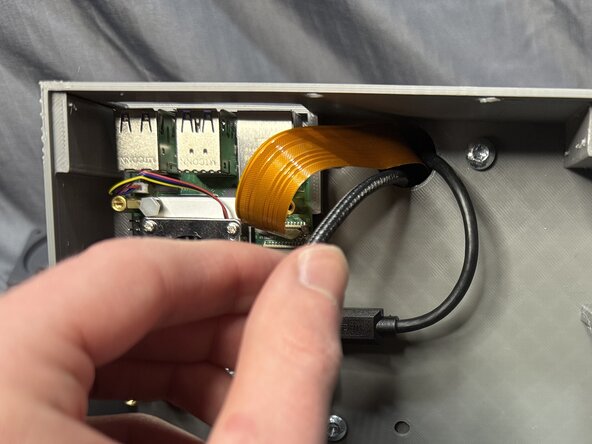
    • Insert the Micro end into the top of the pangolinpc_display_arm, and thread it through so it comes out inside the assembly.

    crwdns2952109:0crwdne2952109:0

    crwdns2917038:0crwdne2917038:0

  10. Pangolin PC Assembly, Installing the HDMI Cable (cont.): crwdns2935265:010crwdnd2935265:01crwdnd2935265:02crwdne2935265:0 Pangolin PC Assembly, Installing the HDMI Cable (cont.): crwdns2935265:010crwdnd2935265:02crwdnd2935265:02crwdne2935265:0
    • Insert the cable into the port nearest the USB-C port, marked HDMI0.

    crwdns2952109:0crwdne2952109:0

    crwdns2917038:0crwdne2917038:0

  11. Pangolin PC Assembly, Installing the USB-C Cable: crwdns2935265:011crwdnd2935265:01crwdnd2935265:02crwdne2935265:0 Pangolin PC Assembly, Installing the USB-C Cable: crwdns2935265:011crwdnd2935265:02crwdnd2935265:02crwdne2935265:0
    • For steps 11-12, you will use the following:

    • 1x USB-C Power Cable.

    • The pangolinpc_base assembly.

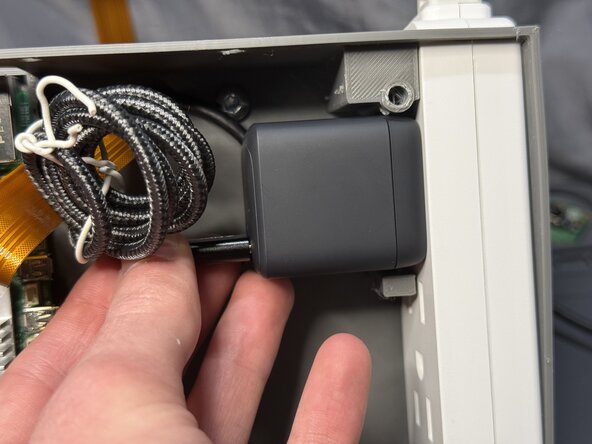
    • I would highly recommend winding up the excess cable, making nice, neat loop near the power supply end of the cable.

    crwdns2952109:0crwdne2952109:0

    crwdns2917038:0crwdne2917038:0

  12. Pangolin PC Assembly, Installing the USB-C Cable (cont.): crwdns2935265:012crwdnd2935265:01crwdnd2935265:02crwdne2935265:0 Pangolin PC Assembly, Installing the USB-C Cable (cont.): crwdns2935265:012crwdnd2935265:02crwdnd2935265:02crwdne2935265:0
    • Pull the USB-C cable through the pangolinpc_display_arm.

    crwdns2952109:0crwdne2952109:0

    crwdns2917038:0crwdne2917038:0

  13. Pangolin PC Assembly, Installing the Power Strip: crwdns2935265:013crwdnd2935265:01crwdnd2935265:03crwdne2935265:0 Pangolin PC Assembly, Installing the Power Strip: crwdns2935265:013crwdnd2935265:02crwdnd2935265:03crwdne2935265:0 Pangolin PC Assembly, Installing the Power Strip: crwdns2935265:013crwdnd2935265:03crwdnd2935265:03crwdne2935265:0
    • For steps 13-14, you will use the following:

    • 1x Power Strip.

    • The pangolinpc_base assembly.

    • Insert the power strip into the pangolinpc_base, where there is a large hole on the right side.

    • Push the power strip down into the pangolinpc_base until it stops.

    crwdns2952109:0crwdne2952109:0

    crwdns2917038:0crwdne2917038:0

  14. Pangolin PC Assembly, Installing the Power Strip (cont.): crwdns2935265:014crwdnd2935265:01crwdnd2935265:02crwdne2935265:0 Pangolin PC Assembly, Installing the Power Strip (cont.): crwdns2935265:014crwdnd2935265:02crwdnd2935265:02crwdne2935265:0
    • In the second photo, this is what your pangolinpc_base should look like inside.

    crwdns2952109:0crwdne2952109:0

    crwdns2917038:0crwdne2917038:0

  15. Pangolin PC Assembly, Installing the Anker Power Supply: crwdns2935265:015crwdnd2935265:01crwdnd2935265:03crwdne2935265:0 Pangolin PC Assembly, Installing the Anker Power Supply: crwdns2935265:015crwdnd2935265:02crwdnd2935265:03crwdne2935265:0 Pangolin PC Assembly, Installing the Anker Power Supply: crwdns2935265:015crwdnd2935265:03crwdnd2935265:03crwdne2935265:0
    • For steps 15-16, you will need the following:

    • 1x Anker Power Supply.

    • The pangolinpc_base assembly.

    • You will be plugging the power supply into the port closest to the rear of the assembly.

    • Plug the power supply into the port.

    • Make sure the USB-C port on the power supply is closest to the front of the assembly. (See next step to see proper orientation.)

    crwdns2952109:0crwdne2952109:0

    crwdns2917038:0crwdne2917038:0

  16. Pangolin PC Assembly, Installing the Anker Power Supply (cont.): crwdns2935265:016crwdnd2935265:01crwdnd2935265:03crwdne2935265:0 Pangolin PC Assembly, Installing the Anker Power Supply (cont.): crwdns2935265:016crwdnd2935265:02crwdnd2935265:03crwdne2935265:0 Pangolin PC Assembly, Installing the Anker Power Supply (cont.): crwdns2935265:016crwdnd2935265:03crwdnd2935265:03crwdne2935265:0
    • Just like in the last step, make sure the USB-C port is closest to the front of the assembly.

    • Plug the USB-C cable into the power supply.

    crwdns2952109:0crwdne2952109:0

    crwdns2917038:0crwdne2917038:0

  17. Pangolin PC Assembly, Installing the RPi Power Supply: crwdns2935265:017crwdnd2935265:01crwdnd2935265:03crwdne2935265:0 Pangolin PC Assembly, Installing the RPi Power Supply: crwdns2935265:017crwdnd2935265:02crwdnd2935265:03crwdne2935265:0 Pangolin PC Assembly, Installing the RPi Power Supply: crwdns2935265:017crwdnd2935265:03crwdnd2935265:03crwdne2935265:0
    • For steps 17-18, you will need the following:

    • 1x Raspberry Pi power supply.

    • The pangolinpc_base assembly.

    • It is highly recommended to wind up the excess wire with a twist tie.

    • Plug the power supply into the bottom port on the power strip.

    • Make sure the cord coming out of the power supply is coming out closest to the front of the assembly.

    crwdns2952109:0crwdne2952109:0

    crwdns2917038:0crwdne2917038:0

  18. Pangolin PC Assembly, Installing the RPi Power Supply (cont.): crwdns2935265:018crwdnd2935265:01crwdnd2935265:03crwdne2935265:0 Pangolin PC Assembly, Installing the RPi Power Supply (cont.): crwdns2935265:018crwdnd2935265:02crwdnd2935265:03crwdne2935265:0 Pangolin PC Assembly, Installing the RPi Power Supply (cont.): crwdns2935265:018crwdnd2935265:03crwdnd2935265:03crwdne2935265:0
    • You will plug the USB-C cable into the Raspberry Pi's power port.

    • Plug in the cable.

    crwdns2952109:0crwdne2952109:0

    crwdns2917038:0crwdne2917038:0

  19. Pangolin PC Assembly, What It Should Look Like So Far: crwdns2935265:019crwdnd2935265:01crwdnd2935265:01crwdne2935265:0
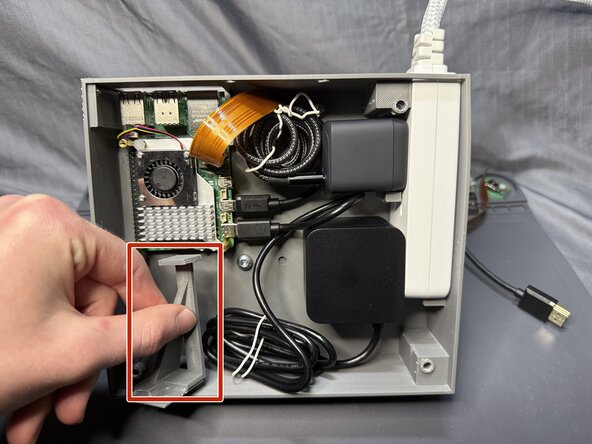
    • This is what your pangolinpc_base assembly should look like inside.

    crwdns2952109:0crwdne2952109:0

    crwdns2917038:0crwdne2917038:0

  20. Pangolin PC Assembly, Assembling the Power Button Assembly: crwdns2935265:020crwdnd2935265:01crwdnd2935265:01crwdne2935265:0
    • For step 20, you will need the following:

    • 1x pangolinpc_power_button.

    • 1x pangolinpc_power_button_assembly_arm.

    • Hot glue.

    • Apply a wave pattern of glue to the pangolinpc_power_button and attach it to pangolinpc_power_button_assembly_arm as shown in the photo.

    • Make sure that the top of the pangolinpc_power_button is flush with the bottom of the pangolinpc_power_button_assembly_arm.

    crwdns2952109:0crwdne2952109:0

    crwdns2917038:0crwdne2917038:0

  21. Pangolin PC Assembly, Installing the Power Button Assembly: crwdns2935265:021crwdnd2935265:01crwdnd2935265:03crwdne2935265:0 Pangolin PC Assembly, Installing the Power Button Assembly: crwdns2935265:021crwdnd2935265:02crwdnd2935265:03crwdne2935265:0 Pangolin PC Assembly, Installing the Power Button Assembly: crwdns2935265:021crwdnd2935265:03crwdnd2935265:03crwdne2935265:0
    • For step 21-22, you will need the following:

    • The pangolinpc_power_button_assembly_arm assembly.

    • The pangolinpc_base assembly.

    • Hot glue.

    • Install the pangolinpc_power_button_assembly_arm assembly so that the power button is flush where the hole is for the power button on the pangolinpc_base.

    crwdns2952109:0crwdne2952109:0

    crwdns2917038:0crwdne2917038:0

  22. Pangolin PC Assembly, Installing the Power Button Assembly (cont.): crwdns2935265:022crwdnd2935265:01crwdnd2935265:02crwdne2935265:0 Pangolin PC Assembly, Installing the Power Button Assembly (cont.): crwdns2935265:022crwdnd2935265:02crwdnd2935265:02crwdne2935265:0
    • Apply hot glue to the areas shown with the red lines.

    crwdns2952109:0crwdne2952109:0

    crwdns2917038:0crwdne2917038:0

  23. Pangolin PC Assembly, Assembling and Installing the Plate Feet and Bottom Plate: crwdns2935265:023crwdnd2935265:01crwdnd2935265:03crwdne2935265:0 Pangolin PC Assembly, Assembling and Installing the Plate Feet and Bottom Plate: crwdns2935265:023crwdnd2935265:02crwdnd2935265:03crwdne2935265:0 Pangolin PC Assembly, Assembling and Installing the Plate Feet and Bottom Plate: crwdns2935265:023crwdnd2935265:03crwdnd2935265:03crwdne2935265:0
    • For step 23-24, you will need the following:

    • 2x pangolinpc_plate_legs.

    • 1x pangolinpc_base_bottom_plate.

    • Hot glue.

    • You will be gluing the pangolinpc_plate_legs to the rear of the pangolinpc_base_bottom_plate where there are indents.

    • Do not glue the pangolinpc_plate_legs to the side that has holes inside the indents.

    crwdns2952109:0crwdne2952109:0

    crwdns2917038:0crwdne2917038:0

  24. Pangolin PC Assembly, Assembling and Installing the Plate Feet and Bottom Plate (cont.): crwdns2935265:024crwdnd2935265:01crwdnd2935265:03crwdne2935265:0 Pangolin PC Assembly, Assembling and Installing the Plate Feet and Bottom Plate (cont.): crwdns2935265:024crwdnd2935265:02crwdnd2935265:03crwdne2935265:0 Pangolin PC Assembly, Assembling and Installing the Plate Feet and Bottom Plate (cont.): crwdns2935265:024crwdnd2935265:03crwdnd2935265:03crwdne2935265:0
    • Install the pangolinpc_base_bottom_plate assembly to the bottom of the pangolinpc_base assembly as shown.

    crwdns2952109:0crwdne2952109:0

    crwdns2917038:0crwdne2917038:0

  25. Pangolin PC Assembly, Installing the Last Bottom Plate Screws: crwdns2935265:025crwdnd2935265:01crwdnd2935265:02crwdne2935265:0 Pangolin PC Assembly, Installing the Last Bottom Plate Screws: crwdns2935265:025crwdnd2935265:02crwdnd2935265:02crwdne2935265:0
    • For step 25, you will need the following:

    • 2x M5 screws.

    • Screw in the screws into the back holes on the pangolinpc_base assembly.

    crwdns2952109:0crwdne2952109:0

    crwdns2917038:0crwdne2917038:0

  26. Pangolin PC Assembly, Assembling and Installing the Rear Plate Legs: crwdns2935265:026crwdnd2935265:01crwdnd2935265:03crwdne2935265:0 Pangolin PC Assembly, Assembling and Installing the Rear Plate Legs: crwdns2935265:026crwdnd2935265:02crwdnd2935265:03crwdne2935265:0 Pangolin PC Assembly, Assembling and Installing the Rear Plate Legs: crwdns2935265:026crwdnd2935265:03crwdnd2935265:03crwdne2935265:0
    • For step 26-27, you will need the following:

    • 2x pangolinpc_plate_legs.

    • 2x M5 screws.

    • Hot glue.

    • Apply a thin bead of hot glue to the circumference of the screw head, as shown by the red circle.

    • Then place the screw into the pangolinpc_plate_legs so that the bottom of the screw head is flush with the top of the legs.

    crwdns2952109:0crwdne2952109:0

    crwdns2917038:0crwdne2917038:0

  27. Pangolin PC Assembly, Assembling and Installing the Rear Plate Legs: crwdns2935265:027crwdnd2935265:01crwdnd2935265:02crwdne2935265:0 Pangolin PC Assembly, Assembling and Installing the Rear Plate Legs: crwdns2935265:027crwdnd2935265:02crwdnd2935265:02crwdne2935265:0
    • Install the M5 screw assemblies to the pangolinpc_base assembly.

    crwdns2952109:0crwdne2952109:0

    crwdns2917038:0crwdne2917038:0

  28. Pangolin PC Assembly, Installing the VESA Mount: crwdns2935265:028crwdnd2935265:01crwdnd2935265:01crwdne2935265:0
    • For steps 28-30, you will use the following:

    • The pangolinpc_vesa_mount

    • 4x M5 screws

    crwdns2952109:0crwdne2952109:0

    crwdns2917038:0crwdne2917038:0

  29. Pangolin PC Assembly, Installing the VESA Mount (cont.): crwdns2935265:029crwdnd2935265:01crwdnd2935265:03crwdne2935265:0 Pangolin PC Assembly, Installing the VESA Mount (cont.): crwdns2935265:029crwdnd2935265:02crwdnd2935265:03crwdne2935265:0 Pangolin PC Assembly, Installing the VESA Mount (cont.): crwdns2935265:029crwdnd2935265:03crwdnd2935265:03crwdne2935265:0
    • Thread the HDMI, USB-C, and Webcam cables through the middle square hole in the pangolinpc_vesa_mount.

    crwdns2952109:0crwdne2952109:0

    crwdns2917038:0crwdne2917038:0

  30. Pangolin PC Assembly, Installing the VESA Mount (cont.): crwdns2935265:030crwdnd2935265:01crwdnd2935265:03crwdne2935265:0 Pangolin PC Assembly, Installing the VESA Mount (cont.): crwdns2935265:030crwdnd2935265:02crwdnd2935265:03crwdne2935265:0 Pangolin PC Assembly, Installing the VESA Mount (cont.): crwdns2935265:030crwdnd2935265:03crwdnd2935265:03crwdne2935265:0
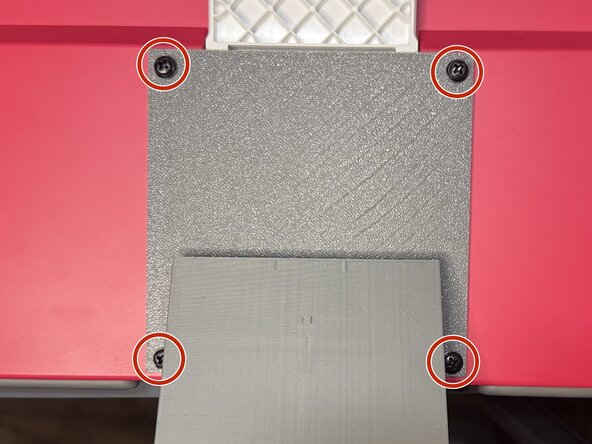
    • Screw the four M5 screws in the pangolinpc_vesa_mount, attaching it the pangolinpc_base assembly.

    crwdns2952109:0crwdne2952109:0

    crwdns2917038:0crwdne2917038:0

  31. Pangolin PC Assembly, Installing the Display: crwdns2935265:031crwdnd2935265:01crwdnd2935265:01crwdne2935265:0
    • For steps 31-35, you will need the following parts:

    • Raspberry Pi Display.

    • The pangolinpc_base assembly.

    • 4x M4 VESA screws.

    crwdns2952109:0crwdne2952109:0

    crwdns2917038:0crwdne2917038:0

  32. Pangolin PC Assembly, Installing the Display (cont.): crwdns2935265:032crwdnd2935265:01crwdnd2935265:02crwdne2935265:0 Pangolin PC Assembly, Installing the Display (cont.): crwdns2935265:032crwdnd2935265:02crwdnd2935265:02crwdne2935265:0
    • Flip over the Display.

    • Flip over the white Display stand, making as flush with the back of the Display as possible.

    crwdns2952109:0crwdne2952109:0

    crwdns2917038:0crwdne2917038:0

  33. Pangolin PC Assembly, Installing the Display (cont.): crwdns2935265:033crwdnd2935265:01crwdnd2935265:03crwdne2935265:0 Pangolin PC Assembly, Installing the Display (cont.): crwdns2935265:033crwdnd2935265:02crwdnd2935265:03crwdne2935265:0 Pangolin PC Assembly, Installing the Display (cont.): crwdns2935265:033crwdnd2935265:03crwdnd2935265:03crwdne2935265:0
    • Take the pangolinpc_base assembly and have the power button pointing down, holding the Display arm above the Display's VESA mounting points.

    • Thread the Webcam cable under the white Display stand.

    • Thread it all the way so the end of the cable is sticking out the top end of the Display

    crwdns2952109:0crwdne2952109:0

    crwdns2917038:0crwdne2917038:0

  34. Pangolin PC Assembly, Installing the Display (cont.): crwdns2935265:034crwdnd2935265:01crwdnd2935265:03crwdne2935265:0 Pangolin PC Assembly, Installing the Display (cont.): crwdns2935265:034crwdnd2935265:02crwdnd2935265:03crwdne2935265:0 Pangolin PC Assembly, Installing the Display (cont.): crwdns2935265:034crwdnd2935265:03crwdnd2935265:03crwdne2935265:0
    • Plug the USB-C cable into the Display's USB-C port.

    • Plug the HDMI cable into the Display's HDMI port.

    • If you have any slack, just fold them in the well where the ports are.

    crwdns2952109:0crwdne2952109:0

    crwdns2917038:0crwdne2917038:0

  35. Pangolin PC Assembly, Installing the Display (cont.): crwdns2935265:035crwdnd2935265:01crwdnd2935265:03crwdne2935265:0 Pangolin PC Assembly, Installing the Display (cont.): crwdns2935265:035crwdnd2935265:02crwdnd2935265:03crwdne2935265:0 Pangolin PC Assembly, Installing the Display (cont.): crwdns2935265:035crwdnd2935265:03crwdnd2935265:03crwdne2935265:0
    • You will be screwing in 4x M4 VESA screws into these four holes on the pangolinpc_vesa_mount.

    • Make sure to support the pangolinpc_base to prevent any damage if the assembly is hanging down.

    crwdns2952109:0crwdne2952109:0

    crwdns2917038:0crwdne2917038:0

  36. Pangolin PC Assembly, The Final Stretch!: crwdns2935265:036crwdnd2935265:01crwdnd2935265:01crwdne2935265:0
    • You're almost done! 🫡👍

    • Take a moment to appreciate your work so far (or go get a coffee or a cookie).

    crwdns2952109:0crwdne2952109:0

    crwdns2917038:0crwdne2917038:0

  37. Pangolin PC Assembly, Assembling and Installing the Webcam Assembly: crwdns2935265:037crwdnd2935265:01crwdnd2935265:02crwdne2935265:0 Pangolin PC Assembly, Assembling and Installing the Webcam Assembly: crwdns2935265:037crwdnd2935265:02crwdnd2935265:02crwdne2935265:0
    • For steps 37-43, you will use the following:

    • 1x pangolinpc_webcam_mount.

    • 1x pangolinpc_webcam_mount_plate.

    • 1x Raspberry Pi Camera Module.

    • 2x M5 screws.

    crwdns2952109:0crwdne2952109:0

    crwdns2917038:0crwdne2917038:0

  38. Pangolin PC Assembly, Assembling and Installing the Webcam Assembly (cont.): crwdns2935265:038crwdnd2935265:01crwdnd2935265:03crwdne2935265:0 Pangolin PC Assembly, Assembling and Installing the Webcam Assembly (cont.): crwdns2935265:038crwdnd2935265:02crwdnd2935265:03crwdne2935265:0 Pangolin PC Assembly, Assembling and Installing the Webcam Assembly (cont.): crwdns2935265:038crwdnd2935265:03crwdnd2935265:03crwdne2935265:0
    • Place the Camera Module onto the pangolinpc_webcam_mount_plate, matching up the four pins on the plate with the holes on the Camera Module.

    crwdns2952109:0crwdne2952109:0

    crwdns2917038:0crwdne2917038:0

  39. Pangolin PC Assembly, Assembling and Installing the Webcam Assembly (cont.): crwdns2935265:039crwdnd2935265:01crwdnd2935265:02crwdne2935265:0 Pangolin PC Assembly, Assembling and Installing the Webcam Assembly (cont.): crwdns2935265:039crwdnd2935265:02crwdnd2935265:02crwdne2935265:0
    • Thread the Webcam cable through the slot near the top of the pangolinpc_webcam_mount.

    crwdns2952109:0crwdne2952109:0

    crwdns2917038:0crwdne2917038:0

  40. Pangolin PC Assembly, Assembling and Installing the Webcam Assembly (cont.): crwdns2935265:040crwdnd2935265:01crwdnd2935265:03crwdne2935265:0 Pangolin PC Assembly, Assembling and Installing the Webcam Assembly (cont.): crwdns2935265:040crwdnd2935265:02crwdnd2935265:03crwdne2935265:0 Pangolin PC Assembly, Assembling and Installing the Webcam Assembly (cont.): crwdns2935265:040crwdnd2935265:03crwdnd2935265:03crwdne2935265:0
    • Unscrew the top two M4 VESA screws holding the Display to the pangolinpc_vesa_mount.

    • Align the bottom two screw holes on the pangolinpc_webcam_mount.

    • Replace the two M4 VESA screws, attaching the pangolinpc_webcam_mount to the pangolinpc_vesa_mount and Display.

    crwdns2952109:0crwdne2952109:0

    crwdns2917038:0crwdne2917038:0

  41. Pangolin PC Assembly, Assembling and Installing the Webcam Assembly (cont.): crwdns2935265:041crwdnd2935265:01crwdnd2935265:01crwdne2935265:0
    • This is what the back of your Pangolin PC should look like after Step 40.

    crwdns2952109:0crwdne2952109:0

    crwdns2917038:0crwdne2917038:0

  42. Pangolin PC Assembly, Assembling and Installing the Webcam Assembly (cont.): crwdns2935265:042crwdnd2935265:01crwdnd2935265:02crwdne2935265:0 Pangolin PC Assembly, Assembling and Installing the Webcam Assembly (cont.): crwdns2935265:042crwdnd2935265:02crwdnd2935265:02crwdne2935265:0
    • Attach the Webcam cable to the Camera Module.

    • If you need to be reminded on how to install ZIF cables, see Steps 6-7.

    • Make sure the gold contacts are facing towards the front, with the black part facing up as shown.

    • Insert the pangolinpc_webcam_mount_plate into the pangolinpc_webcam_mount.

    crwdns2952109:0crwdne2952109:0

    crwdns2917038:0crwdne2917038:0

  43. Pangolin PC Assembly, Assembling and Installing the Webcam Assembly (cont.): crwdns2935265:043crwdnd2935265:01crwdnd2935265:02crwdne2935265:0 Pangolin PC Assembly, Assembling and Installing the Webcam Assembly (cont.): crwdns2935265:043crwdnd2935265:02crwdnd2935265:02crwdne2935265:0
    • Screw 2x M5 screws into the back of the pangolinpc_webcam_mount.

    crwdns2952109:0crwdne2952109:0

    crwdns2917038:0crwdne2917038:0

  44. Pangolin PC Assembly, The End!: crwdns2935265:044crwdnd2935265:01crwdnd2935265:01crwdne2935265:0
    • You are now done! Enjoy your new PC!

    • If you found any issues with this manual, or if anything wasn't entirely clear, please open an issue on GitHub here.

    crwdns2952109:0crwdne2952109:0

    crwdns2917038:0crwdne2917038:0

crwdns2915888:0crwdne2915888:0

Congrats! You’ve just made your Pangolin PC. If you ran into any hiccups, just open an issue on GitHub here, or if you are feeling adventurous and you think you have a solution, do a Pull Request!

Happy computing!

crwdns2935221:0crwdne2935221:0

S.I. Dalton

crwdns2935283:009/05/24crwdne2935283:0

1,728 crwdns2915208:0crwdne2915208:0

crwdns2935297:04crwdne2935297:0

crwdns2947412:00crwdne2947412:0

crwdns2917038:0crwdne2917038:0

crwdns2936625:0crwdne2936625:0:

crwdns2936751:024crwdne2936751:0 0

crwdns2936753:07crwdne2936753:0 2

crwdns2936753:030crwdne2936753:0 6

crwdns2942667:0crwdne2942667:0 54