crwdns2933423:0crwdne2933423:0
crwdns2947577:0crwdnd2947577:0crwdne2947577:0

P775DM3 Keyboard replacement

crwdns2942213:0crwdne2942213:0

  1. P775DM3 Keyboard replacement, Battery: crwdns2935265:01crwdnd2935265:01crwdnd2935265:02crwdne2935265:0 P775DM3 Keyboard replacement, Battery: crwdns2935265:01crwdnd2935265:02crwdnd2935265:02crwdne2935265:0
    • Unlock the lock circled in red.

    crwdns2952109:0crwdne2952109:0

    crwdns2917038:0crwdne2917038:0

  2. P775DM3 Keyboard replacement: crwdns2935265:02crwdnd2935265:01crwdnd2935265:03crwdne2935265:0 P775DM3 Keyboard replacement: crwdns2935265:02crwdnd2935265:02crwdnd2935265:03crwdne2935265:0 P775DM3 Keyboard replacement: crwdns2935265:02crwdnd2935265:03crwdnd2935265:03crwdne2935265:0
    • Lift the battery while unlocking the lock circled in red.

    crwdns2952109:0crwdne2952109:0

    crwdns2917038:0crwdne2917038:0

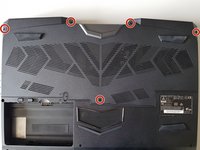
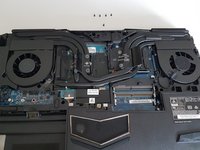
  3. P775DM3 Keyboard replacement, Access to major components: crwdns2935265:03crwdnd2935265:01crwdnd2935265:02crwdne2935265:0 P775DM3 Keyboard replacement, Access to major components: crwdns2935265:03crwdnd2935265:02crwdnd2935265:02crwdne2935265:0
    • Unscrew the five screws circled in red.

    crwdns2952109:0crwdne2952109:0

    crwdns2917038:0crwdne2917038:0

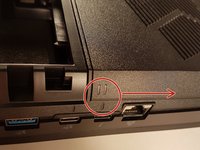
  4. P775DM3 Keyboard replacement: crwdns2935265:04crwdnd2935265:01crwdnd2935265:02crwdne2935265:0 P775DM3 Keyboard replacement: crwdns2935265:04crwdnd2935265:02crwdnd2935265:02crwdne2935265:0
    • Slide the plate in the direction of the red arrow.

    crwdns2952109:0crwdne2952109:0

    crwdns2917038:0crwdne2917038:0

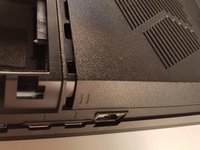
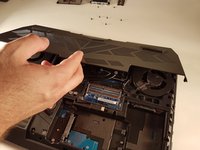
  5. P775DM3 Keyboard replacement: crwdns2935265:05crwdnd2935265:01crwdnd2935265:02crwdne2935265:0 P775DM3 Keyboard replacement: crwdns2935265:05crwdnd2935265:02crwdnd2935265:02crwdne2935265:0
    • Lift the plate.

    crwdns2952109:0crwdne2952109:0

    crwdns2917038:0crwdne2917038:0

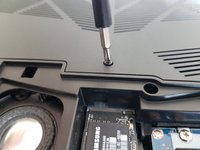
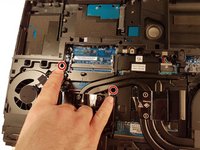
  6. P775DM3 Keyboard replacement, Keyboard: crwdns2935265:06crwdnd2935265:01crwdnd2935265:02crwdne2935265:0 P775DM3 Keyboard replacement, Keyboard: crwdns2935265:06crwdnd2935265:02crwdnd2935265:02crwdne2935265:0
    • Unscrew the two screws circled in red

    crwdns2952109:0crwdne2952109:0

    crwdns2917038:0crwdne2917038:0

  7. P775DM3 Keyboard replacement: crwdns2935265:07crwdnd2935265:01crwdnd2935265:03crwdne2935265:0 P775DM3 Keyboard replacement: crwdns2935265:07crwdnd2935265:02crwdnd2935265:03crwdne2935265:0 P775DM3 Keyboard replacement: crwdns2935265:07crwdnd2935265:03crwdnd2935265:03crwdne2935265:0
    • Press a paper clip in the three places marked in red

    • Lift the keyboard and feel free to put some strength

    crwdns2952109:0crwdne2952109:0

    crwdns2917038:0crwdne2917038:0

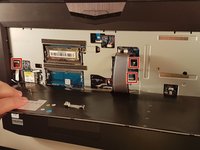
  8. P775DM3 Keyboard replacement: crwdns2935265:08crwdnd2935265:01crwdnd2935265:02crwdne2935265:0 P775DM3 Keyboard replacement: crwdns2935265:08crwdnd2935265:02crwdnd2935265:02crwdne2935265:0
    • Disconnect the three framed connectors in red

    crwdns2952109:0crwdne2952109:0

    crwdns2917038:0crwdne2917038:0

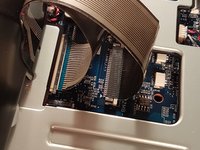
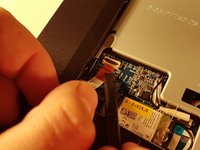
  9. P775DM3 Keyboard replacement: crwdns2935265:09crwdnd2935265:01crwdnd2935265:02crwdne2935265:0 P775DM3 Keyboard replacement: crwdns2935265:09crwdnd2935265:02crwdnd2935265:02crwdne2935265:0
    • Pull the white drawer in the direction of the arrow to unlock the connector

    • Disconnect the red circled connector

    crwdns2952109:0crwdne2952109:0

    crwdns2917038:0crwdne2917038:0

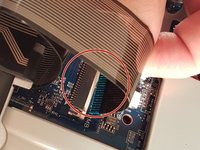
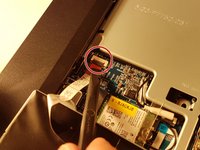
  10. P775DM3 Keyboard replacement: crwdns2935265:010crwdnd2935265:01crwdnd2935265:02crwdne2935265:0 P775DM3 Keyboard replacement: crwdns2935265:010crwdnd2935265:02crwdnd2935265:02crwdne2935265:0
    • Pull the black drawer in the direction of the arrow to unlock the connector

    • Disconnect the red circled connector

    crwdns2952109:0crwdne2952109:0

    crwdns2917038:0crwdne2917038:0

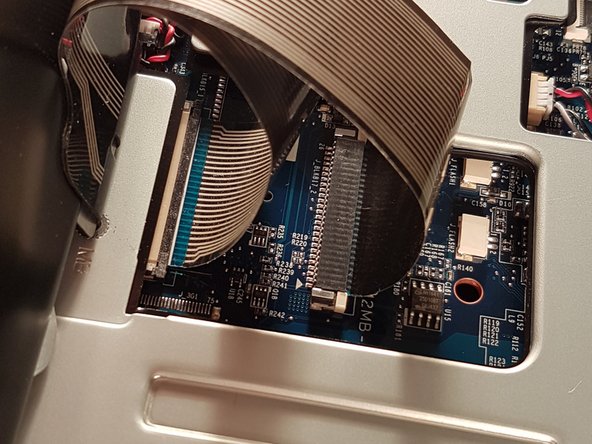
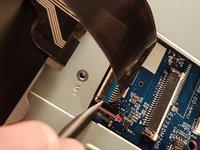
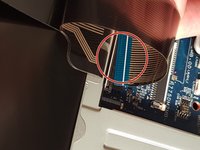
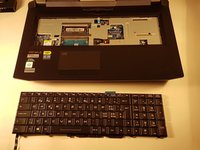
  11. P775DM3 Keyboard replacement: crwdns2935265:011crwdnd2935265:01crwdnd2935265:03crwdne2935265:0 P775DM3 Keyboard replacement: crwdns2935265:011crwdnd2935265:02crwdnd2935265:03crwdne2935265:0 P775DM3 Keyboard replacement: crwdns2935265:011crwdnd2935265:03crwdnd2935265:03crwdne2935265:0
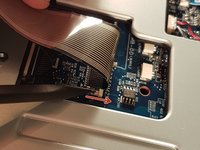
    • Lift the flap that holds the connector circled in red

    • Disconnect the red circled connector

    • Remove the keyboard

    crwdns2952109:0crwdne2952109:0

    crwdns2917038:0crwdne2917038:0

crwdns2915888:0crwdne2915888:0

To reassemble your device, follow the instructions in reverse order.

crwdns2935221:0crwdne2935221:0

crwdns2935229:06crwdne2935229:0

crwdns2934873:0crwdne2934873:0

fr en

100%

crwdns2934885:0crwdne2934885:0 crwdns2934875:0crwdne2934875:0
crwdns2934877:0crwdne2934877:0 ›

Felice Suglia

crwdns2935283:006/15/13crwdne2935283:0

33,589 crwdns2915208:0crwdne2915208:0

crwdns2935297:0283crwdne2935297:0

crwdns2947412:03crwdne2947412:0

I wish to know whether it’s possible to pry off the key to clean off the contacts. (I spilled coffee on the keyboard).

Fortunately for me, the key was on the edge of the board (the down arrow key). It was stuck on.

I lifted the key up as much as I could and I cleaned it with Deoxit. That did the trick. My keyboard is now working.

Thanks for the steps!

Clem Wang - crwdns2934203:0crwdne2934203:0 crwdns2950251:0crwdne2950251:0

Oops. Spoke too soon. There’s something wrong with the keyboard: the INSERT key (ESC -[2~ ) is stuck. Also, there’s a red light under the keyboard. I’m not sure what that all means…

Clem Wang - crwdns2934203:0crwdne2934203:0 crwdns2950251:0crwdne2950251:0
Great instructions, but for my laptop, step 7 only indicated three of seven places (the other four are the top centre of the keyboard, and the three points symmetrical to the 3 you’ve indacted, on the right hand side of the keyboard).

Josh Greifer - crwdns2934203:0crwdne2934203:0 crwdns2950251:0crwdne2950251:0

crwdns2917038:0crwdne2917038:0

crwdns2936625:0crwdne2936625:0:

crwdns2936751:024crwdne2936751:0 2

crwdns2936753:07crwdne2936753:0 16

crwdns2936753:030crwdne2936753:0 81

crwdns2942667:0crwdne2942667:0 4,988