crwdns2933423:0crwdne2933423:0
crwdns2947577:0crwdnd2947577:0crwdne2947577:0

Nabi Big Tab HD24 Power Button Replacement

crwdns2942213:0crwdne2942213:0

  1. Nabi Big Tab HD24 Power Button Replacement, Back Assembly: crwdns2935265:01crwdnd2935265:01crwdnd2935265:01crwdne2935265:0
    • Ensure that the tablet is facing you with the screen on the table.

    • Locate the four red rubber stops at the corners.

    crwdns2952109:0crwdne2952109:0
  2. Nabi Big Tab HD24 Power Button Replacement: crwdns2935265:02crwdnd2935265:01crwdnd2935265:01crwdne2935265:0
    • Use your fingers to carefully peel them off the device to reveal the screws underneath.

    crwdns2952109:0crwdne2952109:0
  3. Nabi Big Tab HD24 Power Button Replacement: crwdns2935265:03crwdnd2935265:01crwdnd2935265:01crwdne2935265:0
    • Use a Phillips #1 screwdriver to remove the 9.5 mm screw in each of the four corners.

    crwdns2952109:0crwdne2952109:0
  4. Nabi Big Tab HD24 Power Button Replacement: crwdns2935265:04crwdnd2935265:01crwdnd2935265:01crwdne2935265:0
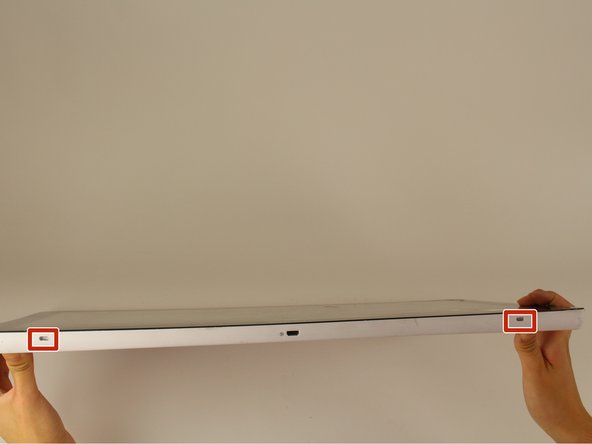
    • Flip the tablet over such that the screen is facing upwards.

    • Locate the the 4 small openings on the sides of the tablet.

    • There should be 2 on the bottom of the tablet, 1 on each side of the tablet viewing it from the front as if you were using it.

    • Do not confuse the openings with the charging port or the USB ports. The openings will be labelled with an icon of a small fan, the Nabi logo.

    crwdns2952109:0crwdne2952109:0
  5. Nabi Big Tab HD24 Power Button Replacement: crwdns2935265:05crwdnd2935265:01crwdnd2935265:01crwdne2935265:0
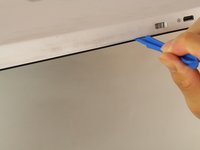
    • Insert a metal spudger into one of the openings and carefully pop the device open by applying a steady downward force.

    • Repeat for the other three openings.

    crwdns2952109:0crwdne2952109:0
  6. Nabi Big Tab HD24 Power Button Replacement: crwdns2935265:06crwdnd2935265:01crwdnd2935265:02crwdne2935265:0 Nabi Big Tab HD24 Power Button Replacement: crwdns2935265:06crwdnd2935265:02crwdnd2935265:02crwdne2935265:0
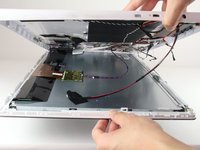
    • Flip the device over so that the back assembly is facing you.

    • Use a plastic opening tool to carefully pry open the device from its hinges.

    • Take care when opening the device as there are cables running internally that are connected to both the front and the back assemblies.

    crwdns2952109:0crwdne2952109:0
  7. Nabi Big Tab HD24 Power Button Replacement: crwdns2935265:07crwdnd2935265:01crwdnd2935265:02crwdne2935265:0 Nabi Big Tab HD24 Power Button Replacement: crwdns2935265:07crwdnd2935265:02crwdnd2935265:02crwdne2935265:0
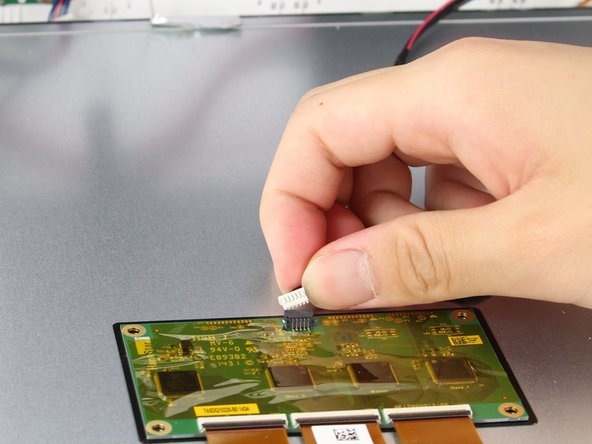
    • Locate the white port that connects the back panel to the circuit board on the back of the display.

    • Carefully pull the plastic connector straight out.

    crwdns2952109:0crwdne2952109:0
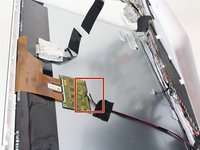
  8. Nabi Big Tab HD24 Power Button Replacement: crwdns2935265:08crwdnd2935265:01crwdnd2935265:01crwdne2935265:0
    • Be careful of the aluminum foil tape, as it can easily rip.

    • Carefully lift up the aluminum foil tape with your fingers so that the ribbon connector reveals itself.

    • Do not try to pull the ribbon cables off the screen as there is a plastic piece surrounding the ribbon cables glued onto the metal display.

    crwdns2952109:0crwdne2952109:0
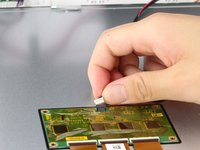
  9. Nabi Big Tab HD24 Power Button Replacement: crwdns2935265:09crwdnd2935265:01crwdnd2935265:01crwdne2935265:0
    • Firmly press the two switches located on the sides of the connector and disconnect the connector from its connections.

    • Leave the connector disconnected but still intact with the metal display.

    crwdns2952109:0crwdne2952109:0
  10. Nabi Big Tab HD24 Power Button Replacement: crwdns2935265:010crwdnd2935265:01crwdnd2935265:01crwdne2935265:0
    • Use a plastic opening tool and carefully push it underneath the grey plastic case surrounding the ribbon cable.

    • Apply a downward force to carefully peel the grey plastic off of the metal display.

    crwdns2952109:0crwdne2952109:0
  11. Nabi Big Tab HD24 Power Button Replacement: crwdns2935265:011crwdnd2935265:01crwdnd2935265:01crwdne2935265:0
    • Locate the two cables running on both sides of the device found at the bottom side of the screen.

    crwdns2952109:0crwdne2952109:0
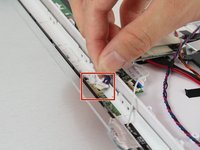
  12. Nabi Big Tab HD24 Power Button Replacement: crwdns2935265:012crwdnd2935265:01crwdnd2935265:02crwdne2935265:0 Nabi Big Tab HD24 Power Button Replacement: crwdns2935265:012crwdnd2935265:02crwdnd2935265:02crwdne2935265:0
    • Carefully grab both sides of the white plastic piece with your fingers and gently pull directly upward.

    • Do not pull from the red and black cable as it is not very sturdy and may come undone from the connector.

    crwdns2952109:0crwdne2952109:0
  13. Nabi Big Tab HD24 Power Button Replacement, Power Button: crwdns2935265:013crwdnd2935265:01crwdnd2935265:02crwdne2935265:0 Nabi Big Tab HD24 Power Button Replacement, Power Button: crwdns2935265:013crwdnd2935265:02crwdnd2935265:02crwdne2935265:0
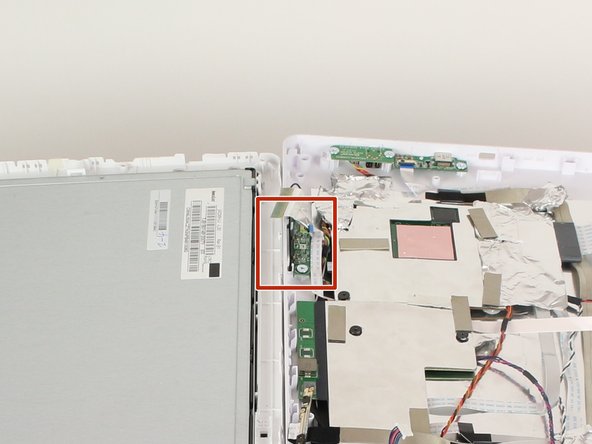
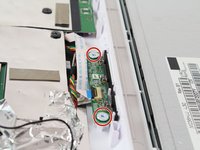
    • Locate the power button assembly on the side with all the circuit boards.

    • The power button will be on the side closest to the screen when the device is opened up.

    crwdns2952109:0crwdne2952109:0
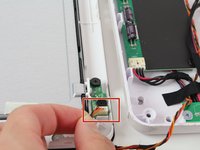
  14. Nabi Big Tab HD24 Power Button Replacement: crwdns2935265:014crwdnd2935265:01crwdnd2935265:01crwdne2935265:0
    • Lift up the black plastic tab holding the white fiber cable with the blue tip.

    crwdns2952109:0crwdne2952109:0
  15. Nabi Big Tab HD24 Power Button Replacement: crwdns2935265:015crwdnd2935265:01crwdnd2935265:01crwdne2935265:0
    • Remove the fiber cable with a blue tip by gently sliding it out.

    crwdns2952109:0crwdne2952109:0
  16. Nabi Big Tab HD24 Power Button Replacement: crwdns2935265:016crwdnd2935265:01crwdnd2935265:02crwdne2935265:0 Nabi Big Tab HD24 Power Button Replacement: crwdns2935265:016crwdnd2935265:02crwdnd2935265:02crwdne2935265:0
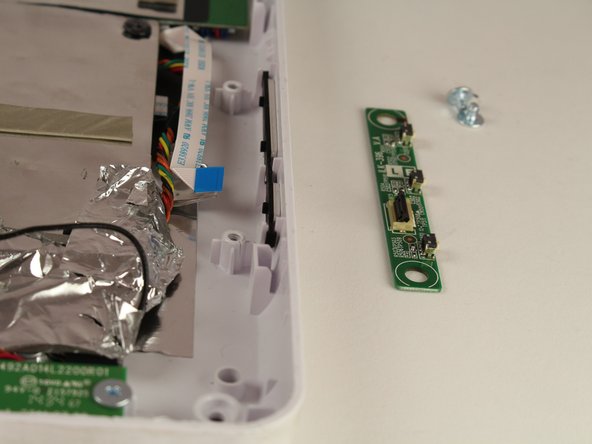
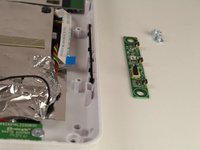
    • Remove the 2 silver 4.5 mm screws holding the power button assembly in place using the Phillips #1 screwdriver.

    • Take out the circuit board and replace it with your new one.

    • Be sure not to remove the black padding along the edge of the tablet.

    crwdns2952109:0crwdne2952109:0
crwdns2915888:0crwdne2915888:0

To reassemble your device, follow these instructions in reverse order.

Nathan Lubega

crwdns2935283:010/05/16crwdne2935283:0

107 crwdns2915208:0crwdne2915208:0

crwdns2935295:0crwdne2935295:0

crwdns2935287:0crwdne2935287:0

Cal Poly, Team 4-1, Livingston Fall 2016 crwdns2935289:0Cal Poly, Team 4-1, Livingston Fall 2016crwdne2935289:0

CPSU-LIVINGSTON-F16S4G1

crwdns2931471:04crwdne2931471:0

crwdns2935297:014crwdne2935297:0

crwdns2947412:00crwdne2947412:0

crwdns2917038:0crwdne2917038:0

crwdns2936625:0crwdne2936625:0:

crwdns2936751:024crwdne2936751:0 1

crwdns2936753:07crwdne2936753:0 5

crwdns2936753:030crwdne2936753:0 42

crwdns2942667:0crwdne2942667:0 791