crwdns2933423:0crwdne2933423:0
crwdns2947577:0crwdnd2947577:0crwdne2947577:0

Motorola RAZR Maxx HD Screen Replacement

crwdns2942213:0crwdne2942213:0

  1. Motorola RAZR Maxx HD Screen Replacement, Screen Removal: crwdns2935265:01crwdnd2935265:01crwdnd2935265:02crwdne2935265:0 Motorola RAZR Maxx HD Screen Replacement, Screen Removal: crwdns2935265:01crwdnd2935265:02crwdnd2935265:02crwdne2935265:0
    • Use the Torx T5 Screwdriver to remove two 5.0 mm screws at the bottom of the phone.

    crwdns2952109:0crwdne2952109:0

    crwdns2917038:0crwdne2917038:0

  2. Motorola RAZR Maxx HD Screen Replacement: crwdns2935265:02crwdnd2935265:01crwdnd2935265:02crwdne2935265:0 Motorola RAZR Maxx HD Screen Replacement: crwdns2935265:02crwdnd2935265:02crwdnd2935265:02crwdne2935265:0
    • To remove the SIM card, use an unfolded paperclip to press down on the metal plate on the left side of the phone until it pops up.

    crwdns2952109:0crwdne2952109:0

    crwdns2917038:0crwdne2917038:0

  3. Motorola RAZR Maxx HD Screen Replacement: crwdns2935265:03crwdnd2935265:01crwdnd2935265:02crwdne2935265:0 Motorola RAZR Maxx HD Screen Replacement: crwdns2935265:03crwdnd2935265:02crwdnd2935265:02crwdne2935265:0
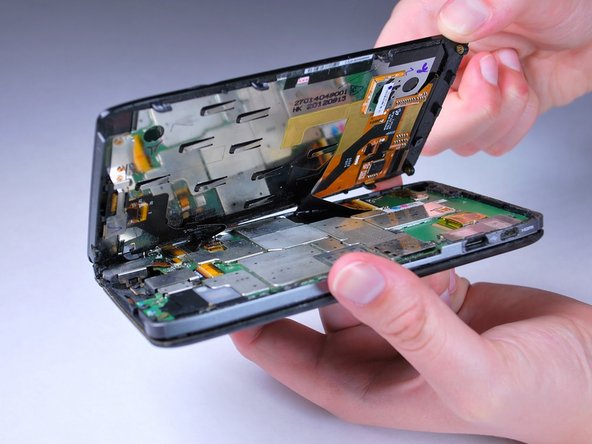
    • Gently push the screen toward the top edge of the phone and tilt the screen to reveal the black flex cables.

    • Do NOT remove the screen all the way or the flex cables will be damaged.

    crwdns2952109:0crwdne2952109:0

    crwdns2917038:0crwdne2917038:0

  4. Motorola RAZR Maxx HD Screen Replacement: crwdns2935265:04crwdnd2935265:01crwdnd2935265:02crwdne2935265:0 Motorola RAZR Maxx HD Screen Replacement: crwdns2935265:04crwdnd2935265:02crwdnd2935265:02crwdne2935265:0
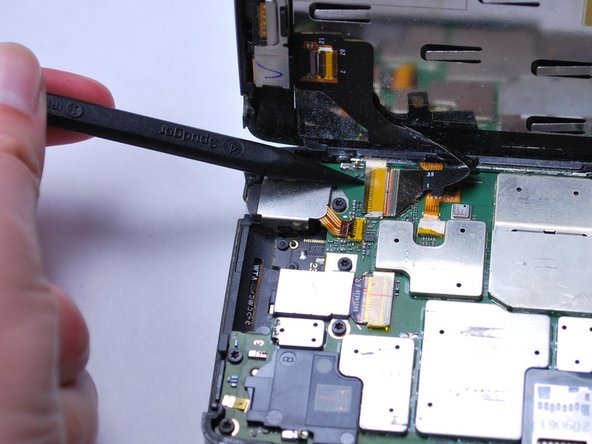
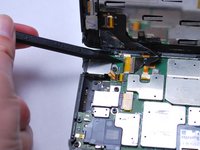
    • Release the two black ribbon flex cables by gently pulling up on the connection using the spudger. Then lift the screen to remove.

    • Make sure to remove the flex cables before completely removing the screen.

    • When reassembling, align the white bands on the edge of the screen so that a connection is made.

    crwdns2952109:0crwdne2952109:0

    crwdns2917038:0crwdne2917038:0

  5. Motorola RAZR Maxx HD Screen Replacement, Front-Facing Camera: crwdns2935265:05crwdnd2935265:01crwdnd2935265:01crwdne2935265:0
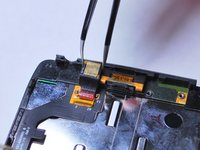
    • On the back of the LCD display, release the yellow front-facing camera ribbon cable by gently lifting upward on the black retaining clip with the spudger.

    crwdns2952109:0crwdne2952109:0

    crwdns2917038:0crwdne2917038:0

  6. Motorola RAZR Maxx HD Screen Replacement: crwdns2935265:06crwdnd2935265:01crwdnd2935265:03crwdne2935265:0 Motorola RAZR Maxx HD Screen Replacement: crwdns2935265:06crwdnd2935265:02crwdnd2935265:03crwdne2935265:0 Motorola RAZR Maxx HD Screen Replacement: crwdns2935265:06crwdnd2935265:03crwdnd2935265:03crwdne2935265:0
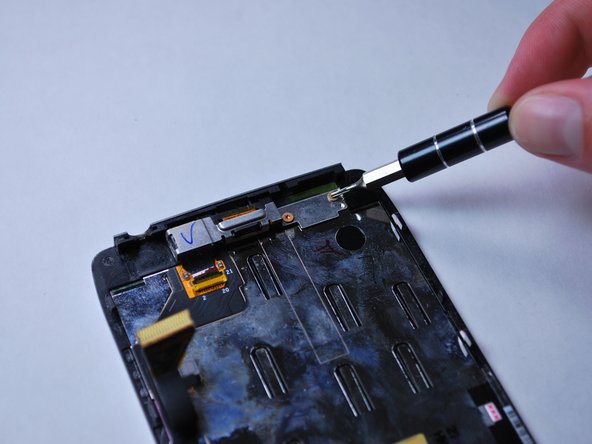
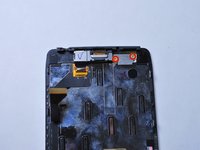
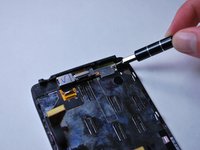
    • With a Torx T3 screwdriver, unscrew the two 2.0 mm screws on front-facing camera mounting bracket. Then lift to remove it.

    crwdns2952109:0crwdne2952109:0

    crwdns2917038:0crwdne2917038:0

  7. Motorola RAZR Maxx HD Screen Replacement: crwdns2935265:07crwdnd2935265:01crwdnd2935265:02crwdne2935265:0 Motorola RAZR Maxx HD Screen Replacement: crwdns2935265:07crwdnd2935265:02crwdnd2935265:02crwdne2935265:0
    crwdns2935267:0crwdne2935267:0
    Tweezers
    $4.99
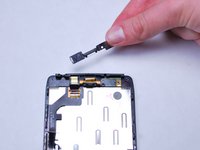
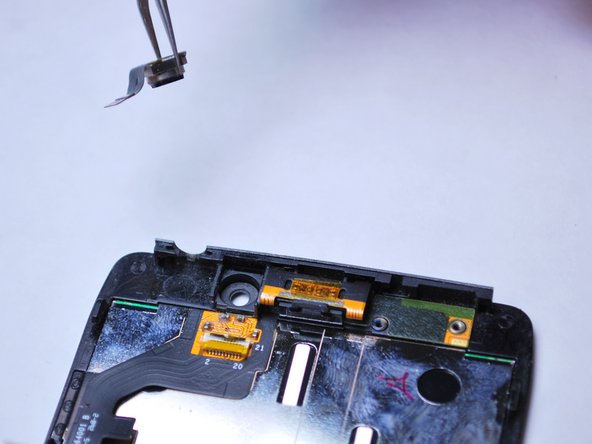
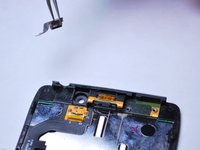
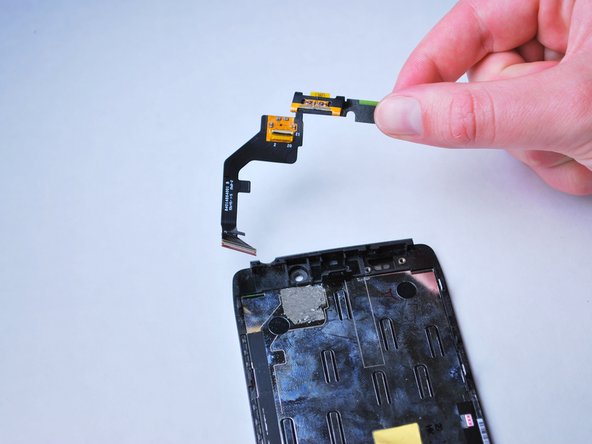
    • Use tweezers to remove the front-facing camera by lifting it from the LCD display frame.

    crwdns2952109:0crwdne2952109:0

    crwdns2917038:0crwdne2917038:0

  8. Motorola RAZR Maxx HD Screen Replacement, Earpiece Speaker: crwdns2935265:08crwdnd2935265:01crwdnd2935265:01crwdne2935265:0
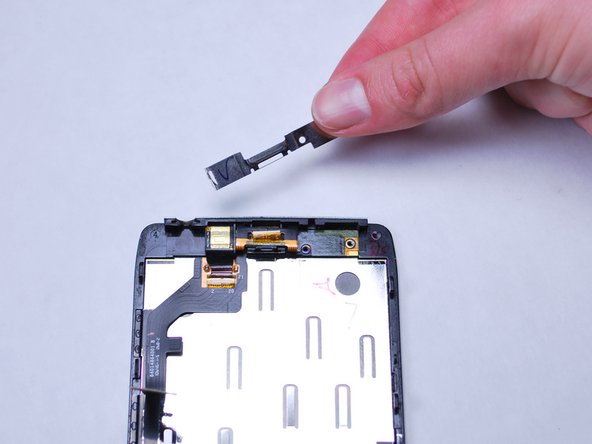
    • Insert the spudger between the speaker and retaining clip and gently pry upward to release the earpiece speaker.

    crwdns2952109:0crwdne2952109:0

    crwdns2917038:0crwdne2917038:0

  9. Motorola RAZR Maxx HD Screen Replacement: crwdns2935265:09crwdnd2935265:01crwdnd2935265:02crwdne2935265:0 Motorola RAZR Maxx HD Screen Replacement: crwdns2935265:09crwdnd2935265:02crwdnd2935265:02crwdne2935265:0
    • Using a spudger, gently pry up on the lower right edge of the black earpiece speaker ribbon cable, attached to the screen, to release it from the LCD display.

    crwdns2952109:0crwdne2952109:0

    crwdns2917038:0crwdne2917038:0

crwdns2915888:0crwdne2915888:0

To reassemble your device, follow these instructions in reverse order.

crwdns2935221:0crwdne2935221:0

crwdns2935229:08crwdne2935229:0

Enrique

crwdns2935283:002/01/15crwdne2935283:0

371 crwdns2915208:0crwdne2915208:0

crwdns2935297:02crwdne2935297:0

crwdns2935287:0crwdne2935287:0

Cal Poly, Team 8-40, Amido Winter 2015 crwdns2935289:0Cal Poly, Team 8-40, Amido Winter 2015crwdne2935289:0

CPSU-AMIDO-W15S8G40

crwdns2931471:05crwdne2931471:0

crwdns2935297:018crwdne2935297:0

crwdns2947412:00crwdne2947412:0

crwdns2917038:0crwdne2917038:0

crwdns2936625:0crwdne2936625:0:

crwdns2936751:024crwdne2936751:0 2

crwdns2936753:07crwdne2936753:0 9

crwdns2936753:030crwdne2936753:0 30

crwdns2942667:0crwdne2942667:0 3,151