crwdns2933423:0crwdne2933423:0
crwdns2947577:0crwdnd2947577:0crwdne2947577:0

Macintosh Powerbook 5300cs Trackpad Replacement

crwdns2942213:0crwdne2942213:0

    1. Macintosh Powerbook 5300cs Trackpad Replacement, Battery: crwdns2935265:01crwdnd2935265:01crwdnd2935265:01crwdne2935265:0
      • The battery compartment is located in the front-right side of the laptop.

      crwdns2952109:0crwdne2952109:0

      crwdns2917038:0crwdne2917038:0

    2. Macintosh Powerbook 5300cs Trackpad Replacement: crwdns2935265:02crwdnd2935265:01crwdnd2935265:01crwdne2935265:0
      • To insert the battery, gently slide it into the compartment until it clicks in place.

      • To remove, slide the button highlighted in the red rectangle to the right to release the battery and slide it from the compartment.

      crwdns2952109:0crwdne2952109:0

      crwdns2917038:0crwdne2917038:0

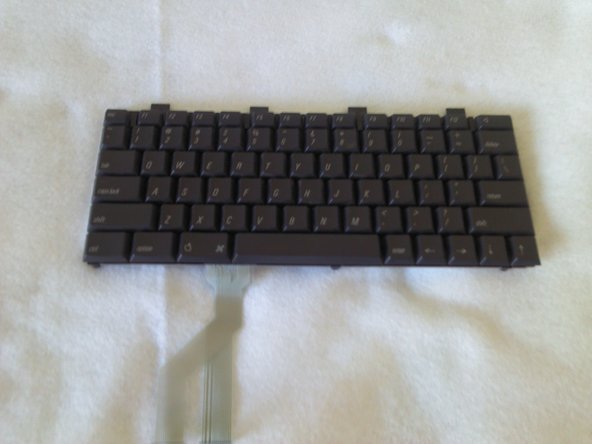
    1. Macintosh Powerbook 5300cs Trackpad Replacement, Keyboard: crwdns2935265:03crwdnd2935265:01crwdnd2935265:01crwdne2935265:0
      • With the laptop upside down and with the battery removed, use a Torx #9 screw driver to remove the three .84 in. screws shown.

      crwdns2952109:0crwdne2952109:0

      crwdns2917038:0crwdne2917038:0

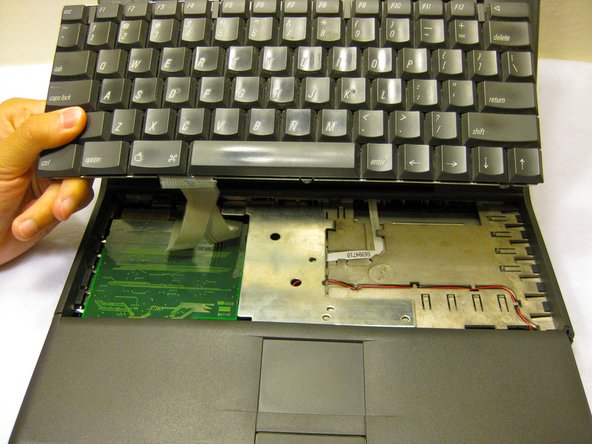
    2. Macintosh Powerbook 5300cs Trackpad Replacement: crwdns2935265:04crwdnd2935265:01crwdnd2935265:02crwdne2935265:0 Macintosh Powerbook 5300cs Trackpad Replacement: crwdns2935265:04crwdnd2935265:02crwdnd2935265:02crwdne2935265:0
      • Carefully pull up on the front of the keyboard to pop it out from the case.

      • Then slide the back out so the keyboard becomes nearly free.

      crwdns2952109:0crwdne2952109:0

      crwdns2917038:0crwdne2917038:0

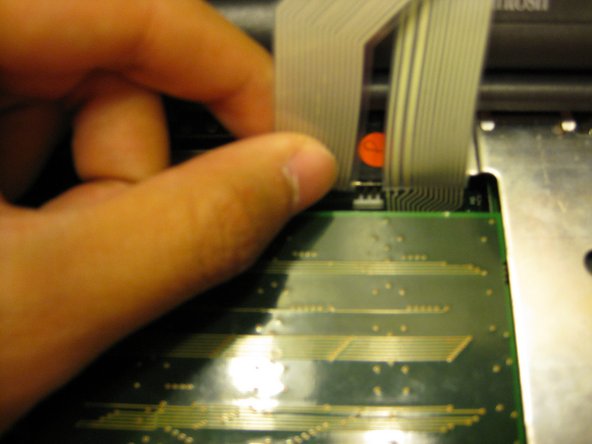
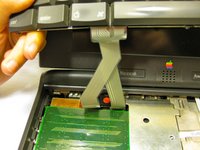
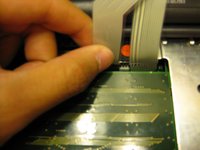
    3. Macintosh Powerbook 5300cs Trackpad Replacement: crwdns2935265:05crwdnd2935265:01crwdnd2935265:03crwdne2935265:0 Macintosh Powerbook 5300cs Trackpad Replacement: crwdns2935265:05crwdnd2935265:02crwdnd2935265:03crwdne2935265:0 Macintosh Powerbook 5300cs Trackpad Replacement: crwdns2935265:05crwdnd2935265:03crwdnd2935265:03crwdne2935265:0
      • Disconnect the ribbon that is connecting the keyboard to the rest of the computer.

      • Pull the keyboard out and repair or replace as needed.

      crwdns2952109:0crwdne2952109:0

      crwdns2917038:0crwdne2917038:0

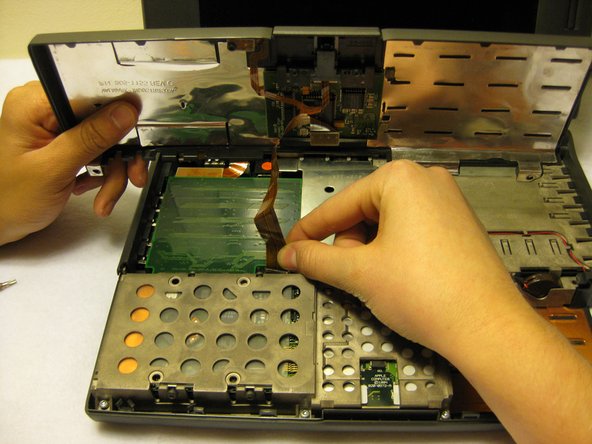
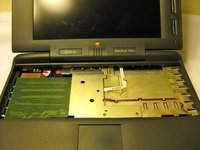
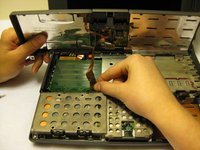
    1. Macintosh Powerbook 5300cs Trackpad Replacement, Trackpad: crwdns2935265:06crwdnd2935265:01crwdnd2935265:03crwdne2935265:0 Macintosh Powerbook 5300cs Trackpad Replacement, Trackpad: crwdns2935265:06crwdnd2935265:02crwdnd2935265:03crwdne2935265:0 Macintosh Powerbook 5300cs Trackpad Replacement, Trackpad: crwdns2935265:06crwdnd2935265:03crwdnd2935265:03crwdne2935265:0
      • Remove the front plastic panel of the laptop by carefully lifting it up and forward.

      • There will be another another ribbon cable connecting the trackpad; use caution when lifting the front panel.

      crwdns2952109:0crwdne2952109:0

      crwdns2917038:0crwdne2917038:0

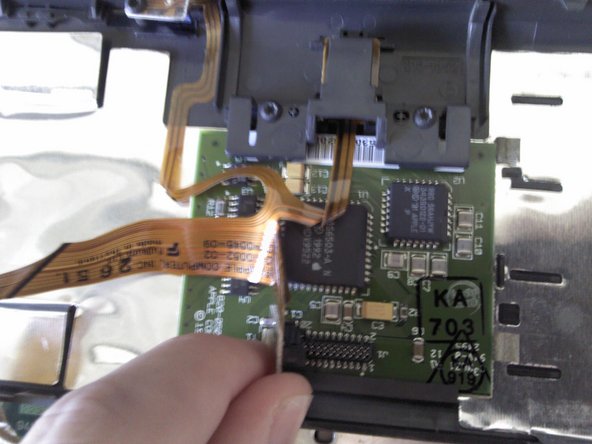
    2. Macintosh Powerbook 5300cs Trackpad Replacement: crwdns2935265:07crwdnd2935265:01crwdnd2935265:01crwdne2935265:0
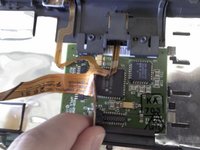
      • Remove the orange stripped ribbon that connects the trackpad to the device by carefully pulling the ribbon from its connector up and out.

      crwdns2952109:0crwdne2952109:0

      crwdns2917038:0crwdne2917038:0

    3. Macintosh Powerbook 5300cs Trackpad Replacement: crwdns2935265:08crwdnd2935265:01crwdnd2935265:02crwdne2935265:0 Macintosh Powerbook 5300cs Trackpad Replacement: crwdns2935265:08crwdnd2935265:02crwdnd2935265:02crwdne2935265:0
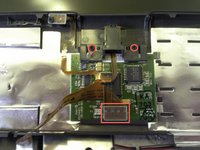
      • With a Torx #9 screwdriver, remove the two .20 in. screws circled in red that are holding the trackpad in place. This will disconnect the mouse button.

      • Following this action, disconnect the ribbon highlighted with the red rectangle connecting the trackpad to the laptop.

      • Remove the mouse button by sliding it out from the top of the orange ribbon.

      crwdns2952109:0crwdne2952109:0

      crwdns2917038:0crwdne2917038:0

    4. Macintosh Powerbook 5300cs Trackpad Replacement: crwdns2935265:09crwdnd2935265:01crwdnd2935265:01crwdne2935265:0
      • The trackpad can now be removed from the laptop. Adjust the trackpad as needed.

      crwdns2952109:0crwdne2952109:0

      crwdns2917038:0crwdne2917038:0

crwdns2915888:0crwdne2915888:0

To reassemble your device, follow these instructions in reverse order.

crwdns2935221:0crwdne2935221:0

crwdns2935229:02crwdne2935229:0

Ronan

crwdns2935283:010/10/11crwdne2935283:0

72 crwdns2915208:0crwdne2915208:0

crwdns2935297:04crwdne2935297:0

crwdns2935287:0crwdne2935287:0

Cal Poly, Team 6-1, Regan Fall 2011 crwdns2935289:0Cal Poly, Team 6-1, Regan Fall 2011crwdne2935289:0

CPSU-REGAN-F11S6G1

crwdns2931471:04crwdne2931471:0

crwdns2935297:013crwdne2935297:0

crwdns2947412:00crwdne2947412:0

crwdns2917038:0crwdne2917038:0

crwdns2936625:0crwdne2936625:0:

crwdns2936751:024crwdne2936751:0 1

crwdns2936753:07crwdne2936753:0 9

crwdns2936753:030crwdne2936753:0 44

crwdns2942667:0crwdne2942667:0 1,525