crwdns2915892:0crwdne2915892:0
Use this guide to upgrade or replace the solid-state drive in a MacBook Pro 13” Early 2015. This MacBook Pro uses a proprietary storage drive connector, and is therefore not compatible with common M.2 drives without the use of an adapter.
Before you perform this repair, if at all possible, back up your existing SSD. Then, either familiarize yourself with internet recovery or create a bootable external drive so you’ll be ready to install macOS onto your new drive and migrate your data to the new SSD.
Finally, we strongly recommend installing macOS 10.13 High Sierra (or a later macOS) before replacing the original SSD from your MacBook Pro. Most new SSDs require updated storage drivers not found in versions of macOS prior to High Sierra.
crwdns2942213:0crwdne2942213:0
-
-
crwdns2935267:0crwdne2935267:0Magnetic Project Mat$19.95
-
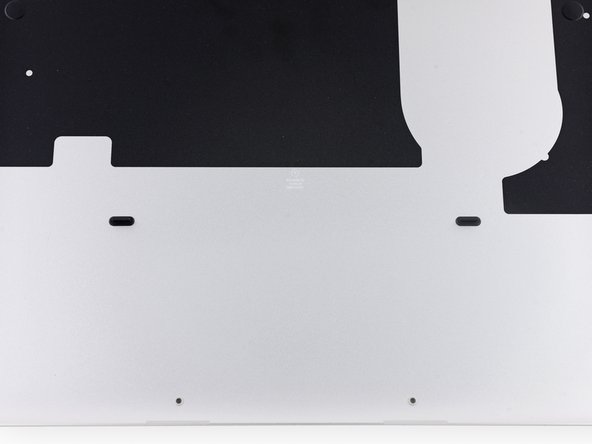
Remove the following ten screws securing the lower case to the upper case:
-
Two 2.3 mm P5 Pentalobe screws
-
Eight 3.0 mm P5 Pentalobe screws
 crwdns2952109:0crwdne2952109:0
-
-
-
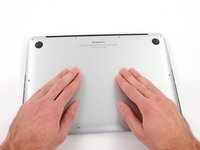
Wedge your fingers between the upper case and the lower case.
-
Gently pull the lower case away from the upper case to remove it.
-
-
-
-
-
-
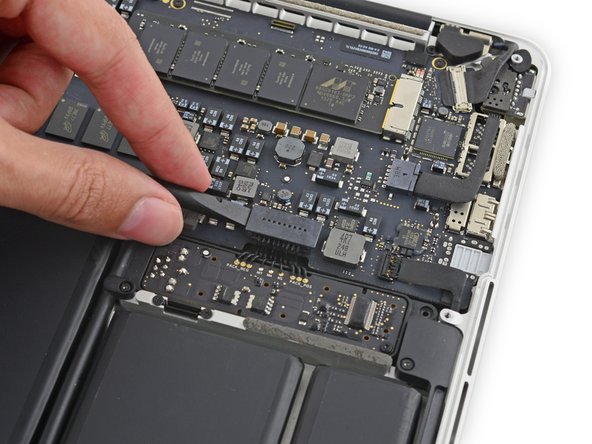
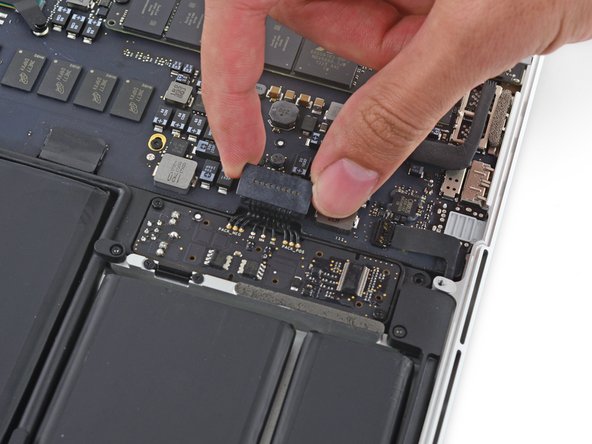
Use the flat end of a spudger to lift the battery connector straight up out of its socket on the logic board.
-
-
-
-
Remove the single 2.9 mm T5 Torx screw securing the SSD to the logic board.
-
-
-
Lift the free end of the SSD up slightly and pull the SSD straight out of its socket on the logic board.
-
-









To reassemble your device, follow these instructions in reverse order.
crwdns2935221:0crwdne2935221:0
crwdns2935229:0443crwdne2935229:0


crwdns2947412:0100crwdne2947412:0
If not disconnecting battery before replacement of ssd, will ssd be damaged for sure, or is it just a precaution and not likely?
Chris - crwdns2934203:0crwdne2934203:0 crwdns2950251:0crwdne2950251:0
This is recommendation. I never disconnect battery and no issues occur so far.
Oleg - crwdns2934203:0crwdne2934203:0 crwdns2950251:0crwdne2950251:0
Yes, damage can occur. Always disconnect any kind of power before removing different boards. After removing battery connector, it can be a good idea to discharge capacitors by pressing the power button on your mac. This ensures theres no latent current passing through the circuits.
andrehedegaard - crwdns2934203:0crwdne2934203:0 crwdns2950251:0crwdne2950251:0
I know this is an old comment but it is the top one, so this is a note for other people :)
You don’t only risk the SSD, you also risk damaging the rest of the computer.
Also please only use a plastic tool to lift off the battery connector, shorting out the pins can damage your SMC!
Slot1gamer - crwdns2934203:0crwdne2934203:0 crwdns2950251:0crwdne2950251:0
Which SSD can i use for upgrade? Can it be a normal like from Samung or else? Or has it to be from Apple?
karimi1993 - crwdns2934203:0crwdne2934203:0 crwdns2950251:0crwdne2950251:0
