crwdns2933423:0crwdne2933423:0
crwdns2947577:0crwdnd2947577:0crwdne2947577:0

Lenovo X130e LCD Replacement

crwdns2942213:0crwdne2942213:0

    1. Lenovo X130e LCD Replacement, Inspect the LCD for damage: crwdns2935265:01crwdnd2935265:01crwdnd2935265:01crwdne2935265:0
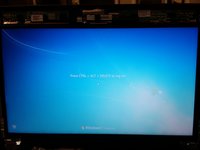
      • Before ordering a new LCD, determine if the old one is cracked or damaged. If it is damaged, power off the machine and remove the battery.

      crwdns2952109:0crwdne2952109:0

      crwdns2917038:0crwdne2917038:0

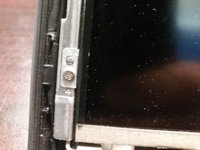
    2. Lenovo X130e LCD Replacement, Remove the LCD bezel: crwdns2935265:02crwdnd2935265:01crwdnd2935265:03crwdne2935265:0 Lenovo X130e LCD Replacement, Remove the LCD bezel: crwdns2935265:02crwdnd2935265:02crwdnd2935265:03crwdne2935265:0 Lenovo X130e LCD Replacement, Remove the LCD bezel: crwdns2935265:02crwdnd2935265:03crwdnd2935265:03crwdne2935265:0
      • While the display is cracked, handle it with caution. The screen may crack further.

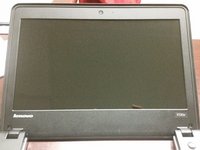
      • Unscrew two screws on the LCD bezel. There is one screw per side. Use a Phillps #1 screwdriver to do this.

      • Once the screws are out, use a pry tool to remove the LCD bezel. Work your way around the LCD bezel to remove it.

      crwdns2952109:0crwdne2952109:0

      crwdns2917038:0crwdne2917038:0

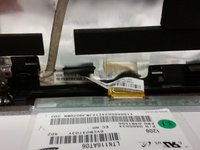
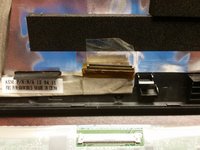
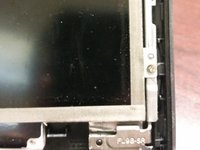
    3. Lenovo X130e LCD Replacement, Remove the LCD: crwdns2935265:03crwdnd2935265:01crwdnd2935265:03crwdne2935265:0 Lenovo X130e LCD Replacement, Remove the LCD: crwdns2935265:03crwdnd2935265:02crwdnd2935265:03crwdne2935265:0 Lenovo X130e LCD Replacement, Remove the LCD: crwdns2935265:03crwdnd2935265:03crwdnd2935265:03crwdne2935265:0
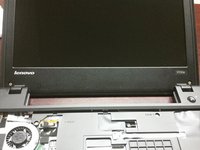
      • Remove the 4 screws holding the LCD in. There are two per side. Use a Phillps #0 screwdriver to do this.

      • Once the screws are out, pry the broken LCD to expose the LVDS cable. Once you have LVDS cable access, loosen the tape holding it in.

      • Set the broken LCD aside for recycling.

      crwdns2952109:0crwdne2952109:0

      crwdns2917038:0crwdne2917038:0

    4. Lenovo X130e LCD Replacement, Install the new LCD: crwdns2935265:04crwdnd2935265:01crwdnd2935265:02crwdne2935265:0 Lenovo X130e LCD Replacement, Install the new LCD: crwdns2935265:04crwdnd2935265:02crwdnd2935265:02crwdne2935265:0
      • Get the new LCD. Inspect it for damage before installation.

      • Reconnect the LVDS cable to the new LCD. Push the tape down after it is plugged in. Note: The tape on the cable will be worn. Replace the tape if you are concerned the cable will fall out.

      • Screw the LCD into the LCD housing. Use the 4 screws previously removed before.

      • Power on the laptop to test the new LCD. If it works, snap the bezel back onto the laptop. Finish reassembling the laptop.

      crwdns2952109:0crwdne2952109:0

      crwdns2917038:0crwdne2917038:0

    5. Lenovo X130e LCD Replacement, Finishing up!: crwdns2935265:05crwdnd2935265:01crwdnd2935265:02crwdne2935265:0 Lenovo X130e LCD Replacement, Finishing up!: crwdns2935265:05crwdnd2935265:02crwdnd2935265:02crwdne2935265:0
      • When the new LCD is tested and is confirmed good, put the bezel back on.

      • Line the bezel up with the LCD housing. Once you align it, snap it back onto the system. After snapping it back on, screw the bezel in with the 2 screws that were previously removed.

      • Replace the laptop's battery.

      crwdns2952109:0crwdne2952109:0

      crwdns2917038:0crwdne2917038:0

crwdns2915888:0crwdne2915888:0

Hope this guide will help repair or troubleshoot any problems with monitor on a lenovo based machine.

crwdns2935221:0crwdne2935221:0

crwdns2935229:04crwdne2935229:0

Bill

crwdns2935283:009/17/14crwdne2935283:0

911 crwdns2915208:0crwdne2915208:0

crwdns2935297:05crwdne2935297:0

crwdns2947412:00crwdne2947412:0

crwdns2917038:0crwdne2917038:0

crwdns2936625:0crwdne2936625:0:

crwdns2936751:024crwdne2936751:0 7

crwdns2936753:07crwdne2936753:0 28

crwdns2936753:030crwdne2936753:0 76

crwdns2942667:0crwdne2942667:0 2,992