crwdns2915892:0crwdne2915892:0
Follow this guide to replace the keyboard on your Lenovo Thinkpad T560 (model 43025). This may be useful if any of the keys on your laptop are missing or broken.
The keyboard allows you to enter information into your laptop. It is essential to every computer and laptop.
The keyboard may need to be replaced if any of the keys are missing or there is trouble pressing/depressing any of the keys. For more information about broken keys not depressing, go to the troubleshooting page.
Before replacing the keyboard, make sure to disable the internal battery, turn off your laptop and disconnect it from any external power sources.
crwdns2942213:0crwdne2942213:0
-
-
-
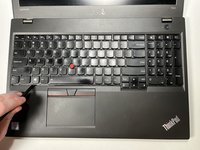
Using the spudger, slide the keyboard up towards the display at the notches created for this purpose.
 crwdns2952109:0crwdne2952109:0
-
-
-
Using the Phillips #0 screwdriver, remove the six 3.5 mm screws that secure the keyboard to the laptop.
-
-
-
-
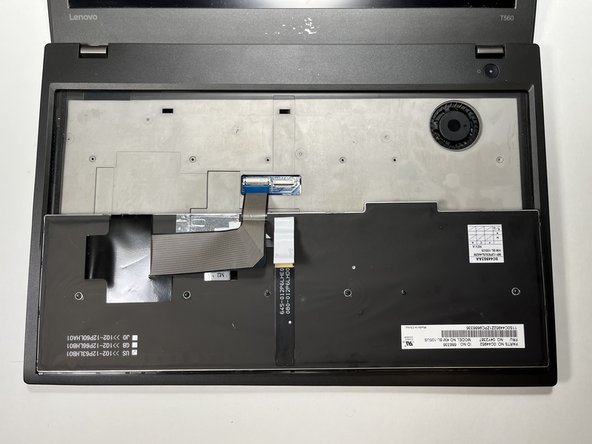
Using the spudger, push the keyboard toward the display and then slide it back out of the connector at top of the keyboard to remove.
-
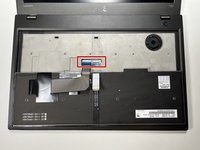
Flip the keyboard over to expose the keyboard's connections to the motherboard and touchpad.
-
-
-
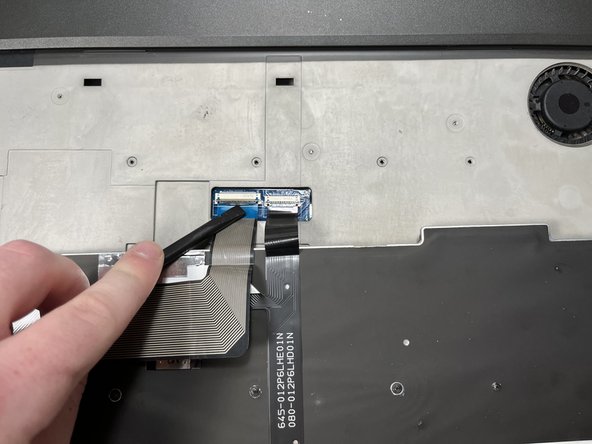
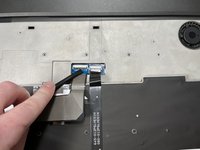
Using the spudger, open the latches securing the keyboard's connections to the motherboard and touchpad.
-
Remove the keyboard.
-
-



To reassemble your device, follow these instructions in reverse order.

crwdns2935287:0crwdne2935287:0

Clemson, Team 1-3, Hunter Spring 2022 crwdns2935289:0Clemson, Team 1-3, Hunter Spring 2022crwdne2935289:0
CLEM-HUNTER-S22S1G3
crwdns2931471:05crwdne2931471:0
crwdns2935297:060crwdne2935297:0
