crwdns2933423:0crwdne2933423:0
crwdns2947577:0crwdnd2947577:0crwdne2947577:0

Lenovo ThinkPad P52 Keyboard Replacement

crwdns2942213:0crwdne2942213:0

    1. Lenovo ThinkPad P52 Keyboard Replacement, Remove track pad click covers: crwdns2935265:01crwdnd2935265:01crwdnd2935265:01crwdne2935265:0
      • The first step is to remove the track pad left and right click covers. I used a plastic spudger tool to carefully pry and remove.

      crwdns2952109:0crwdne2952109:0

      crwdns2917038:0crwdne2917038:0

    2. Lenovo ThinkPad P52 Keyboard Replacement, Loosen screws holding keyboard in: crwdns2935265:02crwdnd2935265:01crwdnd2935265:01crwdne2935265:0
      • Once you have removed the covers you will see two screws (one on each cover). Using a PH0 screw driver, loosen the screws (they are attached so will not come out).

      crwdns2952109:0crwdne2952109:0

      crwdns2917038:0crwdne2917038:0

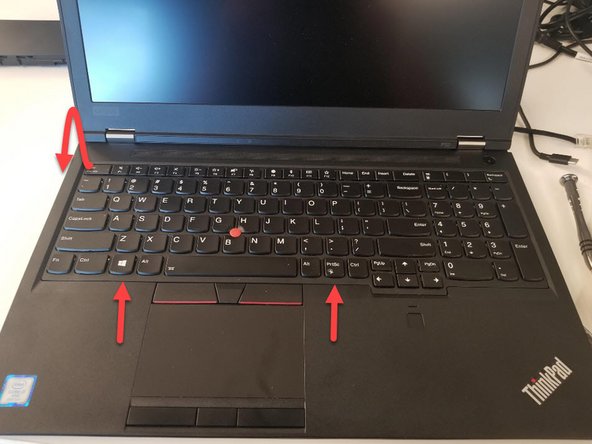
    3. Lenovo ThinkPad P52 Keyboard Replacement, Remove keyboard: crwdns2935265:03crwdnd2935265:01crwdnd2935265:02crwdne2935265:0 Lenovo ThinkPad P52 Keyboard Replacement, Remove keyboard: crwdns2935265:03crwdnd2935265:02crwdnd2935265:02crwdne2935265:0
      • Once the screws are loose, you can push the keyboard up to release the tabs holding it on on the bottom. I use a spudger to assist with this.

      • Once the tabs are released, you can carefully pull the keyboard down and flip it towards you. Exposing the two cables connecting it to the motherboard.

      crwdns2952109:0crwdne2952109:0

      crwdns2917038:0crwdne2917038:0

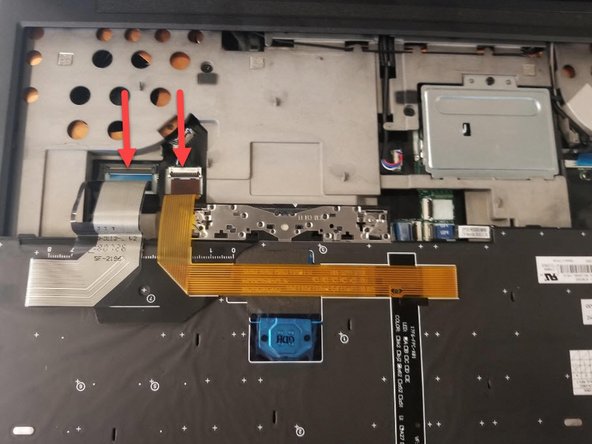
    4. Lenovo ThinkPad P52 Keyboard Replacement, Unplug ribbon cable: crwdns2935265:04crwdnd2935265:01crwdnd2935265:01crwdne2935265:0
      • Using a plastic spudger, release the clips holding the cable ribbons on.

      • Remove cable ribbons and keyboard has now been removed.

      crwdns2952109:0crwdne2952109:0

      crwdns2917038:0crwdne2917038:0

    5. Lenovo ThinkPad P52 Keyboard Replacement, Insert new Keyboard: crwdns2935265:05crwdnd2935265:01crwdnd2935265:03crwdne2935265:0 Lenovo ThinkPad P52 Keyboard Replacement, Insert new Keyboard: crwdns2935265:05crwdnd2935265:02crwdnd2935265:03crwdne2935265:0 Lenovo ThinkPad P52 Keyboard Replacement, Insert new Keyboard: crwdns2935265:05crwdnd2935265:03crwdnd2935265:03crwdne2935265:0
      • The new keyboard can be attached by running these steps in reverse.

      • First attach ribbon cable

      • The fold keyboard into laptop starting at top and then clip in towards bottom by pulling it down.

      • Then tighten the screws under the left and right click covers

      • Then attach the covers

      crwdns2952109:0crwdne2952109:0

      crwdns2917038:0crwdne2917038:0

crwdns2915888:0crwdne2915888:0

To reassemble your device, follow these instructions in reverse order.

crwdns2935221:0crwdne2935221:0

crwdns2935229:02crwdne2935229:0

Bill

crwdns2935283:009/17/14crwdne2935283:0

911 crwdns2915208:0crwdne2915208:0

crwdns2935297:05crwdne2935297:0

crwdns2947412:02crwdne2947412:0

Thank you. It is for the P52 model. I don’t know if the P52s is the same as the P52 as far as replacing the keyboard but when I was making the article it auto-populated the P52s and I didn’t change it back. I have made the appropriate change.

Bill - crwdns2934203:0crwdne2934203:0 crwdns2950251:0crwdne2950251:0

crwdns2917038:0crwdne2917038:0

crwdns2936625:0crwdne2936625:0:

crwdns2936751:024crwdne2936751:0 5

crwdns2936753:07crwdne2936753:0 43

crwdns2936753:030crwdne2936753:0 117

crwdns2942667:0crwdne2942667:0 8,660