crwdns2915892:0crwdne2915892:0
This is a guide to replace the hard drive in a Lenovo Legion Y530-15ICH laptop.
Credit to Kaylie Klausing for the first three pictures, as well as the steps themselves.
IMPORTANT:
- Your OS will NOT be installed on the new hard drive. For guidance on reinstalling Windows, I recommend this guide from HP. This requires a flash drive (minimum 8Gb storage) or DL-DVD.
- To transfer your files, I recommend the built-in Backup and Restore tool. This requires an external drive of at least the capacity of your current drive.
- I personally transferred my data to a lower-capacity (500Gb) drive because I had only 80Gb taking up space on a 1Tb drive. This causes no problems, but is not recommended because of the possibility of a user's replacement drive not having enough space for their data.
crwdns2942213:0crwdne2942213:0
-
-
Using a PH1 screwdriver or bit, remove eleven screws securing the back cover.
-
Five 7mm screws
-
Two 6mm screws
-
Four 4mm screws
-
-
-
Carefully pry the back cover off the computer using an opening pick.
-
Start at one of the rear corners of the laptop and work your way around the chassis, gently pulling up on the cover until it detaches.
-
-
-
Remove four screws from the HDD case, mostly releasing it from the laptop.
-
Four 4mm screws
-
-
-
-
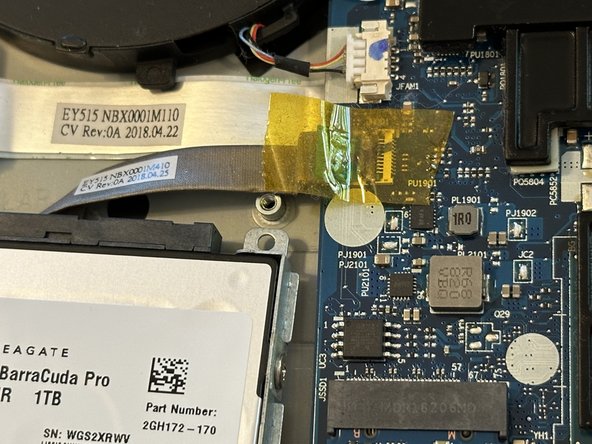
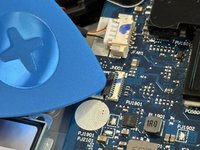
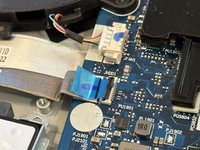
Use your prying tool or a spudger to flip up the FFC bail, the tiny black clamp shown here.
-
-
-
Once the screws are gone and the ribbon cable is safely disconnected, remove the hard drive with the casing from the rest of the computer.
-
Remove four screws from the casing, releasing the hard drive.
-
Four 3.5mm screws
-
-
-
Remove the hard drive from the casing.
-
-
-
This piece connects your hard drive to the computer. Remove it carefully, wiggling back and forth. Replace it on your new hard drive.
-






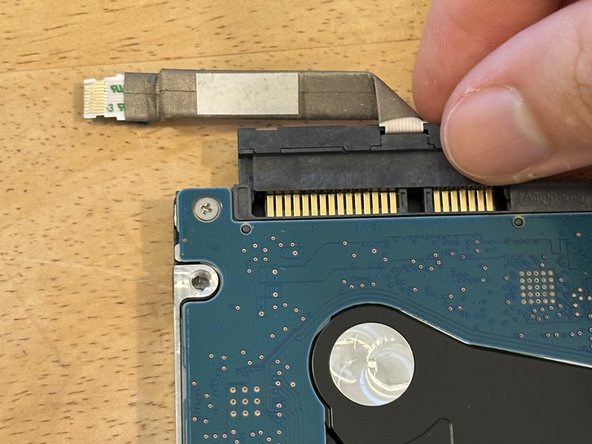
Once the ribbon cable piece has been attached to the new hard drive, just follow these steps in the reverse order.


