crwdns2933423:0crwdne2933423:0
crwdns2947577:0crwdnd2947577:0crwdne2947577:0

IBM Thinkpad T60 LCD Screen Replacement

crwdns2942213:0crwdne2942213:0

  1. IBM Thinkpad T60 LCD Screen Replacement, Battery: crwdns2935265:01crwdnd2935265:01crwdnd2935265:01crwdne2935265:0
    • Turn the computer over to see the small tab on the battery located near the top of the Thinkpad.

    • Use your finger to slide the tab to the right to unlock the battery.

    crwdns2952109:0crwdne2952109:0

    crwdns2917038:0crwdne2917038:0

  2. IBM Thinkpad T60 LCD Screen Replacement: crwdns2935265:02crwdnd2935265:01crwdnd2935265:02crwdne2935265:0 IBM Thinkpad T60 LCD Screen Replacement: crwdns2935265:02crwdnd2935265:02crwdnd2935265:02crwdne2935265:0
    • Once the tab is in the unlocked position (far right), pull the battery outwards away from the Thinkpad.

    • The battery is now disconnected.

    crwdns2952109:0crwdne2952109:0

    crwdns2917038:0crwdne2917038:0

  3. IBM Thinkpad T60 LCD Screen Replacement, LCD Screen: crwdns2935265:03crwdnd2935265:01crwdnd2935265:03crwdne2935265:0 IBM Thinkpad T60 LCD Screen Replacement, LCD Screen: crwdns2935265:03crwdnd2935265:02crwdnd2935265:03crwdne2935265:0 IBM Thinkpad T60 LCD Screen Replacement, LCD Screen: crwdns2935265:03crwdnd2935265:03crwdnd2935265:03crwdne2935265:0
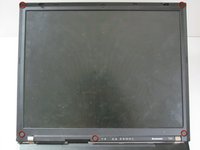
    • Open the laptop so that the screen is facing you.

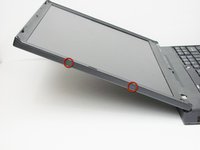
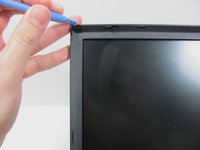
    • Use a plastic opening tool to pry off the eight plastic screw covers around the display.

    • Note that there are screw covers on the sides (two on the left and one on the right).

    crwdns2952109:0crwdne2952109:0

    crwdns2917038:0crwdne2917038:0

  4. IBM Thinkpad T60 LCD Screen Replacement: crwdns2935265:04crwdnd2935265:01crwdnd2935265:01crwdne2935265:0
    • Use a #0 Phillips screwdriver to remove the eight 3.25 mm screws uncapped from the previous step.

    crwdns2952109:0crwdne2952109:0

    crwdns2917038:0crwdne2917038:0

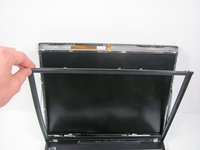
  5. IBM Thinkpad T60 LCD Screen Replacement: crwdns2935265:05crwdnd2935265:01crwdnd2935265:02crwdne2935265:0 IBM Thinkpad T60 LCD Screen Replacement: crwdns2935265:05crwdnd2935265:02crwdnd2935265:02crwdne2935265:0
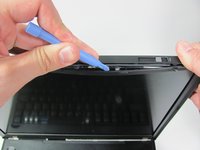
    • Carefully pry the plastic border away from the screen using the plastic opening tool.

    • Note that this step requires some force. There are plastic clips that help hold the border in place so do not worry about snapping sounds.

    crwdns2952109:0crwdne2952109:0

    crwdns2917038:0crwdne2917038:0

  6. IBM Thinkpad T60 LCD Screen Replacement: crwdns2935265:06crwdnd2935265:01crwdnd2935265:01crwdne2935265:0
    • Use your fingers to pry the screen out of its housing far enough to gain access to the ribbon cables and small screws holding the screen in place.

    crwdns2952109:0crwdne2952109:0

    crwdns2917038:0crwdne2917038:0

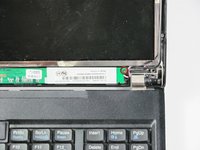
  7. IBM Thinkpad T60 LCD Screen Replacement: crwdns2935265:07crwdnd2935265:01crwdnd2935265:01crwdne2935265:0
    • At the top of the screen, detach the small white clip by pulling it towards you with your finger.

    crwdns2952109:0crwdne2952109:0

    crwdns2917038:0crwdne2917038:0

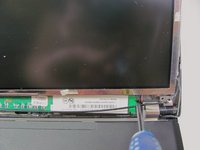
  8. IBM Thinkpad T60 LCD Screen Replacement: crwdns2935265:08crwdnd2935265:01crwdnd2935265:02crwdne2935265:0 IBM Thinkpad T60 LCD Screen Replacement: crwdns2935265:08crwdnd2935265:02crwdnd2935265:02crwdne2935265:0
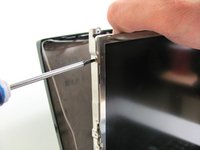
    • Using a #0 Phillips screwdriver, remove the 4 mm screw.

    crwdns2952109:0crwdne2952109:0

    crwdns2917038:0crwdne2917038:0

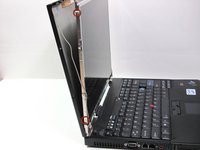
  9. IBM Thinkpad T60 LCD Screen Replacement: crwdns2935265:09crwdnd2935265:01crwdnd2935265:02crwdne2935265:0 IBM Thinkpad T60 LCD Screen Replacement: crwdns2935265:09crwdnd2935265:02crwdnd2935265:02crwdne2935265:0
    • Using a #0 Phillips screwdriver, remove the four 3.25 mm screws

    • The other two screws are in the same position on the opposite side of the display.

    crwdns2952109:0crwdne2952109:0

    crwdns2917038:0crwdne2917038:0

  10. IBM Thinkpad T60 LCD Screen Replacement: crwdns2935265:010crwdnd2935265:01crwdnd2935265:02crwdne2935265:0 IBM Thinkpad T60 LCD Screen Replacement: crwdns2935265:010crwdnd2935265:02crwdnd2935265:02crwdne2935265:0
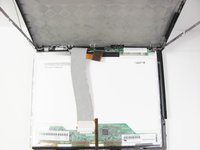
    • The screen should be free to move now. Let the display rest on the keyboard with the screen facing down.

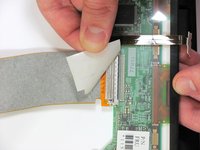
    • Peel the tape off to expose the LCD connection.

    crwdns2952109:0crwdne2952109:0

    crwdns2917038:0crwdne2917038:0

  11. IBM Thinkpad T60 LCD Screen Replacement: crwdns2935265:011crwdnd2935265:01crwdnd2935265:02crwdne2935265:0 IBM Thinkpad T60 LCD Screen Replacement: crwdns2935265:011crwdnd2935265:02crwdnd2935265:02crwdne2935265:0
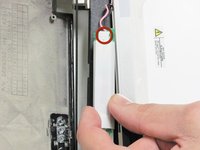
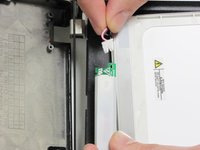
    • Turn the inverter over to expose the white clip.

    • Squeeze and pull the wires with your fingers to detach the white clip.

    crwdns2952109:0crwdne2952109:0

    crwdns2917038:0crwdne2917038:0

  12. IBM Thinkpad T60 LCD Screen Replacement: crwdns2935265:012crwdnd2935265:01crwdnd2935265:01crwdne2935265:0
    • Disconnect the video cable by pulling the grey flat wire. Now the screen is completely separate from the ThinkPad.

    crwdns2952109:0crwdne2952109:0

    crwdns2917038:0crwdne2917038:0

crwdns2915888:0crwdne2915888:0

To reassemble your device, follow these instructions in reverse order.

crwdns2935221:0crwdne2935221:0

crwdns2935229:06crwdne2935229:0

Cody Kratochvil

crwdns2935283:001/11/13crwdne2935283:0

581 crwdns2915208:0crwdne2915208:0

crwdns2935297:05crwdne2935297:0

crwdns2935287:0crwdne2935287:0

Cal Poly, Team 7-9, Maness Winter 2013 crwdns2935289:0Cal Poly, Team 7-9, Maness Winter 2013crwdne2935289:0

CPSU-MANESS-W13S7G9

crwdns2931471:04crwdne2931471:0

crwdns2935297:016crwdne2935297:0

crwdns2947410:01crwdne2947410:0

crwdns2917038:0crwdne2917038:0

crwdns2936625:0crwdne2936625:0:

crwdns2936751:024crwdne2936751:0 1

crwdns2936753:07crwdne2936753:0 21

crwdns2936753:030crwdne2936753:0 78

crwdns2942667:0crwdne2942667:0 13,774