crwdns2933423:0crwdne2933423:0
crwdns2947577:0crwdnd2947577:0crwdne2947577:0

IBM ThinkPad 560z Screen Replacement

crwdns2942213:0crwdne2942213:0

  1. IBM ThinkPad 560z Screen Replacement, Battery Removal: crwdns2935265:01crwdnd2935265:01crwdnd2935265:01crwdne2935265:0
    • Slide the battery release latch to the right.

    • Pull out the battery out towards the front of the device.

    crwdns2952109:0crwdne2952109:0

    crwdns2917038:0crwdne2917038:0

  2. IBM ThinkPad 560z Screen Replacement, Screw Cover Removal: crwdns2935265:02crwdnd2935265:01crwdnd2935265:02crwdne2935265:0 IBM ThinkPad 560z Screen Replacement, Screw Cover Removal: crwdns2935265:02crwdnd2935265:02crwdnd2935265:02crwdne2935265:0
    • Remove the plastic screw covers, then remove the 3 Phillips screws under them.

    crwdns2952109:0crwdne2952109:0

    crwdns2917038:0crwdne2917038:0

  3. IBM ThinkPad 560z Screen Replacement, Screen Bezel Removal: crwdns2935265:03crwdnd2935265:01crwdnd2935265:01crwdne2935265:0
    • Insert the plastic opening tool between the front cover and back cover to pry open the screen case, then carefully pull the bezel off.

    crwdns2952109:0crwdne2952109:0

    crwdns2917038:0crwdne2917038:0

  4. IBM ThinkPad 560z Screen Replacement, LCD Removal Preperation: crwdns2935265:04crwdnd2935265:01crwdnd2935265:01crwdne2935265:0
    • Remove the four Phillips head screws.

    crwdns2952109:0crwdne2952109:0

    crwdns2917038:0crwdne2917038:0

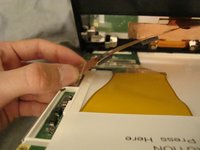
  5. IBM ThinkPad 560z Screen Replacement, Ribbon Cable Disconnection: crwdns2935265:05crwdnd2935265:01crwdnd2935265:01crwdne2935265:0
    • Using your fingers or an Opening Tool, detach the connector on the right side of the screen.

    crwdns2952109:0crwdne2952109:0

    crwdns2917038:0crwdne2917038:0

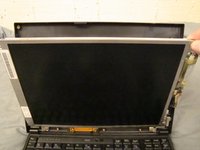
  6. IBM ThinkPad 560z Screen Replacement, LCD Removal: crwdns2935265:06crwdnd2935265:01crwdnd2935265:02crwdne2935265:0 IBM ThinkPad 560z Screen Replacement, LCD Removal: crwdns2935265:06crwdnd2935265:02crwdnd2935265:02crwdne2935265:0
    • Slowly pull back the screen from the top and disconnect the ribbon cable from the back to completely free the screen from the laptop.

    • The connector is very fragile, so be careful.

    crwdns2952109:0crwdne2952109:0

    crwdns2917038:0crwdne2917038:0

crwdns2915888:0crwdne2915888:0

To reassemble your device, follow these instructions in reverse order.

crwdns2935221:0crwdne2935221:0

crwdns2935229:02crwdne2935229:0

John Allande

crwdns2935283:004/15/10crwdne2935283:0

64 crwdns2915208:0crwdne2915208:0

crwdns2935295:0crwdne2935295:0

crwdns2935287:0crwdne2935287:0

Cal Poly, Team 26-27, Regan Spring 2010 crwdns2935289:0Cal Poly, Team 26-27, Regan Spring 2010crwdne2935289:0

CPSU-REGAN-S10S26G27

crwdns2931471:03crwdne2931471:0

crwdns2935297:018crwdne2935297:0

crwdns2947412:00crwdne2947412:0

crwdns2917038:0crwdne2917038:0

crwdns2936625:0crwdne2936625:0:

crwdns2936751:024crwdne2936751:0 4

crwdns2936753:07crwdne2936753:0 10

crwdns2936753:030crwdne2936753:0 59

crwdns2942667:0crwdne2942667:0 5,375