crwdns2933423:0crwdne2933423:0
crwdns2947577:0crwdnd2947577:0crwdne2947577:0

How to Use the FixHub Web Console

    1. How to Use the FixHub Web Console, Plug in your iron: crwdns2935265:01crwdnd2935265:01crwdnd2935265:01crwdne2935265:0
      • To use the FixHub Web Console, you need a browser with Web Serial enabled. We recommend Brave, Chrome, Edge, or Opera as they include this functionality enabled by default.

      • Firefox and Safari don't support Web Serial at this time.

      • Plug the cable included with your iron or any USB cable that supports data transfer into your computer.

      • Navigate to iFixit.com/FixHub/console

      crwdns2952109:0crwdne2952109:0

      crwdns2917038:0crwdne2917038:0

    2. How to Use the FixHub Web Console, Connect your iron: crwdns2935265:02crwdnd2935265:01crwdnd2935265:03crwdne2935265:0 How to Use the FixHub Web Console, Connect your iron: crwdns2935265:02crwdnd2935265:02crwdnd2935265:03crwdne2935265:0 How to Use the FixHub Web Console, Connect your iron: crwdns2935265:02crwdnd2935265:03crwdnd2935265:03crwdne2935265:0
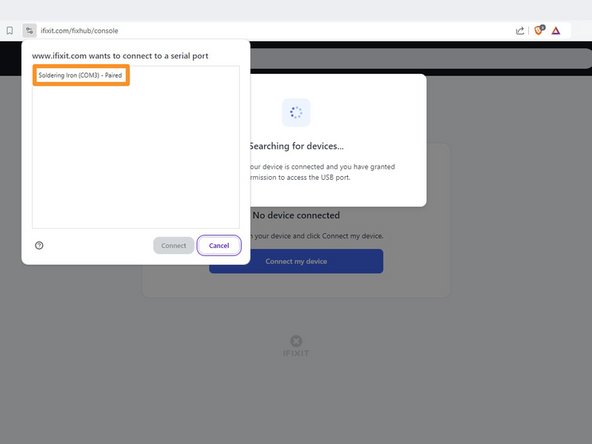
      • Click Connect my device.

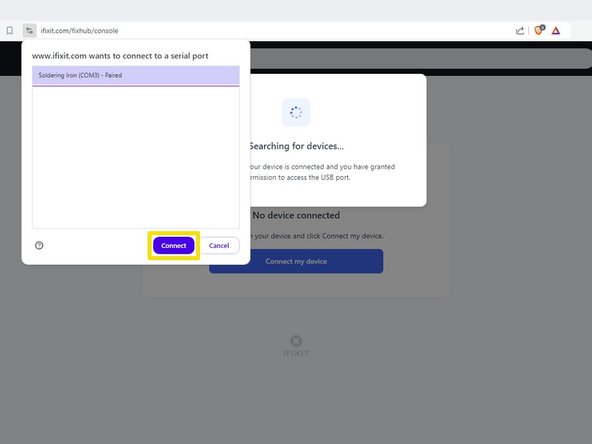
      • Select your Smart Soldering Iron from the pop-up window asking you to connect a serial port.

      • Click Connect.

      crwdns2952109:0crwdne2952109:0

      crwdns2917038:0crwdne2917038:0

    3. How to Use the FixHub Web Console, FixHub Web Console layout: crwdns2935265:03crwdnd2935265:01crwdnd2935265:01crwdne2935265:0
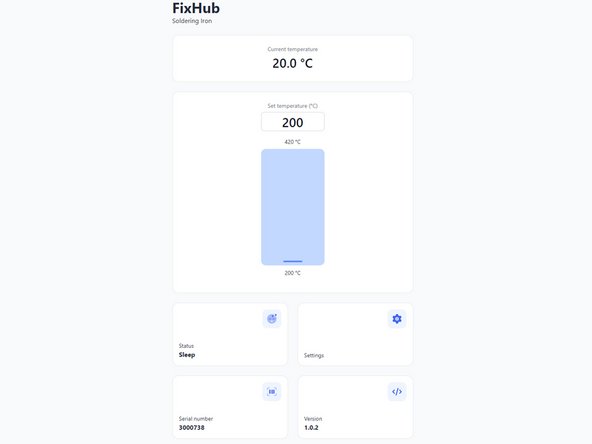
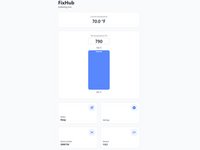
      • Once the FixHub Web Console opens, you'll see temperature settings, current status, and other information:

      • Current temperature shows the tip temperature in real time.

      • Set temperature allows you to change the iron's temperature with a slider.

      • Status reflects the current status of the iron.

      • Settings allows you to change iron settings such as idle temperature and sleep timer.

      • Serial number shows the serial number of the connected iron.

      • Version shows the firmware version of the connected iron.

      crwdns2952109:0crwdne2952109:0

      crwdns2917038:0crwdne2917038:0

    4. How to Use the FixHub Web Console, Firmware update: crwdns2935265:04crwdnd2935265:01crwdnd2935265:03crwdne2935265:0 How to Use the FixHub Web Console, Firmware update: crwdns2935265:04crwdnd2935265:02crwdnd2935265:03crwdne2935265:0 How to Use the FixHub Web Console, Firmware update: crwdns2935265:04crwdnd2935265:03crwdnd2935265:03crwdne2935265:0
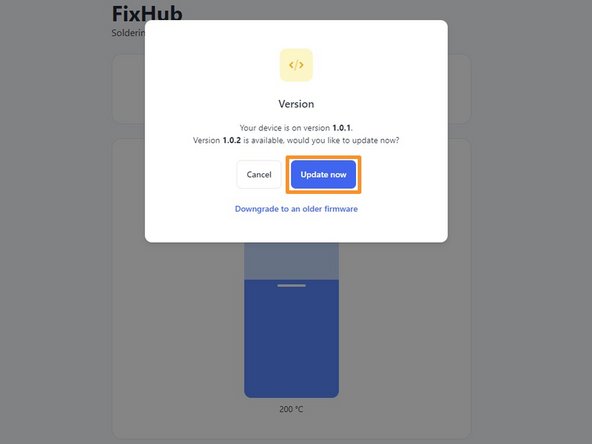
      • Before using the FixHub Web Console, ensure your firmware is up to date.

      • Select the Version box.

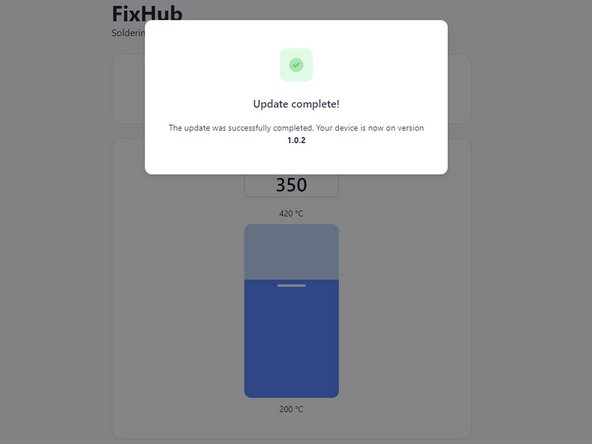
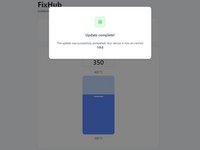
      • Click Update now and wait for the firmware update to complete. Don't disconnect your iron or close the window during the firmware update.

      • Once the soldering iron updates successfully, be sure to update the Portable Power Station firmware to the same version.

      • If something goes wrong, you can downgrade your firmware by repeating these steps and clicking Downgrade to an older firmware.

      crwdns2952109:0crwdne2952109:0

      crwdns2917038:0crwdne2917038:0

    5. How to Use the FixHub Web Console, Adjust the set temperature: crwdns2935265:05crwdnd2935265:01crwdnd2935265:03crwdne2935265:0 How to Use the FixHub Web Console, Adjust the set temperature: crwdns2935265:05crwdnd2935265:02crwdnd2935265:03crwdne2935265:0 How to Use the FixHub Web Console, Adjust the set temperature: crwdns2935265:05crwdnd2935265:03crwdnd2935265:03crwdne2935265:0
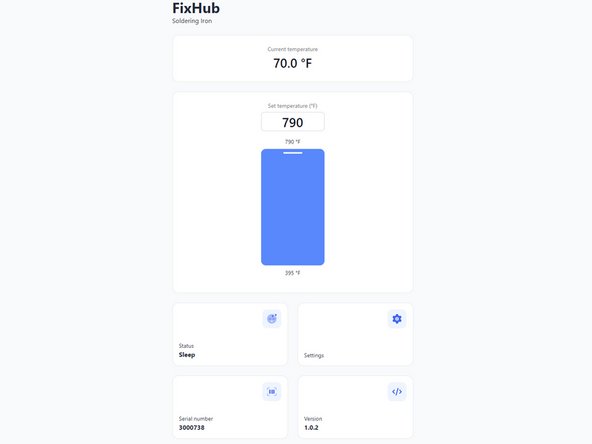
      • Drag the Set temperature slider to your desired temperature from 200 to 420 °C (395 to 790 °F).

      crwdns2952109:0crwdne2952109:0

      crwdns2917038:0crwdne2917038:0

    6. How to Use the FixHub Web Console, Change the temperature scale: crwdns2935265:06crwdnd2935265:01crwdnd2935265:02crwdne2935265:0 How to Use the FixHub Web Console, Change the temperature scale: crwdns2935265:06crwdnd2935265:02crwdnd2935265:02crwdne2935265:0
      • You can reset all settings back to default at any time.

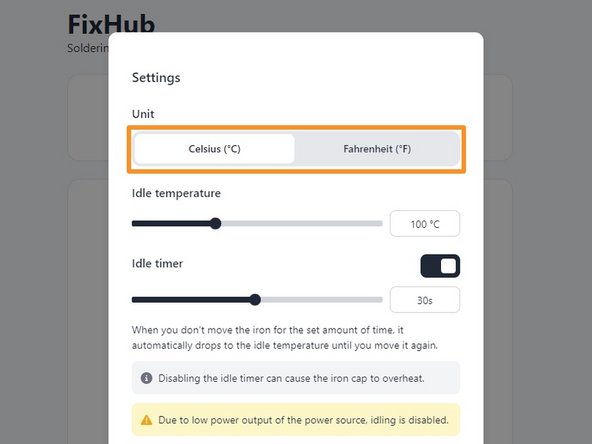
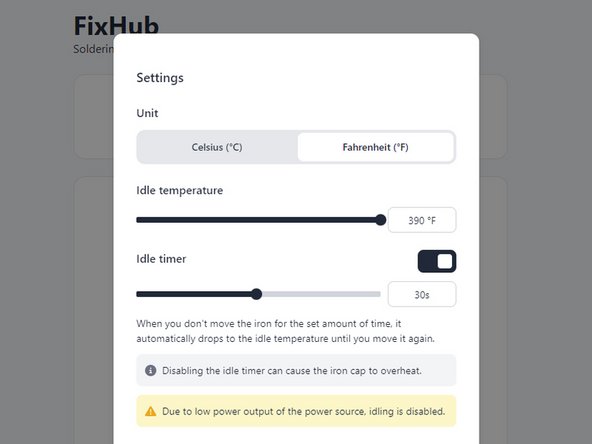
      • Click the Settings box.

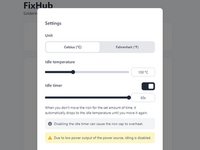
      • At the top of the Settings window, select your desired unit for temperature under the Unit tab.

      crwdns2952109:0crwdne2952109:0

      crwdns2917038:0crwdne2917038:0

    7. How to Use the FixHub Web Console, Adjust the idle temperature: crwdns2935265:07crwdnd2935265:01crwdnd2935265:03crwdne2935265:0 How to Use the FixHub Web Console, Adjust the idle temperature: crwdns2935265:07crwdnd2935265:02crwdnd2935265:03crwdne2935265:0 How to Use the FixHub Web Console, Adjust the idle temperature: crwdns2935265:07crwdnd2935265:03crwdnd2935265:03crwdne2935265:0
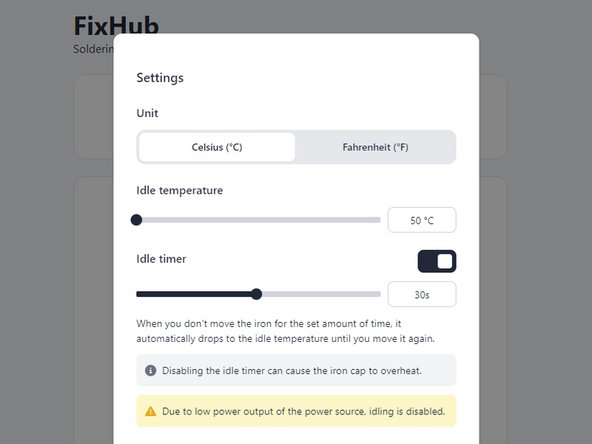
      • A lower idle temperature will extend tip life, while a higher one will resume working temperature more quickly.

      • Drag the Idle temperature slider to your desired temperature from 50 to 200 °C (125 to 390 °F).

      crwdns2952109:0crwdne2952109:0

      crwdns2917038:0crwdne2917038:0

    8. How to Use the FixHub Web Console, Adjust the idle timer: crwdns2935265:08crwdnd2935265:01crwdnd2935265:03crwdne2935265:0 How to Use the FixHub Web Console, Adjust the idle timer: crwdns2935265:08crwdnd2935265:02crwdnd2935265:03crwdne2935265:0 How to Use the FixHub Web Console, Adjust the idle timer: crwdns2935265:08crwdnd2935265:03crwdnd2935265:03crwdne2935265:0
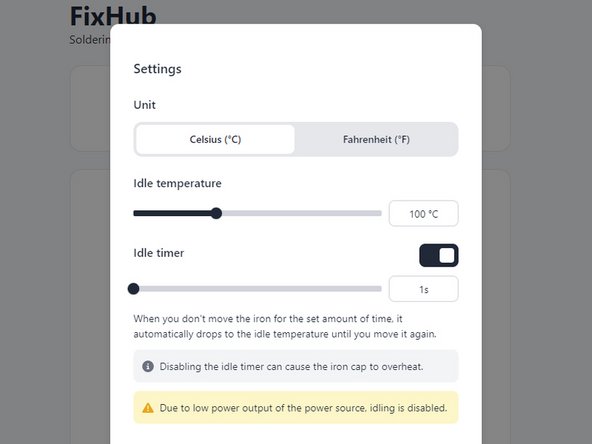
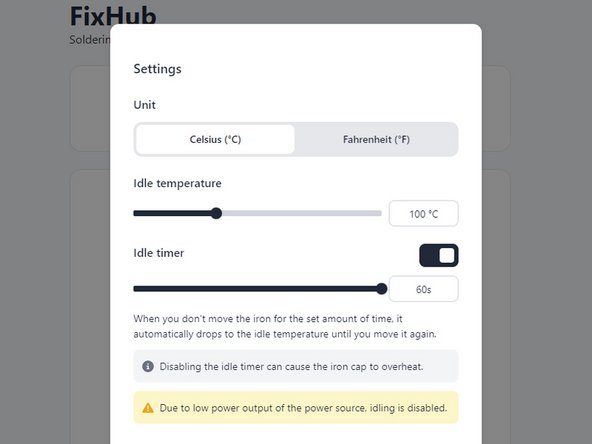
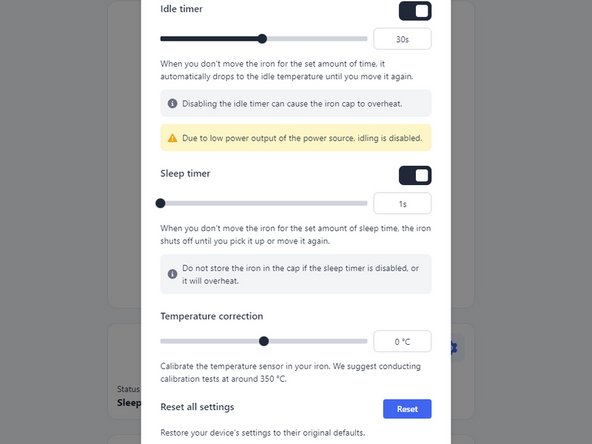
      • The idle timer can be disabled, but it's highly recommended to leave it enabled to prevent the iron cap from overheating and to extend tip life.

      • The idle timer setting adjusts how long the iron must be stationary before entering Idle Mode.

      • Drag the Idle timer slider to your desired time from 1s to 60s.

      crwdns2952109:0crwdne2952109:0

      crwdns2917038:0crwdne2917038:0

    9. How to Use the FixHub Web Console, Adjust the sleep timer: crwdns2935265:09crwdnd2935265:01crwdnd2935265:02crwdne2935265:0 How to Use the FixHub Web Console, Adjust the sleep timer: crwdns2935265:09crwdnd2935265:02crwdnd2935265:02crwdne2935265:0
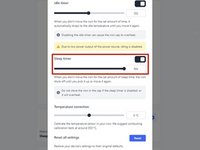
      • The sleep timer can be disabled, but doing so will cause the iron cap to overheat and the tip to degrade rapidly.

      • Drag the Sleep timer slider to your desired time from 1s to 60s.

      crwdns2952109:0crwdne2952109:0

      crwdns2917038:0crwdne2917038:0

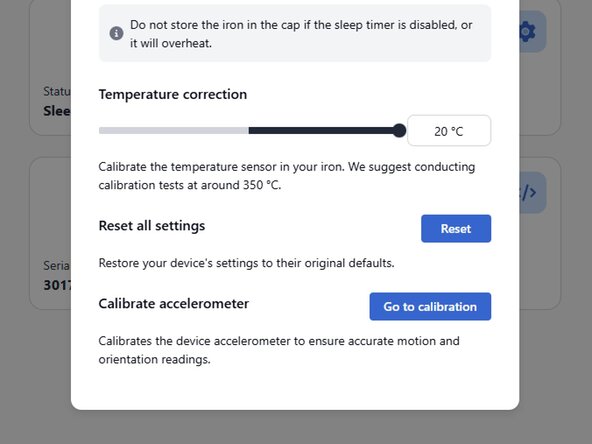
    10. How to Use the FixHub Web Console, Offset temperature based on external calibration: crwdns2935265:010crwdnd2935265:01crwdnd2935265:03crwdne2935265:0 How to Use the FixHub Web Console, Offset temperature based on external calibration: crwdns2935265:010crwdnd2935265:02crwdnd2935265:03crwdne2935265:0 How to Use the FixHub Web Console, Offset temperature based on external calibration: crwdns2935265:010crwdnd2935265:03crwdnd2935265:03crwdne2935265:0
      • This setting lets you offset the temperature settings of your iron tips based on an external temperature sensor.

      • Drag the Temperature correction slider to the desired amount from -20 to +20 °C (-36 to 36 °F).

      crwdns2952109:0crwdne2952109:0

      crwdns2917038:0crwdne2917038:0

    11. How to Use the FixHub Web Console, Calibrate the accelerometer: crwdns2935265:011crwdnd2935265:01crwdnd2935265:02crwdne2935265:0 How to Use the FixHub Web Console, Calibrate the accelerometer: crwdns2935265:011crwdnd2935265:02crwdnd2935265:02crwdne2935265:0
      • This setting lets you calibrate the accelerometer in the iron by setting it completely still.

      • Click Go to calibration to open the Accelerometer Calibration page.

      • Set the iron down on a stationary object with the power switch facing up. Click Calibrate to set the current magnitude (shown in the line graph on the page) as the iron's resting state.

      crwdns2952109:0crwdne2952109:0

      crwdns2917038:0crwdne2917038:0

crwdns2915888:0crwdne2915888:0

That's it! You're ready to configure your Smart Soldering Iron to your individual preferences.

Still struggling? Try some basic troubleshooting, or ask our Answers community for help.

crwdns2935221:0crwdne2935221:0

crwdns2935229:06crwdne2935229:0

Nick Schultz

crwdns2935283:003/24/24crwdne2935283:0

63,571 crwdns2915208:0crwdne2915208:0

crwdns2935297:0334crwdne2935297:0

crwdns2935287:0crwdne2935287:0

iFixit crwdns2935289:0iFixitcrwdne2935289:0

Staff

crwdns2931471:0123crwdne2931471:0

crwdns2935297:086,246crwdne2935297:0

crwdns2947412:00crwdne2947412:0

crwdns2917038:0crwdne2917038:0

crwdns2936625:0crwdne2936625:0:

crwdns2936751:024crwdne2936751:0 9

crwdns2936753:07crwdne2936753:0 64

crwdns2936753:030crwdne2936753:0 251

crwdns2942667:0crwdne2942667:0 4,747