crwdns2915892:0crwdne2915892:0
Use this guide to calibrate the fingerprint sensor in your Google Pixel phone. This guide is only applicable for the Google Pixel 6 and newer phones.
You need to calibrate your fingerprint sensor whenever you replace the screen, as most replacement screens come with a new fingerprint sensor pre-attached. If you don't, your fingerprint sensor will not work.
-
-
Follow these instructions to enable developer options and USB debugging mode.
-
If you're using a Windows operating system, download the Google USB driver and follow these instructions to install it.
-
Navigate to this page to prepare the calibration software.
-
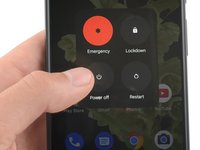
If your phone isn't turned off, do so now.
-
Hold down the power and volume down buttons on your phone for three seconds to enter Fastboot mode.
-
Plug your phone into your computer.
-
-
-
-
Select the "Connect Device" button.
-
Choose your device from the pop-up menu.
-
If your device isn't showing up, select the "Troubleshooting tips" link near the bottom of the page to diagnose your issue.
-
Once your device connects, select the "Install software" button.
-
-
-
Wait for the calibration software to download and install.
-
After you receive the "Install successful" prompt, unplug your phone and manually restart it again to complete the calibration.
-


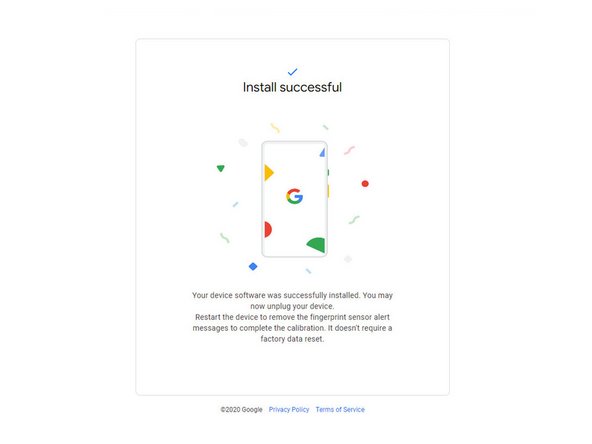

Your fingerprint sensor is calibrated and ready for use.
If the calibration fails for any reason, repeat the calibration procedure.
crwdns2935221:0crwdne2935221:0
crwdns2935229:0294crwdne2935229:0



crwdns2947412:0118crwdne2947412:0
When I try and use the calibration tool on my Pixel 6 I get an error message whilst downloading the software that says "Couldn't find the unique calibration software for this device". Any suggestions as to what is causing this?
Same problem. Pixel 7 android 14 latest update
Gleb -
Same problem. Pixel 6 android 14 latest update
Same problem, pixel 7 android 14 January update
same problem. Please help
