crwdns2933423:0crwdne2933423:0
crwdns2947577:0crwdnd2947577:0crwdne2947577:0

HP Stream 11-d010nr Clickpad Replacement

crwdns2942213:0crwdne2942213:0

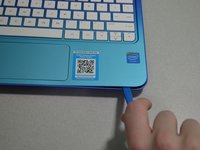
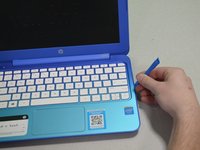
  1. HP Stream 11-d010nr Clickpad Replacement, Pry out the inserts: crwdns2935265:01crwdnd2935265:01crwdnd2935265:02crwdne2935265:0 HP Stream 11-d010nr Clickpad Replacement, Pry out the inserts: crwdns2935265:01crwdnd2935265:02crwdnd2935265:02crwdne2935265:0
    • Unplug and turn off the HP Stream 11 before disassembling the device.

    • Using a spudger, gently pry off the two elliptical rubber inserts located in the top corners.

    • Carefully remove the two circular rubber inserts positioned beneath the removed elliptical inserts.

    crwdns2952109:0crwdne2952109:0

    crwdns2917038:0crwdne2917038:0

  2. HP Stream 11-d010nr Clickpad Replacement, Unscrew the back cover: crwdns2935265:02crwdnd2935265:01crwdnd2935265:01crwdne2935265:0
    • Using a Phillips #1 screwdriver, remove the eleven 5.6 mm screws securing the back cover.

    • Keep the screws in a safe place for reassembly.

    crwdns2952109:0crwdne2952109:0

    crwdns2917038:0crwdne2917038:0

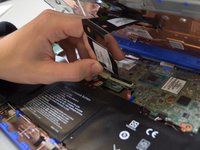
  3. HP Stream 11-d010nr Clickpad Replacement, Pry the keyboard casing up: crwdns2935265:03crwdnd2935265:01crwdnd2935265:02crwdne2935265:0 HP Stream 11-d010nr Clickpad Replacement, Pry the keyboard casing up: crwdns2935265:03crwdnd2935265:02crwdnd2935265:02crwdne2935265:0
    • Using an iFixit opening tool, carefully pry open the case to separate the keyboard from the main body. Work slowly to avoid damaging the edges.

    • HP Stream 11s tend to be really difficult to open. If your device is not opening with a standard iFixit opening tool, use a nylon spudger, then the metal spudger, or a metal Jimmy as the last resort.

    • When using the metal spudger or Jimmy, be careful not to bring these tools into contact with any electronic components of the device as this can damage the device.

    crwdns2952109:0crwdne2952109:0

    crwdns2917038:0crwdne2917038:0

  4. HP Stream 11-d010nr Clickpad Replacement, Identify the connectors: crwdns2935265:04crwdnd2935265:01crwdnd2935265:01crwdne2935265:0
    • Carefully lift the keyboard and identify the three ribbon cables connecting the main body of the laptop to the keyboard.

    • Lift the keyboard with extreme care to avoid damaging the delicate ribbon cables. Applying excessive force can easily tear or break them easily.

    crwdns2952109:0crwdne2952109:0

    crwdns2917038:0crwdne2917038:0

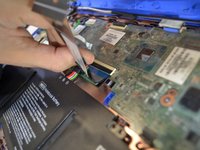
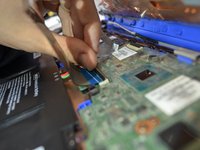
  5. HP Stream 11-d010nr Clickpad Replacement, Disconnect the cables: crwdns2935265:05crwdnd2935265:01crwdnd2935265:03crwdne2935265:0 HP Stream 11-d010nr Clickpad Replacement, Disconnect the cables: crwdns2935265:05crwdnd2935265:02crwdnd2935265:03crwdne2935265:0 HP Stream 11-d010nr Clickpad Replacement, Disconnect the cables: crwdns2935265:05crwdnd2935265:03crwdnd2935265:03crwdne2935265:0
    • Using a spudger, gently lift the flaps on the ZIF connectors to release the three ribbon cables securely attached to them.

    • Carefully disconnect the three ribbon cables.

    crwdns2952109:0crwdne2952109:0

    crwdns2917038:0crwdne2917038:0

  6. HP Stream 11-d010nr Clickpad Replacement, Lift the keyboard out: crwdns2935265:06crwdnd2935265:01crwdnd2935265:01crwdne2935265:0
    • Gently lift the keyboard out of the laptop to fully detach it from the device.

    • While handling, avoid damaging any remaining components.

    crwdns2952109:0crwdne2952109:0

    crwdns2917038:0crwdne2917038:0

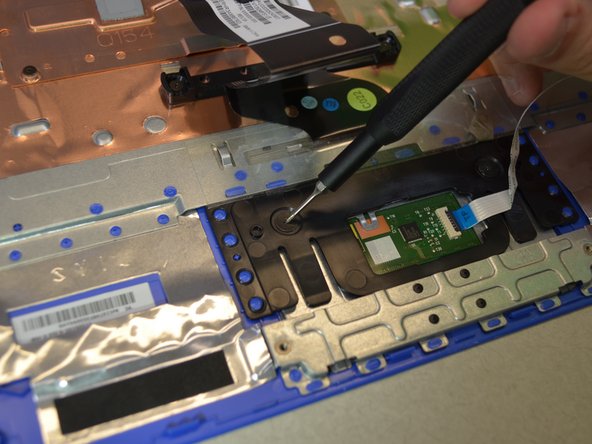
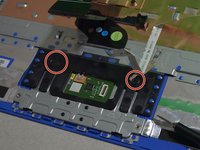
  7. HP Stream 11-d010nr Clickpad Replacement, Clickpad: crwdns2935265:07crwdnd2935265:01crwdnd2935265:02crwdne2935265:0 HP Stream 11-d010nr Clickpad Replacement, Clickpad: crwdns2935265:07crwdnd2935265:02crwdnd2935265:02crwdne2935265:0
    • Remove the two 2mm #000 Phillips screws.

    crwdns2952109:0crwdne2952109:0

    crwdns2917038:0crwdne2917038:0

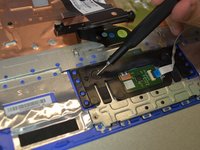
  8. HP Stream 11-d010nr Clickpad Replacement: crwdns2935265:08crwdnd2935265:01crwdnd2935265:01crwdne2935265:0
    • Release the clickpad by lifting the keyboard up.

    • When installing the new clickpad, make sure the black tabs go into the laptop.

    crwdns2952109:0crwdne2952109:0

    crwdns2917038:0crwdne2917038:0

crwdns2915888:0crwdne2915888:0

To reassemble your device, follow these instructions in reverse order.

crwdns2935221:0crwdne2935221:0

Josh Corrigan

crwdns2935283:001/24/19crwdne2935283:0

353 crwdns2915208:0crwdne2915208:0

crwdns2935297:02crwdne2935297:0

crwdns2935287:0crwdne2935287:0

Cal Poly, Team S1-G3, White Winter 2019 crwdns2935289:0Cal Poly, Team S1-G3, White Winter 2019crwdne2935289:0

CPSU-WHITE-W19S1G3

crwdns2931471:04crwdne2931471:0

crwdns2935297:011crwdne2935297:0

crwdns2947412:00crwdne2947412:0

crwdns2917038:0crwdne2917038:0

crwdns2936625:0crwdne2936625:0:

crwdns2936751:024crwdne2936751:0 5

crwdns2936753:07crwdne2936753:0 12

crwdns2936753:030crwdne2936753:0 43

crwdns2942667:0crwdne2942667:0 554