crwdns2915892:0crwdne2915892:0
RAM, or Random Access Memory, is what a computer loads its programs into. When you run a program, it pulls it off the hard drive and puts it into RAM. You are using RAM as you are reading this! This guide will show you how to replace it.
crwdns2942213:0crwdne2942213:0
-
-
-
Press and hold the release switch, and then slide the battery out. Insert the new battery into the slot and you're done!
 crwdns2952109:0crwdne2952109:0
-
-
-
-
-
-
In the battery compartment, find the phillips screw that is holding the rear panel onto the computer. Unscrew it.
-
With the battery compartment closest to you, push the panel away from you. Once it slides back until it stops, gently lift it and put it to the side.
-
Please note that this particular screw does not completely come out, it stays with the rear panel and that is ok.
-
-
-
-
crwdns2935267:0crwdne2935267:0Tweezers$4.99
-
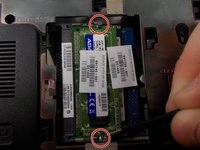
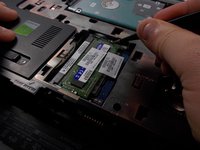
On each side of each RAM card, there will be a thin strip of metal that is holding the chip down. Using tweezers or another thin tool, gently push these pins apart.
-
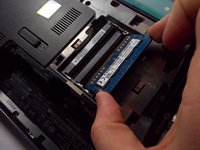
The first RAM card should pop up on its own. Gently remove this card, and look for the two strips of metal holding the bottom card down.
-
Push the pins apart just like for card one. Just like the first card, this one will pop up and you can remove it.
-
-


To reassemble your device, follow these instructions in reverse order.

crwdns2935287:0crwdne2935287:0

UMass Dartmouth, Team 1-6, Miles Spring 2016 crwdns2935289:0UMass Dartmouth, Team 1-6, Miles Spring 2016crwdne2935289:0
UMASSD-MILES-S16S1G6
crwdns2931471:03crwdne2931471:0
crwdns2935297:0104crwdne2935297:0
