crwdns2933423:0crwdne2933423:0
crwdns2947577:0crwdnd2947577:0crwdne2947577:0

HP Elitebook 8460p Keyboard Replacement

crwdns2942213:0crwdne2942213:0

    1. HP Elitebook 8460p Keyboard Replacement, Battery: crwdns2935265:01crwdnd2935265:01crwdnd2935265:01crwdne2935265:0
      • On the back of the computer, slide the left switch towards the outside of the laptop until you hear a click.

      crwdns2952109:0crwdne2952109:0

      crwdns2917038:0crwdne2917038:0

    2. HP Elitebook 8460p Keyboard Replacement: crwdns2935265:02crwdnd2935265:01crwdnd2935265:01crwdne2935265:0
      • Slide the battery away from the switches until it can be lifted away from the laptop.

      • Lift the battery away from the laptop.

      crwdns2952109:0crwdne2952109:0

      crwdns2917038:0crwdne2917038:0

    1. HP Elitebook 8460p Keyboard Replacement, Back Panel: crwdns2935265:03crwdnd2935265:01crwdnd2935265:01crwdne2935265:0
      • On the back of the laptop, slide the right switch toward the outside of the laptop until you hear a click.

      crwdns2952109:0crwdne2952109:0

      crwdns2917038:0crwdne2917038:0

    2. HP Elitebook 8460p Keyboard Replacement: crwdns2935265:04crwdnd2935265:01crwdnd2935265:01crwdne2935265:0
      • Slide the back shell of the laptop away from the switches until it can be lifted up.

      • Lift the shell straight up.

      crwdns2952109:0crwdne2952109:0

      crwdns2917038:0crwdne2917038:0

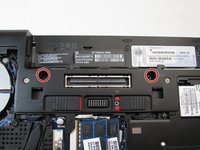
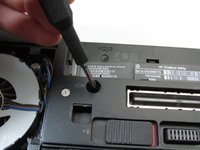
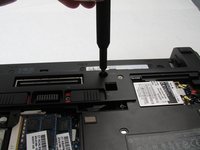
    1. HP Elitebook 8460p Keyboard Replacement, Keyboard: crwdns2935265:05crwdnd2935265:01crwdnd2935265:03crwdne2935265:0 HP Elitebook 8460p Keyboard Replacement, Keyboard: crwdns2935265:05crwdnd2935265:02crwdnd2935265:03crwdne2935265:0 HP Elitebook 8460p Keyboard Replacement, Keyboard: crwdns2935265:05crwdnd2935265:03crwdnd2935265:03crwdne2935265:0
      • Attach ESD strap around your wrist and to a ground.

      • Using a Phillips #0 bit, unscrew the two screws in front of the battery slot located on the bottom of the laptop.

      crwdns2952109:0crwdne2952109:0

      crwdns2917038:0crwdne2917038:0

    2. HP Elitebook 8460p Keyboard Replacement: crwdns2935265:06crwdnd2935265:01crwdnd2935265:01crwdne2935265:0
      • Flip the laptop over and open the screen.

      crwdns2952109:0crwdne2952109:0

      crwdns2917038:0crwdne2917038:0

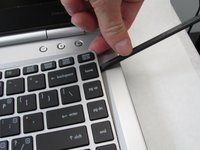
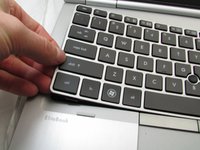
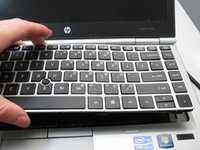
    3. HP Elitebook 8460p Keyboard Replacement: crwdns2935265:07crwdnd2935265:01crwdnd2935265:03crwdne2935265:0 HP Elitebook 8460p Keyboard Replacement: crwdns2935265:07crwdnd2935265:02crwdnd2935265:03crwdne2935265:0 HP Elitebook 8460p Keyboard Replacement: crwdns2935265:07crwdnd2935265:03crwdnd2935265:03crwdne2935265:0
      • Using a spudger, work around the edge of the keyboard and pry it up from the device.

      crwdns2952109:0crwdne2952109:0

      crwdns2917038:0crwdne2917038:0

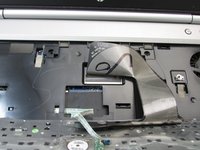
    4. HP Elitebook 8460p Keyboard Replacement: crwdns2935265:08crwdnd2935265:01crwdnd2935265:02crwdne2935265:0 HP Elitebook 8460p Keyboard Replacement: crwdns2935265:08crwdnd2935265:02crwdnd2935265:02crwdne2935265:0
      • Lift the keyboard out of the laptop and flip it over.

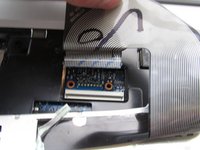
      • This exposes two different connectors. Both need to be detached in order to remove the keyboard. The larger connector is the main keyboard cable.

      crwdns2952109:0crwdne2952109:0

      crwdns2917038:0crwdne2917038:0

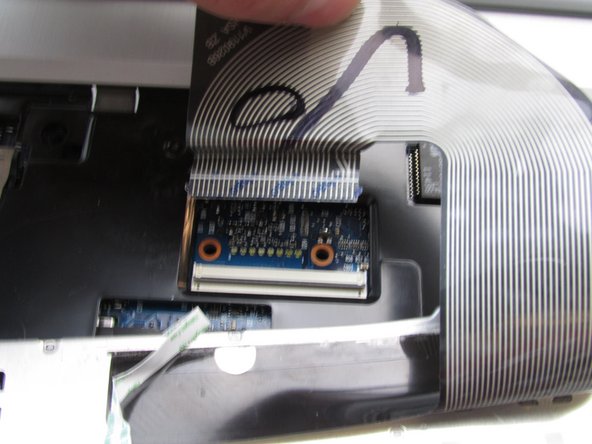
    5. HP Elitebook 8460p Keyboard Replacement: crwdns2935265:09crwdnd2935265:01crwdnd2935265:02crwdne2935265:0 HP Elitebook 8460p Keyboard Replacement: crwdns2935265:09crwdnd2935265:02crwdnd2935265:02crwdne2935265:0
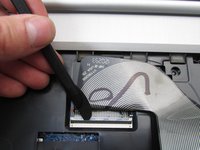
      • Disconnect the keyboard cable on the laptop using a thin pry tool to open the connection.

      • Open the connection by inserting a thin plastic pry tool under the black tab in the connector and flipping it up.

      crwdns2952109:0crwdne2952109:0

      crwdns2917038:0crwdne2917038:0

    6. HP Elitebook 8460p Keyboard Replacement: crwdns2935265:010crwdnd2935265:01crwdnd2935265:02crwdne2935265:0 HP Elitebook 8460p Keyboard Replacement: crwdns2935265:010crwdnd2935265:02crwdnd2935265:02crwdne2935265:0
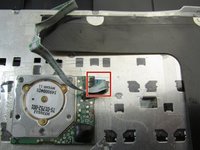
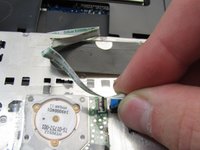
      • Using the spudger again, disconnect the thin ribbon strip on the back of the keyboard.

      crwdns2952109:0crwdne2952109:0

      crwdns2917038:0crwdne2917038:0

crwdns2915888:0crwdne2915888:0

To reassemble your device, follow these instructions in reverse order.

crwdns2935221:0crwdne2935221:0

crwdns2935229:03crwdne2935229:0

Garrett Anderson

crwdns2935283:009/16/19crwdne2935283:0

2.313 crwdns2915208:0crwdne2915208:0

crwdns2935297:010crwdne2935297:0

crwdns2935287:0crwdne2935287:0

Embry-Riddle Aeronautical University, Team S12-G1, Lamothe Fall 2019 crwdns2935289:0Embry-Riddle Aeronautical University, Team S12-G1, Lamothe Fall 2019crwdne2935289:0

ERAU-LAMOTHE-F19S12G1

crwdns2931471:04crwdne2931471:0

crwdns2935297:090crwdne2935297:0

crwdns2947412:02crwdne2947412:0

There's a third keyboard screw right beside the fan

Colin Chaplin - crwdns2934203:0crwdne2934203:0 crwdns2950251:0crwdne2950251:0

yeah just wanted to say this ...

Also the screws are PH1 not PH0

Robert Kohari - crwdns2934203:0crwdne2934203:0 crwdns2950251:0crwdne2950251:0

crwdns2917038:0crwdne2917038:0

crwdns2936625:0crwdne2936625:0:

crwdns2936751:024crwdne2936751:0 2

crwdns2936753:07crwdne2936753:0 14

crwdns2936753:030crwdne2936753:0 65

crwdns2942667:0crwdne2942667:0 5,041