crwdns2933423:0crwdne2933423:0
crwdns2947577:0crwdnd2947577:0crwdne2947577:0

HP Chromebook 14-Q010DX Fan Replacement

crwdns2942213:0crwdne2942213:0

  1. HP Chromebook 14-Q010DX Fan Replacement, Keyboard and Touchpad: crwdns2935265:01crwdnd2935265:01crwdnd2935265:02crwdne2935265:0 HP Chromebook 14-Q010DX Fan Replacement, Keyboard and Touchpad: crwdns2935265:01crwdnd2935265:02crwdnd2935265:02crwdne2935265:0
    • Flip the laptop so the base of the laptop is facing you.

    • Using the #00 screwdriver, unscrew the 13 screws.

    crwdns2952109:0crwdne2952109:0
  2. HP Chromebook 14-Q010DX Fan Replacement: crwdns2935265:02crwdnd2935265:01crwdnd2935265:03crwdne2935265:0 HP Chromebook 14-Q010DX Fan Replacement: crwdns2935265:02crwdnd2935265:02crwdnd2935265:03crwdne2935265:0 HP Chromebook 14-Q010DX Fan Replacement: crwdns2935265:02crwdnd2935265:03crwdnd2935265:03crwdne2935265:0
    • Warning! When prying open a laptop it could require some force, but it also has fragile connectors underneath. Use caution so as to avoid breaking these connectors.

    • Start from the top right corner of the laptop and work clockwise with an iFixit opening tool or spudger to pry the keyboard from the frame of the laptop.

    crwdns2952109:0crwdne2952109:0
  3. HP Chromebook 14-Q010DX Fan Replacement: crwdns2935265:03crwdnd2935265:01crwdnd2935265:03crwdne2935265:0 HP Chromebook 14-Q010DX Fan Replacement: crwdns2935265:03crwdnd2935265:02crwdnd2935265:03crwdne2935265:0 HP Chromebook 14-Q010DX Fan Replacement: crwdns2935265:03crwdnd2935265:03crwdnd2935265:03crwdne2935265:0
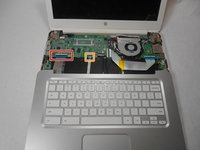
    • Warning! Handle the flaps and ribbon cables with care to prevent damage.

    • Gently pull the keyboard in the opposite direction of the screen, so the wires beneath are exposed.

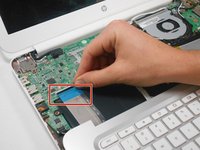
    • Lift the black flap and pull the blue ribbon gently towards you until it is disconnected.

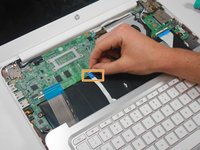
    • Lift the white flap and pull the blue ribbon towards you until it is disconnected.

    crwdns2952109:0crwdne2952109:0
  4. HP Chromebook 14-Q010DX Fan Replacement: crwdns2935265:04crwdnd2935265:01crwdnd2935265:01crwdne2935265:0
    • Lift keyboard slightly and remove the strip gently to prevent damaging any parts.

    • The tape has no function other than to keep the wire tucked away.

    crwdns2952109:0crwdne2952109:0
  5. HP Chromebook 14-Q010DX Fan Replacement: crwdns2935265:05crwdnd2935265:01crwdnd2935265:01crwdne2935265:0
    • Set aside the detached keyboard.

    crwdns2952109:0crwdne2952109:0
  6. HP Chromebook 14-Q010DX Fan Replacement, Fan replacement for a HP Chromebook: crwdns2935265:06crwdnd2935265:01crwdnd2935265:03crwdne2935265:0 HP Chromebook 14-Q010DX Fan Replacement, Fan replacement for a HP Chromebook: crwdns2935265:06crwdnd2935265:02crwdnd2935265:03crwdne2935265:0 HP Chromebook 14-Q010DX Fan Replacement, Fan replacement for a HP Chromebook: crwdns2935265:06crwdnd2935265:03crwdnd2935265:03crwdne2935265:0
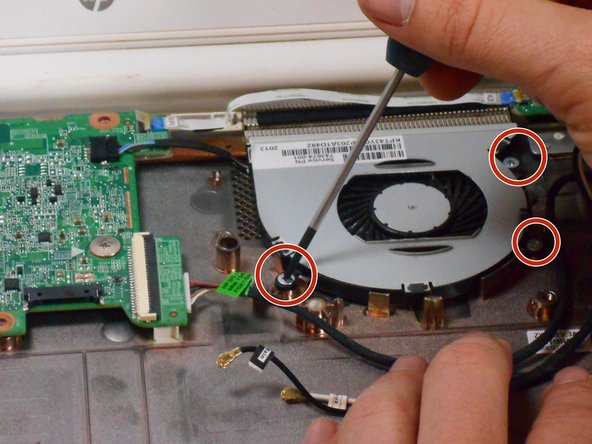
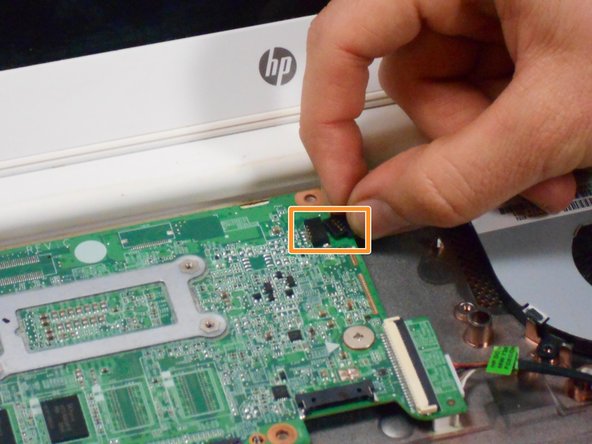
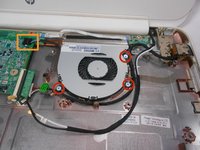
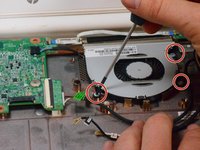
    • Remove the 3 screws around the fan.

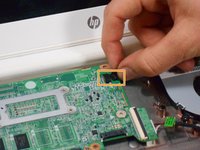
    • Using your fingers or the spudger, disconnect the cable connecting the fan to the motherboard.

    crwdns2952109:0crwdne2952109:0
  7. HP Chromebook 14-Q010DX Fan Replacement: crwdns2935265:07crwdnd2935265:01crwdnd2935265:01crwdne2935265:0
    • Once the cable connecting the fan to the motherboard is revomed gently remove fan with hands.

    crwdns2952109:0crwdne2952109:0
crwdns2915888:0crwdne2915888:0

To reassemble your device, follow these instructions in reverse order.

crwdns2935229:05crwdne2935229:0

Kevin Piper

crwdns2935283:001/16/15crwdne2935283:0

1,602 crwdns2915208:0crwdne2915208:0

crwdns2935297:06crwdne2935297:0

crwdns2935287:0crwdne2935287:0

USF Tampa, Team 17-2, Watkins Winter 2015 crwdns2935289:0USF Tampa, Team 17-2, Watkins Winter 2015crwdne2935289:0

USFT-WATKINS-W15S17G2

crwdns2931471:04crwdne2931471:0

crwdns2935297:08crwdne2935297:0

crwdns2947410:01crwdne2947410:0

crwdns2917038:0crwdne2917038:0

crwdns2936625:0crwdne2936625:0:

crwdns2936751:024crwdne2936751:0 0

crwdns2936753:07crwdne2936753:0 4

crwdns2936753:030crwdne2936753:0 50

crwdns2942667:0crwdne2942667:0 4,196