crwdns2933423:0crwdne2933423:0
crwdns2947577:0crwdnd2947577:0crwdne2947577:0

HP Chromebook 11 G6 EE Webcam Camera Module Replacement

crwdns2942213:0crwdne2942213:0

    1. HP Chromebook 11 G6 EE Webcam Camera Module Replacement, Keyboard: crwdns2935265:01crwdnd2935265:01crwdnd2935265:03crwdne2935265:0 HP Chromebook 11 G6 EE Webcam Camera Module Replacement, Keyboard: crwdns2935265:01crwdnd2935265:02crwdnd2935265:03crwdne2935265:0 HP Chromebook 11 G6 EE Webcam Camera Module Replacement, Keyboard: crwdns2935265:01crwdnd2935265:03crwdnd2935265:03crwdne2935265:0
      • Remove six 6.6 mm screws from the back case using a Phillips #1 screwdriver.

      • Remove two 8.7 mm screws from the back case using a Phillips #1 screwdriver.

      • Turn the computer over and open it as if you are going to use it.

      crwdns2952109:0crwdne2952109:0

      crwdns2917038:0crwdne2917038:0

    2. HP Chromebook 11 G6 EE Webcam Camera Module Replacement: crwdns2935265:02crwdnd2935265:01crwdnd2935265:03crwdne2935265:0 HP Chromebook 11 G6 EE Webcam Camera Module Replacement: crwdns2935265:02crwdnd2935265:02crwdnd2935265:03crwdne2935265:0 HP Chromebook 11 G6 EE Webcam Camera Module Replacement: crwdns2935265:02crwdnd2935265:03crwdnd2935265:03crwdne2935265:0
      • Use the iFixit opening tool to get between the keyboard bezel and the outer edge of the laptop.

      • There are several clips on all sides that will need to be released. You'll hear and feel a pop as each clip is released.

      • Move the opening tool or spudger around the perimeter until you unclipped the keyboard on all sides.

      • This will require a little force. The only thing you don't want to do is push the spudger too deep under the keyboard. You could damage the internals if you do.

      crwdns2952109:0crwdne2952109:0

      crwdns2917038:0crwdne2917038:0

    3. HP Chromebook 11 G6 EE Webcam Camera Module Replacement: crwdns2935265:03crwdnd2935265:01crwdnd2935265:02crwdne2935265:0 HP Chromebook 11 G6 EE Webcam Camera Module Replacement: crwdns2935265:03crwdnd2935265:02crwdnd2935265:02crwdne2935265:0
      • Carefully lift the top of the keyboard up to access the ribbon cables connecting it to the device.

      • Use the tip of a spudger or your fingernail to flip up the small locking flap on each connector. Then, pull the connector out.

      • Remove the keyboard and set aside.

      crwdns2952109:0crwdne2952109:0

      crwdns2917038:0crwdne2917038:0

    1. HP Chromebook 11 G6 EE Webcam Camera Module Replacement, Webcam Camera Module: crwdns2935265:04crwdnd2935265:01crwdnd2935265:03crwdne2935265:0 HP Chromebook 11 G6 EE Webcam Camera Module Replacement, Webcam Camera Module: crwdns2935265:04crwdnd2935265:02crwdnd2935265:03crwdne2935265:0 HP Chromebook 11 G6 EE Webcam Camera Module Replacement, Webcam Camera Module: crwdns2935265:04crwdnd2935265:03crwdnd2935265:03crwdne2935265:0
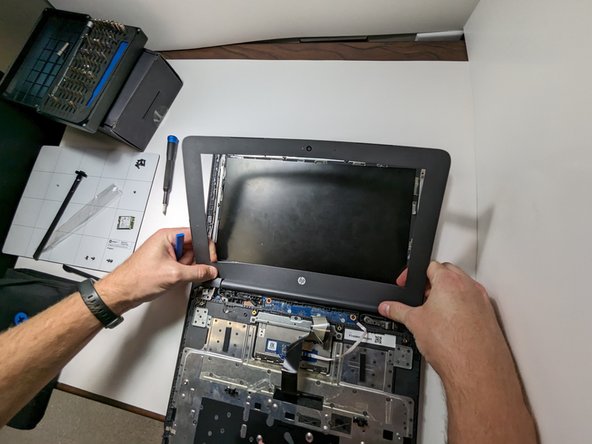
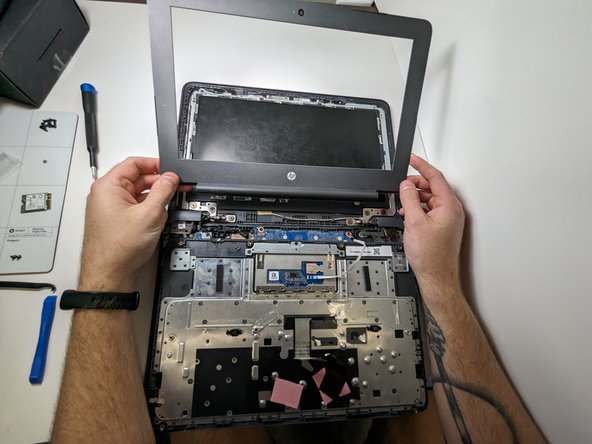
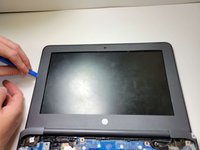
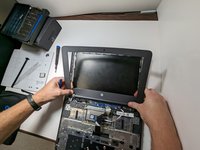
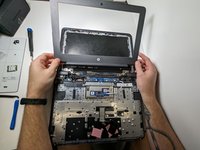
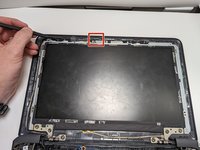
      • Use the opening pick around the edges of the screen bezel carefully to remove.

      • Remove screen bezel.

      crwdns2952109:0crwdne2952109:0

      crwdns2917038:0crwdne2917038:0

    2. HP Chromebook 11 G6 EE Webcam Camera Module Replacement: crwdns2935265:05crwdnd2935265:01crwdnd2935265:03crwdne2935265:0 HP Chromebook 11 G6 EE Webcam Camera Module Replacement: crwdns2935265:05crwdnd2935265:02crwdnd2935265:03crwdne2935265:0 HP Chromebook 11 G6 EE Webcam Camera Module Replacement: crwdns2935265:05crwdnd2935265:03crwdnd2935265:03crwdne2935265:0
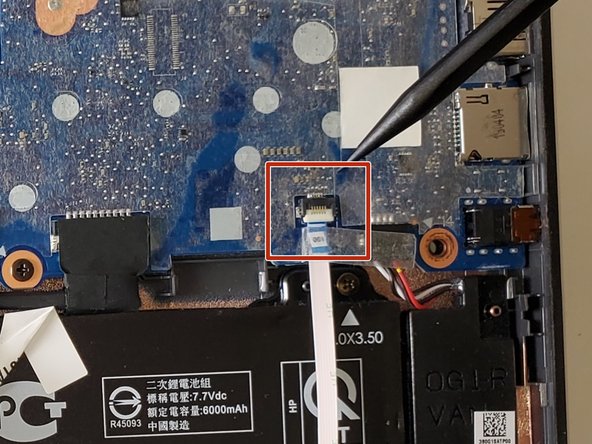
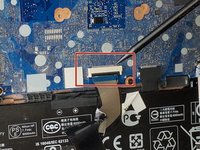
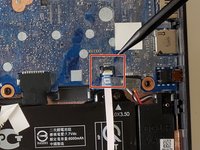
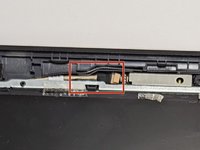
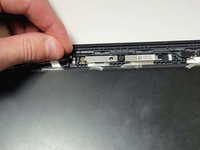
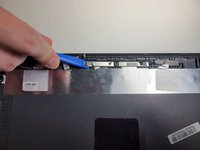
      • Peel back the tape that secures the webcam to the left display panel hinge.

      • Gently slide out the webcam connector.

      crwdns2952109:0crwdne2952109:0

      crwdns2917038:0crwdne2917038:0

    3. HP Chromebook 11 G6 EE Webcam Camera Module Replacement: crwdns2935265:06crwdnd2935265:01crwdnd2935265:02crwdne2935265:0 HP Chromebook 11 G6 EE Webcam Camera Module Replacement: crwdns2935265:06crwdnd2935265:02crwdnd2935265:02crwdne2935265:0
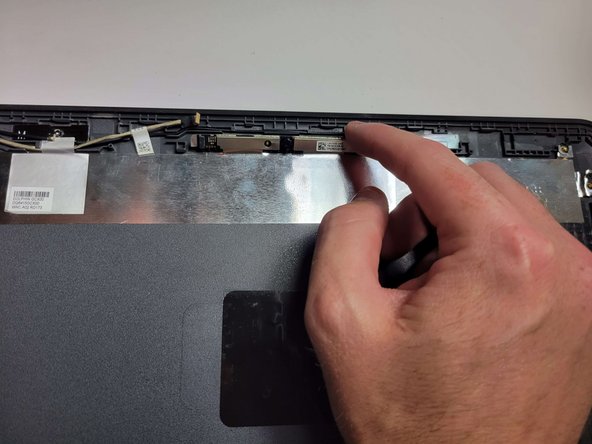
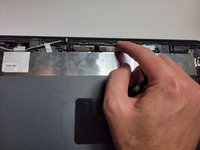
      • Place the iFixit opening tool under the webcam module.

      • This is will probably bend the metal due to the strong adhesive in place.

      • Using the iFixit tool work the tool around the top edge of the webcam module to loosen the module.

      • Use your fingers to lift the webcam module out of its setting.

      crwdns2952109:0crwdne2952109:0

      crwdns2917038:0crwdne2917038:0

crwdns2915888:0crwdne2915888:0

To reassemble your device, follow these instructions in reverse order.

crwdns2935221:0crwdne2935221:0

Israel Barnes

crwdns2935283:009/06/23crwdne2935283:0

99 crwdns2915208:0crwdne2915208:0

crwdns2935295:0crwdne2935295:0

crwdns2947412:00crwdne2947412:0

crwdns2917038:0crwdne2917038:0

crwdns2936625:0crwdne2936625:0:

crwdns2936751:024crwdne2936751:0 3

crwdns2936753:07crwdne2936753:0 8

crwdns2936753:030crwdne2936753:0 28

crwdns2942667:0crwdne2942667:0 504