crwdns2933423:0crwdne2933423:0
crwdns2947577:0crwdnd2947577:0crwdne2947577:0

HP 15-dy2702dx Keyboard Replacement

crwdns2942213:0crwdne2942213:0

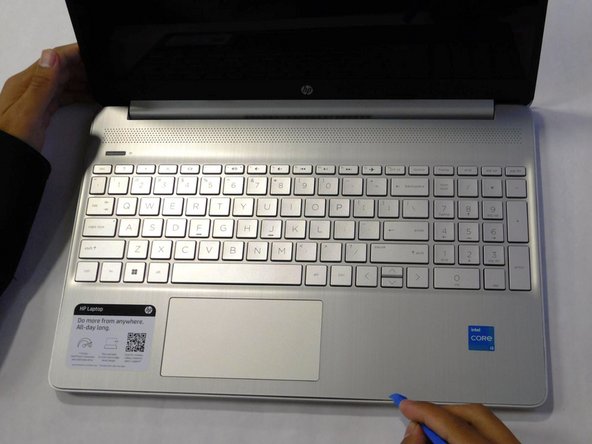
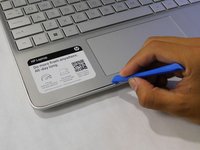
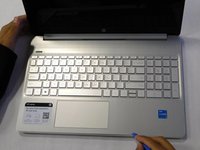
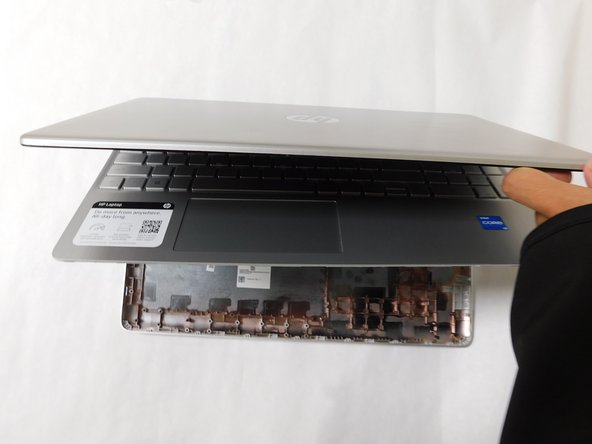
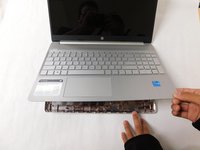
    1. HP 15-dy2702dx Keyboard Replacement, Lower Case: crwdns2935265:01crwdnd2935265:01crwdnd2935265:01crwdne2935265:0
      • Remove both of the rubber strips to uncover the hidden screws.

      • You can use a prying tool to help lift an end.

      crwdns2952109:0crwdne2952109:0

      crwdns2917038:0crwdne2917038:0

    2. HP 15-dy2702dx Keyboard Replacement: crwdns2935265:02crwdnd2935265:01crwdnd2935265:01crwdne2935265:0
      • Unscrew all 8 Phillips #1 screws on the bottom panel:

      • Two M2.5x6

      • Six M2x6

      crwdns2952109:0crwdne2952109:0

      crwdns2917038:0crwdne2917038:0

    3. HP 15-dy2702dx Keyboard Replacement: crwdns2935265:03crwdnd2935265:01crwdnd2935265:02crwdne2935265:0 HP 15-dy2702dx Keyboard Replacement: crwdns2935265:03crwdnd2935265:02crwdnd2935265:02crwdne2935265:0
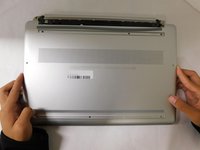
      • Flip the laptop over and open the lid.

      • Separate the bottom panel from the main body by using the iFixit opening tool.

      • Ensure that the bottom panel is completely separated along the edges.

      crwdns2952109:0crwdne2952109:0

      crwdns2917038:0crwdne2917038:0

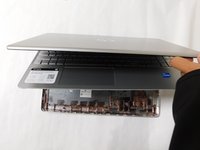
    4. HP 15-dy2702dx Keyboard Replacement: crwdns2935265:04crwdnd2935265:01crwdnd2935265:02crwdne2935265:0 HP 15-dy2702dx Keyboard Replacement: crwdns2935265:04crwdnd2935265:02crwdnd2935265:02crwdne2935265:0
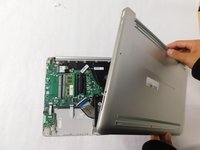
      • If you can lift the laptop like shown in the first picture, the bottom panel is nearly separated.

      • Close the laptop to allow the back edges to fully separate

      crwdns2952109:0crwdne2952109:0

      crwdns2917038:0crwdne2917038:0

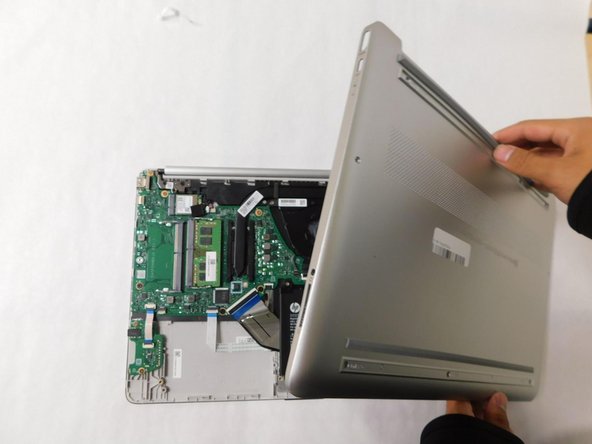
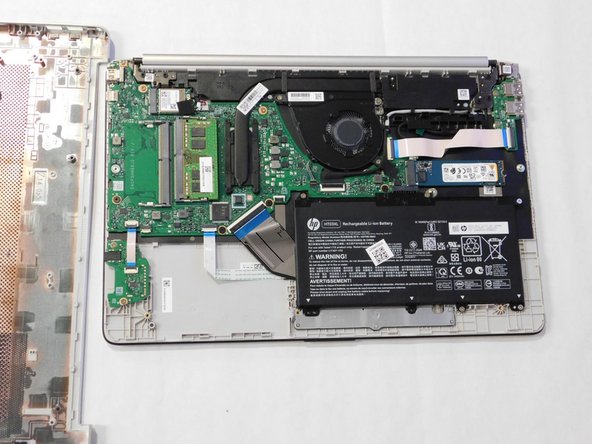
    5. HP 15-dy2702dx Keyboard Replacement: crwdns2935265:05crwdnd2935265:01crwdnd2935265:03crwdne2935265:0 HP 15-dy2702dx Keyboard Replacement: crwdns2935265:05crwdnd2935265:02crwdnd2935265:03crwdne2935265:0 HP 15-dy2702dx Keyboard Replacement: crwdns2935265:05crwdnd2935265:03crwdnd2935265:03crwdne2935265:0
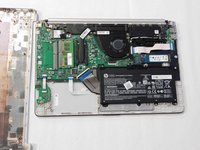
      • Flip the laptop over and carefully remove the lower case.

      crwdns2952109:0crwdne2952109:0

      crwdns2917038:0crwdne2917038:0

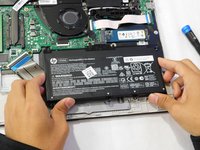
    1. HP 15-dy2702dx Keyboard Replacement, Battery: crwdns2935265:06crwdnd2935265:01crwdnd2935265:02crwdne2935265:0 HP 15-dy2702dx Keyboard Replacement, Battery: crwdns2935265:06crwdnd2935265:02crwdnd2935265:02crwdne2935265:0
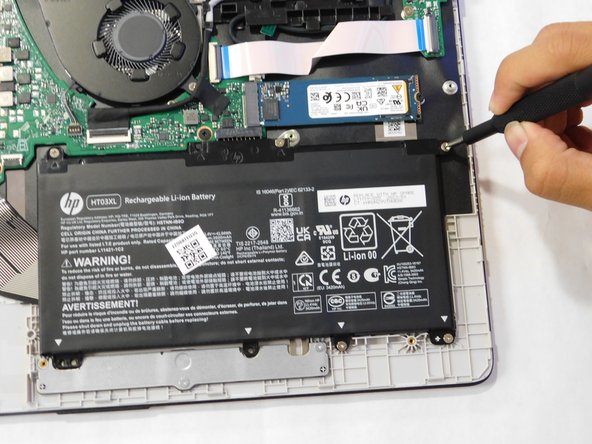
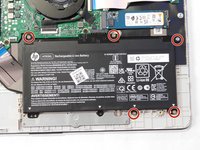
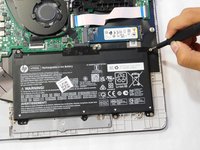
      • Remove the five M2x6 screws that secure the battery with a Phillips #1 screwdriver.

      crwdns2952109:0crwdne2952109:0

      crwdns2917038:0crwdne2917038:0

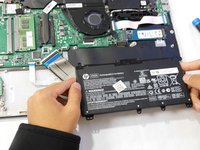
    2. HP 15-dy2702dx Keyboard Replacement: crwdns2935265:07crwdnd2935265:01crwdnd2935265:03crwdne2935265:0 HP 15-dy2702dx Keyboard Replacement: crwdns2935265:07crwdnd2935265:02crwdnd2935265:03crwdne2935265:0 HP 15-dy2702dx Keyboard Replacement: crwdns2935265:07crwdnd2935265:03crwdnd2935265:03crwdne2935265:0
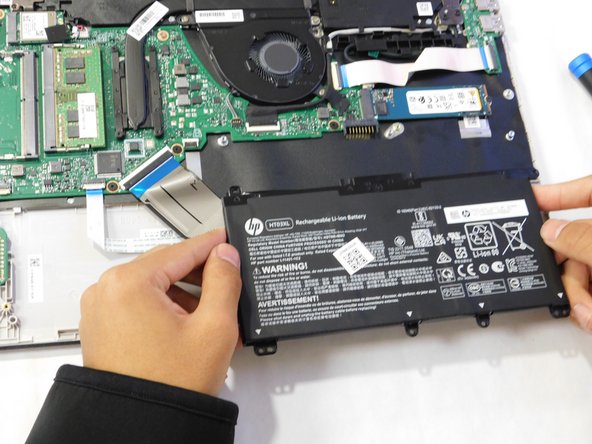
      • Grab the sides of the battery and gently pull the battery until it disconnects from the connector on motherboard.

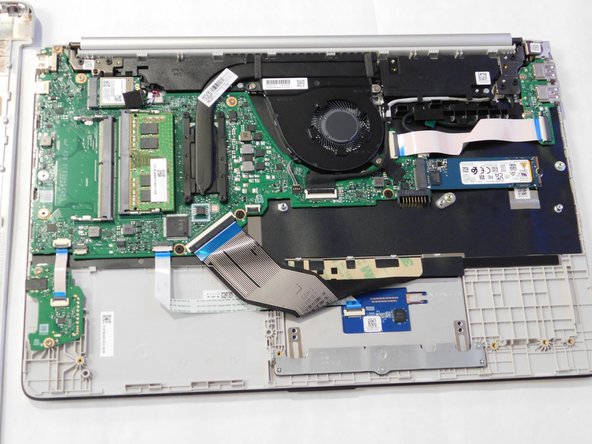
      • Lift the battery up and out.

      crwdns2952109:0crwdne2952109:0

      crwdns2917038:0crwdne2917038:0

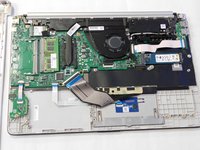
    1. HP 15-dy2702dx Keyboard Replacement, Trackpad: crwdns2935265:08crwdnd2935265:01crwdnd2935265:01crwdne2935265:0
      • Find the trackpad.

      crwdns2952109:0crwdne2952109:0

      crwdns2917038:0crwdne2917038:0

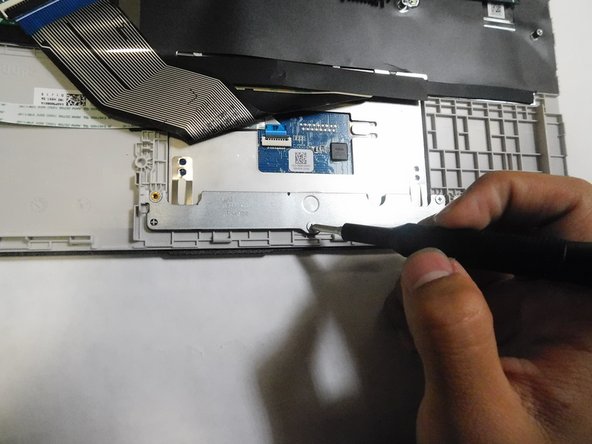
    2. HP 15-dy2702dx Keyboard Replacement: crwdns2935265:09crwdnd2935265:01crwdnd2935265:03crwdne2935265:0 HP 15-dy2702dx Keyboard Replacement: crwdns2935265:09crwdnd2935265:02crwdnd2935265:03crwdne2935265:0 HP 15-dy2702dx Keyboard Replacement: crwdns2935265:09crwdnd2935265:03crwdnd2935265:03crwdne2935265:0
      • Unscrew the two M2x6 Phillips #1 screws securing the trackpad.

      crwdns2952109:0crwdne2952109:0

      crwdns2917038:0crwdne2917038:0

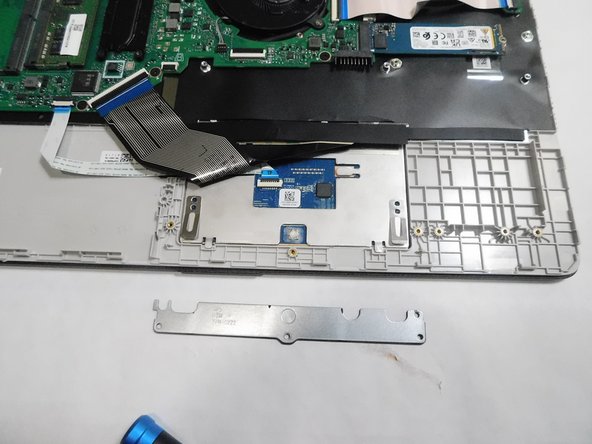
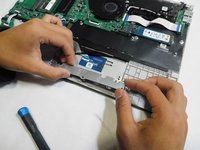
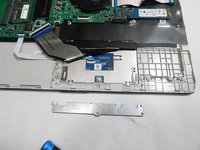
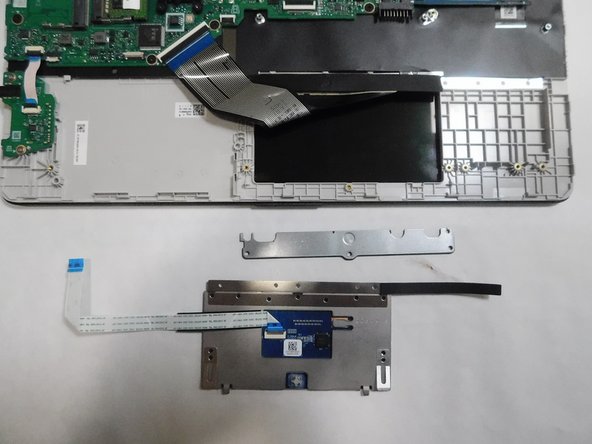
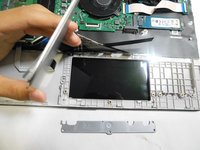
    3. HP 15-dy2702dx Keyboard Replacement: crwdns2935265:010crwdnd2935265:01crwdnd2935265:02crwdne2935265:0 HP 15-dy2702dx Keyboard Replacement: crwdns2935265:010crwdnd2935265:02crwdnd2935265:02crwdne2935265:0
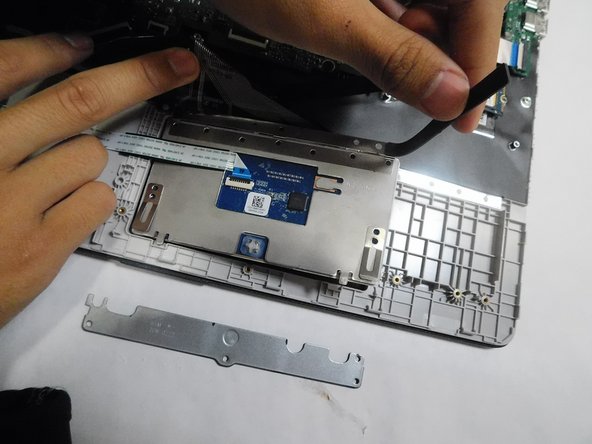
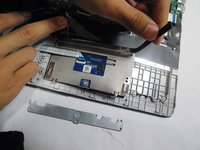
      • Remove the metal bracket.

      crwdns2952109:0crwdne2952109:0

      crwdns2917038:0crwdne2917038:0

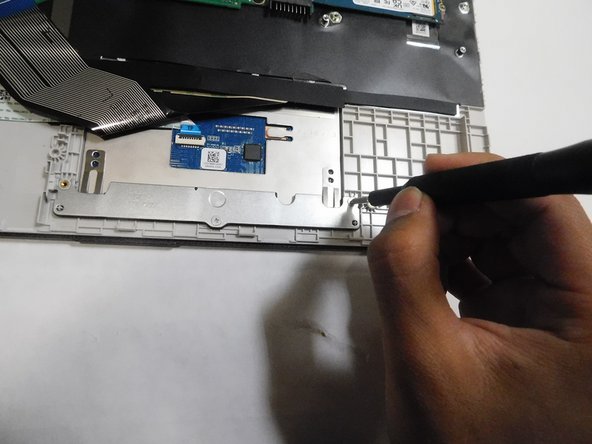
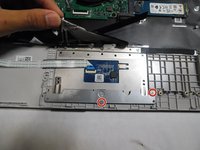
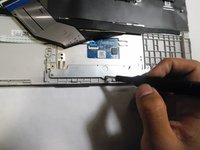
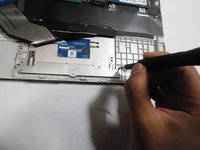
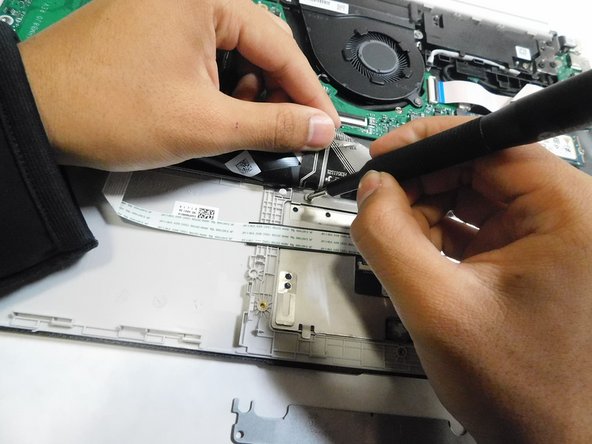
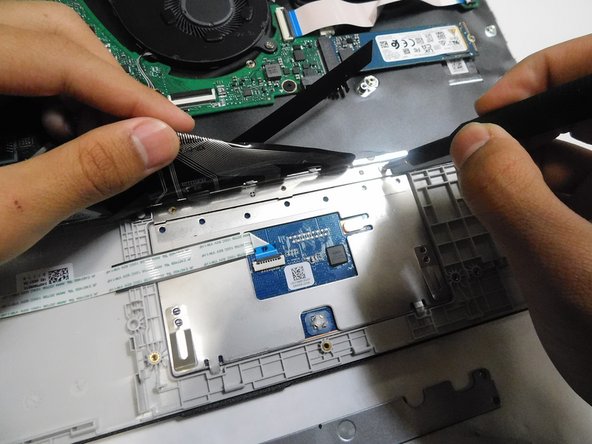
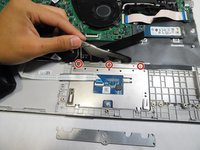
    4. HP 15-dy2702dx Keyboard Replacement: crwdns2935265:011crwdnd2935265:01crwdnd2935265:03crwdne2935265:0 HP 15-dy2702dx Keyboard Replacement: crwdns2935265:011crwdnd2935265:02crwdnd2935265:03crwdne2935265:0 HP 15-dy2702dx Keyboard Replacement: crwdns2935265:011crwdnd2935265:03crwdnd2935265:03crwdne2935265:0
      • Lift the black ribbon covering the screws.

      • Unscrew the top three M2x3 Phillips #0 screws.

      crwdns2952109:0crwdne2952109:0

      crwdns2917038:0crwdne2917038:0

    5. HP 15-dy2702dx Keyboard Replacement: crwdns2935265:012crwdnd2935265:01crwdnd2935265:03crwdne2935265:0 HP 15-dy2702dx Keyboard Replacement: crwdns2935265:012crwdnd2935265:02crwdnd2935265:03crwdne2935265:0 HP 15-dy2702dx Keyboard Replacement: crwdns2935265:012crwdnd2935265:03crwdnd2935265:03crwdne2935265:0
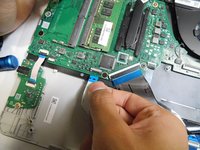
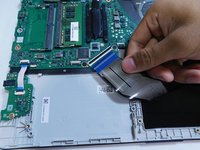
      • Flip up the locking flap holding the trackpad ribbon in place.

      • Pull the ribbon straight out of its socket.

      crwdns2952109:0crwdne2952109:0

      crwdns2917038:0crwdne2917038:0

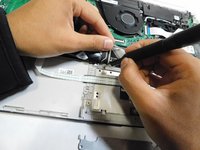
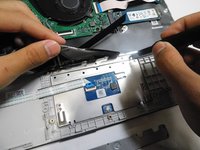
    6. HP 15-dy2702dx Keyboard Replacement: crwdns2935265:013crwdnd2935265:01crwdnd2935265:02crwdne2935265:0 HP 15-dy2702dx Keyboard Replacement: crwdns2935265:013crwdnd2935265:02crwdnd2935265:02crwdne2935265:0
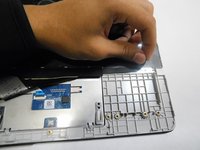
      • Peel back the sticky black strip holding the trackpad in place.

      crwdns2952109:0crwdne2952109:0

      crwdns2917038:0crwdne2917038:0

    7. HP 15-dy2702dx Keyboard Replacement: crwdns2935265:014crwdnd2935265:01crwdnd2935265:02crwdne2935265:0 HP 15-dy2702dx Keyboard Replacement: crwdns2935265:014crwdnd2935265:02crwdnd2935265:02crwdne2935265:0
      • Remove the trackpad from the laptop.

      crwdns2952109:0crwdne2952109:0

      crwdns2917038:0crwdne2917038:0

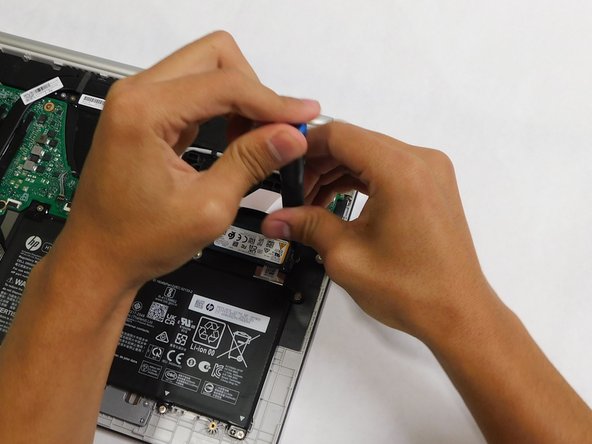
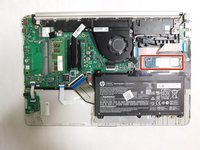
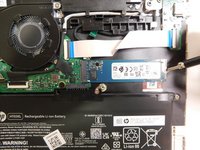
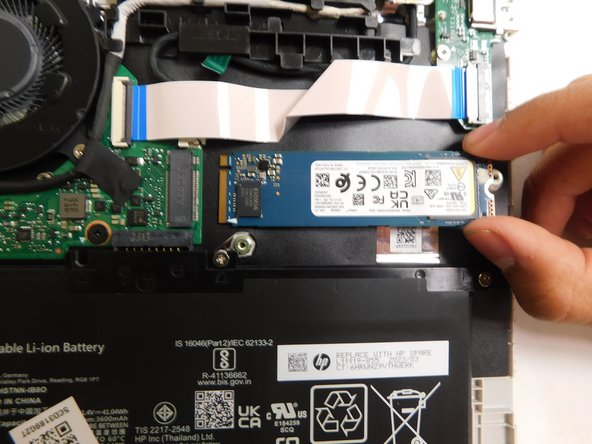
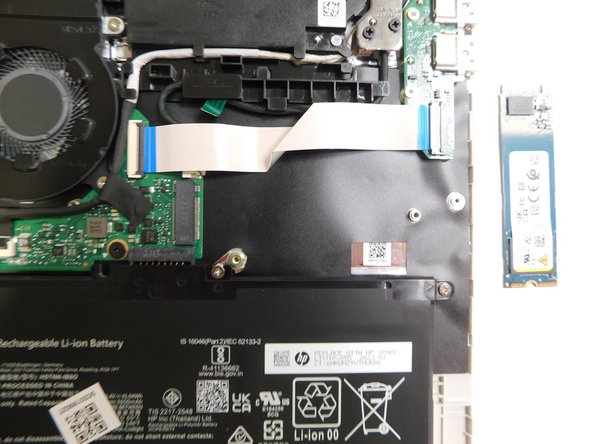
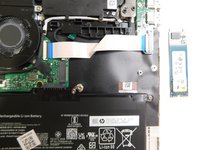
    1. HP 15-dy2702dx Keyboard Replacement, SSD: crwdns2935265:015crwdnd2935265:01crwdnd2935265:03crwdne2935265:0 HP 15-dy2702dx Keyboard Replacement, SSD: crwdns2935265:015crwdnd2935265:02crwdnd2935265:03crwdne2935265:0 HP 15-dy2702dx Keyboard Replacement, SSD: crwdns2935265:015crwdnd2935265:03crwdnd2935265:03crwdne2935265:0
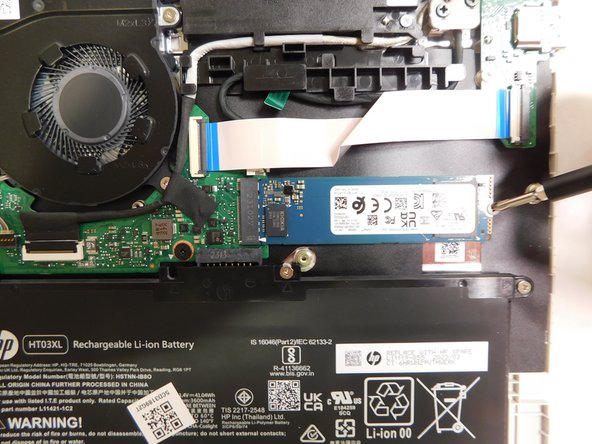
      • Locate the storage drive.

      • Unscrew the single screw holding the drive in place.

      • The screw is a M2x3 mm Phillips #1 head screw.

      crwdns2952109:0crwdne2952109:0

      crwdns2917038:0crwdne2917038:0

    2. HP 15-dy2702dx Keyboard Replacement: crwdns2935265:016crwdnd2935265:01crwdnd2935265:03crwdne2935265:0 HP 15-dy2702dx Keyboard Replacement: crwdns2935265:016crwdnd2935265:02crwdnd2935265:03crwdne2935265:0 HP 15-dy2702dx Keyboard Replacement: crwdns2935265:016crwdnd2935265:03crwdnd2935265:03crwdne2935265:0
      • Grab the drive by its side and gently pull it out.

      crwdns2952109:0crwdne2952109:0

      crwdns2917038:0crwdne2917038:0

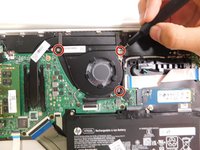
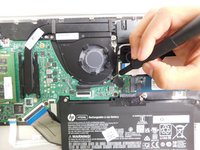
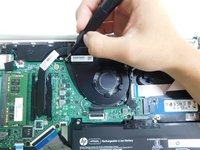
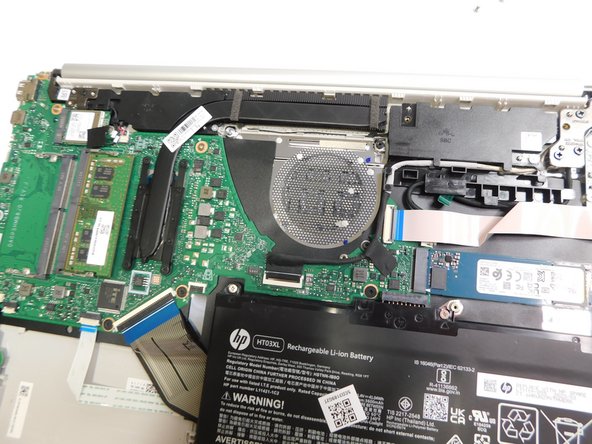
    1. HP 15-dy2702dx Keyboard Replacement, Fan: crwdns2935265:017crwdnd2935265:01crwdnd2935265:03crwdne2935265:0 HP 15-dy2702dx Keyboard Replacement, Fan: crwdns2935265:017crwdnd2935265:02crwdnd2935265:03crwdne2935265:0 HP 15-dy2702dx Keyboard Replacement, Fan: crwdns2935265:017crwdnd2935265:03crwdnd2935265:03crwdne2935265:0
      • Use a Phillips #1 screwdriver to unscrew the three screws that secure the fan.

      • These screws sizes are M2x6.

      crwdns2952109:0crwdne2952109:0

      crwdns2917038:0crwdne2917038:0

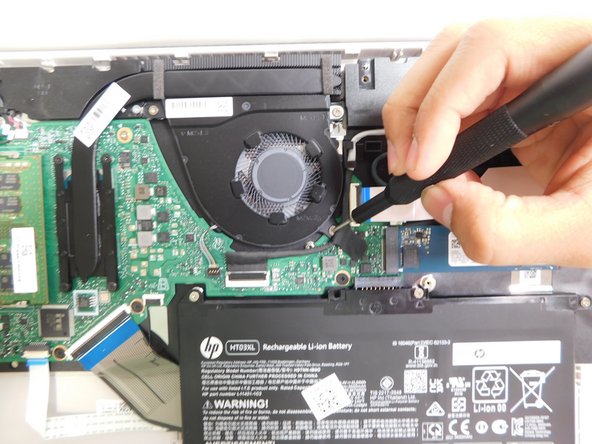
    2. HP 15-dy2702dx Keyboard Replacement: crwdns2935265:018crwdnd2935265:01crwdnd2935265:01crwdne2935265:0
      • Grip the cord that connects the fan to the motherboard and gently pull out to disconnect the cable from the connector.

      • Alternatively, we recommend using a tool to push the connector out of its socket to avoid damaging the wires.

      crwdns2952109:0crwdne2952109:0

      crwdns2917038:0crwdne2917038:0

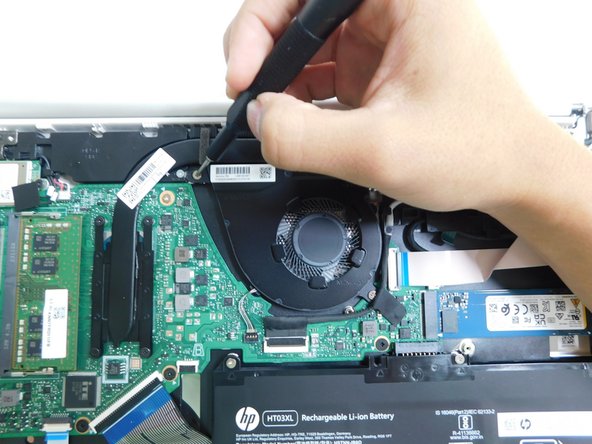
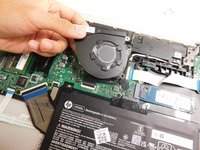
    3. HP 15-dy2702dx Keyboard Replacement: crwdns2935265:019crwdnd2935265:01crwdnd2935265:02crwdne2935265:0 HP 15-dy2702dx Keyboard Replacement: crwdns2935265:019crwdnd2935265:02crwdnd2935265:02crwdne2935265:0
      • Gently lift the fan to remove it from the case.

      crwdns2952109:0crwdne2952109:0

      crwdns2917038:0crwdne2917038:0

    1. HP 15-dy2702dx Keyboard Replacement, Keyboard Assembly: crwdns2935265:020crwdnd2935265:01crwdnd2935265:03crwdne2935265:0 HP 15-dy2702dx Keyboard Replacement, Keyboard Assembly: crwdns2935265:020crwdnd2935265:02crwdnd2935265:03crwdne2935265:0 HP 15-dy2702dx Keyboard Replacement, Keyboard Assembly: crwdns2935265:020crwdnd2935265:03crwdnd2935265:03crwdne2935265:0
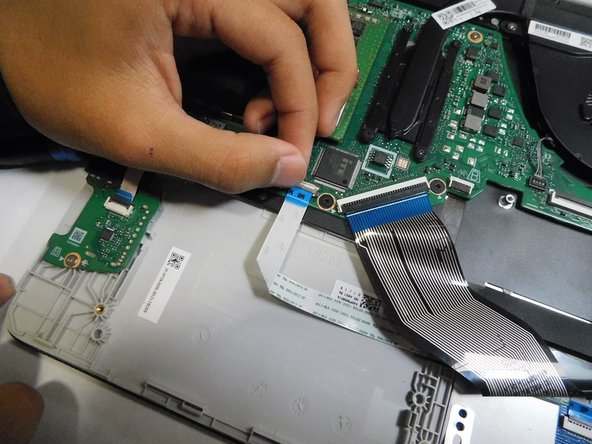
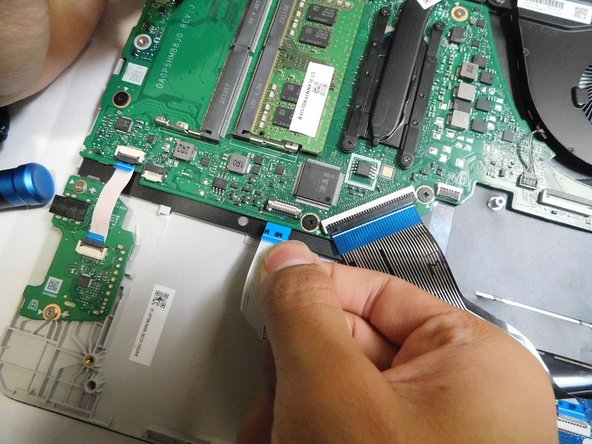
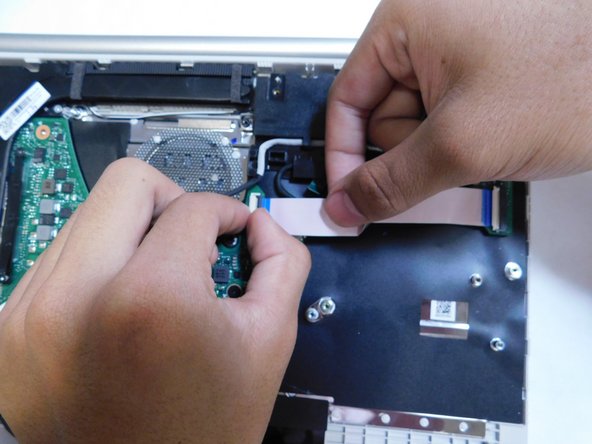
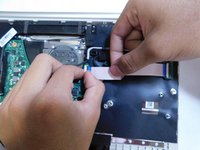
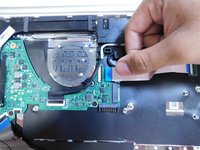
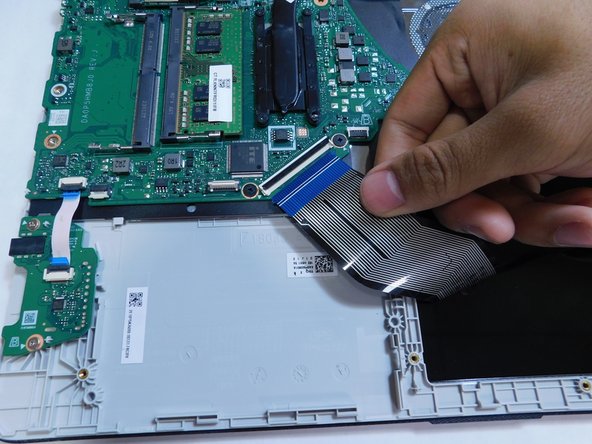
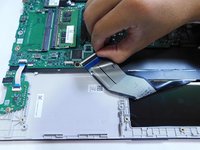
      • Disconnect all the ribbon cables from the motherboard.

      • Ensure to flip up the locking flaps before attempting to pull the ribbon out.

      crwdns2952109:0crwdne2952109:0

      crwdns2917038:0crwdne2917038:0

    2. HP 15-dy2702dx Keyboard Replacement: crwdns2935265:021crwdnd2935265:01crwdnd2935265:02crwdne2935265:0 HP 15-dy2702dx Keyboard Replacement: crwdns2935265:021crwdnd2935265:02crwdnd2935265:02crwdne2935265:0
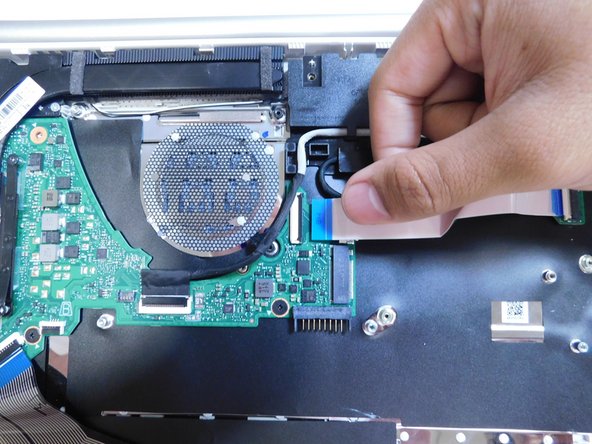
      • Continue disconnecting the ribbon cables.

      crwdns2952109:0crwdne2952109:0

      crwdns2917038:0crwdne2917038:0

    3. HP 15-dy2702dx Keyboard Replacement: crwdns2935265:022crwdnd2935265:01crwdnd2935265:02crwdne2935265:0 HP 15-dy2702dx Keyboard Replacement: crwdns2935265:022crwdnd2935265:02crwdnd2935265:02crwdne2935265:0
      • Continue disconnecting the remaining ribbons.

      crwdns2952109:0crwdne2952109:0

      crwdns2917038:0crwdne2917038:0

    4. HP 15-dy2702dx Keyboard Replacement: crwdns2935265:023crwdnd2935265:01crwdnd2935265:02crwdne2935265:0 HP 15-dy2702dx Keyboard Replacement: crwdns2935265:023crwdnd2935265:02crwdnd2935265:02crwdne2935265:0
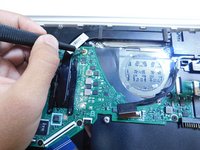
      • Disconnect the connector.

      crwdns2952109:0crwdne2952109:0

      crwdns2917038:0crwdne2917038:0

    5. HP 15-dy2702dx Keyboard Replacement: crwdns2935265:024crwdnd2935265:01crwdnd2935265:03crwdne2935265:0 HP 15-dy2702dx Keyboard Replacement: crwdns2935265:024crwdnd2935265:02crwdnd2935265:03crwdne2935265:0 HP 15-dy2702dx Keyboard Replacement: crwdns2935265:024crwdnd2935265:03crwdnd2935265:03crwdne2935265:0
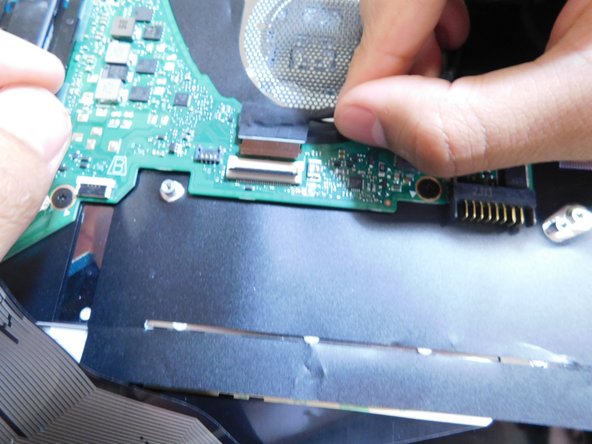
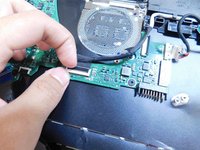
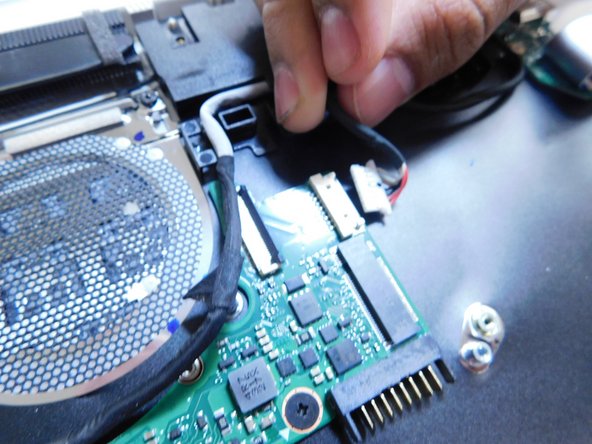
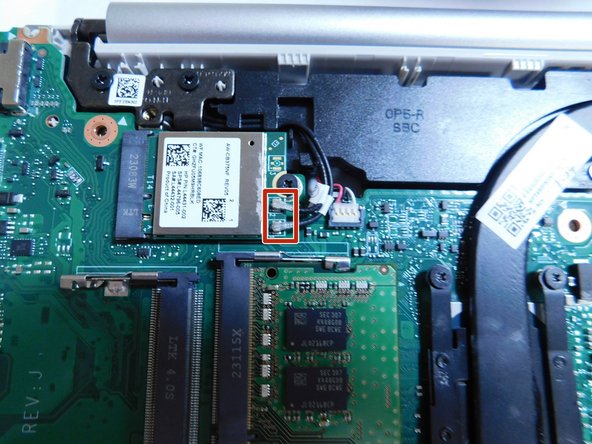
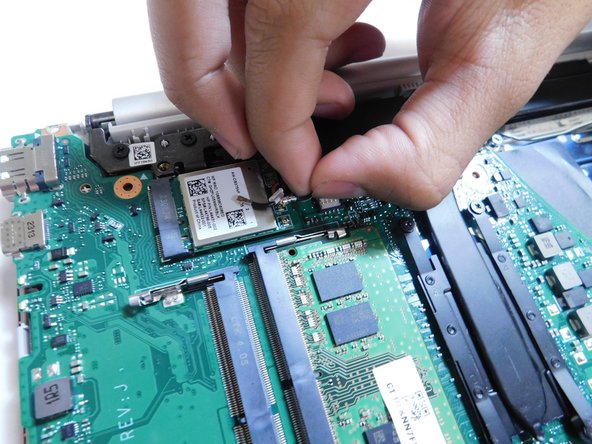
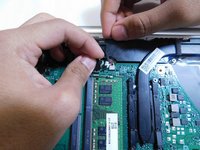
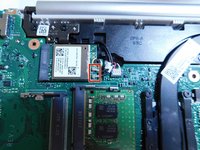
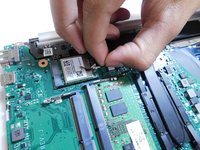
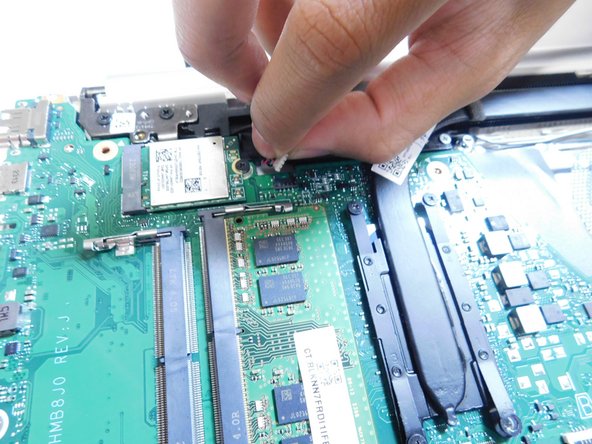
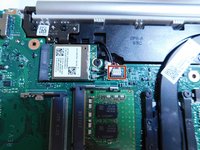
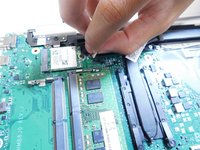
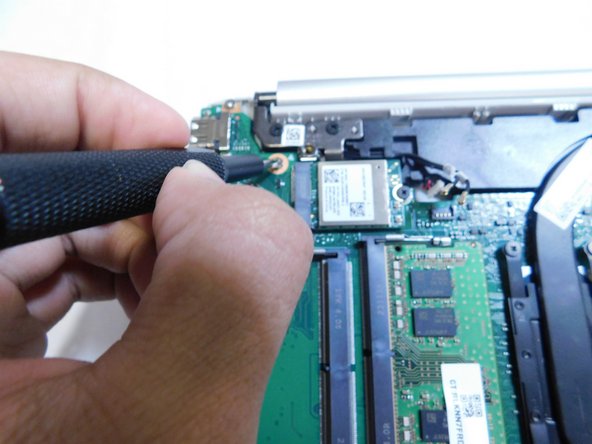
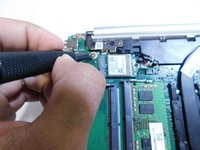
      • Peel off the black sticker covering the silver connectors near the top of the motherboard.

      • Remove the two silver colored round connector from the motherboard by pulling them up.

      • The connector should have a tag on them with number 1 and 2 on them.

      crwdns2952109:0crwdne2952109:0

      crwdns2917038:0crwdne2917038:0

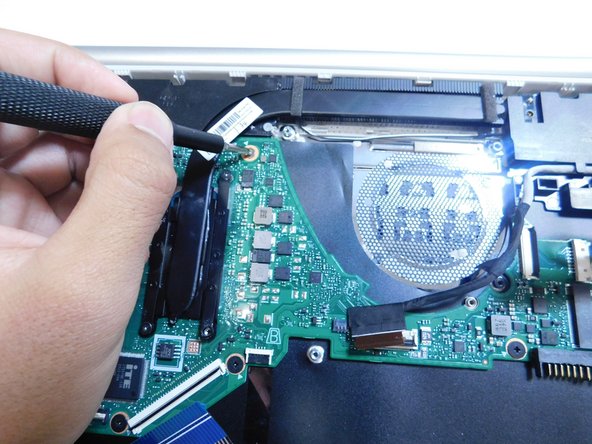
    6. HP 15-dy2702dx Keyboard Replacement: crwdns2935265:025crwdnd2935265:01crwdnd2935265:02crwdne2935265:0 HP 15-dy2702dx Keyboard Replacement: crwdns2935265:025crwdnd2935265:02crwdnd2935265:02crwdne2935265:0
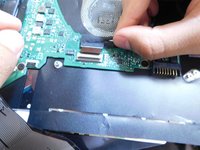
      • Pull up on the last connector on the motherboard next to the connectors removed in the previous step.

      crwdns2952109:0crwdne2952109:0

      crwdns2917038:0crwdne2917038:0

    7. HP 15-dy2702dx Keyboard Replacement: crwdns2935265:026crwdnd2935265:01crwdnd2935265:03crwdne2935265:0 HP 15-dy2702dx Keyboard Replacement: crwdns2935265:026crwdnd2935265:02crwdnd2935265:03crwdne2935265:0 HP 15-dy2702dx Keyboard Replacement: crwdns2935265:026crwdnd2935265:03crwdnd2935265:03crwdne2935265:0
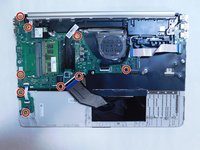
      • Unscrew all M2x3 Phillips #1 screws holding the motherboard in place.

      crwdns2952109:0crwdne2952109:0

      crwdns2917038:0crwdne2917038:0

    8. HP 15-dy2702dx Keyboard Replacement: crwdns2935265:027crwdnd2935265:01crwdnd2935265:02crwdne2935265:0 HP 15-dy2702dx Keyboard Replacement: crwdns2935265:027crwdnd2935265:02crwdnd2935265:02crwdne2935265:0
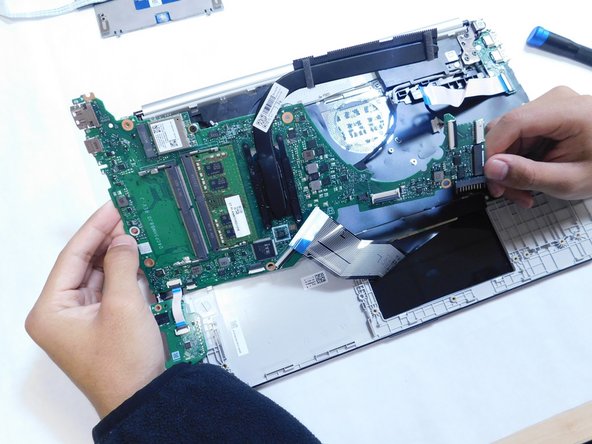
      • Remove the motherboard from the case.

      crwdns2952109:0crwdne2952109:0

      crwdns2917038:0crwdne2917038:0

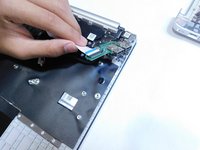
    9. HP 15-dy2702dx Keyboard Replacement: crwdns2935265:028crwdnd2935265:01crwdnd2935265:02crwdne2935265:0 HP 15-dy2702dx Keyboard Replacement: crwdns2935265:028crwdnd2935265:02crwdnd2935265:02crwdne2935265:0
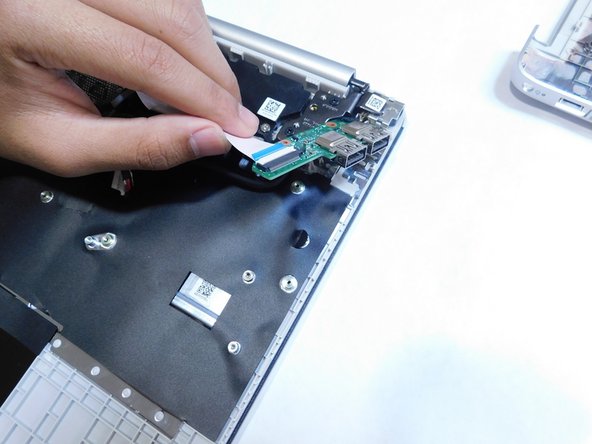
      • Unscrew the two M2x3 Phillips #1 screws.

      • Remove the I/O board from the case.

      crwdns2952109:0crwdne2952109:0

      crwdns2917038:0crwdne2917038:0

    10. HP 15-dy2702dx Keyboard Replacement: crwdns2935265:029crwdnd2935265:01crwdnd2935265:03crwdne2935265:0 HP 15-dy2702dx Keyboard Replacement: crwdns2935265:029crwdnd2935265:02crwdnd2935265:03crwdne2935265:0 HP 15-dy2702dx Keyboard Replacement: crwdns2935265:029crwdnd2935265:03crwdnd2935265:03crwdne2935265:0
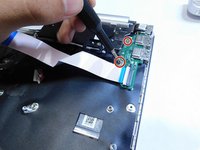
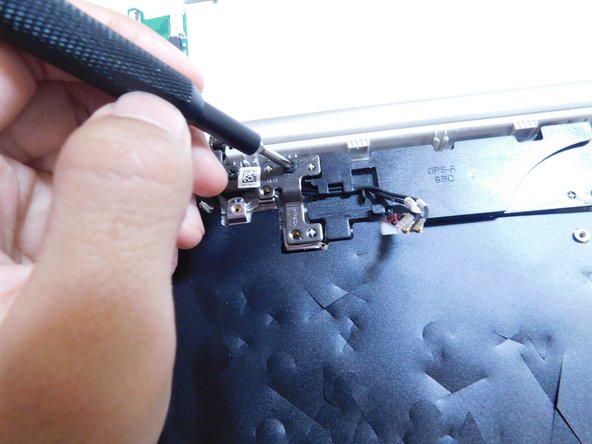
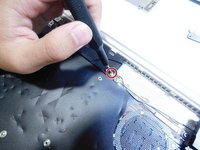
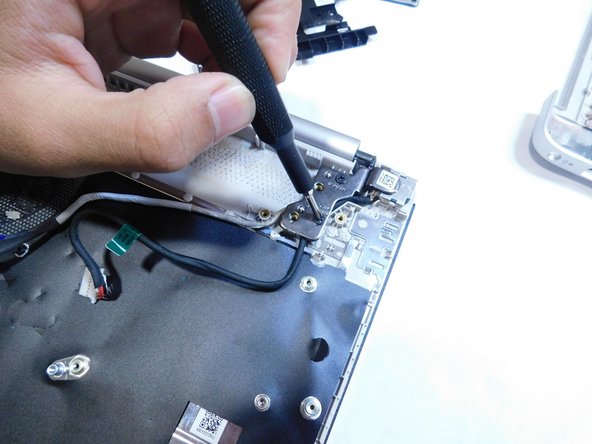
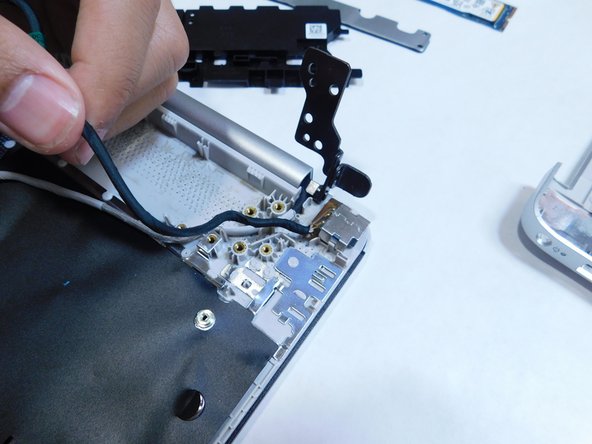
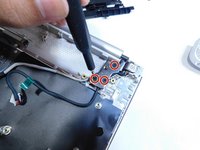
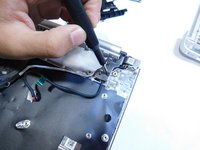
      • Unscrew the three M2x6 Phillips #1 screws from the left metal hinge.

      • Lift the hinge.

      crwdns2952109:0crwdne2952109:0

      crwdns2917038:0crwdne2917038:0

    11. HP 15-dy2702dx Keyboard Replacement: crwdns2935265:030crwdnd2935265:01crwdnd2935265:02crwdne2935265:0 HP 15-dy2702dx Keyboard Replacement: crwdns2935265:030crwdnd2935265:02crwdnd2935265:02crwdne2935265:0
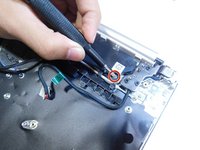
      • Unscrew the two Phillips #1 screws.

      • One is on the left side near where the fan was removed.

      • The other is near the right laptop metal hinge.

      crwdns2952109:0crwdne2952109:0

      crwdns2917038:0crwdne2917038:0

    12. HP 15-dy2702dx Keyboard Replacement: crwdns2935265:031crwdnd2935265:01crwdnd2935265:02crwdne2935265:0 HP 15-dy2702dx Keyboard Replacement: crwdns2935265:031crwdnd2935265:02crwdnd2935265:02crwdne2935265:0
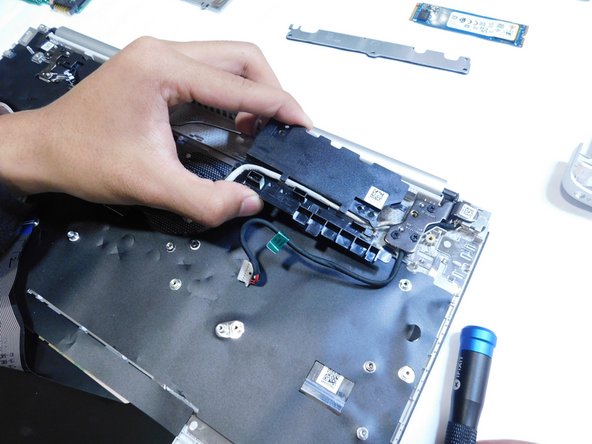
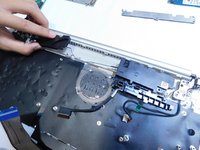
      • Remove the black boxes from the case.

      • Disconnect the power cable (white cable with a black flag at the end).

      • The black boxes is still connected to the case through a black wire, do not attempt to remove the wire.

      crwdns2952109:0crwdne2952109:0

      crwdns2917038:0crwdne2917038:0

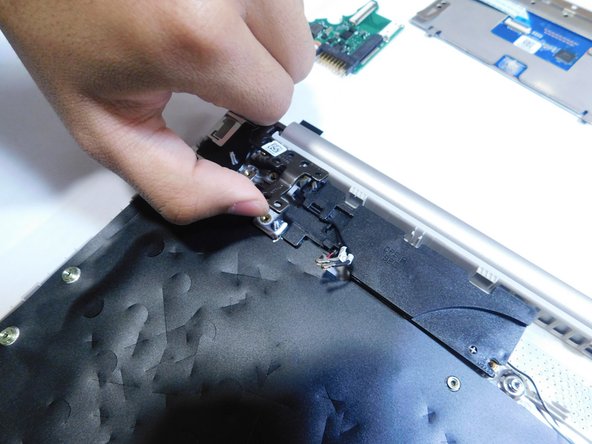
    13. HP 15-dy2702dx Keyboard Replacement: crwdns2935265:032crwdnd2935265:01crwdnd2935265:03crwdne2935265:0 HP 15-dy2702dx Keyboard Replacement: crwdns2935265:032crwdnd2935265:02crwdnd2935265:03crwdne2935265:0 HP 15-dy2702dx Keyboard Replacement: crwdns2935265:032crwdnd2935265:03crwdnd2935265:03crwdne2935265:0
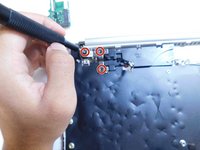
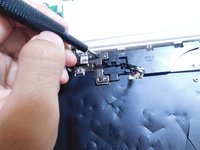
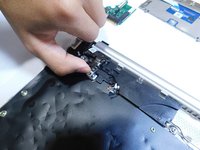
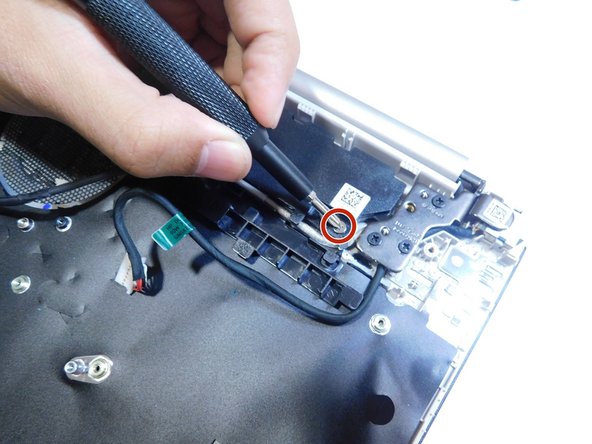
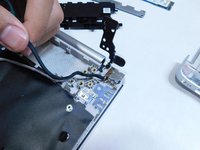
      • Unscrew the three Philips head #1 screws on the right-side metal hinge.

      • Lift the hinge.

      crwdns2952109:0crwdne2952109:0

      crwdns2917038:0crwdne2917038:0

    14. HP 15-dy2702dx Keyboard Replacement: crwdns2935265:033crwdnd2935265:01crwdnd2935265:01crwdne2935265:0
      • Remove the DC in jack from the case by pulling it straight up.

      crwdns2952109:0crwdne2952109:0

      crwdns2917038:0crwdne2917038:0

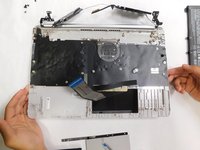
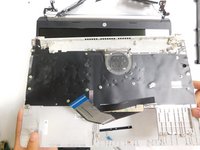
    15. HP 15-dy2702dx Keyboard Replacement: crwdns2935265:034crwdnd2935265:01crwdnd2935265:03crwdne2935265:0 HP 15-dy2702dx Keyboard Replacement: crwdns2935265:034crwdnd2935265:02crwdnd2935265:03crwdne2935265:0 HP 15-dy2702dx Keyboard Replacement: crwdns2935265:034crwdnd2935265:03crwdnd2935265:03crwdne2935265:0
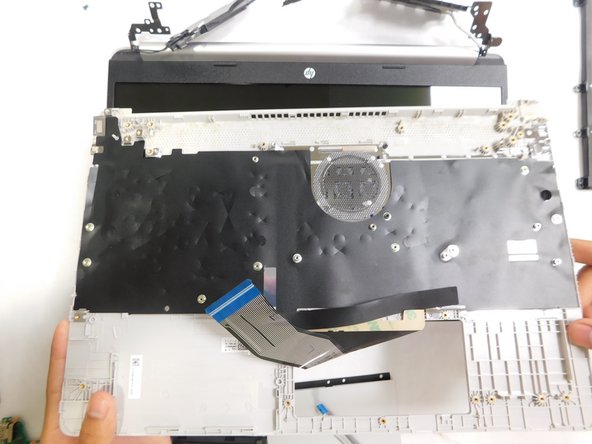
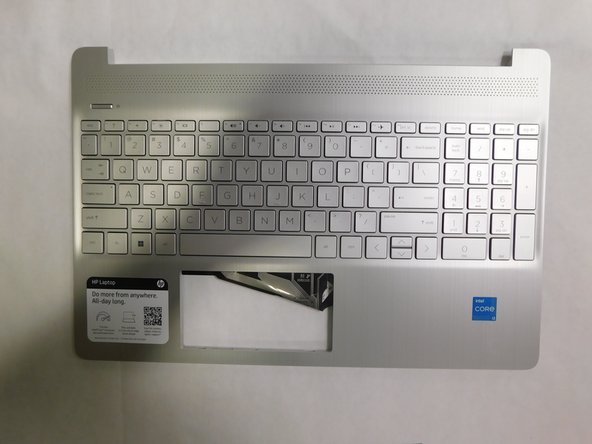
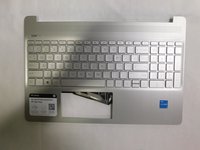
      • Remove the keyboard from the laptop.

      • The keyboard is a type where it is directly integrated into the frame so you will need to replace the whole frame.

      crwdns2952109:0crwdne2952109:0

      crwdns2917038:0crwdne2917038:0

crwdns2915888:0crwdne2915888:0

To reassemble your device, follow these instructions in reverse order.

crwdns2935221:0crwdne2935221:0

crwdns2935227:0crwdne2935227:0

Zander Herbold

crwdns2935283:009/05/23crwdne2935283:0

700 crwdns2915208:0crwdne2915208:0

crwdns2935297:04crwdne2935297:0

crwdns2935287:0crwdne2935287:0

Gateway, Team 1-4, Pee Fall 2023 crwdns2935289:0Gateway, Team 1-4, Pee Fall 2023crwdne2935289:0

GCC-PEE-F23S1G4

crwdns2931471:04crwdne2931471:0

crwdns2935297:072crwdne2935297:0

crwdns2947412:00crwdne2947412:0

crwdns2917038:0crwdne2917038:0

crwdns2936625:0crwdne2936625:0:

crwdns2936751:024crwdne2936751:0 4

crwdns2936753:07crwdne2936753:0 17

crwdns2936753:030crwdne2936753:0 68

crwdns2942667:0crwdne2942667:0 1,696