crwdns2933423:0crwdne2933423:0
crwdns2947577:0crwdnd2947577:0crwdne2947577:0

HP 15-ay114cy Fan Replacement

crwdns2942213:0crwdne2942213:0

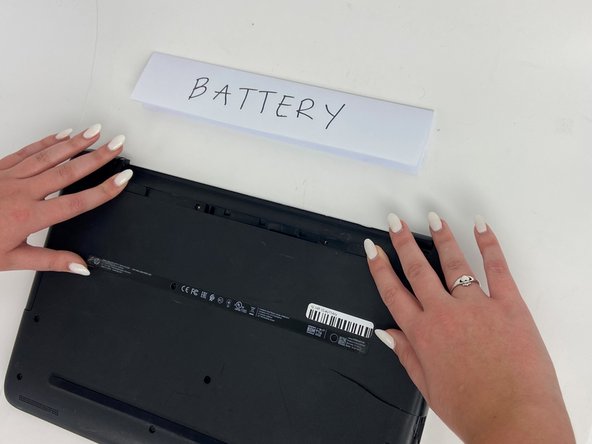
    1. HP 15-ay114cy Fan Replacement, Orient the Laptop: crwdns2935265:01crwdnd2935265:01crwdnd2935265:01crwdne2935265:0
      • Orient the Laptop so the HP logo is facing the table and the battery tabs are accessible.

      • Ensure the laptop is powered off before moving forward.

      crwdns2952109:0crwdne2952109:0

      crwdns2917038:0crwdne2917038:0

    2. HP 15-ay114cy Fan Replacement, Push out the Battery: crwdns2935265:02crwdnd2935265:01crwdnd2935265:02crwdne2935265:0 HP 15-ay114cy Fan Replacement, Push out the Battery: crwdns2935265:02crwdnd2935265:02crwdnd2935265:02crwdne2935265:0
      • Place your index fingers on each of the two battery holder clips.

      • Using your index fingers, push the battery holder clips inwards (towards the center of the laptop).

      crwdns2952109:0crwdne2952109:0

      crwdns2917038:0crwdne2917038:0

    3. HP 15-ay114cy Fan Replacement, Remove the Battery: crwdns2935265:03crwdnd2935265:01crwdnd2935265:02crwdne2935265:0 HP 15-ay114cy Fan Replacement, Remove the Battery: crwdns2935265:03crwdnd2935265:02crwdnd2935265:02crwdne2935265:0
      • After the battery clips are pushed in, use either hand to grab hold of the battery.

      • Gently push up to remove the battery.

      crwdns2952109:0crwdne2952109:0

      crwdns2917038:0crwdne2917038:0

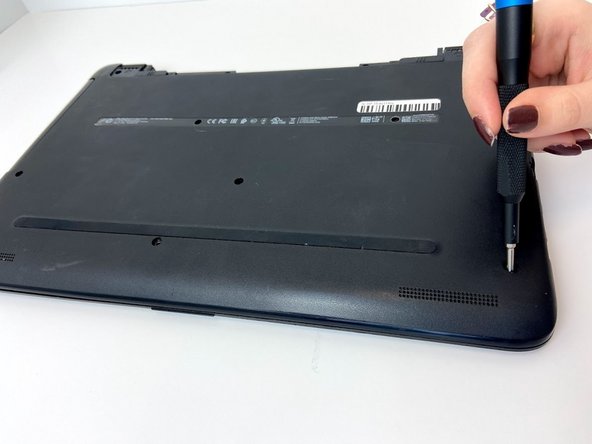
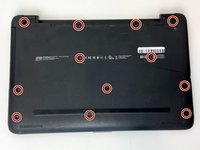
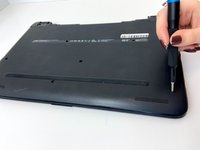
    1. HP 15-ay114cy Fan Replacement, Unscrew the Back Cover: crwdns2935265:04crwdnd2935265:01crwdnd2935265:02crwdne2935265:0 HP 15-ay114cy Fan Replacement, Unscrew the Back Cover: crwdns2935265:04crwdnd2935265:02crwdnd2935265:02crwdne2935265:0
      • Use a Phillips #0 screwdriver to remove the twelve 8 mm Phillips screws that are holding down the bottom cover of the laptop.

      crwdns2952109:0crwdne2952109:0

      crwdns2917038:0crwdne2917038:0

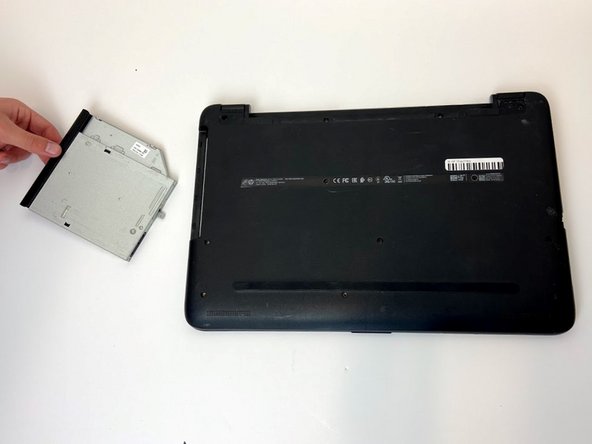
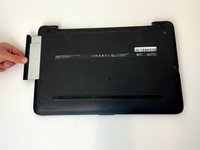
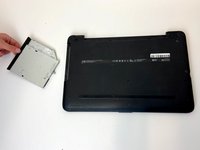
    2. HP 15-ay114cy Fan Replacement, Remove the Disk Drive: crwdns2935265:05crwdnd2935265:01crwdnd2935265:02crwdne2935265:0 HP 15-ay114cy Fan Replacement, Remove the Disk Drive: crwdns2935265:05crwdnd2935265:02crwdnd2935265:02crwdne2935265:0
      • Grab a hold of the disk drive and carefully pull it away from the computer.

      • Continue to slide the disk drive out of the laptop until fully removed.

      • Due to the removal of the battery, no power is available to open the disk drive through the use of the eject button.

      • Make sure to pull out the disk drive at a 90 degree angle as demonstrated. Do not attempt to wiggle the drive out of the laptop.

      • There will be resistance when removing the drive. Mishandling may cause broken wires, which could make your disk drive inoperative.

      crwdns2952109:0crwdne2952109:0

      crwdns2917038:0crwdne2917038:0

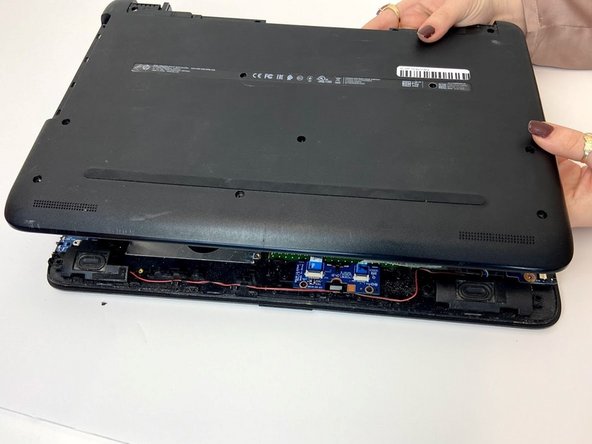
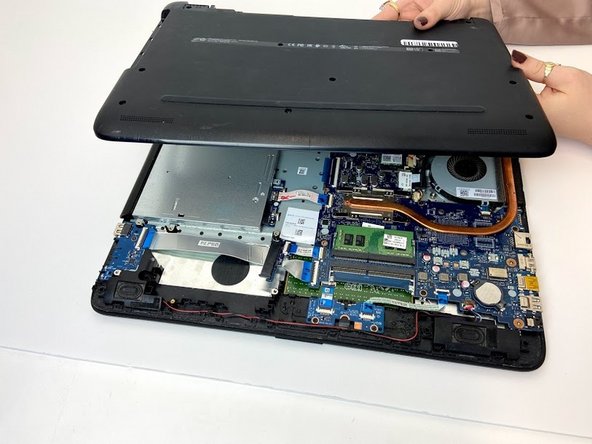
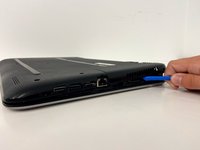
    3. HP 15-ay114cy Fan Replacement, Remove the Back Cover: crwdns2935265:06crwdnd2935265:01crwdnd2935265:03crwdne2935265:0 HP 15-ay114cy Fan Replacement, Remove the Back Cover: crwdns2935265:06crwdnd2935265:02crwdnd2935265:03crwdne2935265:0 HP 15-ay114cy Fan Replacement, Remove the Back Cover: crwdns2935265:06crwdnd2935265:03crwdnd2935265:03crwdne2935265:0
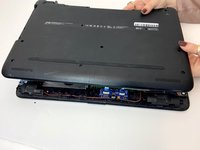
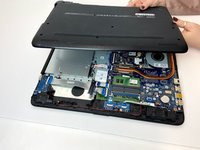
      • Place a plastic opening tool in-between the upper and lower pieces of the bottom cover.

      • Using your hands and the plastic opening tool, gently separate the cover from the frame.

      • Slowly remove the bottom cover from the base of the laptop.

      • Using metal pry tools can damage your device.

      crwdns2952109:0crwdne2952109:0

      crwdns2917038:0crwdne2917038:0

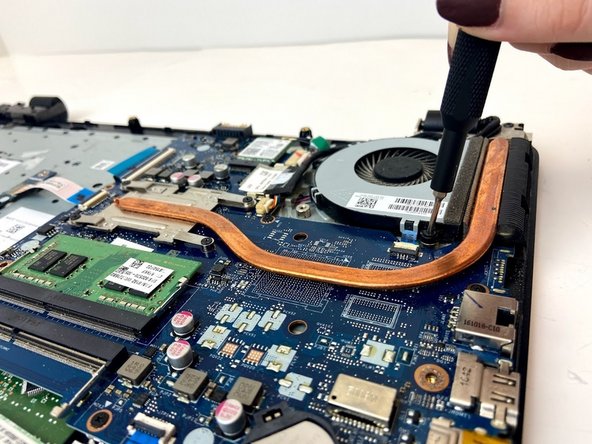
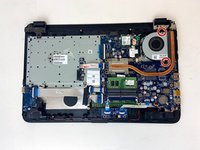
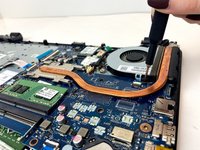
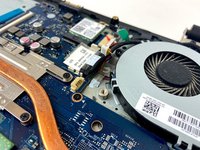
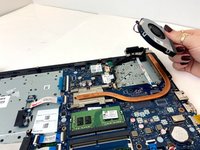
    4. HP 15-ay114cy Fan Replacement, Remove the Fan Screws: crwdns2935265:07crwdnd2935265:01crwdnd2935265:02crwdne2935265:0 HP 15-ay114cy Fan Replacement, Remove the Fan Screws: crwdns2935265:07crwdnd2935265:02crwdnd2935265:02crwdne2935265:0
      • Use a Phillips #0 screwdriver to remove the two 8 mm Phillips-head screws that attach the fan to the base.

      crwdns2952109:0crwdne2952109:0

      crwdns2917038:0crwdne2917038:0

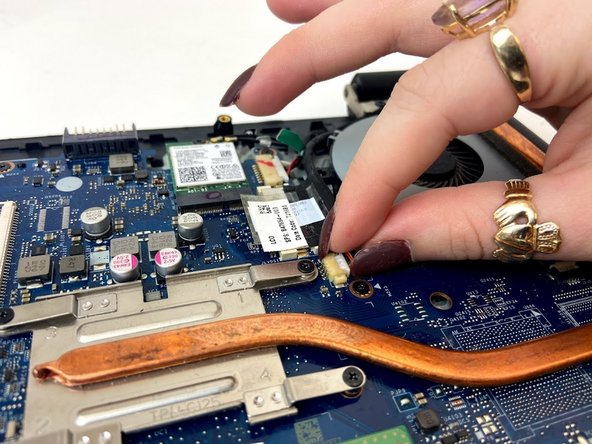
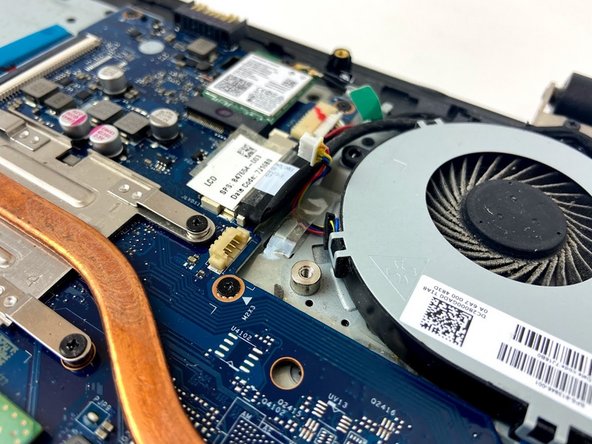
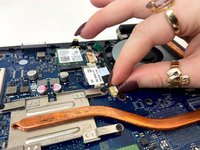
    5. HP 15-ay114cy Fan Replacement, Remove the Fan Wire: crwdns2935265:08crwdnd2935265:01crwdnd2935265:03crwdne2935265:0 HP 15-ay114cy Fan Replacement, Remove the Fan Wire: crwdns2935265:08crwdnd2935265:02crwdnd2935265:03crwdne2935265:0 HP 15-ay114cy Fan Replacement, Remove the Fan Wire: crwdns2935265:08crwdnd2935265:03crwdnd2935265:03crwdne2935265:0
      • Using your index finger and thumb, carefully grab the wire that connects the fan to the motherboard.

      • Using a bit of force, remove the cable from the connector on the motherboard.

      crwdns2952109:0crwdne2952109:0

      crwdns2917038:0crwdne2917038:0

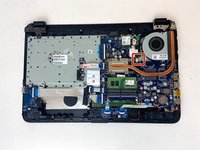
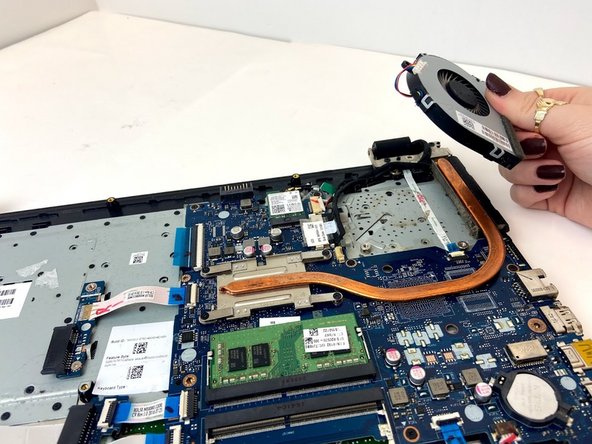
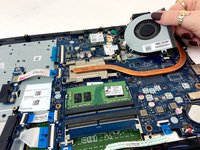
    6. HP 15-ay114cy Fan Replacement, Remove the Fan: crwdns2935265:09crwdnd2935265:01crwdnd2935265:02crwdne2935265:0 HP 15-ay114cy Fan Replacement, Remove the Fan: crwdns2935265:09crwdnd2935265:02crwdnd2935265:02crwdne2935265:0
      • Using your hand, grab one of the fan corners and pull up.

      • Carefully remove the entire fan from the base of the laptop.

      crwdns2952109:0crwdne2952109:0

      crwdns2917038:0crwdne2917038:0

crwdns2915888:0crwdne2915888:0

To reassemble your device, follow these instructions in reverse order.

crwdns2935221:0crwdne2935221:0

crwdns2935229:03crwdne2935229:0

Bradley Evans

crwdns2935283:001/24/20crwdne2935283:0

622 crwdns2915208:0crwdne2915208:0

crwdns2935297:05crwdne2935297:0

crwdns2935287:0crwdne2935287:0

S20S3G#1 crwdns2935289:0S20S3G#1crwdne2935289:0

Local Repair Groups

crwdns2931471:04crwdne2931471:0

crwdns2935297:066crwdne2935297:0

crwdns2947412:00crwdne2947412:0

crwdns2917038:0crwdne2917038:0

crwdns2936625:0crwdne2936625:0:

crwdns2936751:024crwdne2936751:0 1

crwdns2936753:07crwdne2936753:0 13

crwdns2936753:030crwdne2936753:0 45

crwdns2942667:0crwdne2942667:0 1,328